

Link Base Price To Size Instead Of Font
Last updated:
When a sign has two or more fonts, the price of each font is added to the sign price. On Simple Letter customisers, this is the base price of each font. On Advanced Letter customisers, this is the start price of each font. The total price can be higher than you want. You can link this price to the sign size instead of to each font.
Note: Use this setting only for signs that have more than one font.
The steps are different for Simple Letter customisers and Advanced Letter customisers.
Before you start
Do these steps first. The base price option (Simple Letter) or the start price option (Advanced Letter) shows only after you do them.
-
In the Customiser Menu, under Features, click Multi-colour & Fonts.
-
Set Multiple Colour and Font Selections? to Multiple.
-
Click Save.
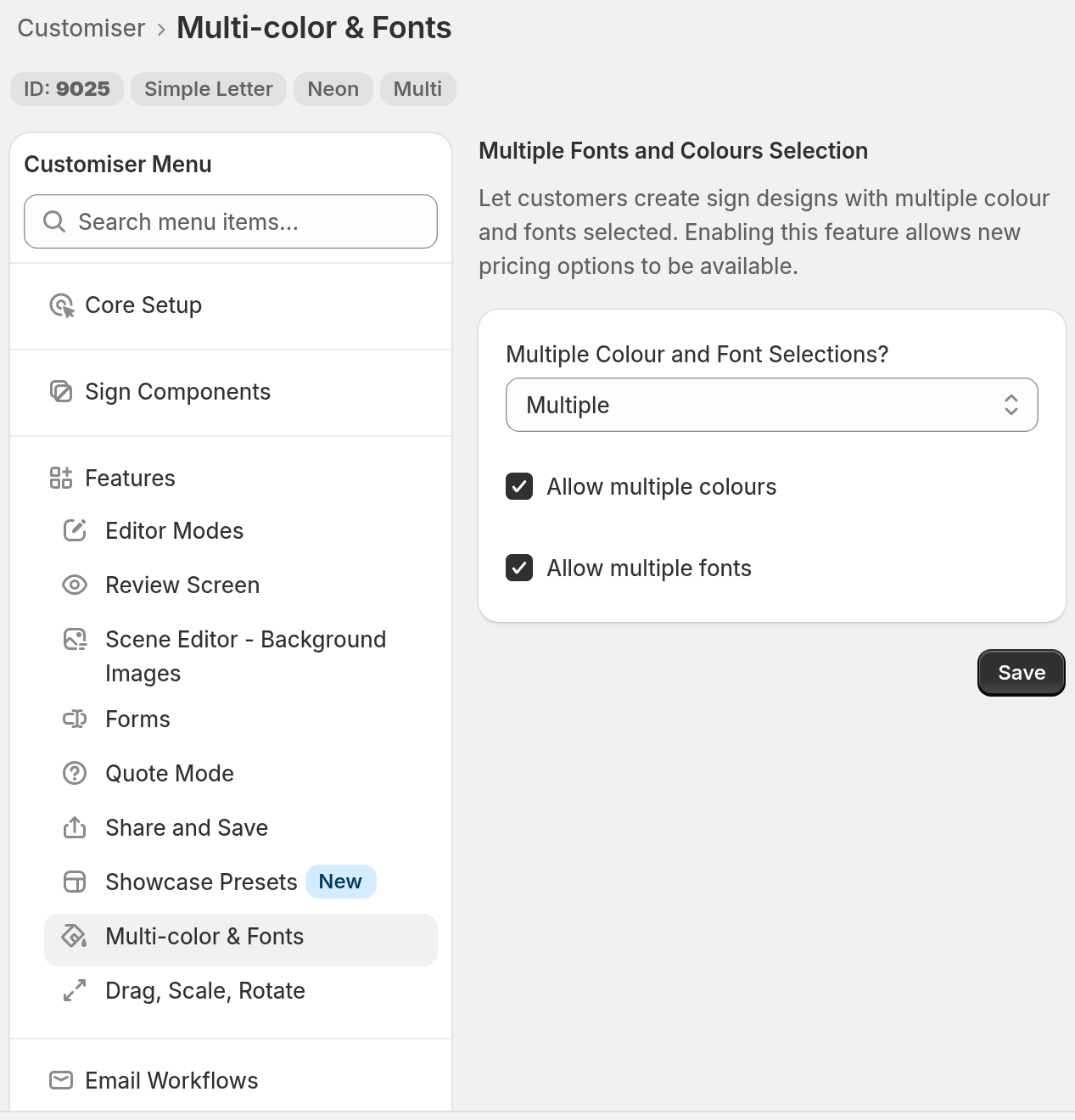
If you cannot choose Multiple, your plan does not include multi-colour and multi-font signs. Change to a current plan to use it.
Then add your sizes. In the Customiser Menu, under Core Setup, click Sizes.
Simple Letter customisers
-
Go to Customisers.
-
Click the name of your customiser.
-
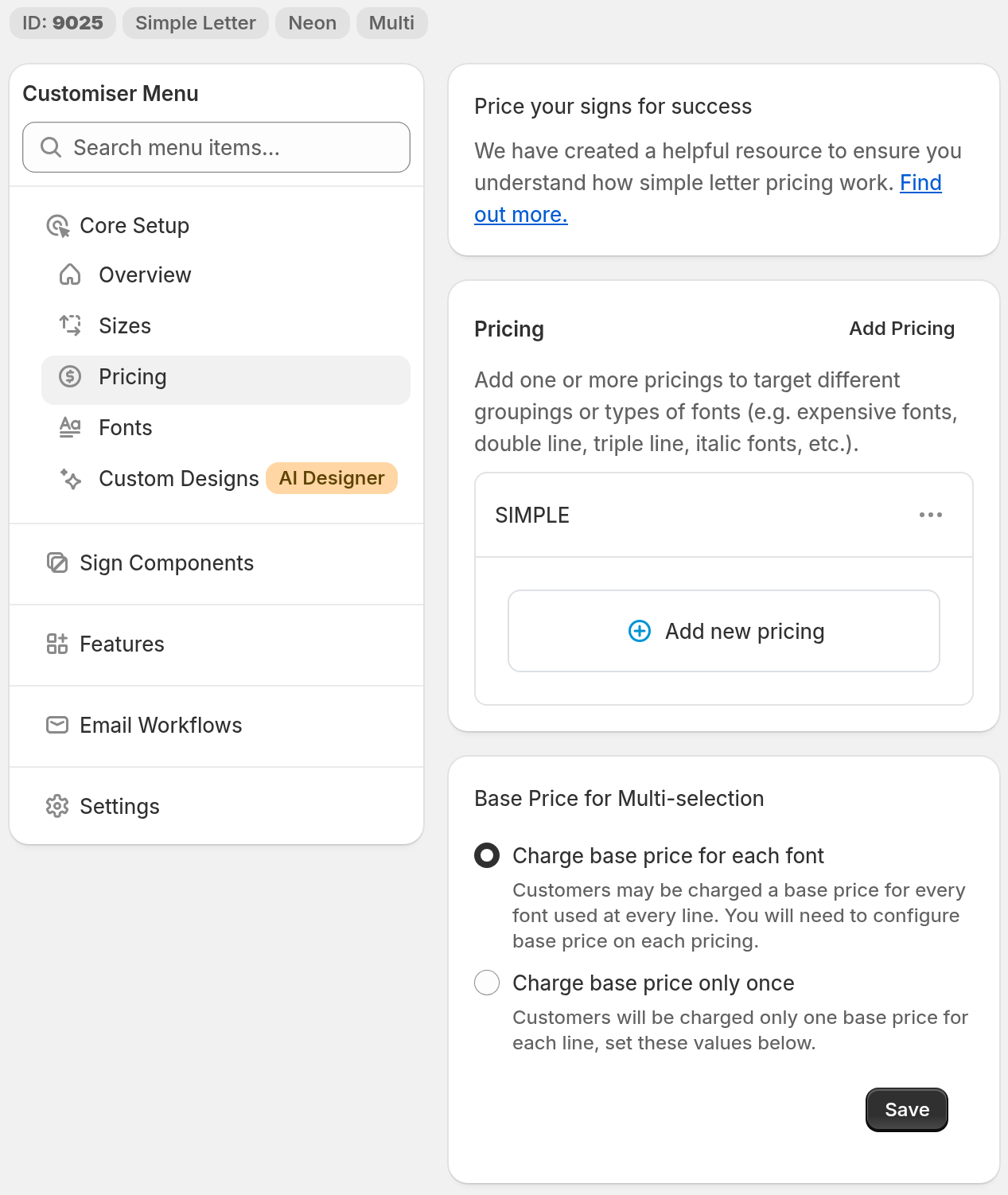
In the Customiser Menu, under Core Setup, click Pricing.
-
Scroll to Base Price for Multi-selection.
-
Select Charge base price only once.
-
Under Base Pricing for each size, find each size.
-
For each line of text, enter a Base Price. The lines are Line 1, Line 2, and so on. Enter 0 if you do not want a base price.
-
Click Save.
After you save Charge base price only once, the Base Price field on each pricing is disabled. For more information, read Pricing - Simple Letter Model.
If the Pricing page shows Add Sizes First, click Add Sizes. Add your sizes, then do the steps again.
Advanced Letter customisers
-
Go to Customisers.
-
Click the name of your customiser.
-
In the Customiser Menu, under Core Setup, click Pricing.
-
Scroll to Start Price for Multi-selection.
-
Select Assign start price to each size (1 start price).
-
Under Size Boundaries, click a size boundary. To add a size boundary, click Add size boundary. Then click the new size boundary.
-
Enter the Maximum Width and Maximum Height for the size boundary. Then enter the Start Price.
-
Click Done.
-
Do steps 6 to 8 for each size boundary.
-
Click Save.
When there is only one size boundary, you cannot change Maximum Width and Maximum Height. When there is more than one size boundary, each Maximum Width and Maximum Height must be greater than 0. Each size boundary after the first must have a Maximum Width and a Maximum Height greater than the size boundary before it. If one value is not correct, Save shows the error “Correct all errors above before submitting again”.
For more information, read Pricing - Advanced letter model.
Note: If your window is less than 799 px wide, click Menu to open the Customiser Menu.