

Multi-colour / Multi-font sign designs
Last updated:
Multi-colour and multi-font signs let customers use more than one colour or font in the same sign. Most sign types support this feature. The admin menu does not show the setting for Lightbox, Metal Cut-Out and Stencil customisers.
How to enable or disable multi-colour and multi-font selections
-
Open the Sign Customiser admin for your Store. Use the Shopify admin or the Universal admin at web.signcustomiser.com.
-
Click Customisers on the home screen.
-
Click the customiser that you want to edit.
-
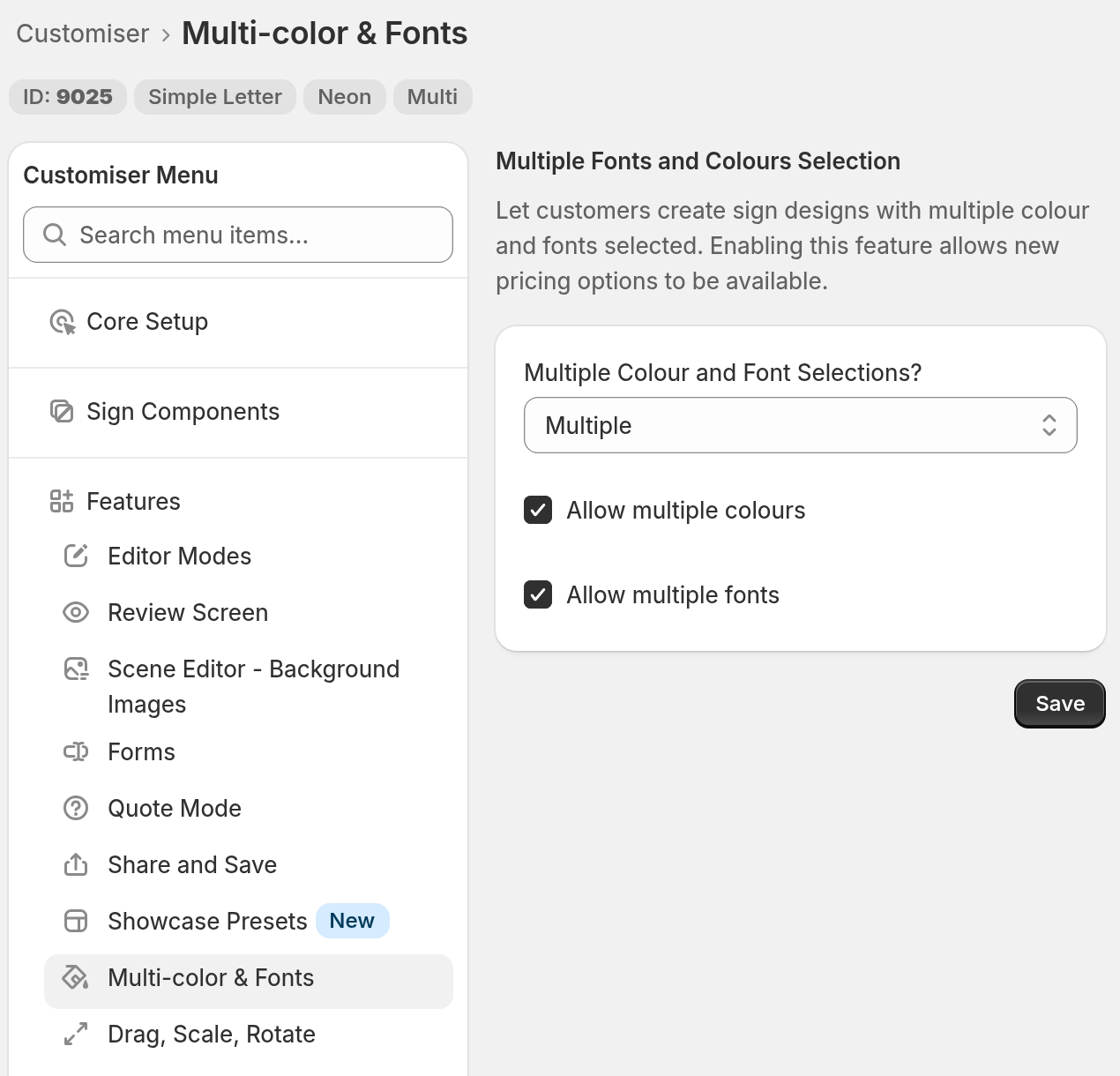
In the left-hand menu, go to Features → Multi-colour & Fonts.
-
Set Multiple Colour and Font Selections? to Single or Multiple.
-
The Multiple option needs a plan that includes multiple colours and fonts. If your plan does not include them, you cannot select Multiple, and a warning shows.
-
To change your plan, go to Your Company → Billing in the Universal admin. In the Shopify admin, go to Subscription/Credit. For more information, read Subscription Plans and Billing Explained.
-
-
If you select Multiple, both check boxes (Allow multiple colours and Allow multiple fonts) are selected. Clear a check box if you want customers to choose only one colour or only one font.
-
Click Save.
More information about multi-colour and multi-font signs
You can preview the customiser at any time. The preview shows your changes after you click Save. If the width of the admin page is 1200 px or more, the preview is on the right of the page. If the admin page is narrower, click Preview. In the Universal admin, the menu takes about 232 px of the window width. Make the browser window about 1432 px wide or wider to see the preview on the right.
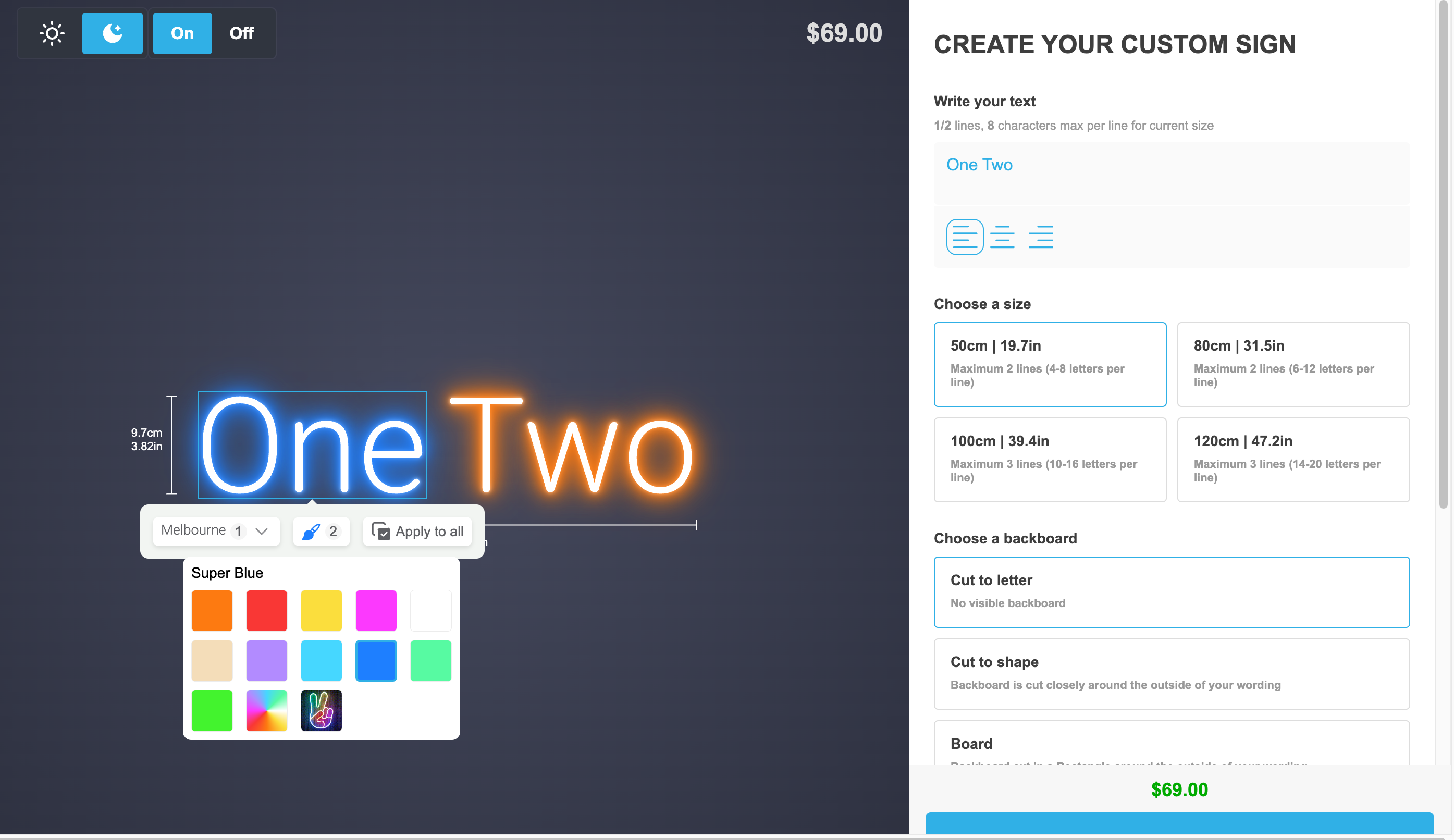
On a computer, customers click a word in the sign. A toolbar opens. The toolbar has a font button, a colour button and a button that applies the style to all words. The colour button opens a panel of colour swatches.
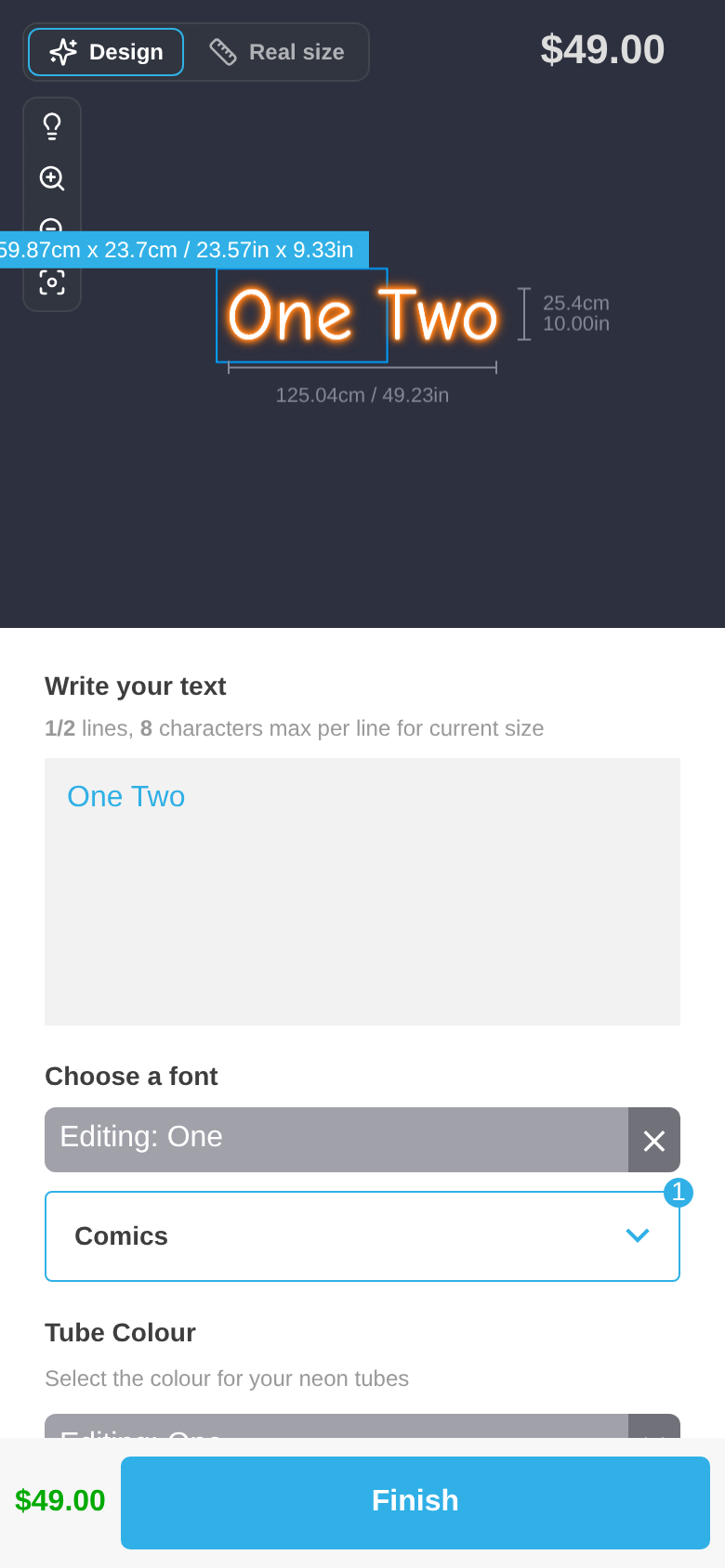
On a phone, or on a screen narrower than 1025 px, customers tap a word. The font step and the colour step then show an Editing bar with the name of the word. The choices apply to that word.
Labels
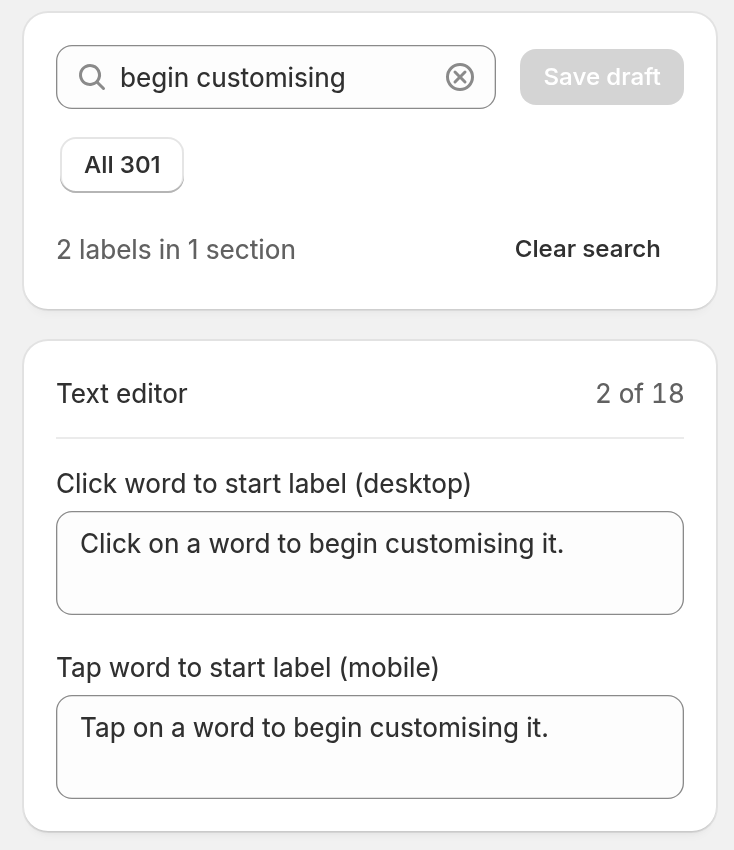
You can change the text of the prompts and of the apply button. Go to Settings → Languages. Click Edit next to a language. Use the search box to find a label. These three labels are in the Text editor section:
-
Button for applying style to all words. The default text is “Apply to all”.
-
Click word to start label (desktop). The default text is “Click on a word to begin customising it.”
-
Tap word to start label (mobile). The default text is “Tap on a word to begin customising it.”
The Selected word notification label sets the “Editing” text of the Editing bar. This label is in the General labels section. After you edit a label, click Save draft. When the language is ready, click Publish. Customers see only published languages.
Allow multiple colours and fonts
Both check boxes are on the Features → Multi-colour & Fonts page, below Multiple Colour and Font Selections?. The picture in step 4 shows them. When you select Multiple, both check boxes are selected.
-
Allow multiple colours
- If you clear this check box, customers can choose only one colour.
-
Allow multiple fonts
- If you clear this check box, customers can choose only one font.
If you clear both check boxes, the customiser saves as Single.
Font pricing
Font prices apply to Simple Letter and Advanced Letter customisers. First, go to Pricing in the customiser menu. For Simple Letter, set up the font tiers. For Advanced Letter, set up the length pricing. Then go to Fonts in the customiser menu, open each font and select the rule under Assign a pricing.
If a customer chooses more than one font, the customiser calculates the price of each word from its font. The customiser then adds the word prices together. It also adds a base price for each font that the sign uses. For Simple Letter, it adds the base price once for each line that uses the font. For Advanced Letter, it adds the base price once for each font on the sign. To charge one base price for each line instead, select Charge base price only once on the Pricing page of a Simple Letter customiser. To charge one start price for the sign instead, select Assign start price to each size (1 start price) on the Pricing page of an Advanced Letter customiser. These options show only when the customiser is set to Multiple.
For Frame Fit, the font does not change the price. The Pricing page of a Frame Fit customiser has length pricing. For each pricing model, read Pricing and Sizing - Model Overview.
Colour pricing
A colour can have a price modifier. On a neon customiser, go to Sign Components → Tube Colours. Click a colour and find Pricing (optional). The choices are None, Base Price and Price Multiplier. In the examples below, the sign has three words: “One Two Three”.
Base prices
The customiser adds a base price once for each colour option.
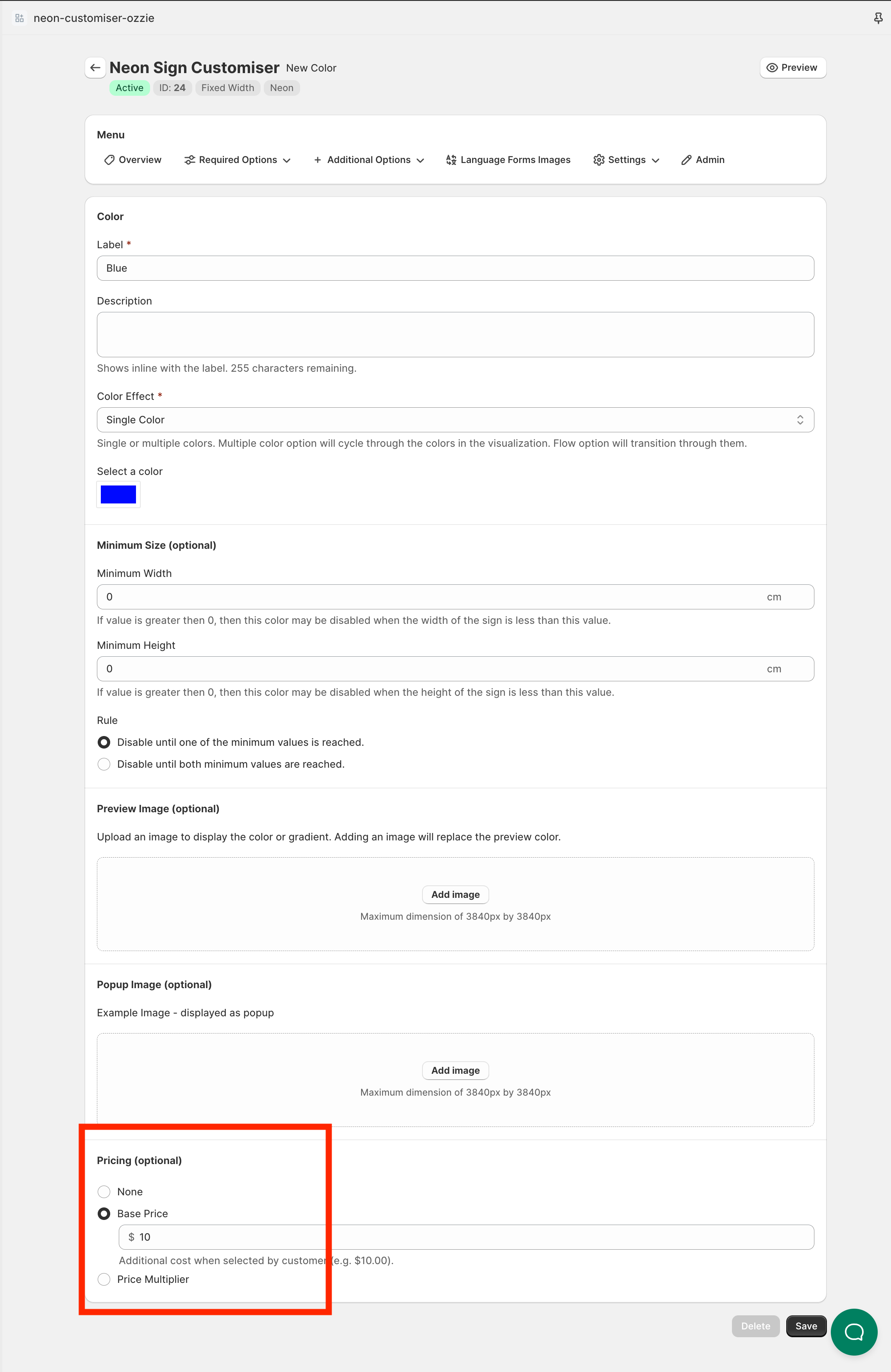
For example:
-
The colour “Orange” has no price modifier.
-
The colour “Blue” has a base price of $10.
“One” and “Three” are Blue. “Two” is Orange. The customiser adds the $10 base price only once, although two words are Blue.
Letter price multiplier
For a price multiplier, you can set Price Multiplier Target to Letter Price Only. The customiser applies the multiplier once for each colour on the sign. It applies the multiplier to the letter price of the whole sign. The letter price includes the materials and the font cost of every word.
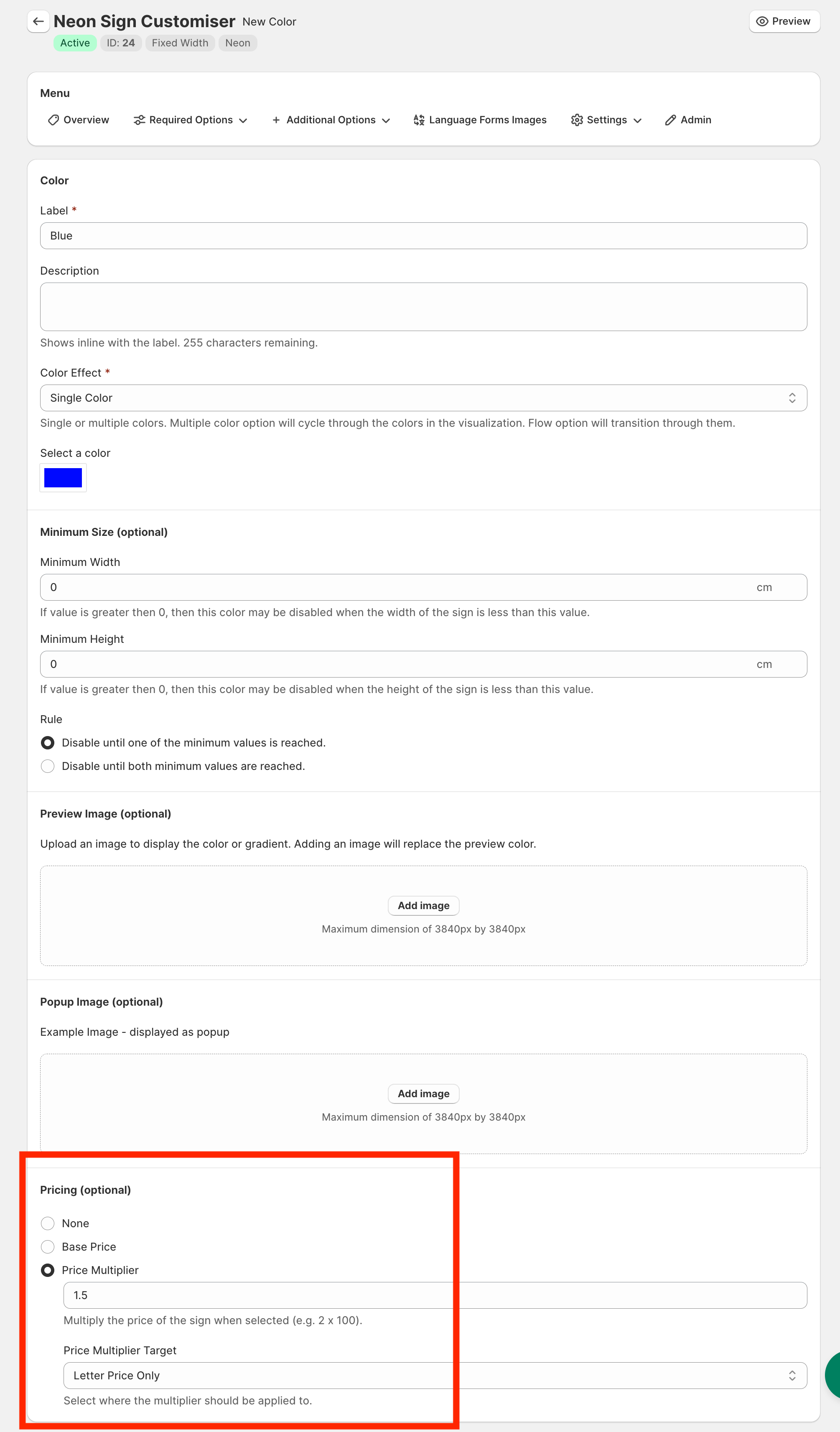
For example:
-
The colour “Orange” has no price modifier.
-
The colour “Blue” has a multiplier of 1.5.
“One” and “Three” are Blue. “Two” is Orange. The customiser applies the Blue 1.5 multiplier once to the letter price of “One Two Three”. It does not apply the multiplier to “One” and “Three” only.
Final price multiplier
For a price multiplier, you can set Price Multiplier Target to Final Price (includes additional costs from other options). The customiser applies the multiplier once for each colour.
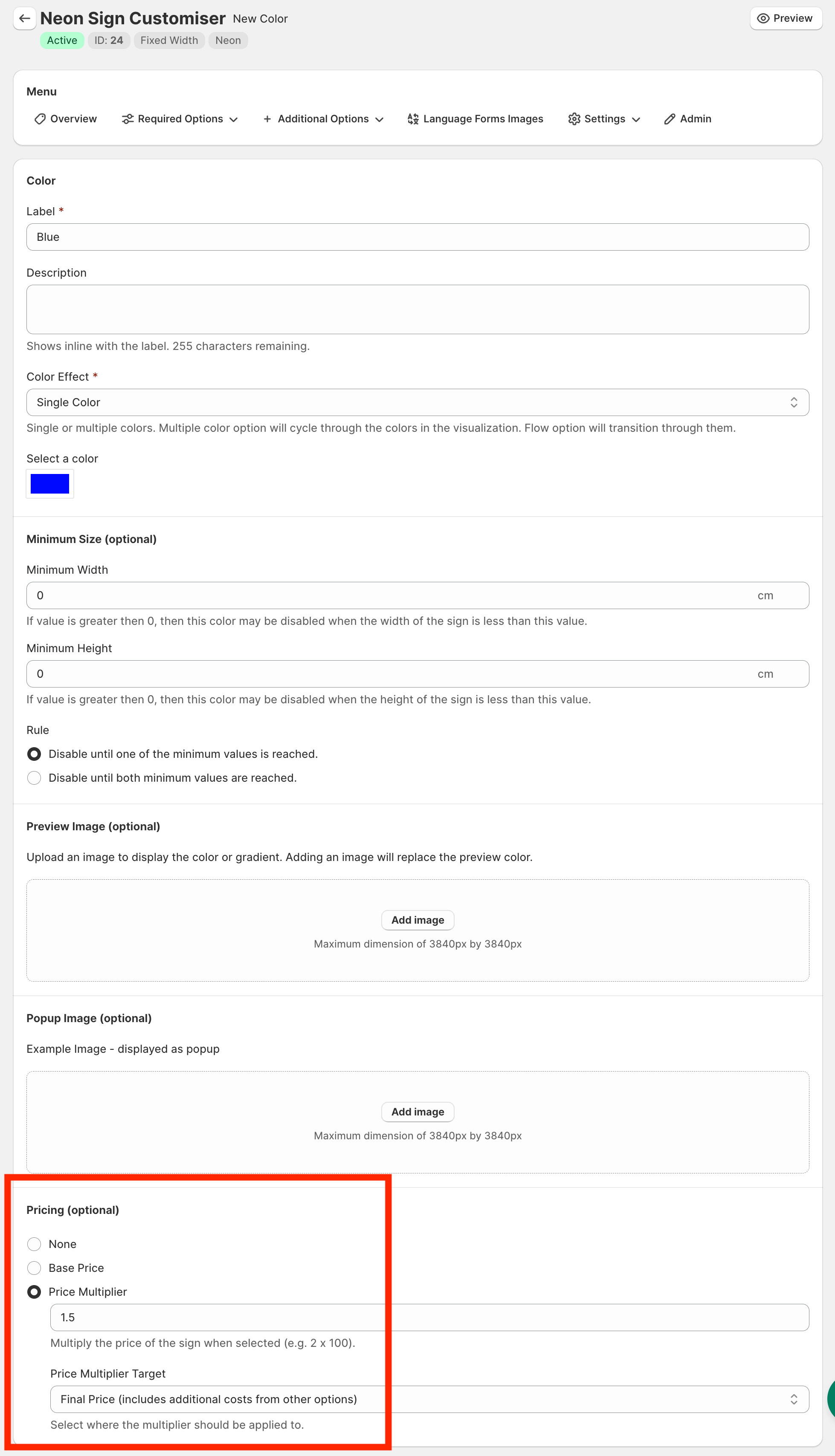
For example:
-
The colour “Orange” has no price modifier.
-
The colour “Blue” has a multiplier of 1.5.
“One” and “Three” are Blue. “Two” is Orange. The customiser applies the Blue 1.5 multiplier to the final cost of the sign only once, although two words are Blue.