Customer uploaded images for lightboxes
Let customers upload images on the individual sides of the lightbox.
Last updated:
Use these steps to let customers upload an image to a side of a lightbox.
You can let customers upload an image to the Face side and the Back side of any lightbox. You can also let them upload to the Left side and the Right side of Rectangle / Square lightbox types. The admin shows the Allow image uploads setting only for these four sides. For example, the Side part of a circle lightbox does not have this setting.
Uploads are off for each side until you turn them on. A side must also be active.
-
Open the Sign Customiser admin for your Store.
-
In the main menu, click Customisers.
-
Click the customiser that you want to change.
-
In the customiser menu, go to Sign Components → Lightbox Types.
-
Click the lightbox type that you want to change. The edit page for this type opens.
-
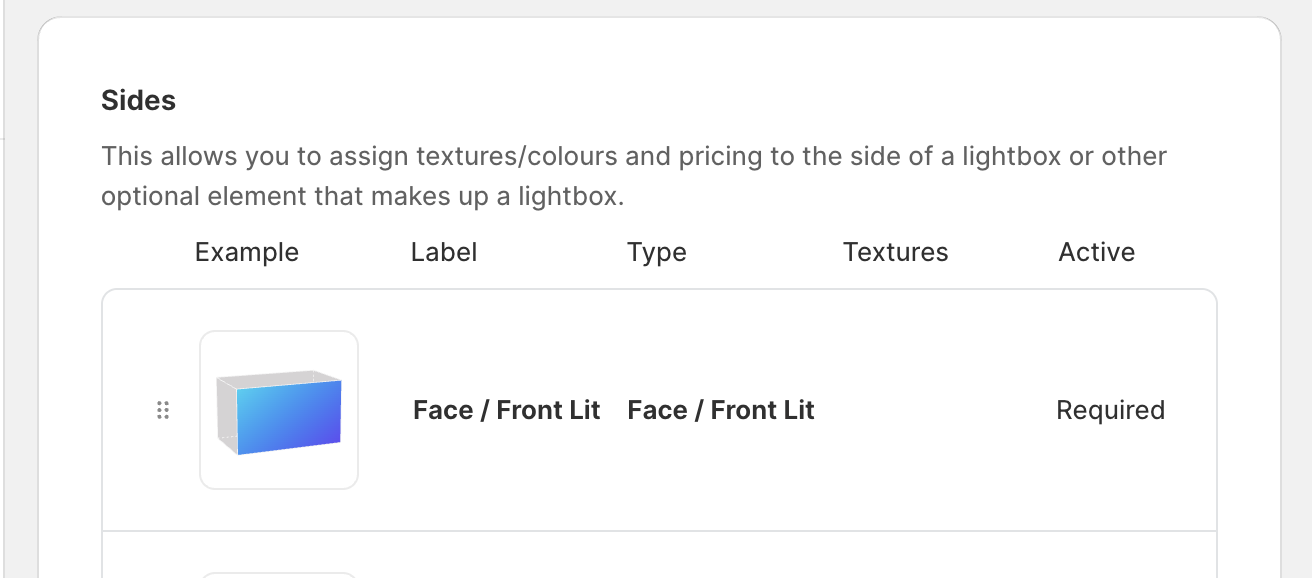
In the Sides list, find the side that you want to change. For example, find Face or Back.
-
Make sure that the switch in the Active column is on for this side. If you change the switch, click Save at the bottom of the page before you go on.
-
Click the side to open it.
-
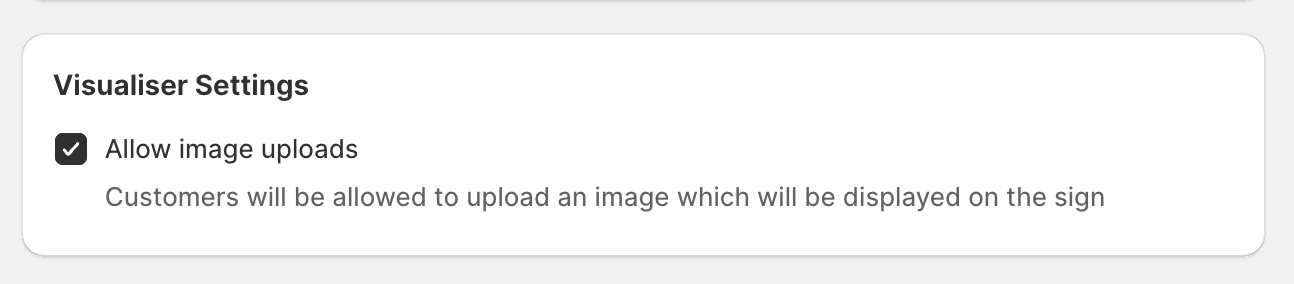
Scroll down to Visualiser Settings. Make sure that Allow image uploads is ticked.
-
Optional: to change the placeholder that customers see, keep Show default upload image to customers ticked. Then upload an image in Default upload image. This box is ticked by default.
-
Optional: to hide the placeholder, untick Show default upload image to customers.
-
Click Save at the bottom of the form.
-
Go back to the lightbox type page. Do steps 6 to 12 again for each side that customers can upload to.
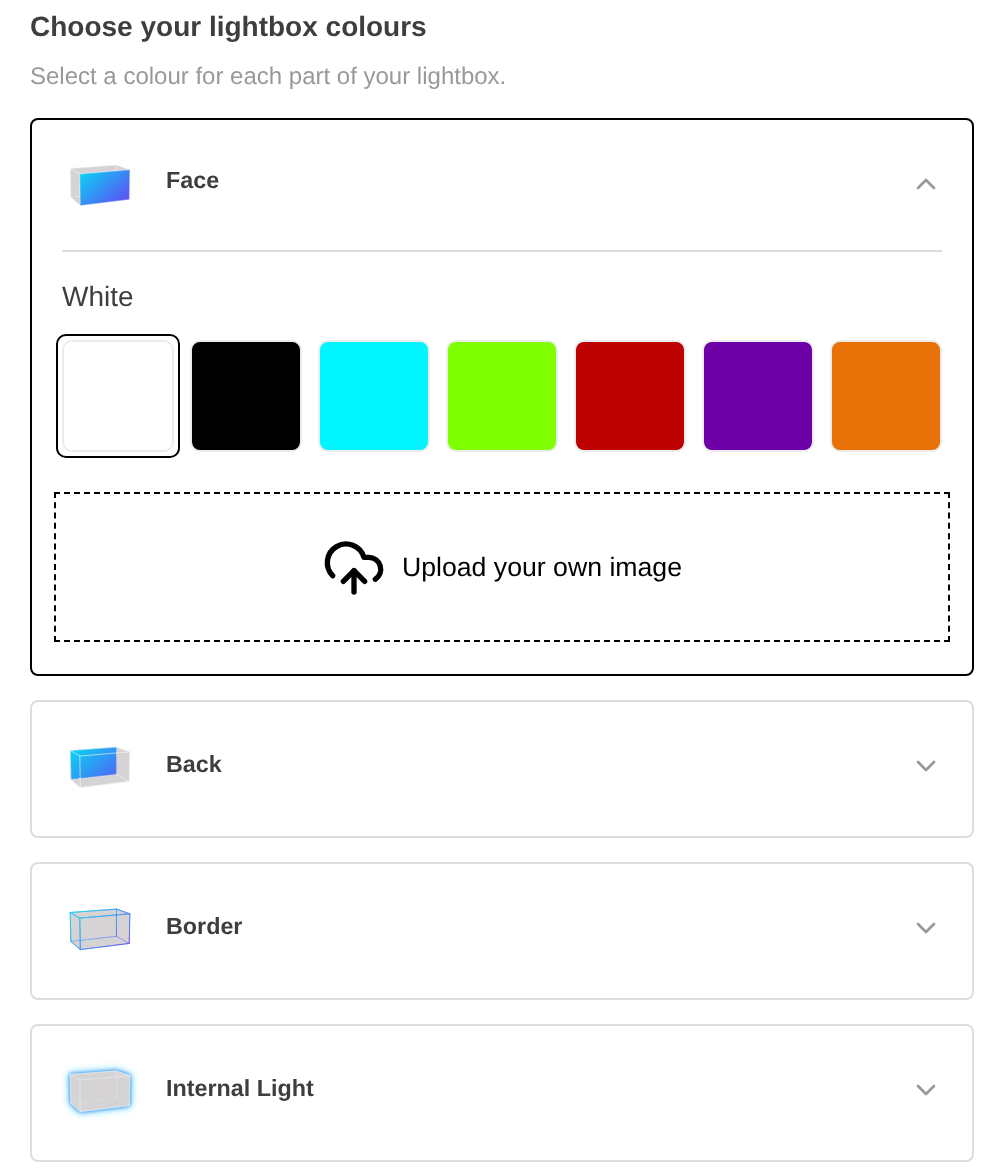
What customers see
Each active side that allows uploads shows an upload area in its colour list. Customers click the area and choose an image. They resize the image in the crop window and click Confirm. The image then shows on that side of the sign.