

Change A Font's Line Height / Line Spacing
Change the line height of a font to adjust the space between lines of text in a customiser.
Last updated:
Line height is the space between the lines of text in a sign. Set the line height for each font.
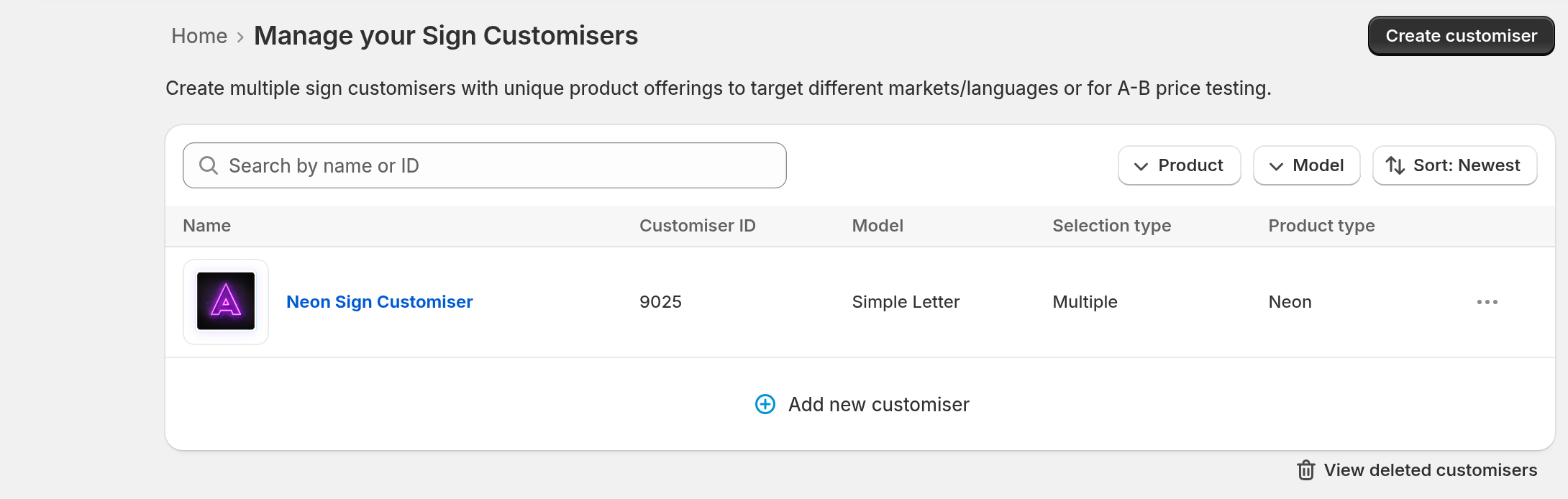
1. In the sidebar, click Customisers. Then click the name of the customiser that you want to change:
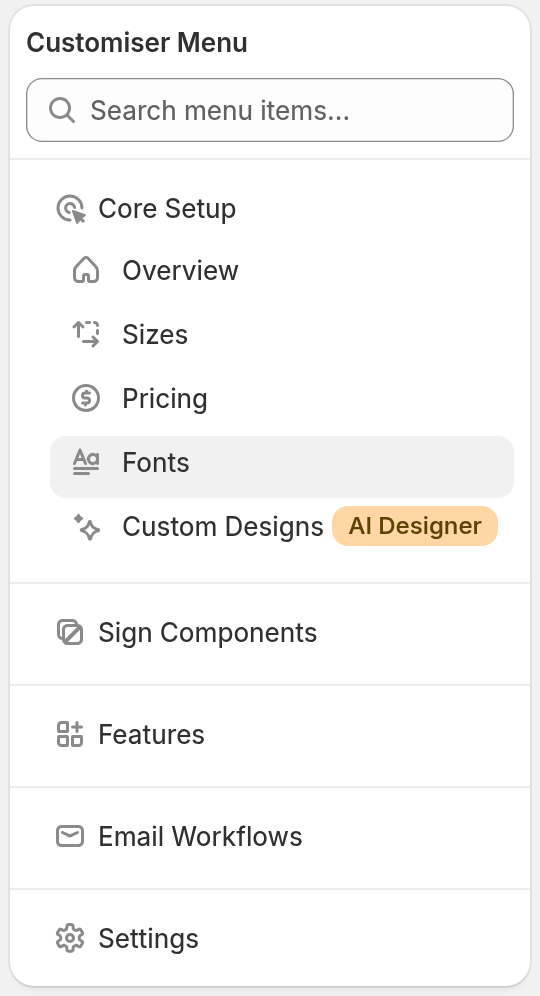
2. On the customiser page, find the menu on the left. Under Core Setup, click Fonts. If the menu is not shown, click Menu. Then click Fonts:
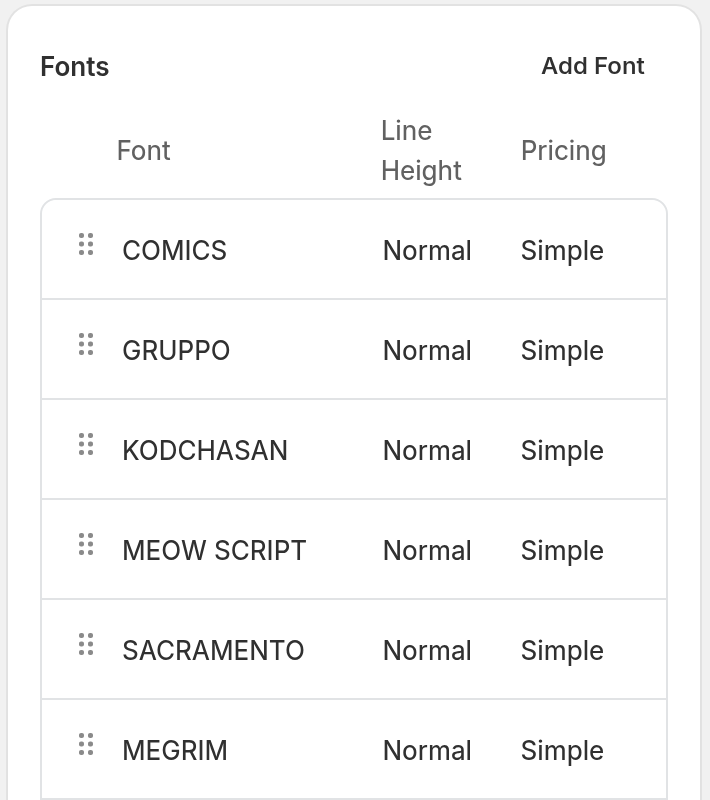
3. Click the row of the font that you want to change. The Line Height column shows Normal or the saved number:
4. On the Edit Font page, find the Font Style section. Under Line Height, select Specific Line Height. Enter a decimal value in the field. Then click Save:
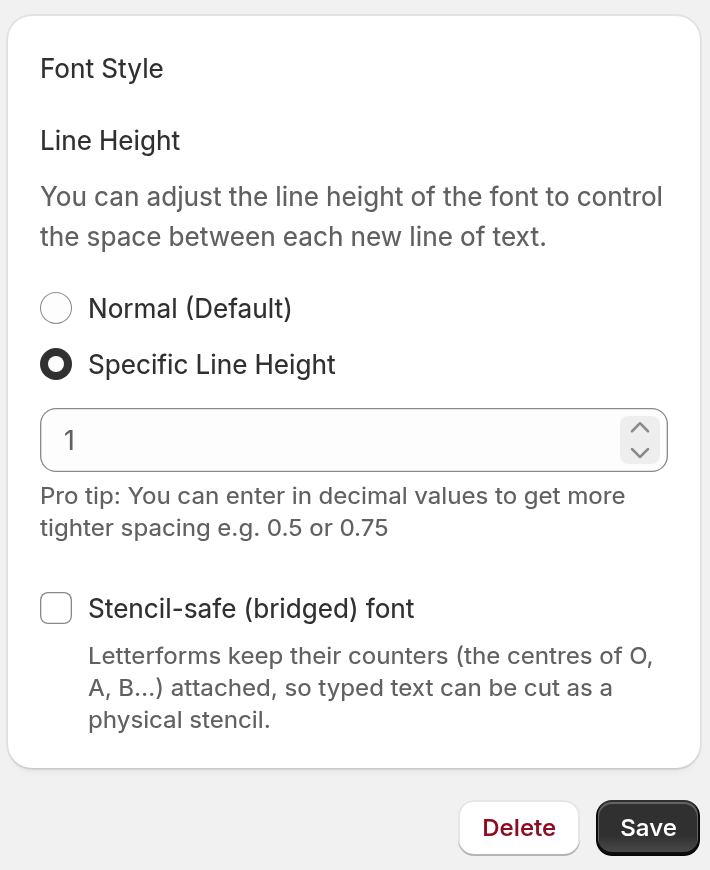
A smaller value puts the lines closer together. For example, enter 0.5 or 0.75. A larger value puts the lines farther apart. To use the default spacing again, select Normal (Default). Then click Save.
This setting applies to the font that you edit. If a customer can use more than one font in a sign, the customer customiser uses the largest line height of those fonts for the space between all lines. This setting does not change the line spacing of lightbox face text.
To change how the height of a multi-line sign is measured, open the Sizes page and click the size that you want to change. For a customiser that uses the Simple Letter model, set Size Strategy to Fixed Height - Width scales dynamically. Then use the Multi-line height measurement option.