

Create Shopify discounts for custom sign products
Last updated:
For Shopify stores that are not on a Starter or Retail plan, limit an Amount off products discount to Sign Customiser Products or to a collection with the name of one of your customisers. Sign Customiser normally adds each new sign to these collections when it creates the product. If it cannot prepare a collection, it creates the sign with its tags only and tries again later.
Use the collections managed by Sign Customiser
Do not use a smart collection that has product type or tag rules to target a discount. Use the collections that Sign Customiser manages. These collections have no rules.
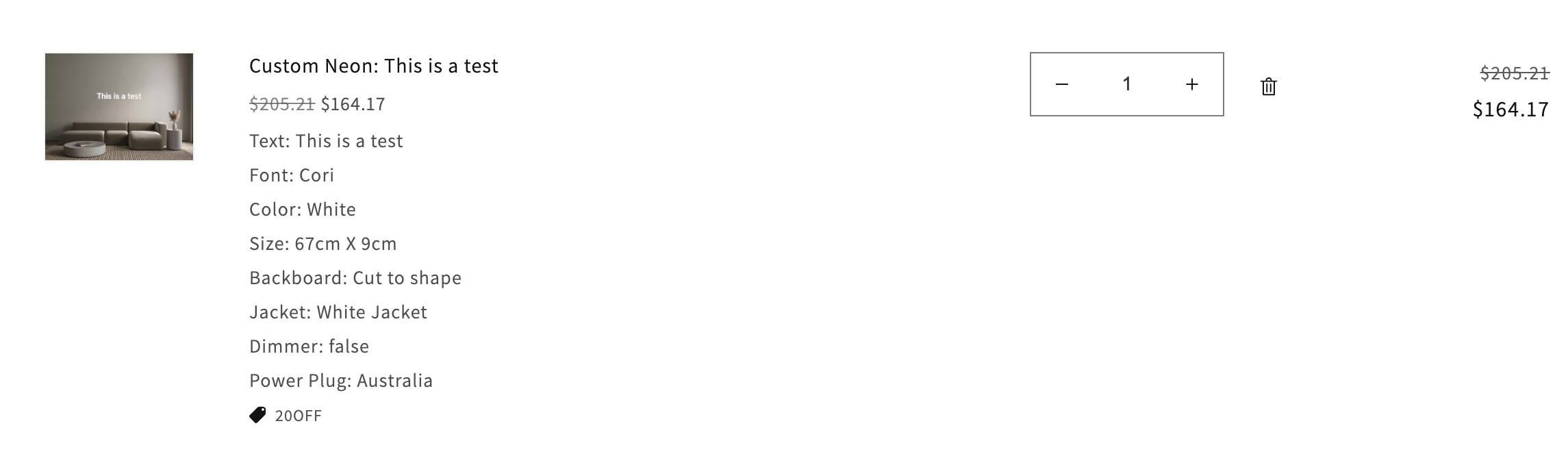
A shopper cart. The sign shows a 20OFF discount and the reduced price.
Choose which signs receive the discount
-
Every generated sign: select Sign Customiser Products.
-
One customiser: select the collection with the same name as that customiser.
-
Several customisers: add each named customiser collection to the same discount.
Sign Customiser creates the store-wide collection when it prepares the Shopify integration. If that collection does not exist yet, the first sign creates it. Sign Customiser creates the named collection of a customiser when that customiser generates its first product. If the named collection is not yet in the collection list of Shopify, generate the first sign. Then return to the discount.
On a Shopify store that is not on a Starter or Retail plan, the Settings → Discounts page of each customiser names both collections. When Shopify has created a collection, its name is a link. Find the Shopify discounts card. The collections are under Apply the discount to.
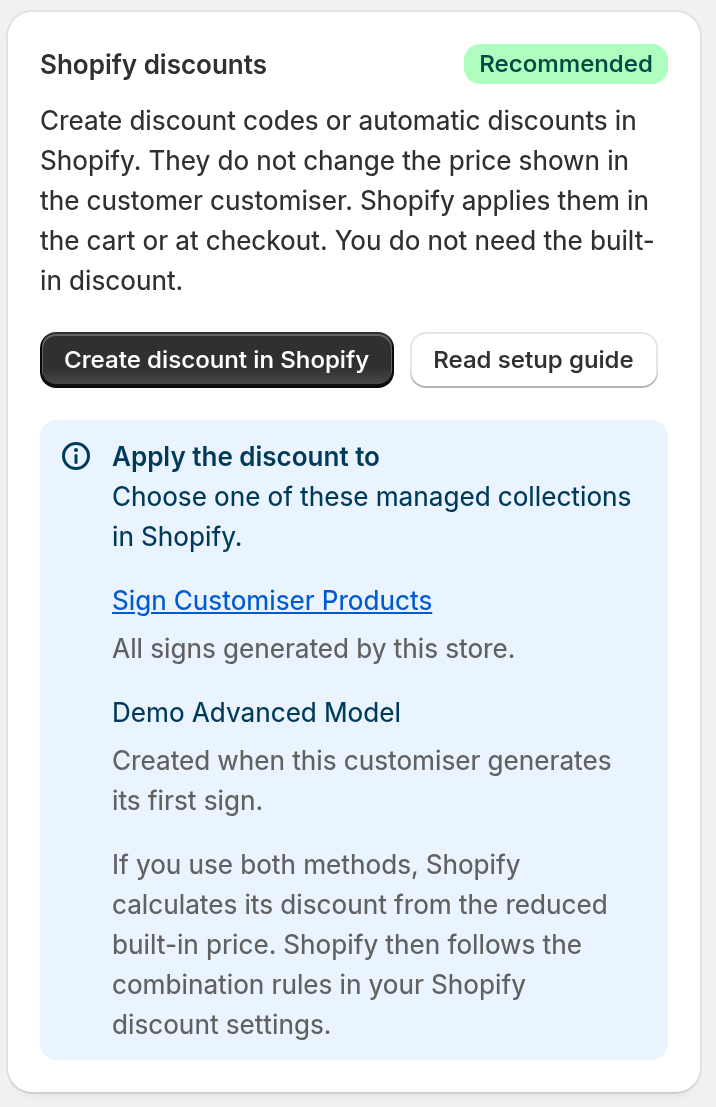
The Shopify discounts card. A collection that Shopify has not created yet shows a line that says when Sign Customiser creates it.
Set up an automatic discount
-
In Shopify admin, go to Discounts and select Create discount.
-
Choose Amount off products, then choose Automatic discount as the method.
-
Set the discount value, requirements, combinations and dates.
-
Under Applies to, choose Specific collections and add the managed collection or collections you need.
-
Select Save. Then add a newly generated sign to the cart to test the discount.
Set up a discount code
-
In Shopify admin, create an Amount off products discount.
-
Choose Discount code as the method.
-
Under Applies to, choose Specific collections and add Sign Customiser Products or the named customiser collections you need.
-
Select Save. Then test the code with a newly generated sign.
Discount all products only when it fits the offer
Sign Customiser does not create managed collections for Shopify Starter or Retail stores. For these stores, the Settings → Discounts page says to scope your discount to “All products” instead. This covers every product in your store, not only custom signs. It also fits a promotion for the whole store. On other stores, use the managed collections to discount generated signs only.
Avoid the older targeting methods
-
Specific products: every sign creates a new product, so a saved list cannot cover future signs.
-
Smart collections that you build: these add products by rules, such as tags or product type. Use the managed collections instead.
Check unrelated smart collections
Sign Customiser gives every sign it creates the tag sign-customiser-generated. If a smart collection of your own has tag or product-type rules, check that it does not include these signs by mistake.
Keep the built-in price discount separate
The built-in price discount of Sign Customiser changes the price that the shopper sees while they design a sign. It applies to one customiser only. Shopify automatic discounts and discount codes do not change that price. Shopify applies discount codes at checkout.
The built-in price discount sets the price of the generated product before Shopify receives it. Shopify follows the combination rules in your Shopify discount settings.
See Shopify discounts vs built-in price discounts to set the price that the shopper sees in the customer customiser. Set it in Sign Customiser under Customisers → your customiser → Settings → Discounts.
If the Shopify discount does not apply
-
Make sure that the discount is an Amount off products discount. Make sure that Applies to includes the correct managed collection.
-
In Shopify, check the dates, minimum requirements and combinations of the discount. For a discount code, also check the maximum discount uses.
-
Test with a newly generated sign.
-
If someone deleted a managed collection in Shopify, Sign Customiser creates a replacement when it next generates a sign. Sign Customiser does not change your existing discounts. Select the new collection in the discount.
-
If the Settings → Discounts page shows a warning about managed collections, a managed collection is usually missing because someone deleted it in Shopify. Sign Customiser tries to restore the collection. After the warning clears, test with a new sign.