Request essential information - Advanced model
This guide explains how to collect the information required from your manufacturer to configure the Advanced Letter Model customiser.
Last updated:
If you are using the Simple Letter pricing model, follow the Request Essential Information – Simple Letter Model guide instead.
The Advanced Letter Model relies on accurate font measurements, material pricing and shipping data supplied by your manufacturer. This information is used to calculate real-world sign dimensions and pricing.
Step 1: Choose Your Manufacturer
Your manufacturer is responsible for producing and shipping signs to your customers. We have compiled a directory of professional sign manufacturers worldwide here: Find Sign Makers.
This directory includes:
-
Manufacturing specialities
-
Shipping zones
-
Contact details
Use the supplier contact details to request pricing and production information for your signs.
Step 2: Create a Copy of the Essential Information Sheet
We provide a sample spreadsheet template that your manufacturer can complete with the required pricing, sizes, shipping and font information.
To get started, follow the steps below.
2.1 Make Your Copy
-
Open the template here: Advanced Model - Essential information.
-
Go to File → Make a copy.
-
Name your file.
This copy will be the version you send to your manufacturer.
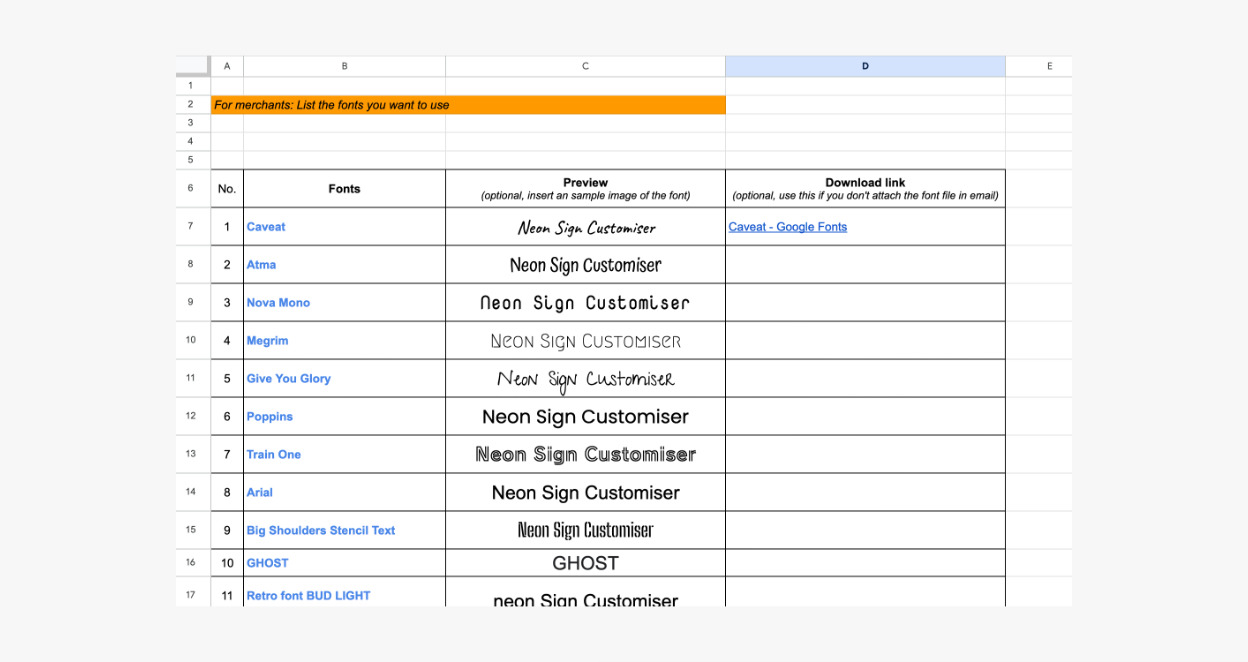
2.2 Add Your Fonts
In the Fonts tab of the spreadsheet:
-
Replace the example fonts in the Fonts column with your own fonts.
-
Add a visual preview of each font in the Preview column.
-
Add a Download Link for each font so your supplier can test measurements and calculate prices.
If you cannot provide a link, you can attach the font files to your email instead.
Important
Before sending fonts to your manufacturer, make sure the fonts are compatible with Sign Customiser.
We recommend uploading and testing each font inside the customiser first to ensure:
The font renders correctly on the storefront
Measurements calculate properly
SVG generation works as expected
Step 3: Send the File to Your Supplier
The remaining tabs in the spreadsheet are intended for your supplier to complete, including:
-
Text Size
-
Tier
-
Price Per Letter
-
Letter Material Cost
-
Shipping
Once you have added your fonts, you are ready to share the spreadsheet with your manufacturer.
Create a Shareable Google Sheets Link:
-
Open your Google Sheet.
-
Click the Share in the top-right corner.
-
Under General access, select Anyone with the link.
-
Set the access role: Editor.
-
Click Copy link.
-
Click Done.
Paste this link in an email to your manufacturer.
You can use the email template below when sending your message.
Email Template:
Subject: Request for Custom Sign Information
Dear [Supplier Name],
I am setting up custom signs for my business using the Sign Customiser app and require some manufacturing information from you, including pricing, shipping details and font measurements.
To make things easy, I have created a spreadsheet template for you to fill in with the necessary details. You can access the spreadsheet file at this link:[insert link to sheet file]
Please fill in the required information and return the completed sheet when possible.
If you have any questions or concerns, feel free to contact me.Thank you for your assistance.
Best regards,[Your Name]
Step 4: Create Your Advanced Letter Model Customiser
Once your supplier returns the completed sheet, you can begin configuring your customiser using the provided data.
Follow the main setup guide to get started: Getting Started with the Advanced Letter Model.
Below explains where each section of the spreadsheet is used in the customiser.
4.1 Add Pricing
Use the manufacturer’s pricing data from the following spreadsheet tabs:
-
Price Per Letter
-
Letter Material Cost
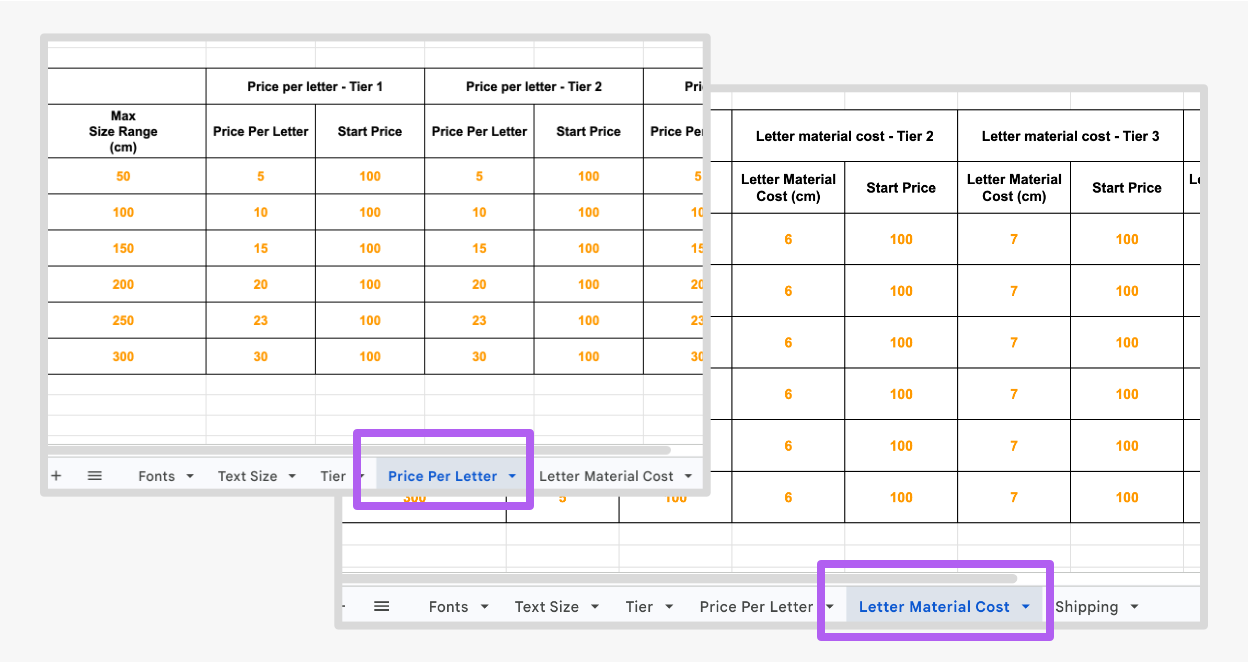
You may need to create multiple pricing rules if the supplier divides your fonts into different tiers with different prices.
For detailed steps on configuring pricing in the customiser, see Pricing - Advanced Letter Model.
4.2 Add Fonts
Using the information in the Fonts and Text Size tab:
-
Upload your fonts to the customiser
-
Configure the font measurement values
-
Assign each font to the correct pricing tier based on the manufacturer’s information.
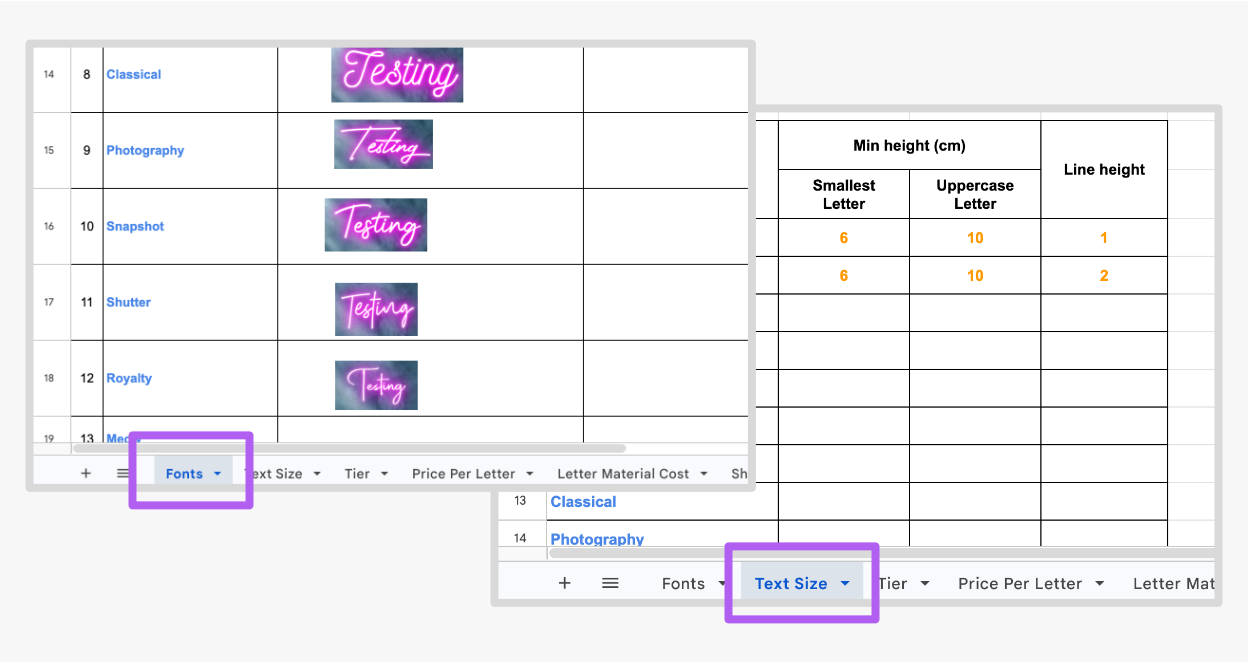
For detailed steps on uploading and setting up fonts in the customiser, see Fonts - Advanced Model.
4.3 Add Shipping
Shipping costs are currently configured as part of the sign pricing structure. Depending on your pricing strategy, shipping costs can be added through:
-
Price Per Letter
-
Letter Material Cost
-
Shipping configuration inside the pricing settings
For detailed steps on configuring shipping cost in the customiser, see Pricing - Advanced Letter Model.
Step 5: Test Your Pricing
After completing the setup, thoroughly test your customiser to ensure pricing and dimensions match your manufacturer’s specifications.
We strongly recommend testing:
-
Different fonts
-
Different sizes
-
Uppercase and lowercase combinations
-
Various text lengths
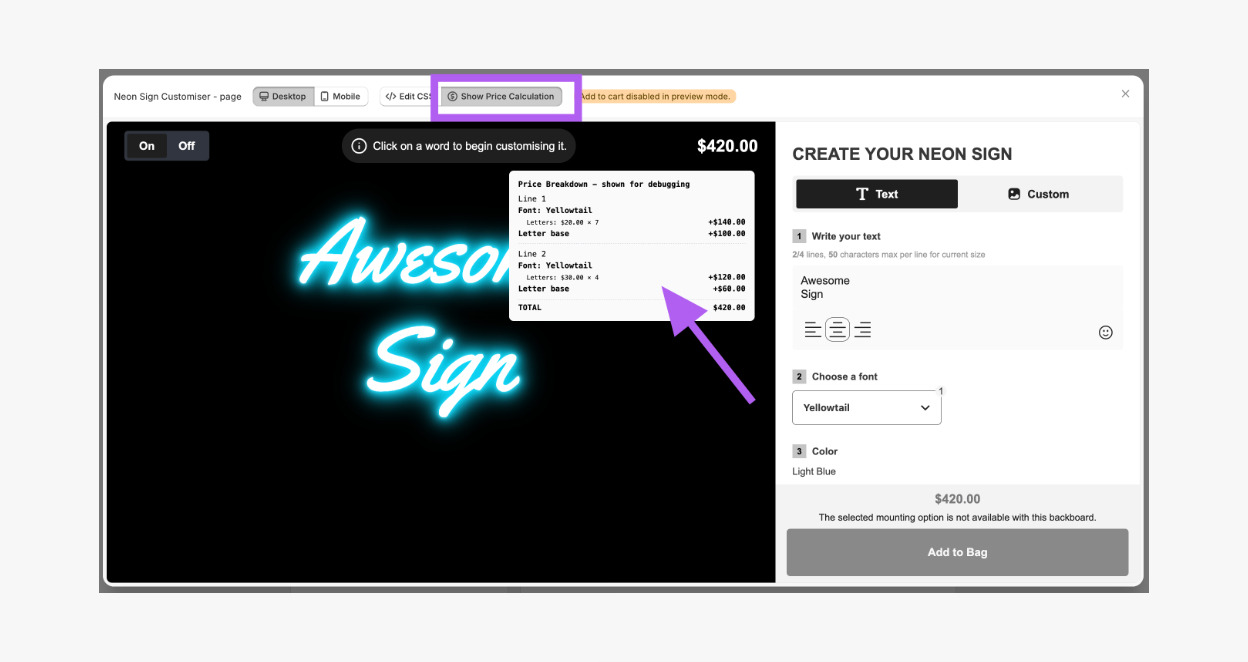
View the Sign’s Price Breakdown
You can view how the final price of a sign is calculated by using the built-in price breakdown tool:
-
Open Preview mode
-
Click the Show Price Calculation
-
The price breakdown is shown in the pop-up window.