

Getting Started with the Advanced Model
Last updated:
The Advanced Letter Model is for merchants who need flexible pricing and scalable sign dimensions. The Simple Letter Model uses predefined sizes. The Advanced Letter Model calculates the dimensions and the price from the selected font, text, and size.
This guide shows the main steps to build an Advanced Letter Model customiser. First, collect information from your supplier. Then set up Pricing, Sizes and Fonts.
How the Advanced Letter Model Works
The Advanced Letter Model uses the characteristics of each font, the text, and the selected size. It uses these data to calculate the dimensions and the price. The customer customiser shows the calculated size.
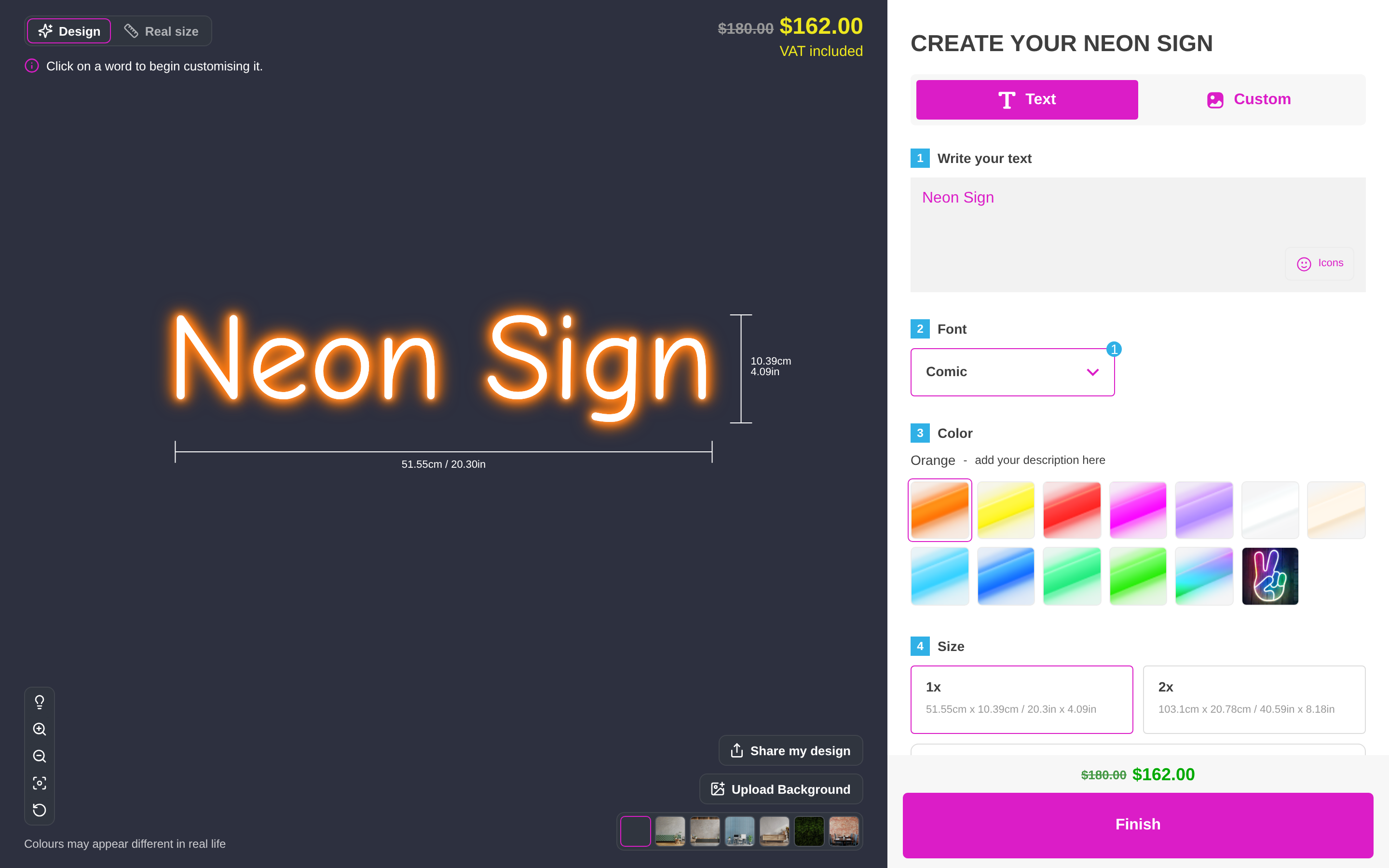
You can configure:
-
Pricing – Create flexible pricing rules based on letter cost or actual material length.
-
Sizes – Create scalable size options. Control how large or small customers can make their signs.
-
Fonts – Add your fonts. Set the measurements that the app uses to calculate the final sign dimensions.
Step 1: Prepare Your Sizing and Pricing Information
Before you set up your customiser, collect the information for your pricing, sizes, and fonts.
We made a guide and an information sheet. Use them to ask your supplier for this information:
Request essential information - Advanced model
Step 2: Configure the App Settings
When your data is ready, add it to the app.
-
Go to Customisers.
-
Select your customiser.
-
Find the menu on the left. On a wide window, its heading is Customiser Menu. The sizes, pricing, fonts, and custom design settings are under Core Setup.
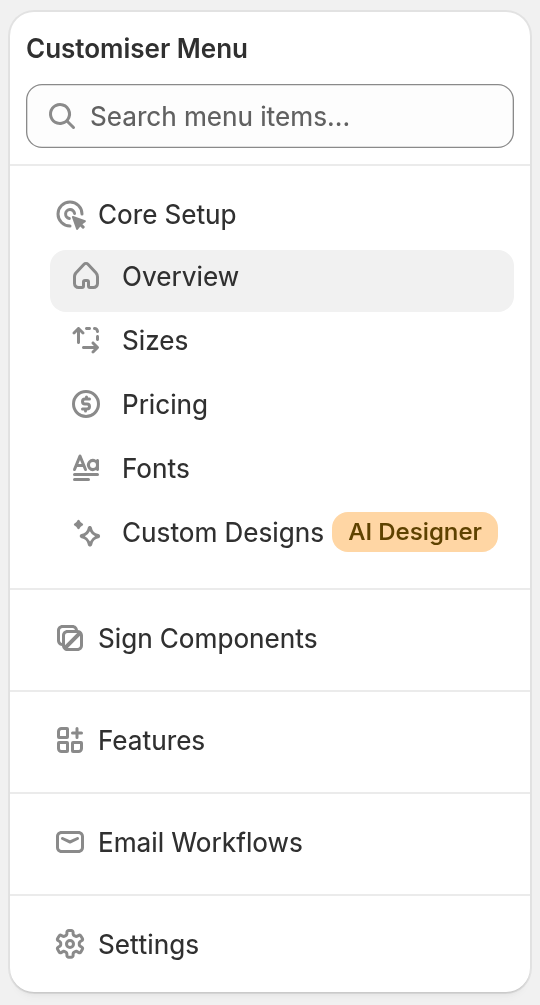
Here is an overview of the setup process:
-
Add Your Sizes (Core Setup > Sizes) Each size is a label with a Size Scale Multiplier. The size limits apply to the whole customiser. They do not apply to each size. To set the limits, select Enable Custom Sizing. Then enter the Maximum sign dimensions. Also set Minimum Text Characters.
-
Add Your Prices (Core Setup > Pricing) Set size boundaries by maximum width and maximum height. For each pricing rule, choose Fixed Cost Per Letter or Letter Material Cost under Letter Pricing. With Fixed Cost Per Letter, choose Every letter costs the same or Price by position.
-
Add Your Fonts (Core Setup > Fonts) Upload your fonts. Assign a pricing rule to each font. Then set Minimum Height of Smallest Letter and Minimum Height of Uppercase Letter. These values set the minimum sign size. For more detail, read Understanding Font Measurements in the Advanced Letter Model.
These are the core steps to get started with the Advanced Letter Model.
Note: The Order safeguards section is under Settings > General Settings. Its Allow unsupported font characters setting controls whether customers can order characters that the font cannot make. For Advanced Letter customisers, the app blocks these characters by default. If you turn the setting on, you must confirm the change.
Step 3: Select AI Sign Designer (Optional)
The Advanced Letter Model also supports AI Sign Designer. It works for Neon, Channel Letter, and Metal Channel Letter signs.
AI Sign Designer lets customers upload images and get production-ready SVG signs. The app prices these designs with the material length pricing rule that you choose.
First, make a form with a File Upload field and a required Email field. When you select AI Sign Designer, the page selects an eligible fallback form for you. If your Store has no eligible form, select Create a fallback form in the Set up AI Sign Designer box. Then do these steps:
-
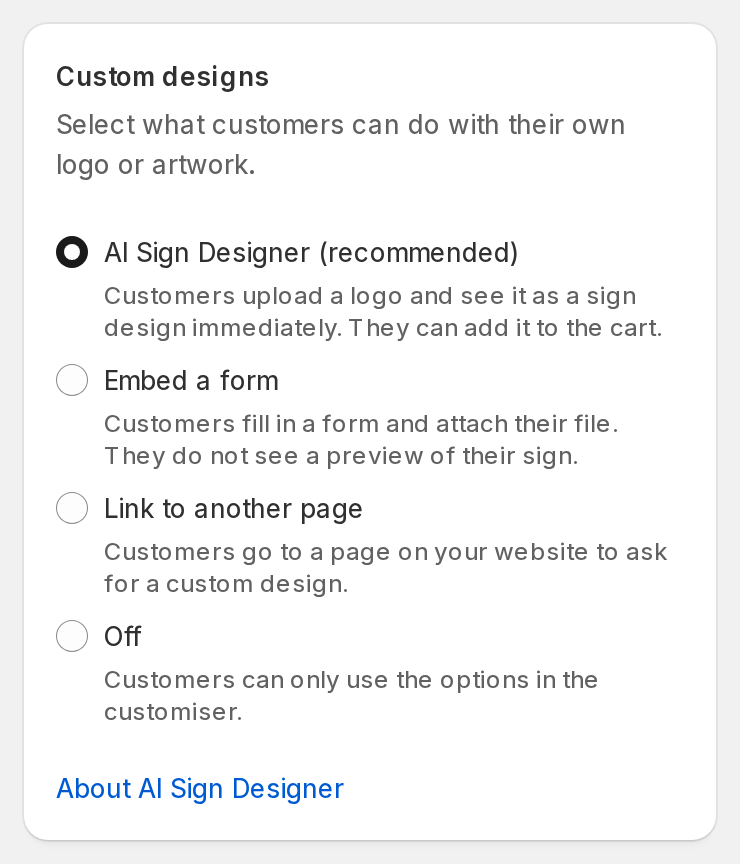
Go to Core Setup > Custom Designs.
-
Under Custom designs, select AI Sign Designer (recommended).
-
In Sign Dimensions, set these items:
-
Default width and Default height – the default sign size for uploaded designs.
-
Minimum height – the app does not add shorter designs to the cart.
-
-
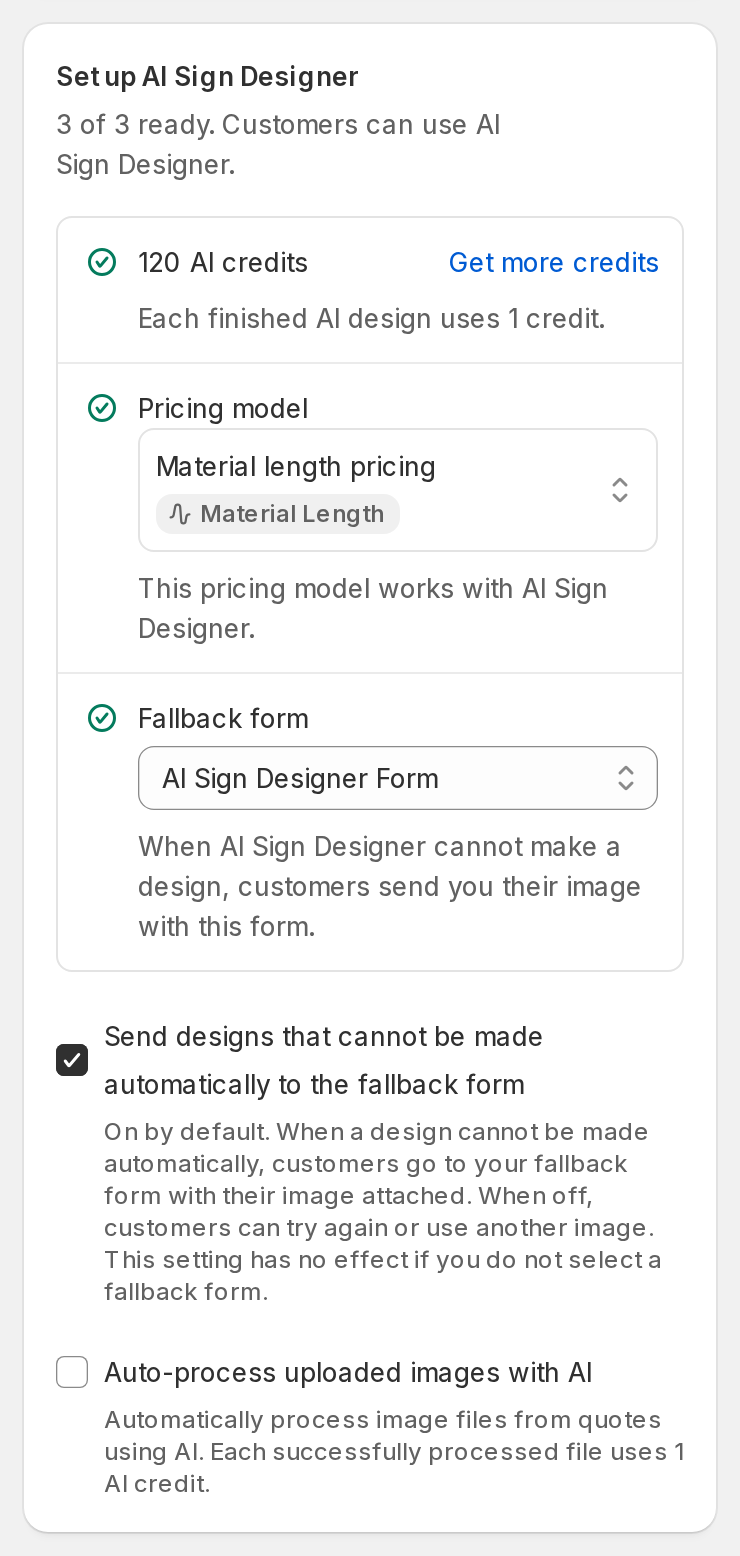
Under Set up AI Sign Designer, set these items:
-
Pricing model – select a material-length pricing rule.
-
Fallback form – customers send their image with this form when AI Sign Designer cannot make a design. The form must have a File Upload field and a required Email field.
-
-
Select Save.
When all three items in the Set up AI Sign Designer box are ready, the box shows 3 of 3 ready.
For the full steps, read How to Enable AI Sign Designer. For more about the feature, read the AI Sign Designer Guide.
Next Steps
When your core Pricing, Sizes and Fonts are ready, you can add other features to your customiser, such as:
-
Backboards
-
Mountings
-
Icons
-
Other available customiser features
See the Features section for more setup guides.