Review Screen
Last updated:
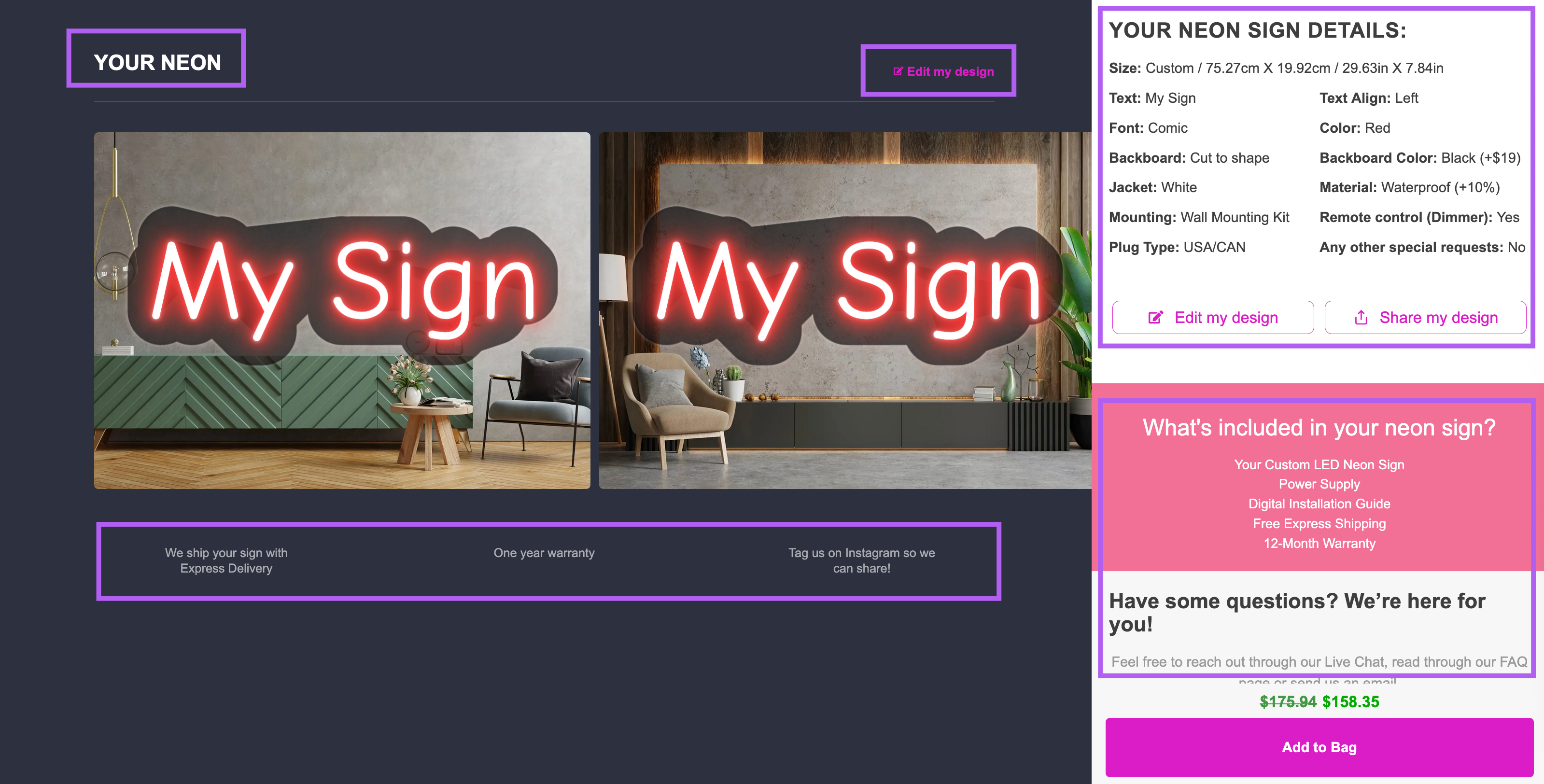
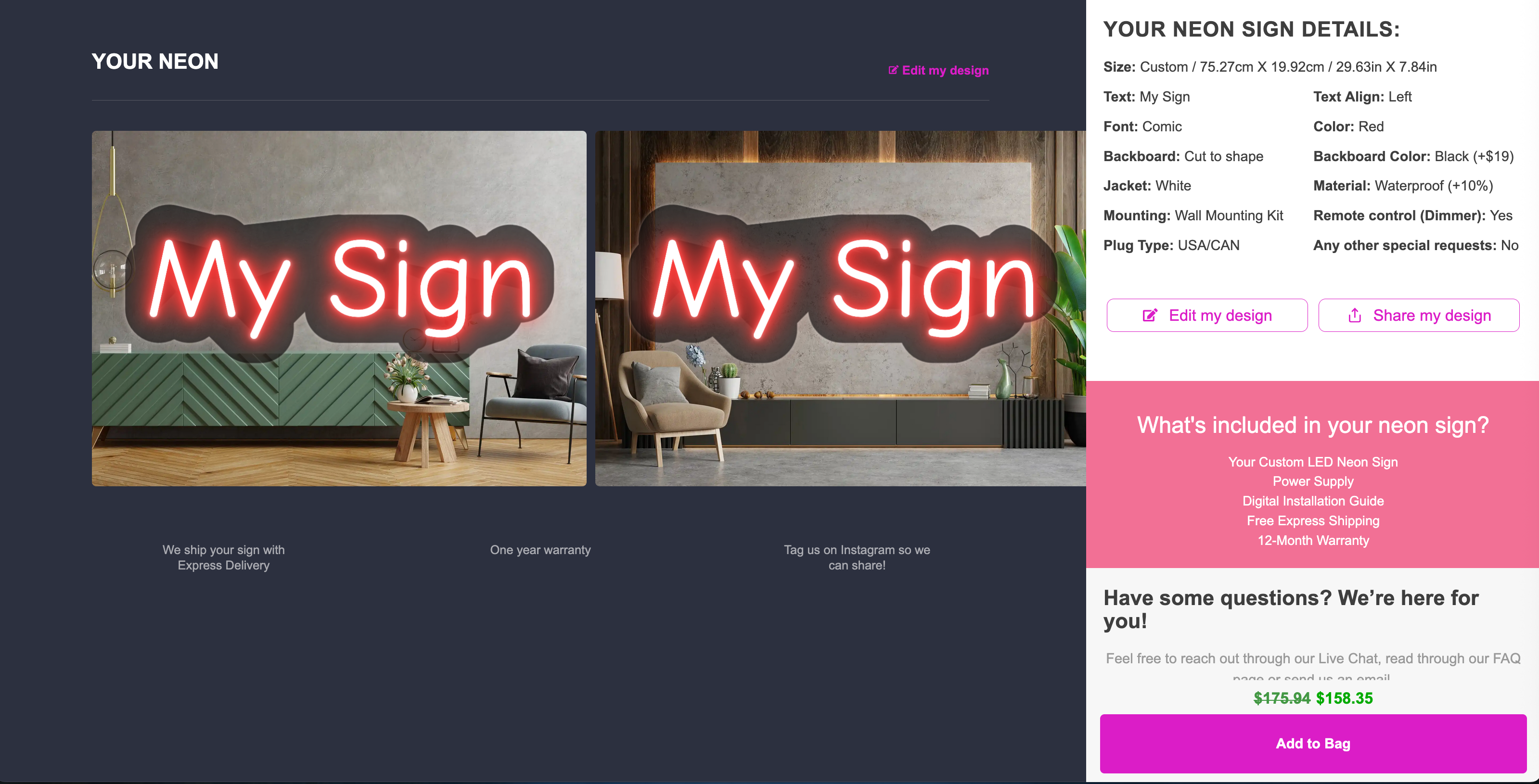
You can let your customers review their custom sign before they add it to the cart. This review screen also displays a summary of the selected options. This guide shows how to enable this feature and where to change the text on the review screen.
How to Enable the Review Screen
-
Go to your Sign Customiser admin:
-
Universal subscribers: Go to Home in your account.
-
Shopify users: In your Shopify admin, select Apps in the sidebar. Then select Sign Customiser.
-
-
Click on Customisers in the menu.
-
Select the customiser you want to edit.
-
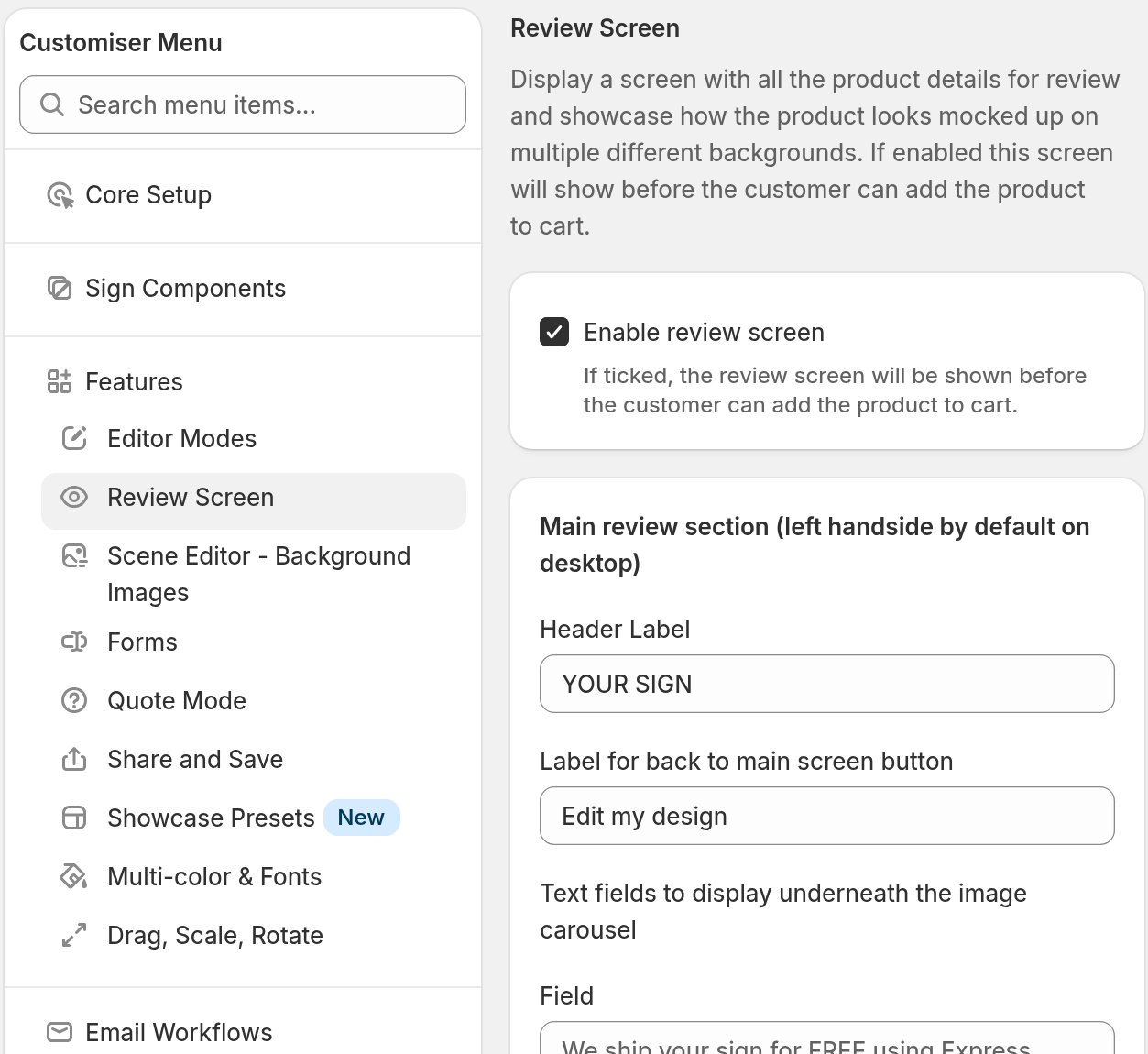
From the left-hand menu, go to Features → Review Screen.
-
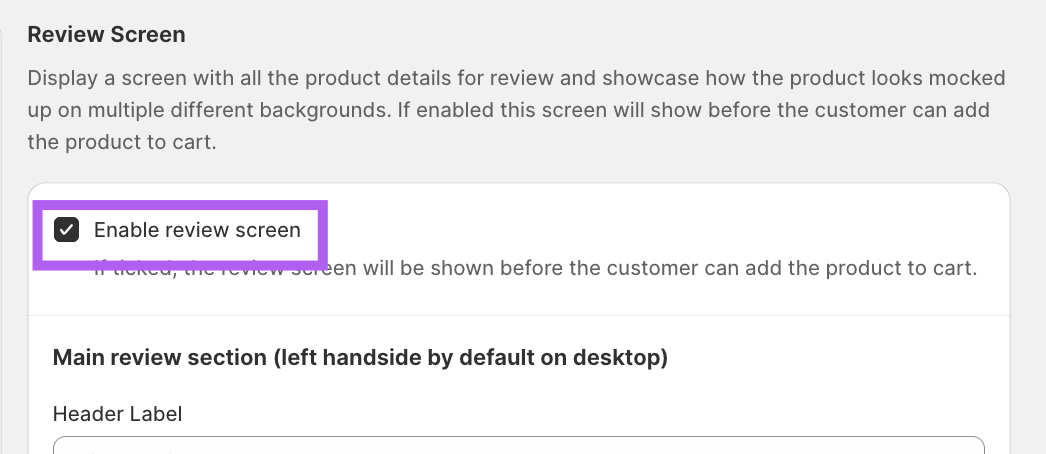
Check the Enable review screen checkbox.
-
Click Save.
When the review screen is on, the price button in the customiser shows Finish. The customer selects Finish to open the review screen. Then the customer selects Add to Bag. Quote Mode and Etsy mode use their own buttons.
How to Show Mockup Images on the Review Screen
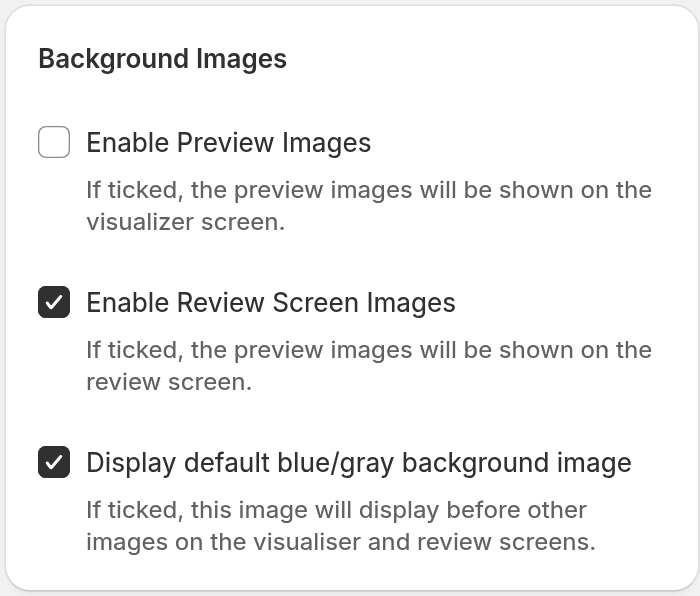
The review screen shows mockup images of the sign only when Enable Review Screen Images is on. If the review screen shows no images, check this setting.
-
Go to Features → Scene Editor - Background Images.
-
Check the Enable Review Screen Images checkbox.
-
Click Save.
If you link backgrounds to sizes, and both Enable Preview Images and Enable Review Screen Images are on, the review screen shows only the background that is selected. This is the background that is linked to the chosen size, or else the default background. If the customer picks a different background, the review screen shows that background instead. If the customer selects their own photo, this rule does not apply. If the customer then chooses a different preset size, or switches to or from Custom, the background that is linked to the new size, or else the default background, replaces the photo and this rule applies again.
How to Customise Text on the Review Screen
You can change the text on the review screen. Go to Features → Review Screen and check Enable review screen. The text fields then show on the page.
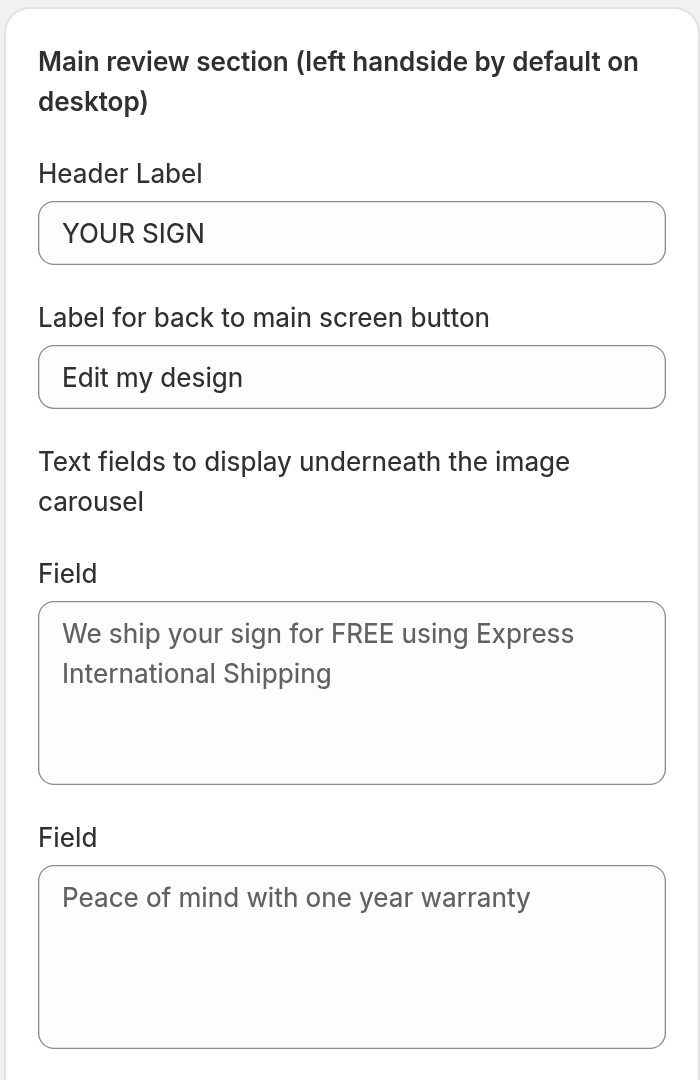
The page has these sections:
-
Main review section: Enter a Header Label and a Label for back to main screen button. Enter text in up to three fields. Those three fields show under the image carousel on screens that are 1025 px wide and wider.
-
Chosen options section: Enter the Header and the headings for the options that the customer selected.
-
Additional Items included: Check Show additional items included section. Then enter an Inclusions Header and the Inclusions.
-
Qualities: Click Add Quality to add a header and a description. You can add up to 12 qualities.
-
Additional Information: Click Add Information to add a section about warranty, installation or other topics. You can add up to 6 sections.
-
Contact Section: Check Show contact details included section. Then enter a Contact Header and a Contact Description.
Click Save when you finish. To translate this text, read our Translate the review screen guide.