Mountings
Add mounting options for your signs. Set optional prices and colours.
Last updated:
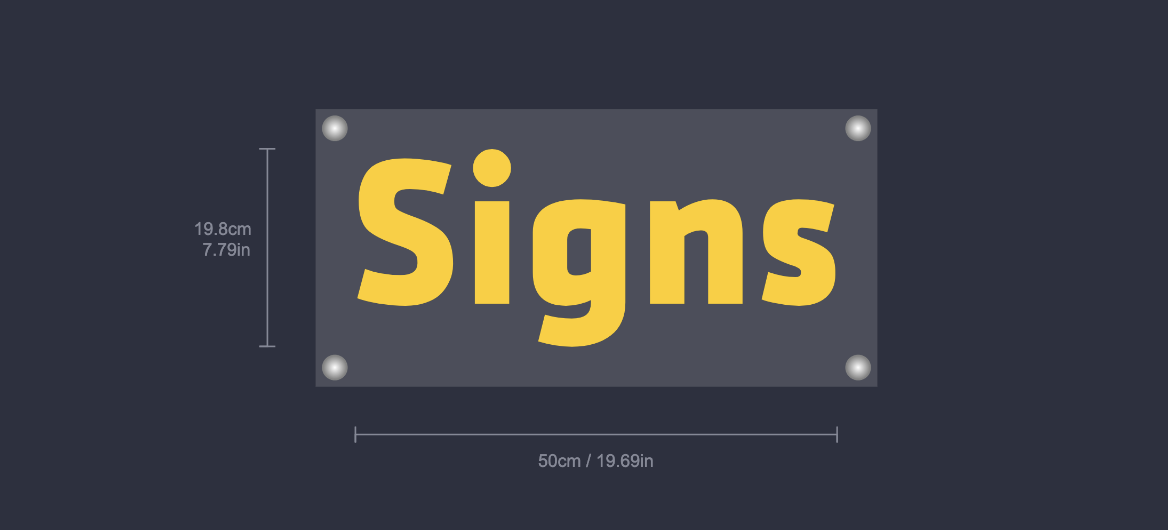
Use mountings to give customers a choice of mounting hardware for their signs. Examples are screws and key rings.
Mountings do not set your base pricing. A mounting can add a fixed amount to the price. It can also multiply the price. To set your main pricing, go to Core Setup → Pricing. For channel letter signs, see Letter Types under Sign Components. For lightbox signs, see Lightbox Types under Sign Components.
Note: for signs other than lightbox signs, the visualiser shows mountings on the “Board” backboard type only.
Follow these steps to set up mountings for your customiser.
Configuring Your Mountings
-
Open the list of customisers:
-
In the Universal admin, select Customisers in the left-hand menu.
-
In the Shopify admin, open the app, and then select Customisers in the app menu.
-
-
Select the customiser you want to edit.
-
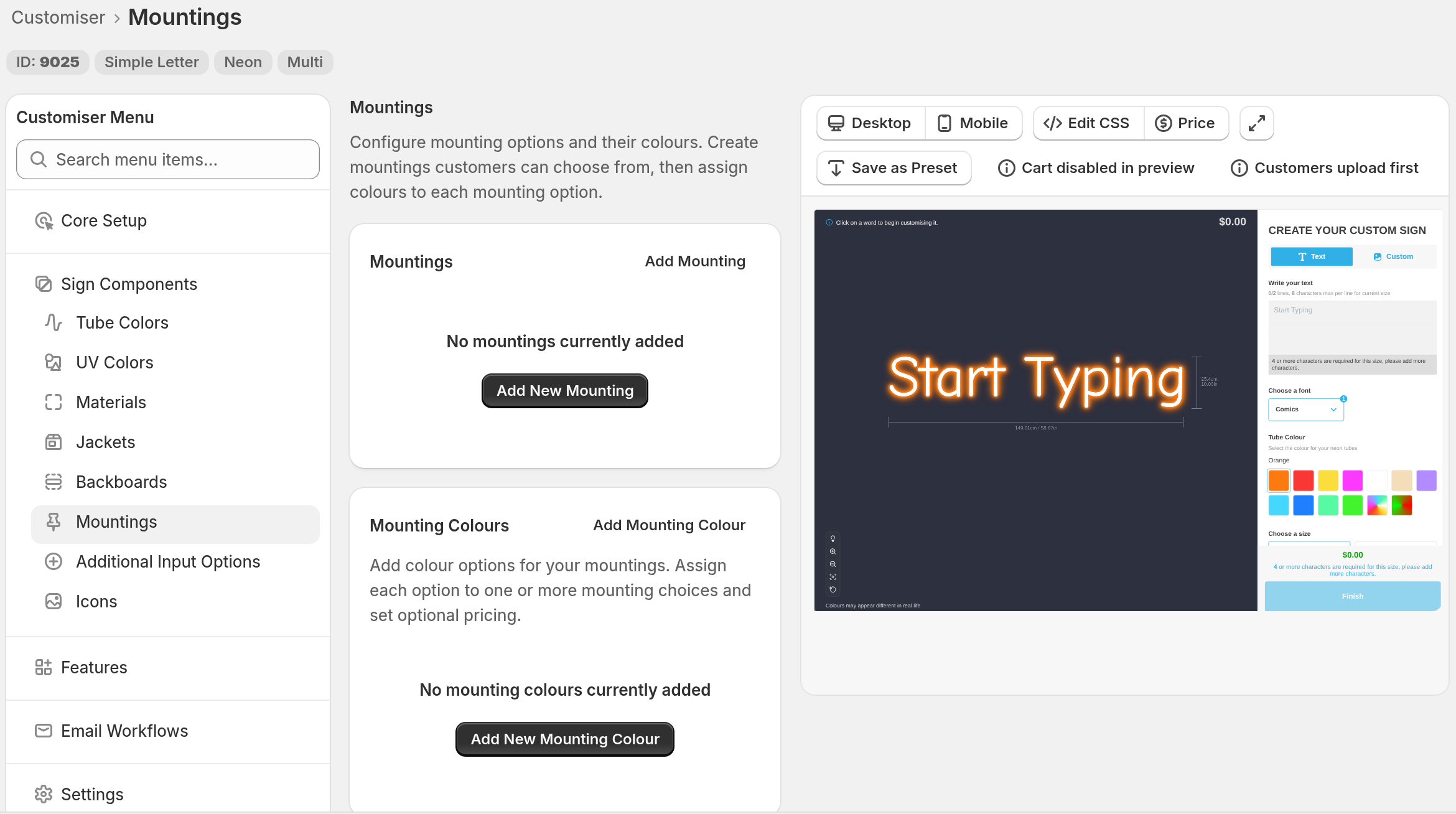
In the left-hand menu, go to Sign Components → Mountings.
-
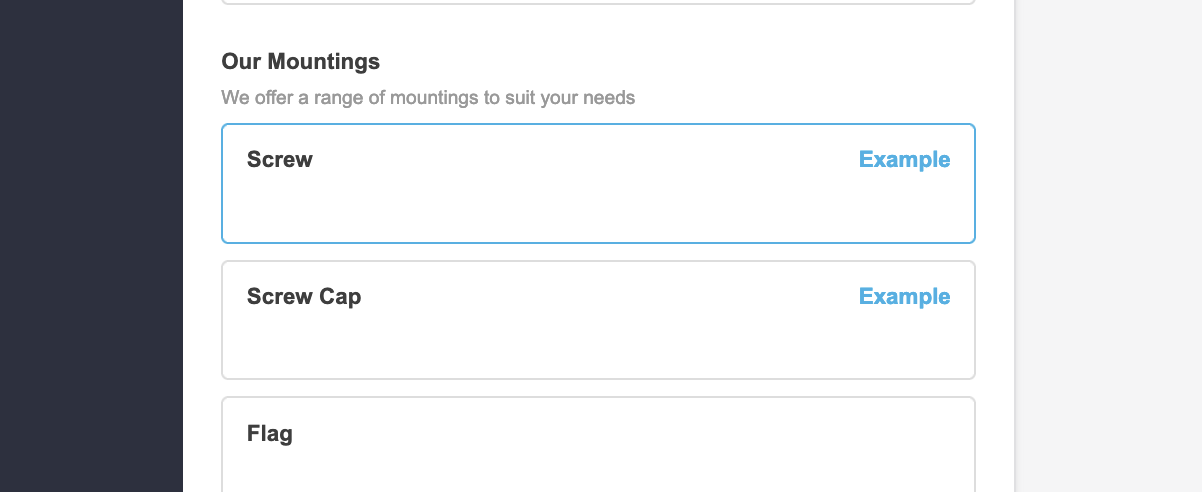
Optional: change the title and description of the mounting section.
-
Scroll to the bottom of the Mountings page.
-
Under Language Options, find Mounting Section.
-
Change Section Title and Section Description. The placeholder text in Section Title is “Choose a mounting”.
-
Select Save.
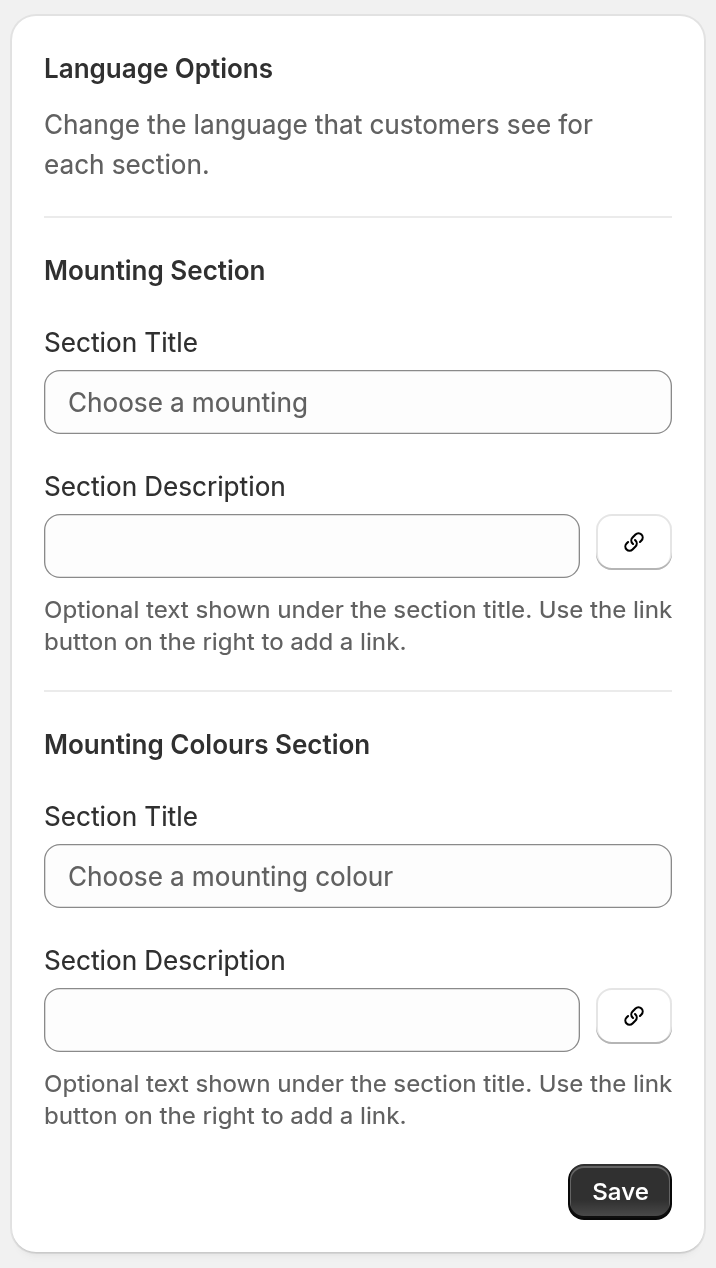
The customer sees the new text in the customiser.
-
-
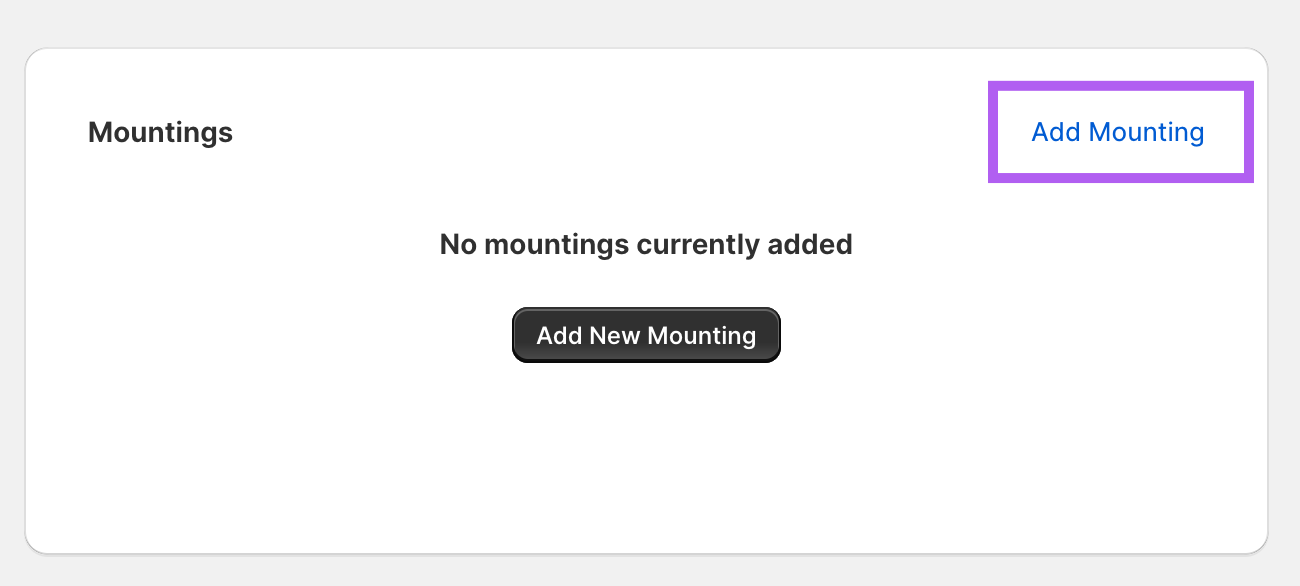
To add a mounting, select Add Mounting.
-
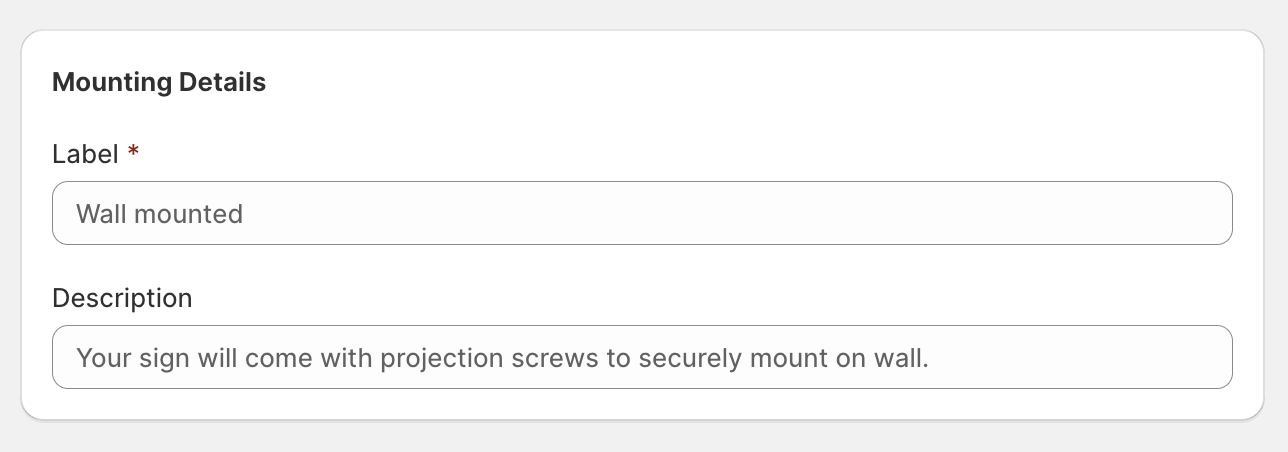
Enter a Label. Optional: enter a Description.
-
In Visualisation, select one of the six options: None, Screw, Screw Cap, Flag, Hanging, or Key Ring.
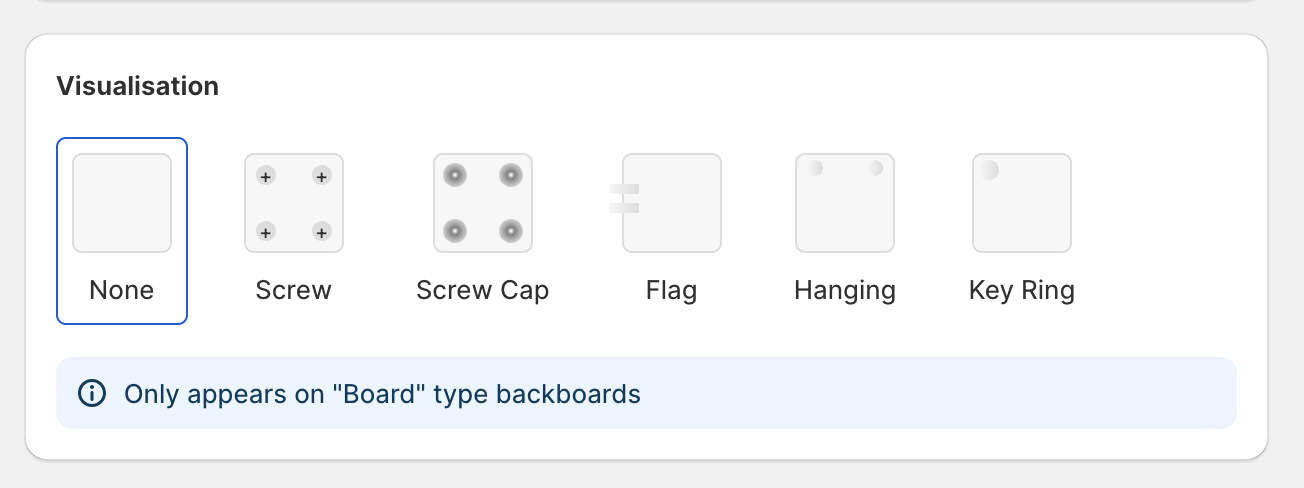
For lightbox signs, the options are None, Single Prong, Double Prong, Pedestal, and Sign Feet. Lightbox signs do not have an Exclusions section. For more information, see Lightbox mounting options.
-
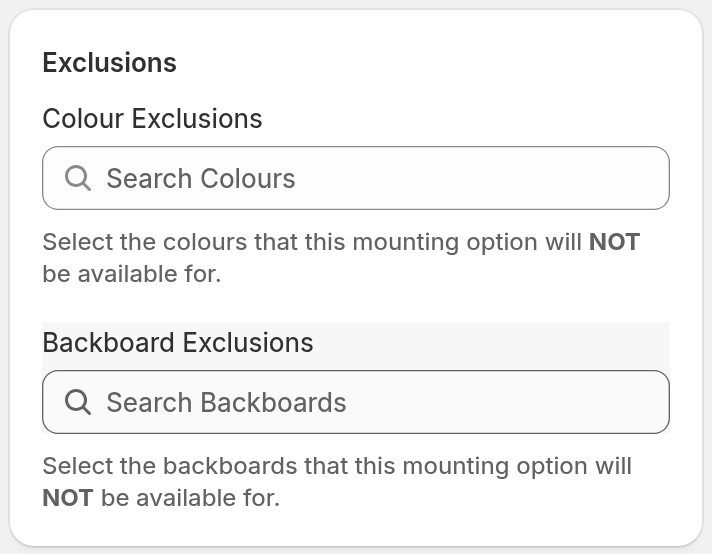
In Exclusions, use the Colour Exclusions and Backboard Exclusions fields. Select the colours and backboards that cannot use this mounting.
-
Optional: add a Button Image. Customers see this image on the selection button.
-
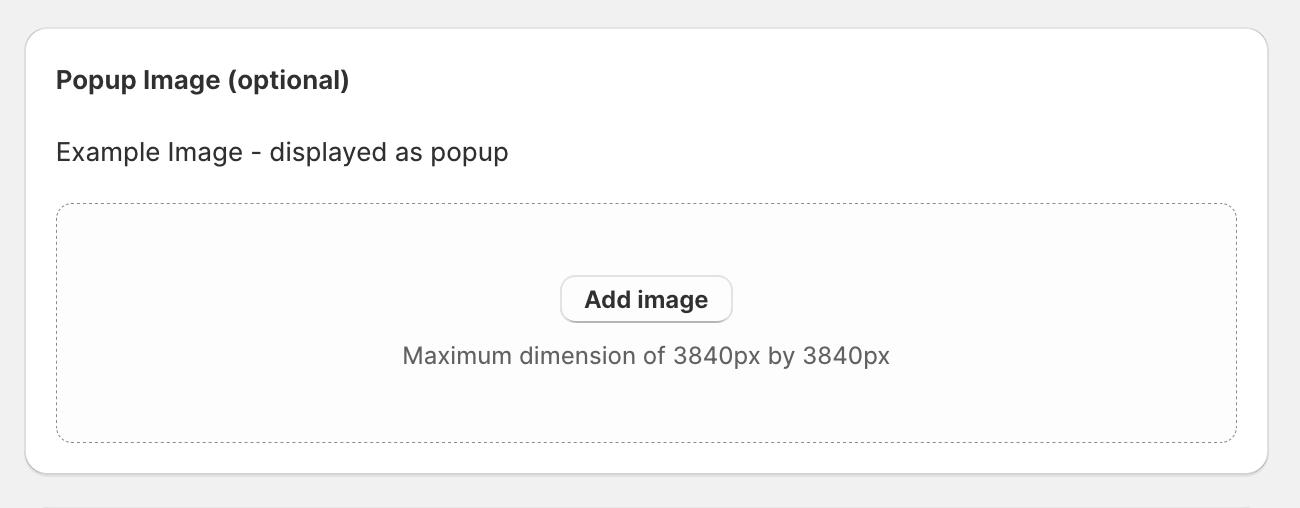
Optional: add a Popup Image. Customers see it when they select Example on the option. Use a photo of the real mounting.
-
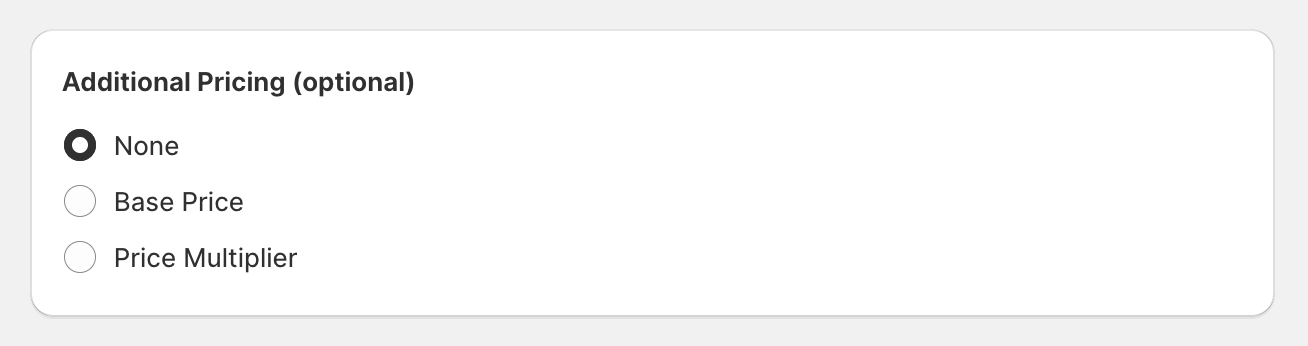
Optional: add a price in Additional Pricing. Select one of these options:
-
Base Price: adds a fixed amount when the customer selects this mounting.
-
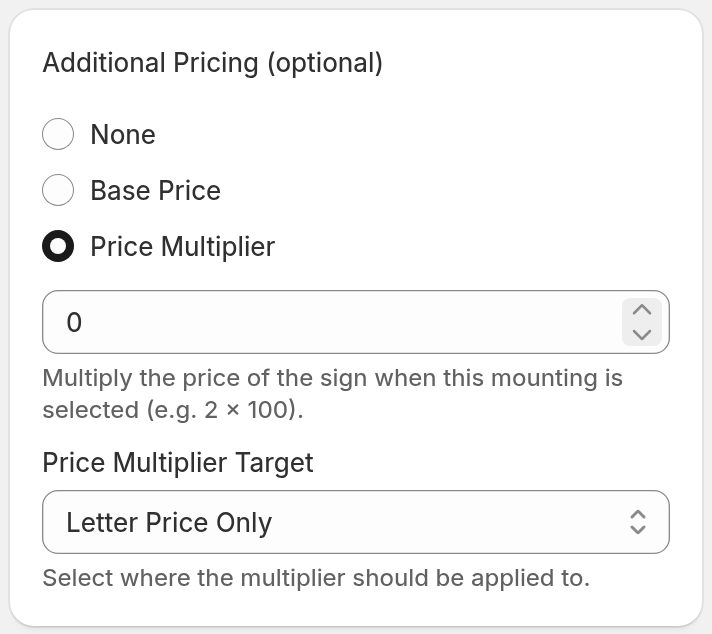
Price Multiplier: multiplies the price by the number you enter. Enter 1.1 to increase the price by 10 %. Enter 2 to double the price.
-
-
If you select Price Multiplier, select a Price Multiplier Target. Letter Price Only is the default. The other option is Final Price (includes additional costs from other options).
-
Select Save.
-
Look at the new mounting in the live preview on the right of the page. If the live preview does not show, select Preview in the page header.
Adding Mounting Colours
You can offer colours for your mountings. Customers select a colour for the mounting they select.
-
On the Mountings page, find the Mounting Colours card.
-
Select Add Mounting Colour. If you have no mounting colours, select Add New Mounting Colour.
-
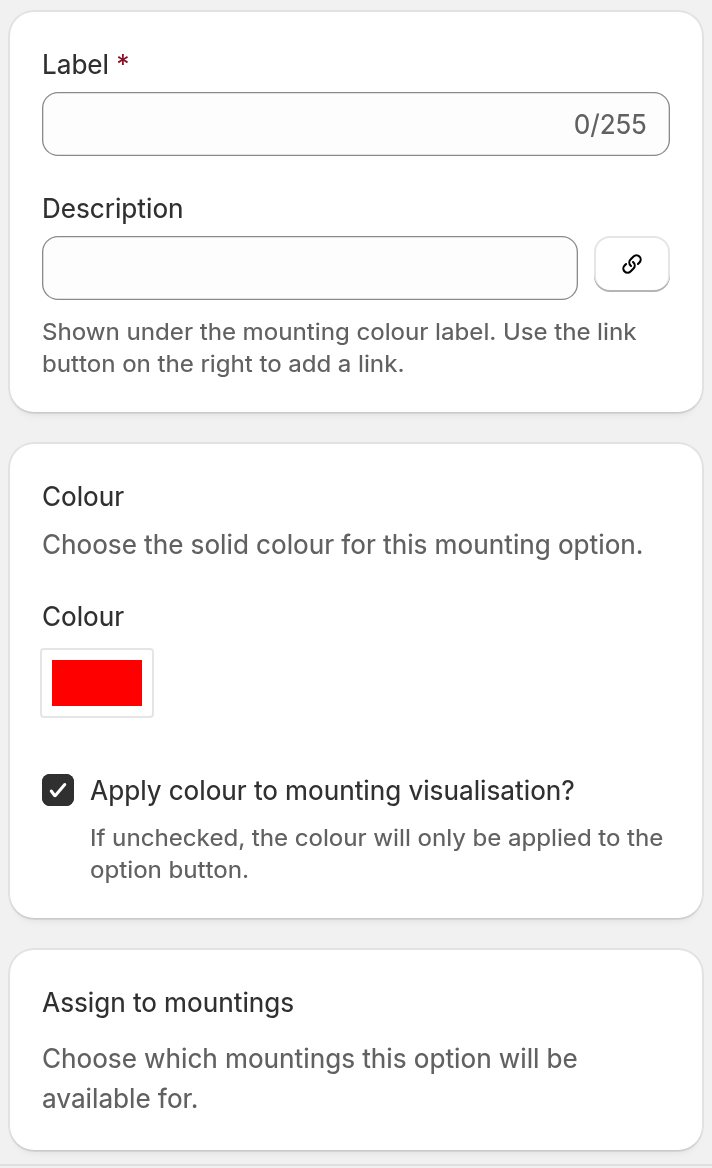
Enter a Label. Optional: enter a Description.
-
Select the Colour.
-
Optional: clear Apply colour to mounting visualisation? The colour then shows on the option button only.
-
In Assign to mountings, select each mounting that can use this colour. Select at least one mounting.
-
Optional: in Minimum Size, enter a Minimum Width and a Minimum Height. Then select a Rule.
-
Optional: add a Preview Image, an Example Image, and Additional Pricing.
-
Select Save.
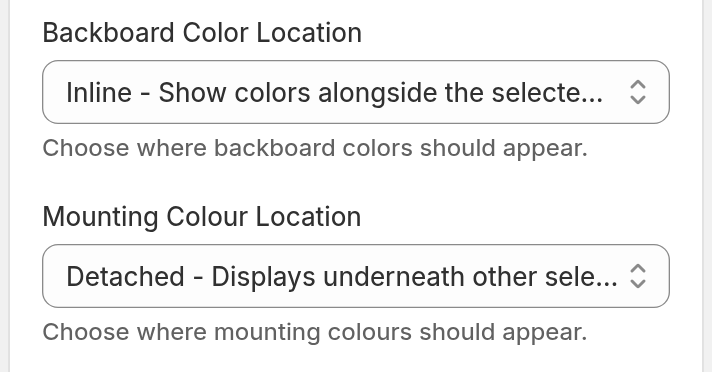
To change where customers see the colours, go to Settings → General Settings. Then change Mounting Colour Location. The options are:
-
Detached - Displays underneath other selections is the default.
-
Inline - Show colours alongside the selected mounting shows the colours next to the selected mounting.