

Migrating from the legacy WordPress plugin
Last updated:
This article is for users of our (now legacy) WordPress plugin.
In August 2025, we released a new way to connect your WooCommerce site to Sign Customiser. If you installed the Sign Customiser plugin from the WordPress “Plugins” screen, this article shows you how to change to the new API integration.
Why should I switch to the API Integration?
We recommend the API integration. The WordPress plugin is now legacy. It continues to operate on your site until you deactivate it.
When a customer adds a sign to the cart, the plugin saves the design images in the WordPress media library. This work occurs on your own site.
How do I switch to the new API integration?
The API integration needs an active Universal plan. Without a plan, orders do not reach Sign Customiser. To create an account, go to web.signcustomiser.com. To choose a plan, sign in and go to Your Company > Billing.
Do the steps in this order. The old customiser stays on your page until the new customiser works.
-
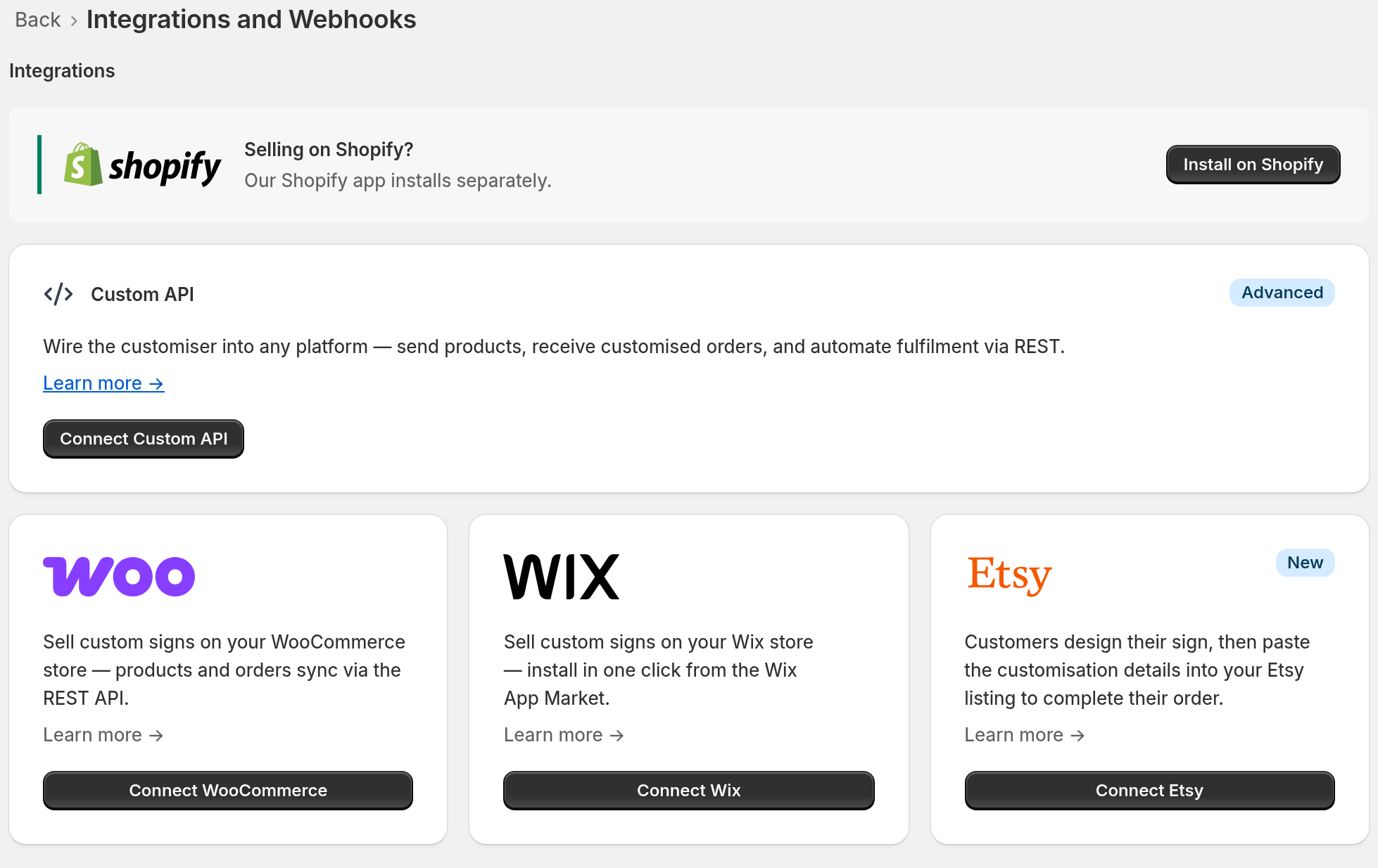
Connect the new integration. In the left sidebar of Sign Customiser, under Integrate, click Integrations. Click Connect WooCommerce. Then follow the guide Connecting WooCommerce with Sign Customiser.
-
Copy the new embed code from Embed Instructions on your WooCommerce integration page. To open that page, go to Integrations and click View Details on the WooCommerce card. It uses the
<sign-customiser-embed>element withdriver="woocommerce". Add the new embed code to your customiser page. -
Open your customiser page. Make sure that the new customiser loads. Make sure that you can add a sign to the cart.
-
Delete the old iframe and JavaScript code from your customiser page. The old code looks similar to this:
HTML <iframe src="https://web.signcustomiser.com/embed/YOUR_CUSTOMISER_ID"></iframe><script src="https://integrations.signcustomiser.com/sign-customiser-woocommerce.js"></script><script> window.SpcWc.init(); </script> -
Place a test order. Make sure that the order appears under Orders in Sign Customiser.
-
Deactivate the Sign Customiser plugin on the WordPress “Plugins” screen.
Do I need to uninstall the Sign Customiser WordPress plugin?
No. You do not need to uninstall the plugin. After you switch, the new embed code does not use the plugin.
Until you deactivate it, the plugin stays active on your WordPress admin pages. It can show a warning that you have no API key. It can also show an “Upgrade to our new integration method” banner. When you deactivate the plugin, these notices stop. Its order sync also stops. After you switch, you can ignore the API key warning.