Google Fonts
Last updated:
Use the Google font picker to add a font from the Google font library to your customiser. You do not need a font file.
How to add a Google font
-
Open the admin.
-
In Shopify admin, open our app. Click Customisers.
-
On web.signcustomiser.com, click Customisers in the left sidebar.
-
-
Click the customiser that you want to edit.
-
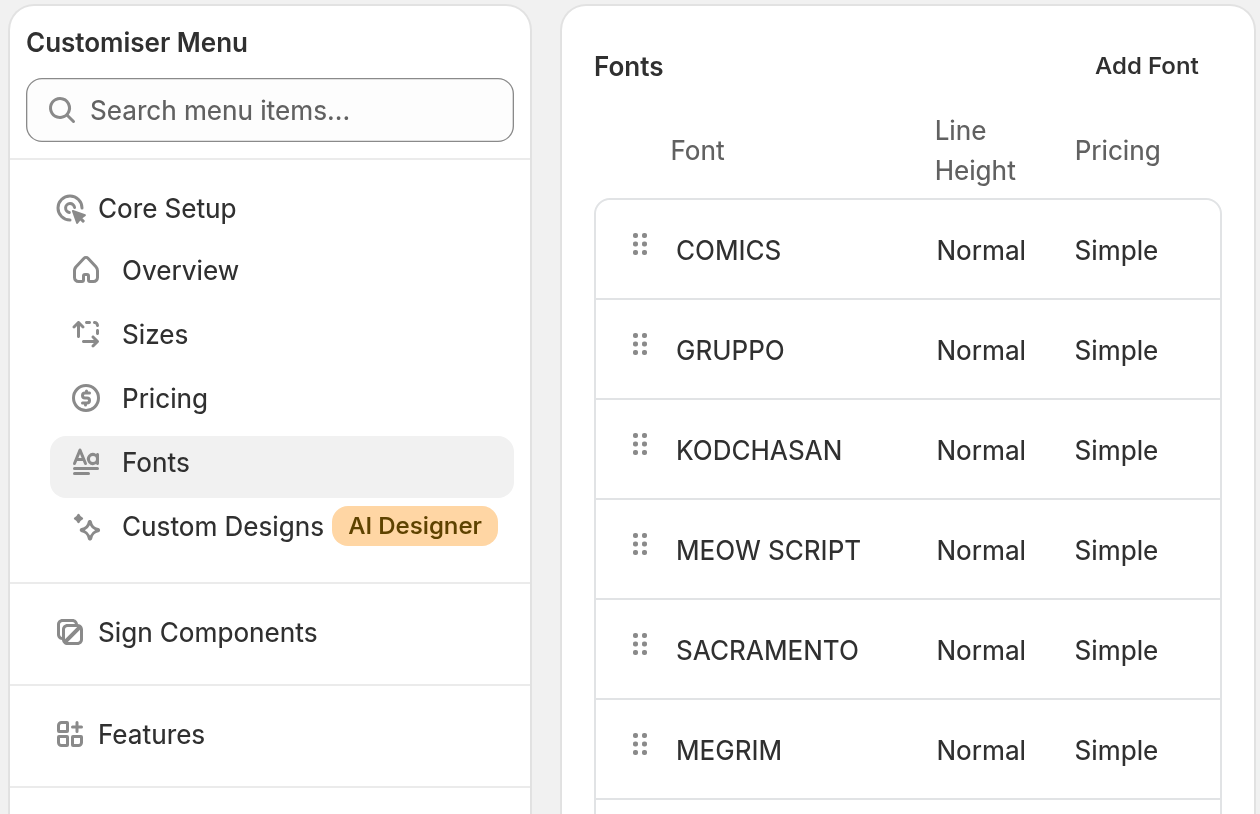
In the menu, go to Core Setup → Fonts.
-
Click Add Font. If the customiser has no fonts, click Add New Font.
-
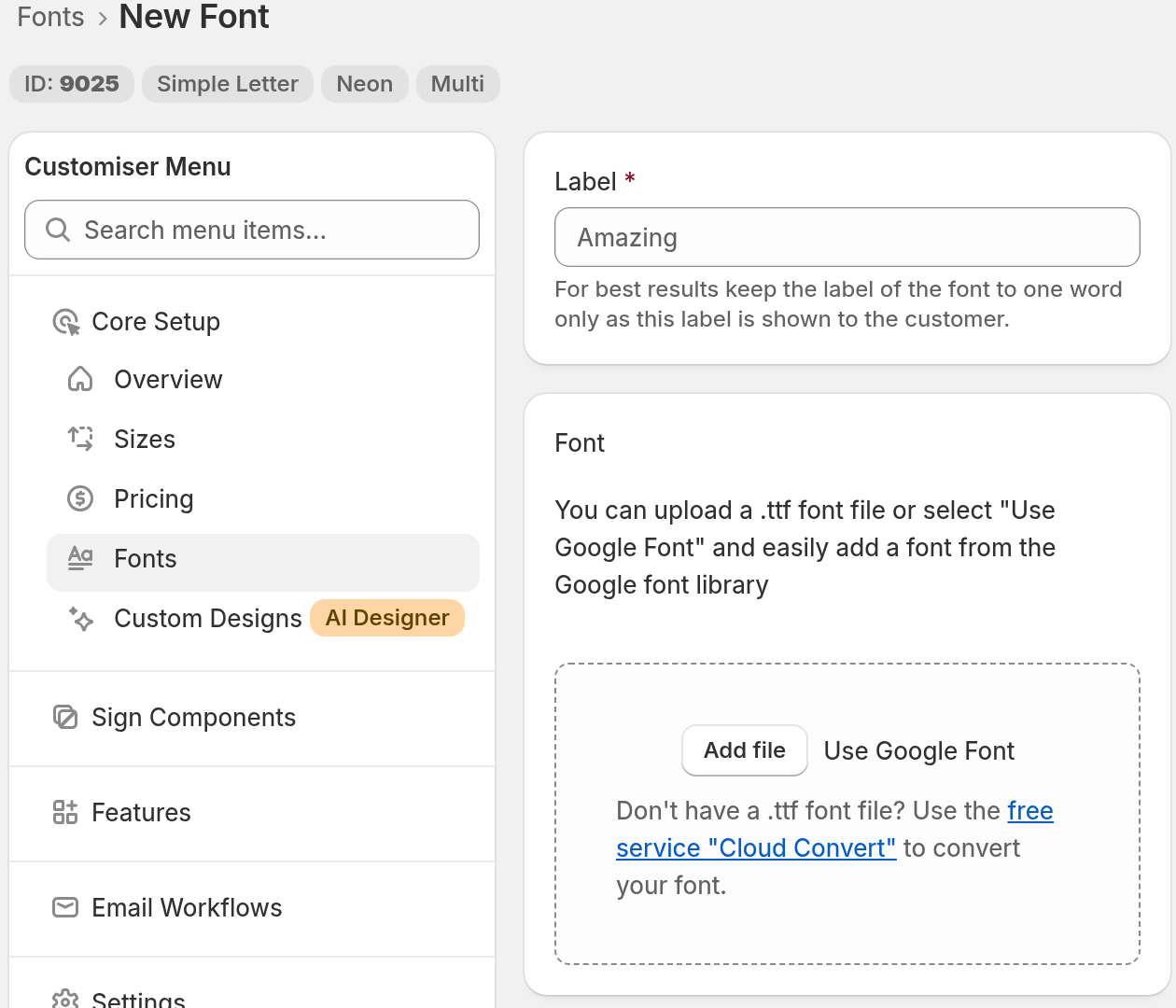
In the Label field, enter a name for the font. Use one word. Your customers see this label.
-
In the Font section, click Use Google Font. This is next to Add file.
-
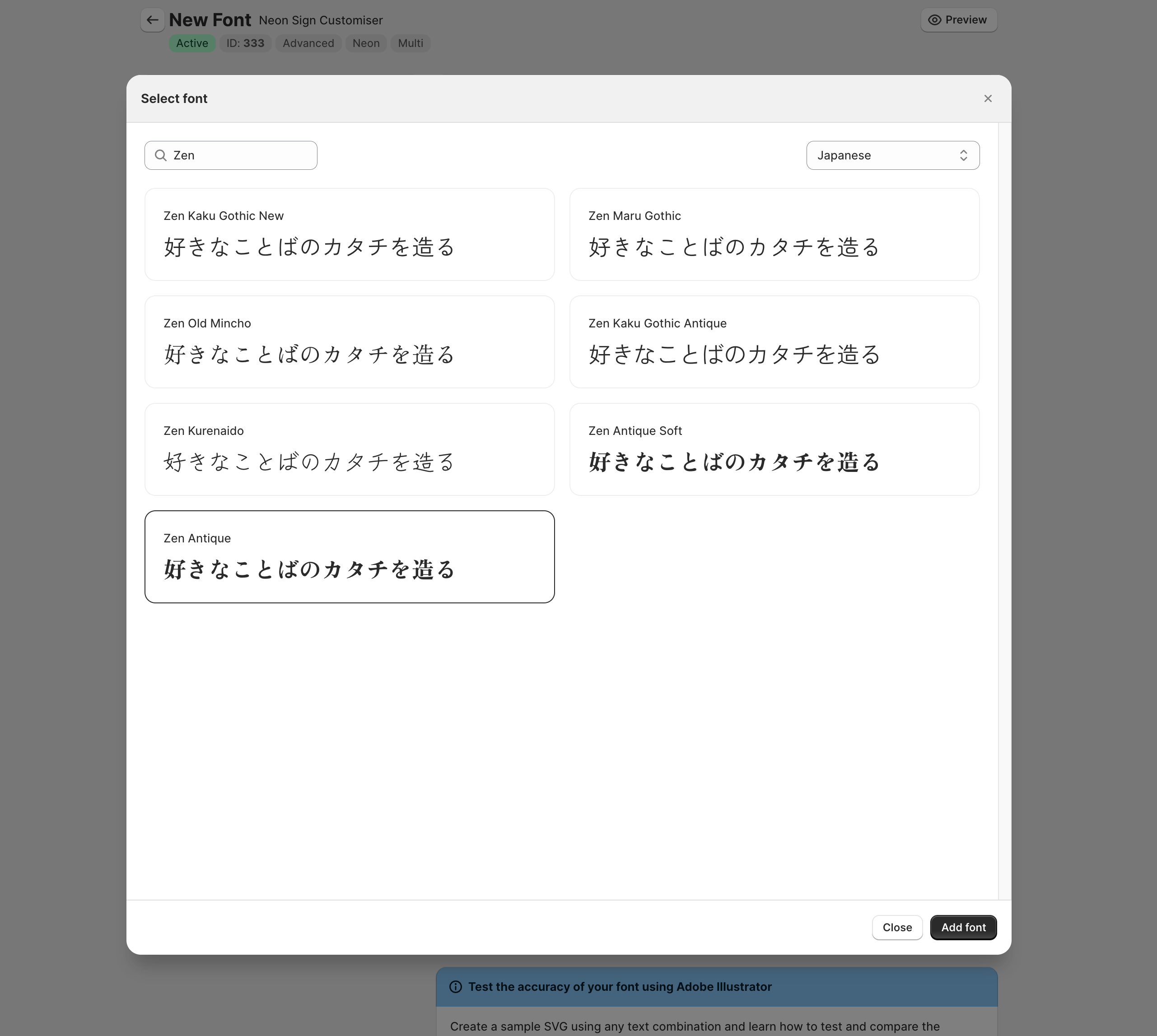
In the Select font window, click the font that you want. A selected font has a dark border.
-
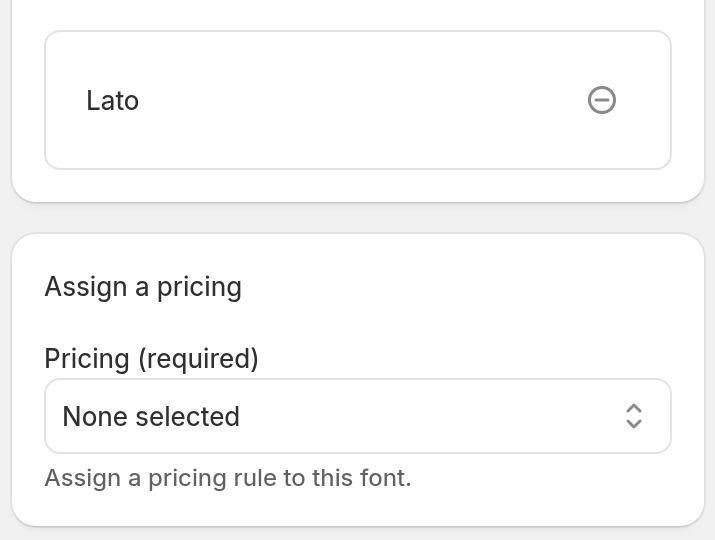
Click Add font. The window closes. The font name shows in the Font section.
-
In Assign a pricing, choose a rule in the Pricing field. Simple Letter and Advanced Letter customisers need this rule. You cannot save the font without it.
-
Click Save.
The font is not in your customiser until you click Save. If the form shows Font is not supported, Save is disabled. Choose a different font.
Search and filter the fonts
The Select font window has a search field and a language list.
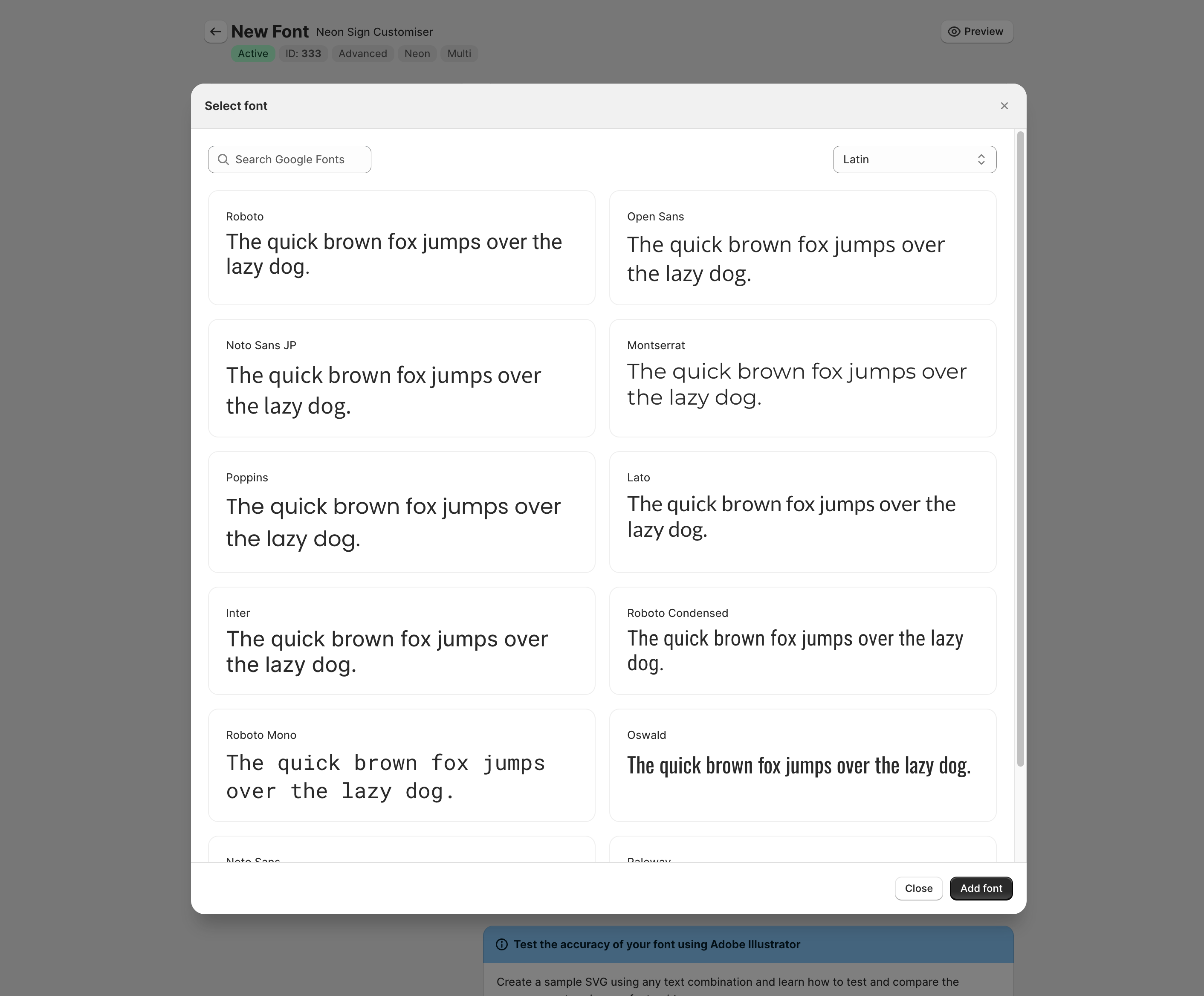
To find a font by name, use the Search Google Fonts field. To show the fonts for one language, use the language list. The options are Arabic, Chinese (Simplified), Chinese (Traditional), Hebrew, Japanese and Latin. Latin is the default.