

Multi-Currency
Last updated:
Multi-currency lets customers see prices in their preferred currency. You can set it up with a currency switcher app or with Shopify Markets. We recommend Shopify Markets. To accept payments in multiple currencies, Shopify Markets needs Shopify Payments or Adyen.
On 8 November 2023, Sign Customiser announced support for two currency apps. They are Vitals and Beast Currency Converter. The announcement called the second app Best Currency Converter. This guide shows how to set up Markets or one of the apps. It also shows how to choose how the customiser shows the currency.
Integrations Overview
-
-
Best for seamless integration.
-
Lets you set up multiple currencies and market-specific pricing.
-
Ideal for stores with global customers.
-
-
- Offers a suite of tools that includes currency conversion.
-
-
Specialises in currency conversion.
-
Supports multiple currencies.
-
Detects the customer’s location and shows prices in the local currency.
-
With Shopify Markets, the customiser shows prices in the active currency of the customer.
Set up currency display
-
Set up the currency in Shopify. Use Shopify Markets, or install Vitals or Beast Currency Converter. For Markets steps, read Enable Shopify markets on your store.
-
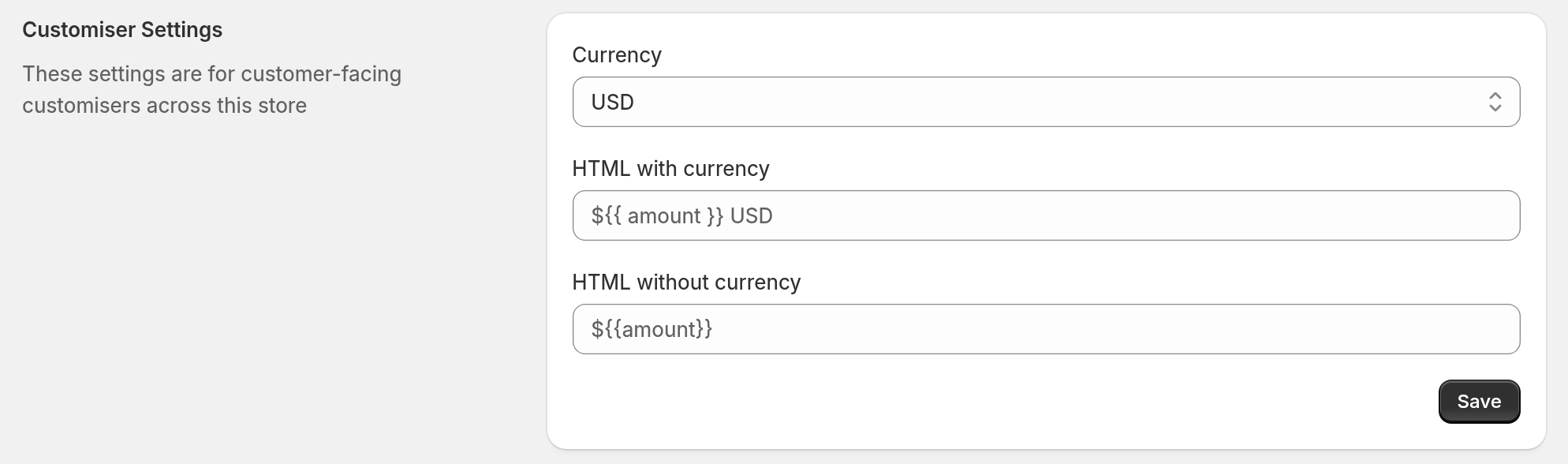
In the Universal admin (web.signcustomiser.com), set the Store currency. Use this step only for a Store that is not linked to Shopify.
-
Click Store Settings.
-
On the Store Configuration page, find Customiser Settings.
-
Choose the Currency.
-
If a dialog asks to update the currency formats, click Yes. Sign Customiser then changes the formats to match the new currency.
-
Make sure that HTML without currency shows the format you want.
-
Click Save.
A Store that is linked to Shopify takes its currency from the Shopify Store. The Universal admin also shows this section for that Store, but Sign Customiser sets the currency again each time the Shopify-embedded admin loads. The Shopify-embedded admin does not show this section.
-
-
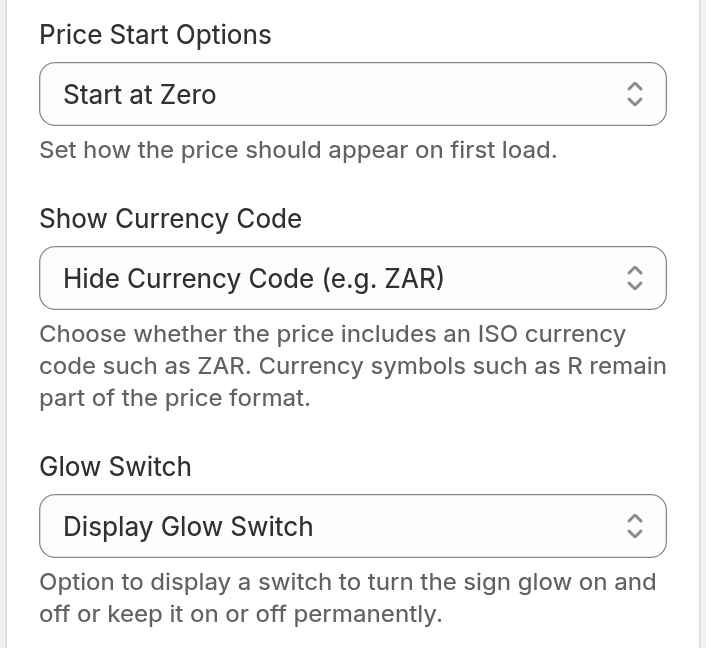
Choose if the customiser shows the currency code.
-
Click Customisers and open your customiser.
-
In the menu, under Settings, click General Settings.
-
In General Style Settings, find Show Currency Code.
-
Choose Show Currency Code (e.g. ZAR). The customiser then shows the ISO code of the active currency after the price.
-
Click Save.
The default is Hide Currency Code (e.g. ZAR).
-
Markets access
A Shopify Market can change prices by a percentage. If a Market does this and you have not yet approved Shopify Markets access, the Home page of the Sign Customiser app in the Shopify admin shows an Approve Shopify Markets access banner. Until you approve, the customiser cannot show these prices. Sign Customiser also does not publish generated signs to the Market catalogue.
Click Approve Shopify Markets access to fix this. Universal Stores do not see this banner. For more detail, read Enable Shopify markets on your store.
Headless storefronts: if you sell with Shopify Markets, keep the shopper’s display currency and their active Shopify Market the same. Currency alone does not set product availability. Pass the active market with the shopify_market_id and shopify_market_handle query parameters. Then, when you have approved Shopify Markets access, Sign Customiser publishes generated signs to that Market. See the install guide for a headless Shopify storefront.