

Duplicating a customiser
Copy a customiser in your current Store. The copy is a separate customiser that appears at the top of the Customisers list.
Last updated:
Use these steps to copy a customiser in your current Store. The copy is a separate customiser with its own customiser ID. It has the same sizes, colours, fonts, forms and settings as the original, except for two things. The jacket step of a neon customiser starts hidden in the copy. For an Advanced Letter customiser, the Allow unsupported font characters setting is always off in the copy.
-
Open the Customisers page.
-
In the Universal admin (web.signcustomiser.com), click Customisers in the sidebar.
-
In Shopify, open our app from your Shopify admin. Then click Customisers in the app navigation.
-
-
Click the three dots (…) at the end of the row for the customiser. Then click Duplicate.
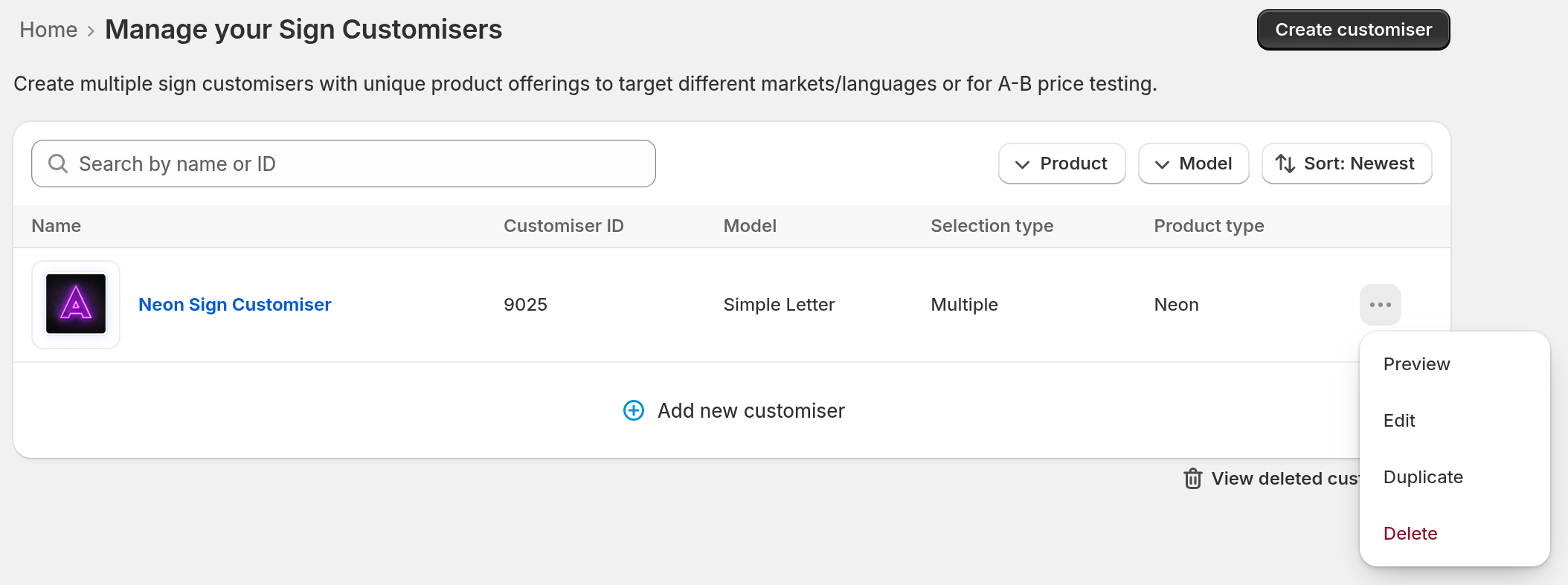
-
In the Duplicate Customiser window, type a name for the copy in the Name of customiser field.
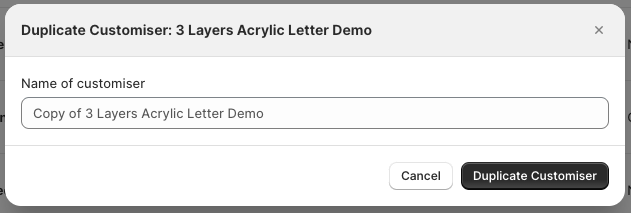
If you leave the name blank, the copy gets the name “Copy of” followed by the name of the original.
-
Click Duplicate Customiser.
-
Look at the top of the Customisers list. The copy is there when the sort button shows Sort: Newest. This is the default setting.
Active and inactive copies
-
If the original is active and your Store has an active subscription, or a trial with a payment method on file, the copy is active immediately. Check the copy before you link to it or embed it on your site.
-
If the original is inactive, or your Store has neither of these, the copy is inactive.
Copying to a different Store?
The steps above copy a customiser inside one Store. To copy a customiser into another Store that you own, our support team can do it for you. See Copy a customiser to another store you own.