

Subscribe to Webhooks
How to Subscribe to Webhooks in Sign Customiser
Last updated:
Webhooks let your application receive a notification when an event occurs in Sign Customiser. This guide shows how to set up a webhook subscription. It also shows how to verify the webhook signature.
Note: The form:submitted webhook was deprecated on 24 August 2026. It continues to send data for every submission, with the same payload. No removal date is scheduled. For a new integration, read submissions from the quotes API. It also returns your submission history. It needs an API key with the quotes:read scope.
Setting Up Your Webhook Subscription
1: Access Your Account
Log in to your Sign Customiser account.
2: Navigate to Webhooks
Open the Integrations and Webhooks page:
-
Universal: In the left sidebar, under Integrate, click Integrations.
-
Shopify: In the Shopify admin, open this app. On the Home page, find the Menu card and click Tools & Settings. The Menu card appears after your Store has at least one customiser. Then click Integrations and Webhooks.
The Webhooks section is below the integrations.
3: Turn On Custom API (Universal Stores)
The Product Created and Order Created webhooks send data only when Custom API is on for your Store. Shopify Stores do not need this step, because Custom API is always on. Form Submitted (deprecated) does not need Custom API.
If Custom API is off on a Universal Store, Sign Customiser saves your Product Created or Order Created webhook but sends it no data. The Activity Logs stay empty.
To turn on Custom API:
-
On the Integrations and Webhooks page, find the Custom API card.
-
Click Connect Custom API.
-
In the Enable Custom API? window, click Enable Custom API.

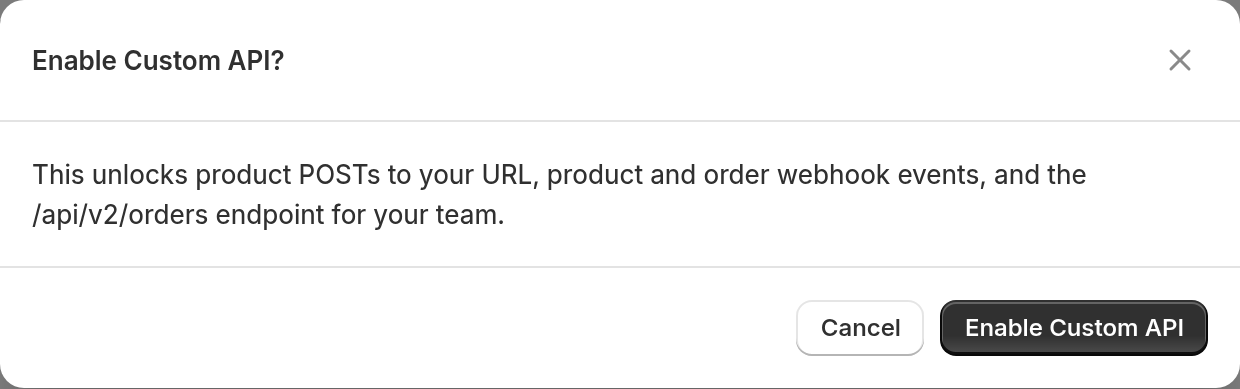
When Custom API is on, the card shows an Enabled badge.
The Custom API card shows only when no other integration is active, or when a custom integration is active. If you cannot see the card, disable any other active integration on this page, then check again.
4: Create a New Webhook
In the Webhooks section, click Create custom webhook.
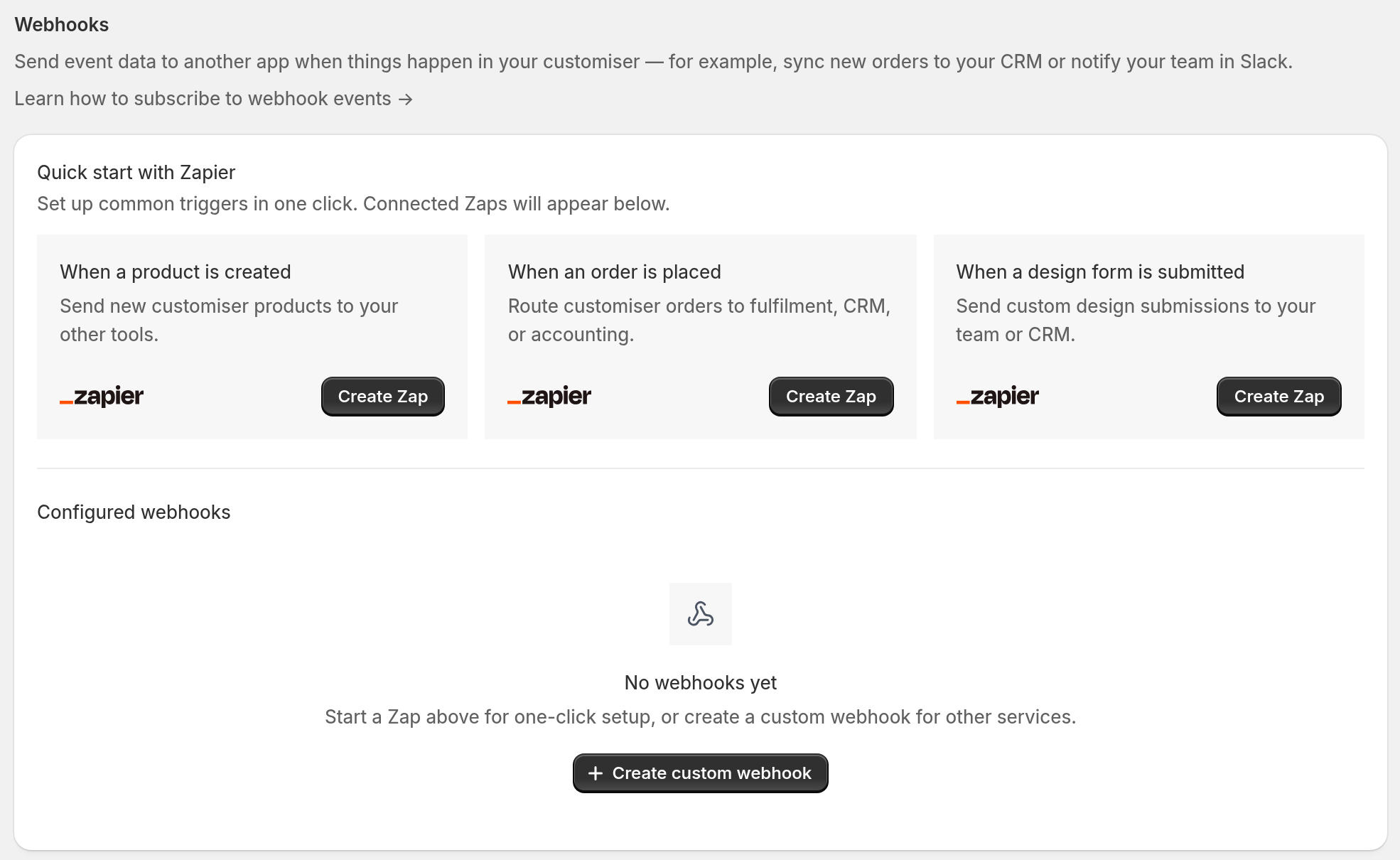
If you use Zapier, you can start from a Create Zap button instead. The Create Zap buttons are in Quick start with Zapier, above Configured webhooks. For more information, read the Zapier Integration guide. For other services, use Create custom webhook.
5: Configure Your Webhook
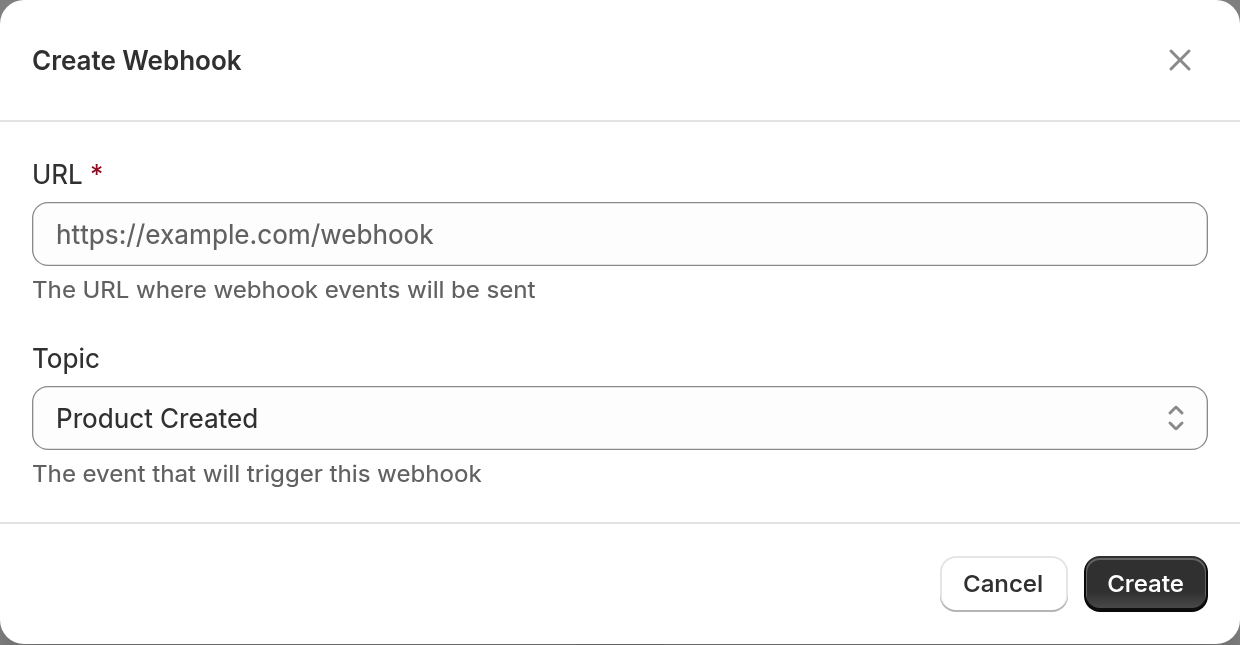
In the Create Webhook window, set these fields:
-
URL: Enter the endpoint URL where Sign Customiser sends POST requests when the event occurs. The URL must be a public http or https address. Sign Customiser cannot send data to localhost or private network addresses. To test, use a public test URL or a staging endpoint.
-
Topic: Select the event that sends the notification: Product Created, Order Created or Form Submitted (deprecated).
Click Create.
6: Access Your Webhook Details
The new webhook shows in the Configured webhooks table. Click its topic to open the Webhook Details page. This page shows:
-
Activity Logs for the requests that Sign Customiser sends to your endpoint
-
Your unique Secret. Click Reveal or Copy, and keep this value. You need it to verify incoming webhooks.
To change the URL or topic of a custom webhook, click Edit Webhook. Sign Customiser cannot change a webhook that a Zap created. To remove the subscription, click Delete Webhook.
Verifying Webhook Signatures
Every webhook from Sign Customiser has a cryptographic signature. Verify the signature to make sure that the request is genuine and that nobody changed it.
Understanding the Verification Process
Each webhook includes two signature headers:
-
X-Webhook-Timestamp: The Unix timestamp when Sign Customiser sent the webhook -
X-Webhook-Signature: A hex-encoded HMAC-SHA256 of the timestamp, a full stop and the raw request body. The key is your webhook secret.
Implementation Steps
Step 1: Extract Headers and Payload. When your endpoint receives a request, get the timestamp and the signature from the headers. Node.js changes header names to lower case, so the code uses lower-case keys. Also capture the raw request body:
const timestamp = req.headers["x-webhook-timestamp"];const signature = req.headers["x-webhook-signature"];const rawPayload = req.body.toString("utf8"); // req.body must be the raw Buffer, for example from express.raw({ type: "application/json" }), not parsed JSONStep 2: Verify Timestamp (Limit Replay Attacks). Make sure that the timestamp is a valid number and is recent (within 5 minutes). A copied request then passes this check for 5 minutes only:
const currentTime = Math.floor(Date.now() / 1000);const webhookTime = Number.parseInt(timestamp, 10);const timeDiff = Math.abs(currentTime - webhookTime);if (!Number.isFinite(webhookTime) || timeDiff > 300) { // 5 minutes in seconds return false; // Reject a missing, invalid or old timestamp}Step 3: Create the Signature String. Join the timestamp, a full stop and the raw payload. This is the string that Sign Customiser signed:
const stringToSign = `${timestamp}.${rawPayload}`;Step 4: Calculate Expected Signature. Use your secret from the Webhook Details page. Calculate the signature that you expect:
const expectedSignature = crypto.createHmac("sha256", webhookSecret).update(stringToSign).digest("hex");Step 5: Compare Signatures Securely. Use a constant-time comparison. It stops the comparison itself from leaking timing information. Before you compare, make sure that the signature header exists and has the correct length. If the lengths are different, crypto.timingSafeEqual throws an error:
if (typeof signature !== "string") { return false; // Reject requests with no signature}const received = Buffer.from(signature, "hex");const expected = Buffer.from(expectedSignature, "hex");const isValid = received.length === expected.length && crypto.timingSafeEqual(received, expected);Important Implementation Notes
Raw Body Requirement: Capture the raw request body, not parsed JSON. You need the raw body to verify the signature.
Return the right HTTP status code:
- Return
200 OKto show that your endpoint received the webhook.
Security Best Practices
-
Keep your webhook secret safe. Use an environment variable, not your code.
-
Always verify the signature before you process webhook data.
-
Use HTTPS for your webhook URLs. HTTPS encrypts the data in transit.
Troubleshooting
Common Issues:
-
No requests arrive for Product Created or Order Created: On a Universal Store, make sure that Custom API is on. See step 3.
-
Invalid signatures: Make sure that you use the raw request body, not parsed JSON.
-
Timestamp errors: Make sure that the system clock on your server is correct.
Testing Your Implementation: Open the Webhook Details page in Sign Customiser. Check the Activity Logs. Each entry is an Outgoing Request, which is a request that Sign Customiser sent to your endpoint. Make sure that the response status of each entry is 200.
Next Steps
After you set up and verify your webhooks, process the payload data in your application. For example, you can update databases, send notifications or connect other services.