

Why is add to cart not working?
Last updated:
Add to cart can fail for different reasons. The correct fix depends on the platform you use with Sign Customiser.
Braille signs
On a braille sign customiser, add to cart stays unavailable until the current wording has a successful braille translation. These problems keep add to cart blocked:
-
The translation is not complete.
-
The translation service returned an error.
-
The input cannot be translated (for example emoji, or Japanese, Chinese and Thai text).
-
The plate is too small for the braille row (braille signs with frame-fit pricing).
This prevents the customer from ordering a sign with missing or wrong braille. See Braille Signs and Braille translation: supported languages and sizing.
Shopify
Too Many Variants
Shopify limits new variants only for large stores. A store with 500,000 product variants or more can add a maximum of 10,000 new variants each day if it is not on the Shopify Plus plan. At this limit, Sign Customiser cannot create the custom sign product in your store. Shopify Plus stores do not have this limit.
Read more: Considerations for adding variants
Incomplete Location Fulfilment
If your store uses Shopify Locations to manage inventory, your default location must be able to fulfil orders. If it cannot, the custom sign may not be available to buy when the customer tries to purchase it.
The Sign Customiser app in your Shopify admin can show a warning for this problem. The warning says Default location doesn’t have shipping enabled and shows the name of your default location. It has a Learn how to fix this button and a Refresh button. The warning does not give the cause. Sign Customiser also sends an email with the subject “[Action Required] Your Shopify shipping location needs attention”. The email gives the cause.
The warning also appears when your default location does not have one of these four settings:
-
The location is active.
-
The location fulfils online orders.
-
Shopify’s
shipsInventoryfield is true for the location. -
The location is in the general shipping profile of your store.
To fix setting 1, go to Settings > Locations in your Shopify admin, select your default location, and select Activate location. To fix setting 4, go to Settings > Shipping and delivery in your Shopify admin. Open the general shipping profile. Add your default location to the fulfilment locations of that profile. For setting 2 or 3, contact support and give your Store name.
Then open the Sign Customiser app and select Refresh on the warning. Sign Customiser checks the location again.
The setup guide gives the exact steps and screenshots.
Read more: Shopify Shipping Location Setup
Add to cart only fails in certain countries or markets
Add to cart can work in your home market and fail for shoppers in other countries. If your store uses Shopify Markets, Sign Customiser can fail to publish the generated product to the active market of the shopper. Do these checks:
-
Standard Shopify themes (app blocks or the app embed block) pass the active market automatically. You do not need to do anything.
-
Headless storefronts (for example Hydrogen) must pass the active market. Pass the market ID and the market handle of the active market. On the custom element, use the
shopify-market-idandshopify-market-handleattributes. On an iframe URL, use theshopify_market_idandshopify_market_handleparameters. See Install Sign Customiser on a headless Shopify storefront. -
Look at the Home page of the Sign Customiser app in your Shopify admin. If it shows Approve Shopify Markets access, approve it. Then Sign Customiser can publish generated products to the active market of the shopper.
WordPress/Custom/Other
If add to cart fails with a WordPress, custom or other integration, the cause is probably a communication problem between Sign Customiser and your website.
The integration logs in Sign Customiser show the error. If the Home page shows a Recent Integration Errors banner, click View Details on the banner to open the errors. If it does not, do these steps:
-
Log in to your Sign Customiser account.
-
In the left sidebar, under Integrate, click Integrations.
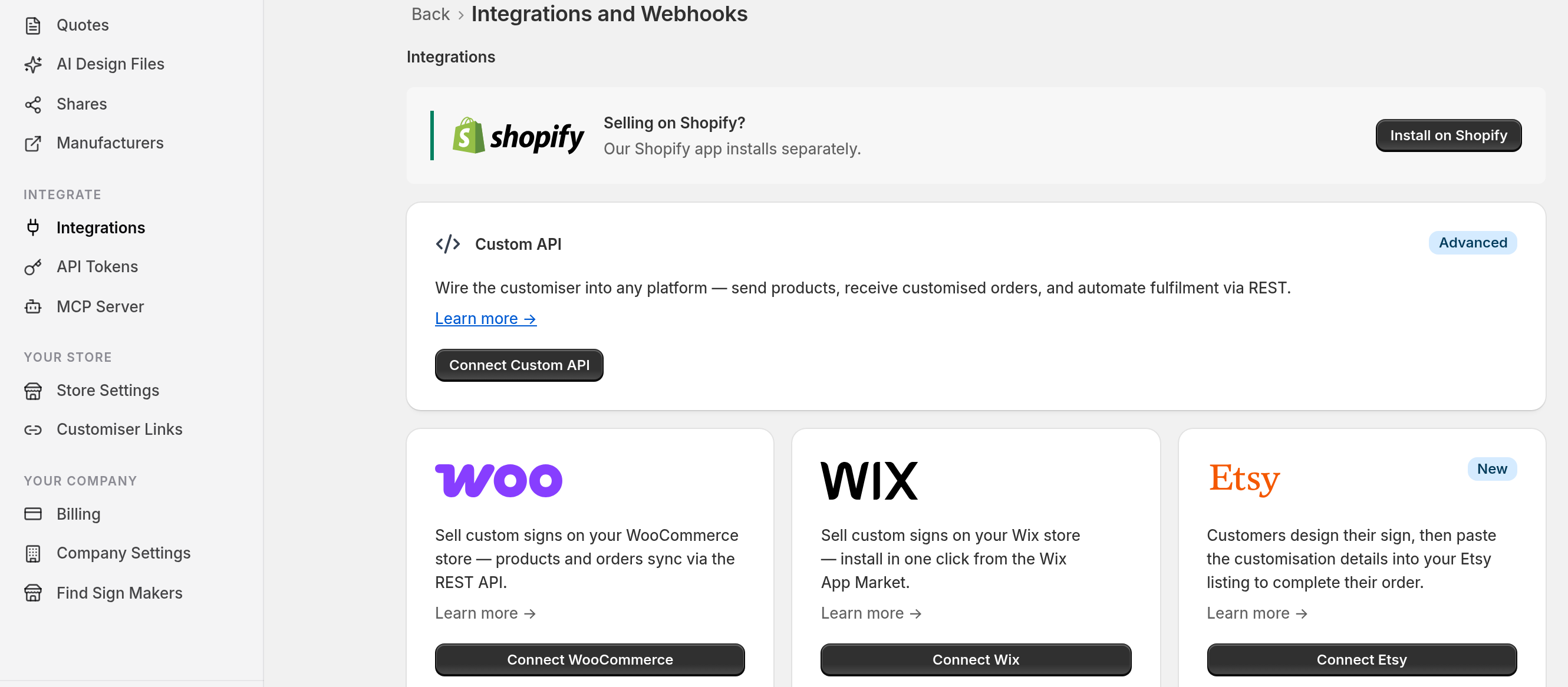
-
Click View Details on your integration.
-
Find the Activity Logs section. It lists the requests that Sign Customiser sent to your website or platform, for example to create products, and the requests that your website sent to Sign Customiser. Failed webhook deliveries are not in this list. They are on the page of each webhook, under Webhooks on the Integrations page.
-
Change the filter to Errors Only.
-
Look for a status badge with a code that starts with 4 or 5, for example
500,400or422. -
Click View Details on a row. The window shows the destination URL, status code, headers and response body.
A status code of 400 or above on a request that Sign Customiser sent to your website or platform means that the request failed, for example when it tried to create the product. Use the details to find the cause on your platform.