

Show / Hide Measurements?
Choose which measurements show in the visualiser and in the cart.
Last updated:
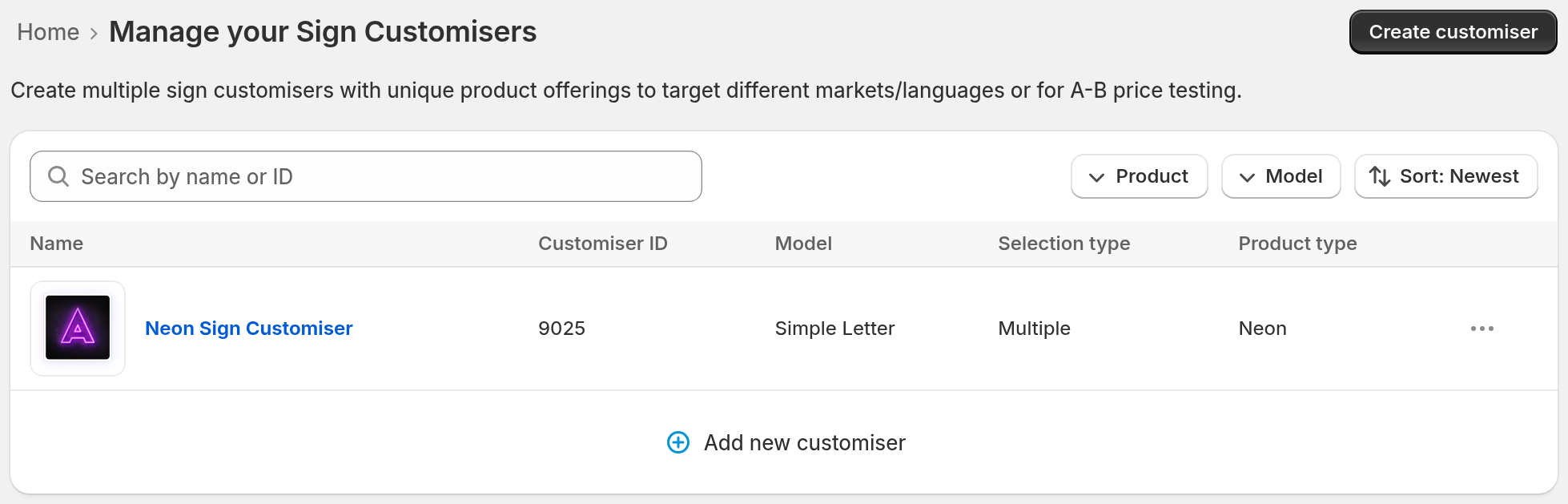
1. In the left menu, click Customisers. Then click the name of the customiser you want to edit. In the Shopify app, click Customisers.
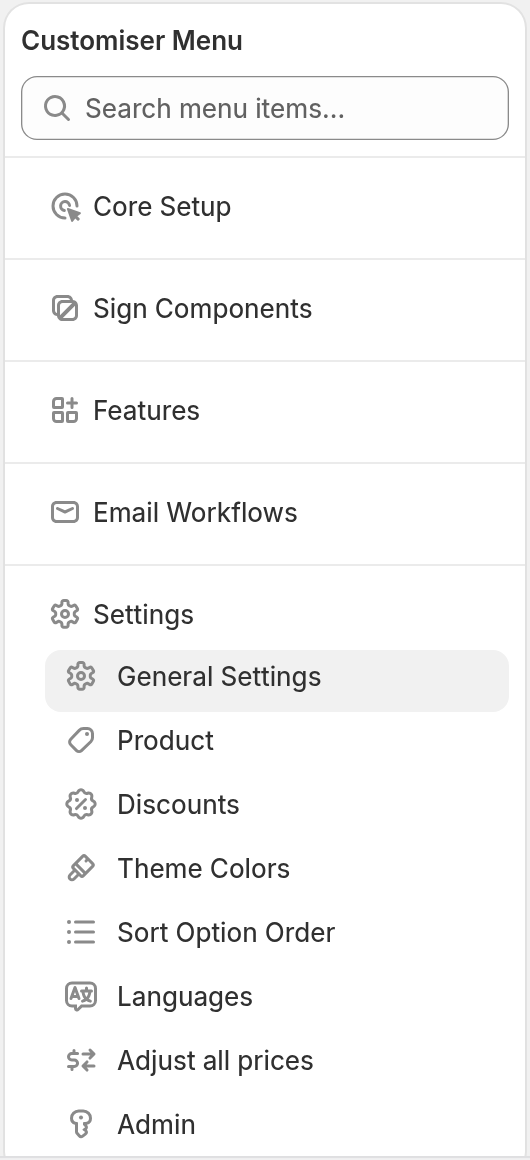
2. In the menu on the left, under Settings, click General Settings. If you see a Menu button, click Menu first.
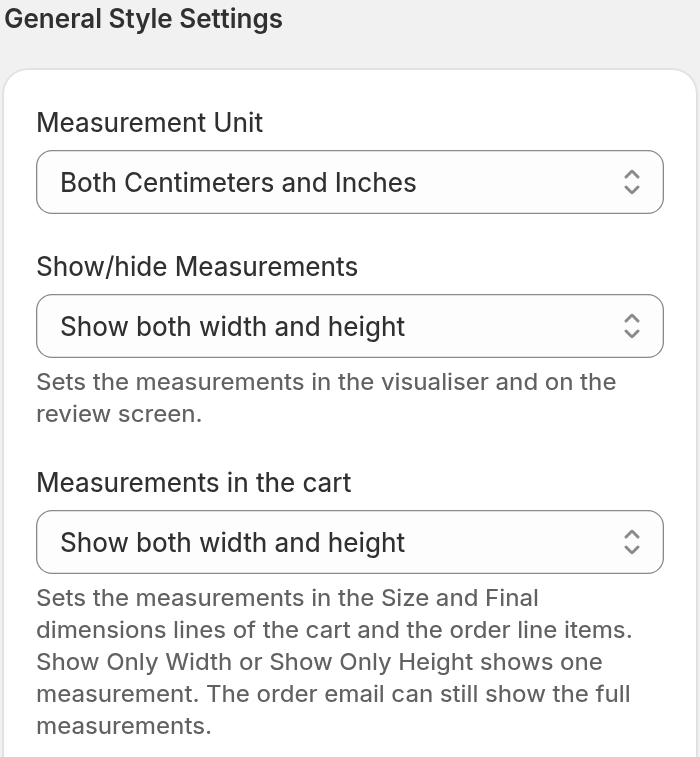
3. Under General Style Settings, find Show/hide Measurements:
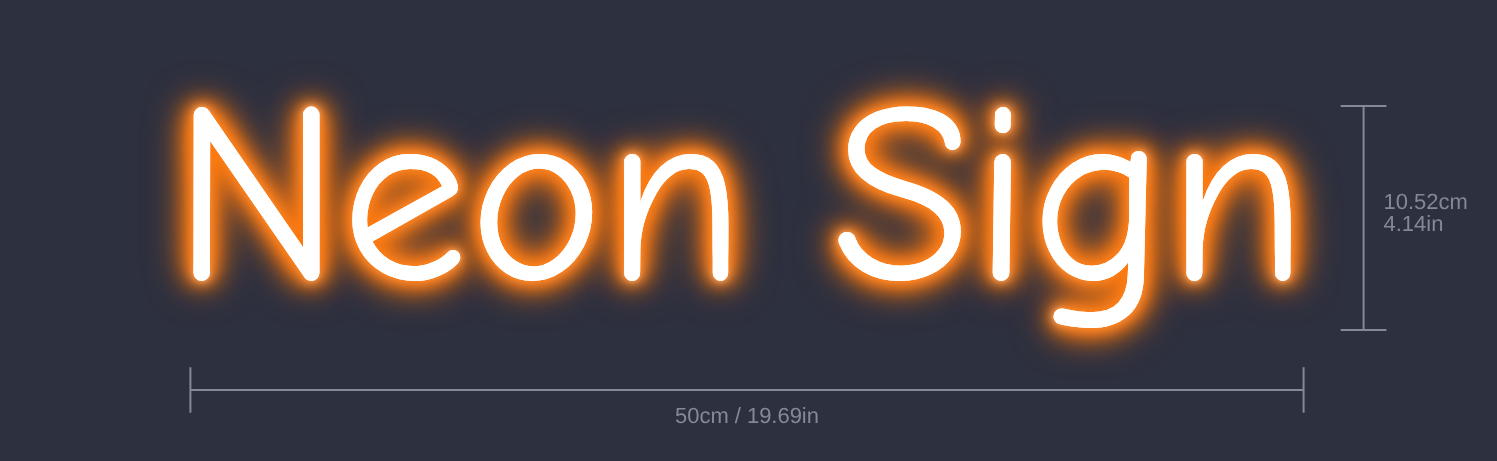
With Show both width and height, the visualiser looks like this:
With Show Only Width, the visualiser looks like this:

With Show Only Height, the visualiser looks like this:
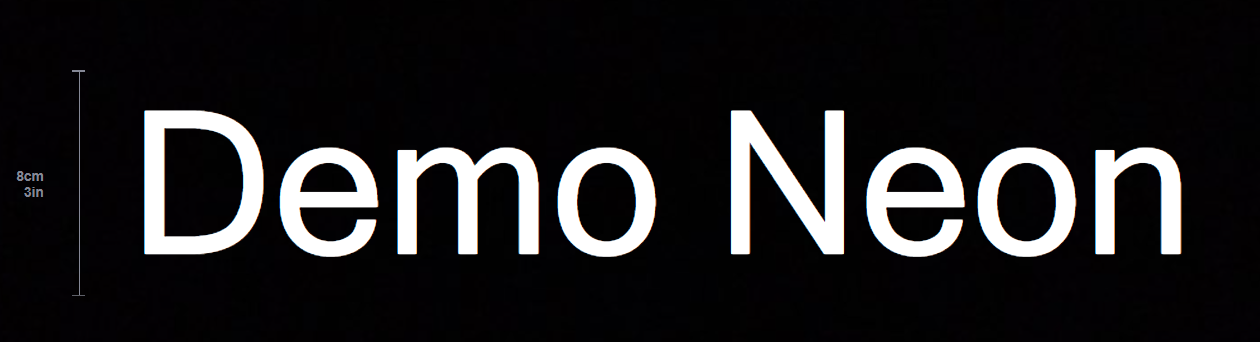
Measurements in the customiser and in the cart
You can show different measurements in the customiser and in the cart. For example, you can show the width in the visualiser and no measurements in the cart.
Three settings control which measurements show in the visualiser and in the cart. They are in Settings → General Settings, in the General Style Settings section. Two more settings in the same section change what the visualiser shows. They are described in “Other visualiser settings”.
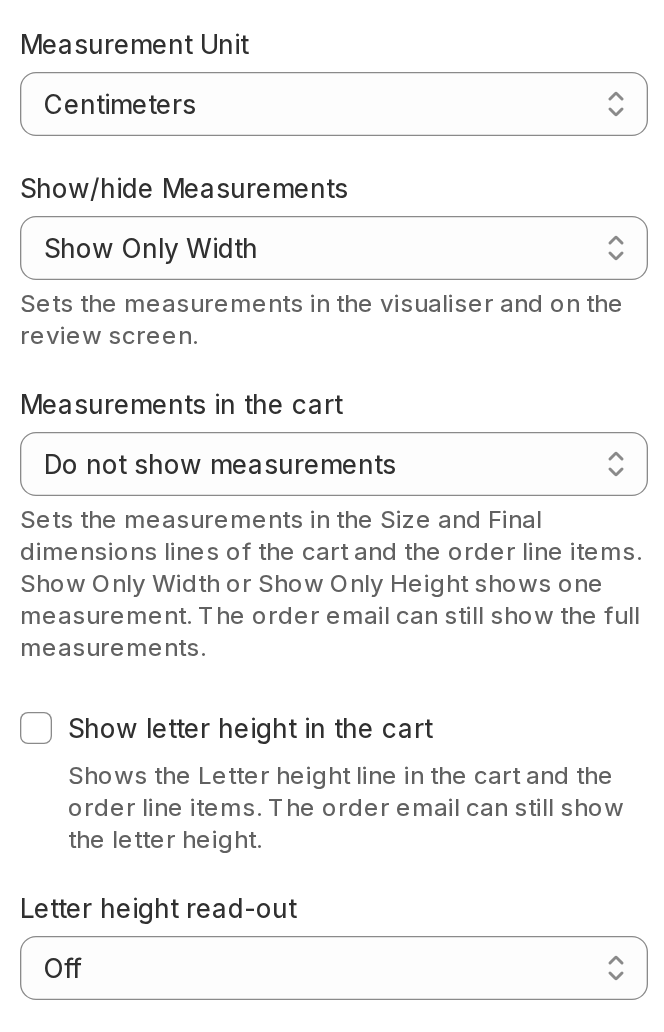
Show/hide Measurements
This setting controls the visualiser and the review screen. In the cart, it only limits the Size line. For a custom size, the review screen and the Size line can still show measurements (see Custom sizes). The size label in the Real size view also follows this setting. See Real size view.
-
Show both width and height
-
Show Only Width
-
Show Only Height
-
Do not show measurements
Lightbox and Frame Fit customisers have two options each:
-
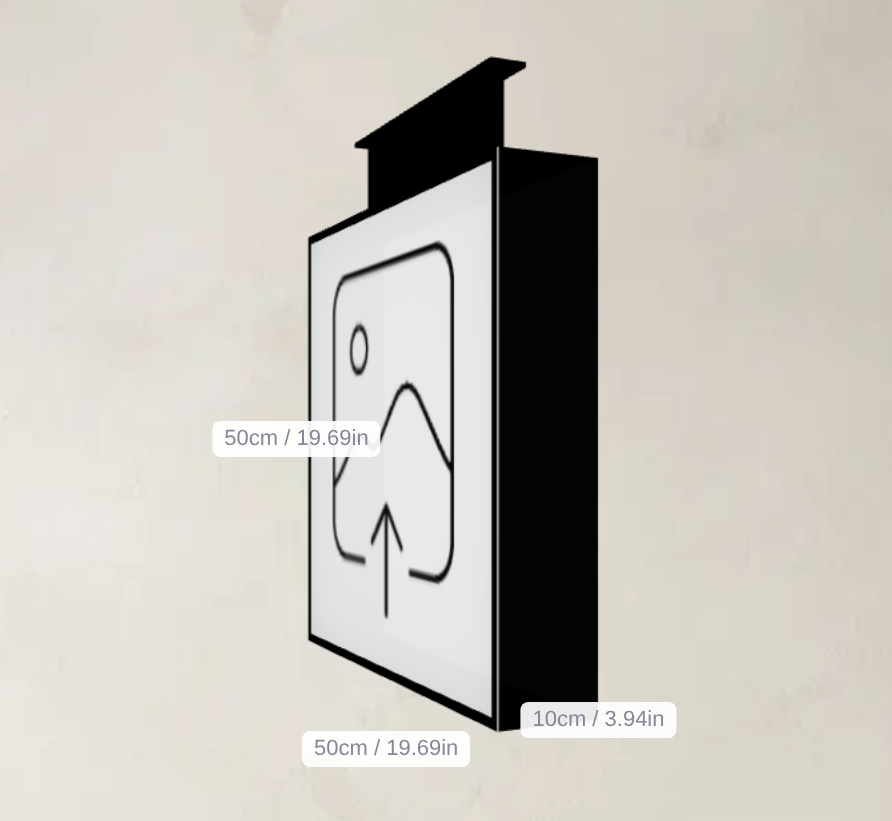
Lightbox: Show width, height and depth or Do not show measurements.
-
Frame Fit: Show width and height or Do not show measurements.
With Show width, height and depth, a lightbox looks like this:
With Show Only Width, a neon sign looks like this:

Measurements in the cart
This setting controls the Size line and the Final dimensions line in the cart and in the order line items. It has the same options as Show/hide Measurements.
-
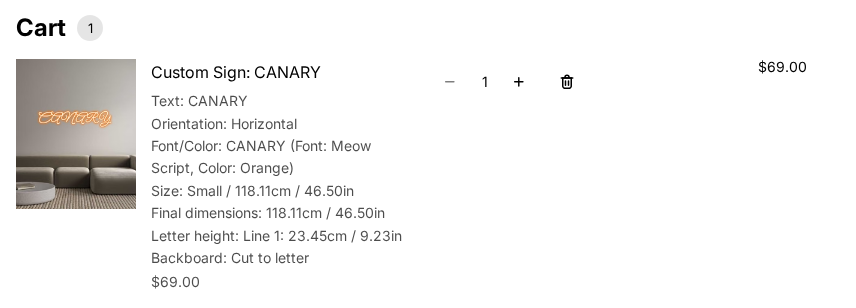
Show both width and height: The cart shows the full Final dimensions, for example 118.11cm X 25.4cm / 46.50in X 10.00in.
-
Show Only Width or Show Only Height: Final dimensions shows only that measurement, for example 118.11cm / 46.50in.
-
Do not show measurements: The cart does not show Final dimensions.
The Size line shows a measurement only when both settings include it, except for a custom size when Show/hide Measurements is Do not show measurements (see Custom sizes). For example, if the visualiser shows only the width and the cart shows both, the Size line shows only the width.
Show letter height in the cart
Select this setting to show the Letter height line in the cart. Clear this setting to remove the line from the cart.
Other visualiser settings
Two more settings in General Style Settings change what the visualiser shows. They do not change the cart.
-
Letter height read-out: Select On to show the letter height in the visualiser. It shows only when Show/hide Measurements includes the height.
-
Measurements for individual sign parts: Select Hide to remove the measurements of single sign parts from the visualiser. The letter height read-out also does not show.
Example: show the width in the visualiser and hide measurements in the cart
-
Set Show/hide Measurements to Show Only Width.
-
Set Measurements in the cart to Do not show measurements.
-
Clear Show letter height in the cart.
-
Click Save.
The visualiser and the review screen show the width. The cart shows only the size name, for example Size: Small.
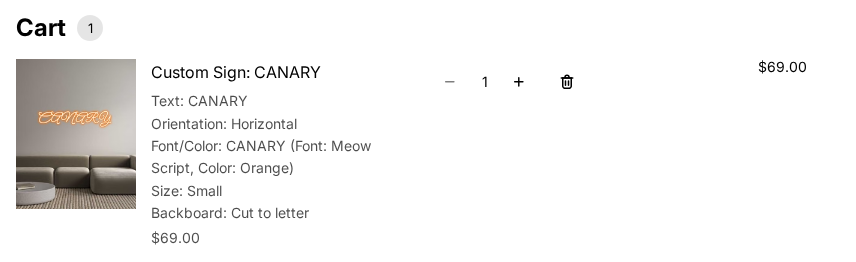
Custom sizes
If Show/hide Measurements is Do not show measurements and Measurements in the cart is not Do not show measurements, a custom size that the customer enters still shows on the review screen. The cart shows the measurements that Measurements in the cart includes. To hide them, also set Measurements in the cart to Do not show measurements.
What the manufacturer gets
The cart settings do not remove the measurements from the order. When the cart shows fewer measurements, the order keeps the full measurements as hidden data. The order email can still show the full measurements and the letter height.
If you used the old “Do not show” options
Before this change, Show/hide Measurements had two “Do not show” options. We changed your settings to keep your cart the same:
-
Do not show measurements but keep in product options is now Do not show measurements. The cart setting is the top option for that customiser: Show both width and height (standard), Show width and height (Frame Fit), or Show width, height and depth (Lightbox). The letter height shows.
-
Do not show measurements and hide from product options is now Do not show measurements. The cart setting is Do not show measurements, and the letter height does not show.