

RGB colour option
Last updated:
The RGB colour option shows several colours in the live preview. The colours cycle through the sign. Customers see the effect before they buy. You can add this option to neon signs and to channel letter signs.
Add an RGB colour option to a neon sign
-
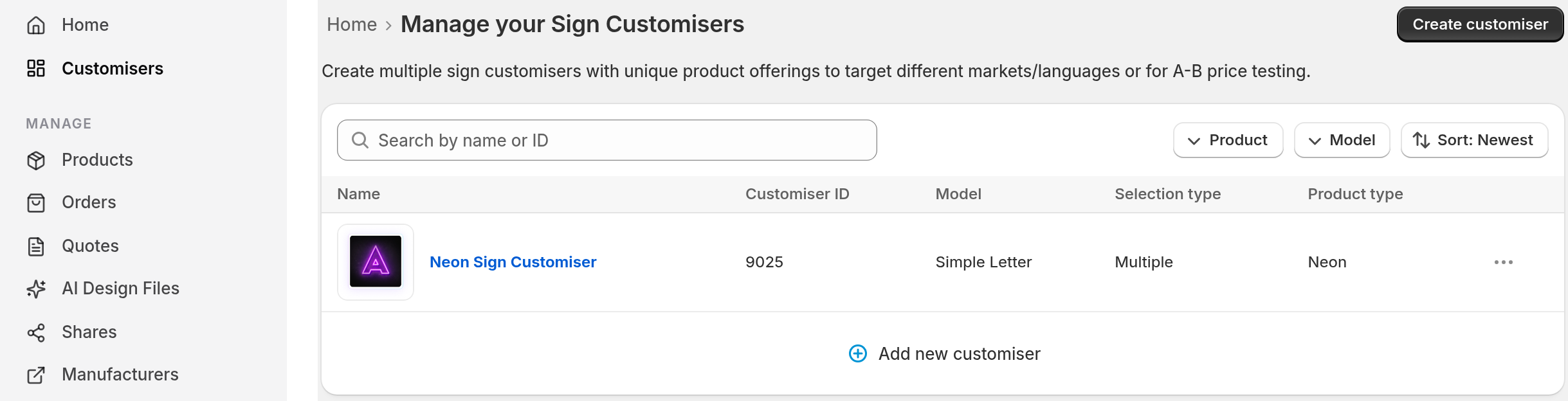
In the merchant admin, click Customisers in the sidebar. In the Shopify admin, open the app and click Customisers. Click the name of the customiser.
-
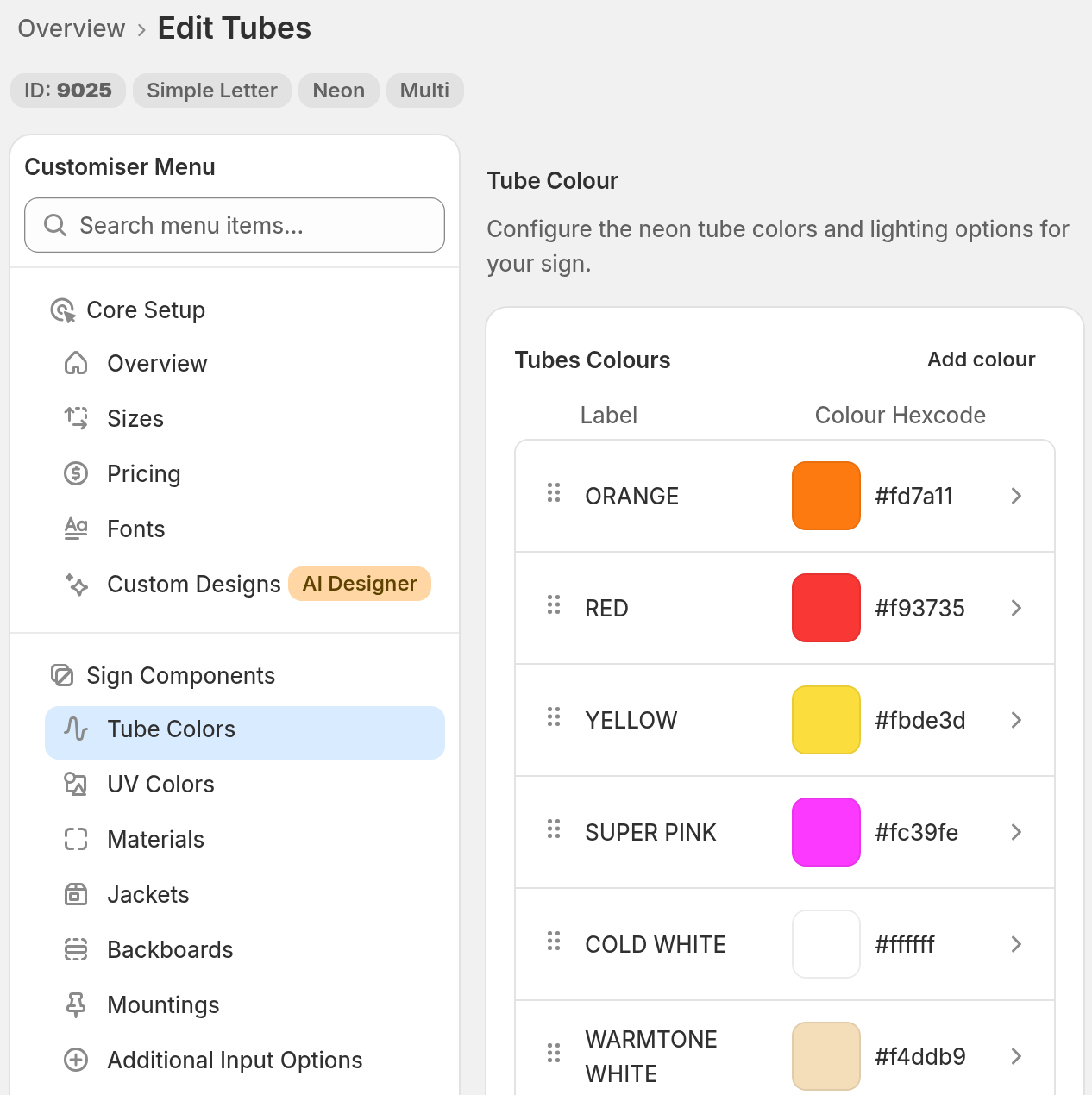
In the menu, open Sign Components. Click Tube Colours. Then click Add colour. On a screen narrower than 799 px, click the Menu button first.
-
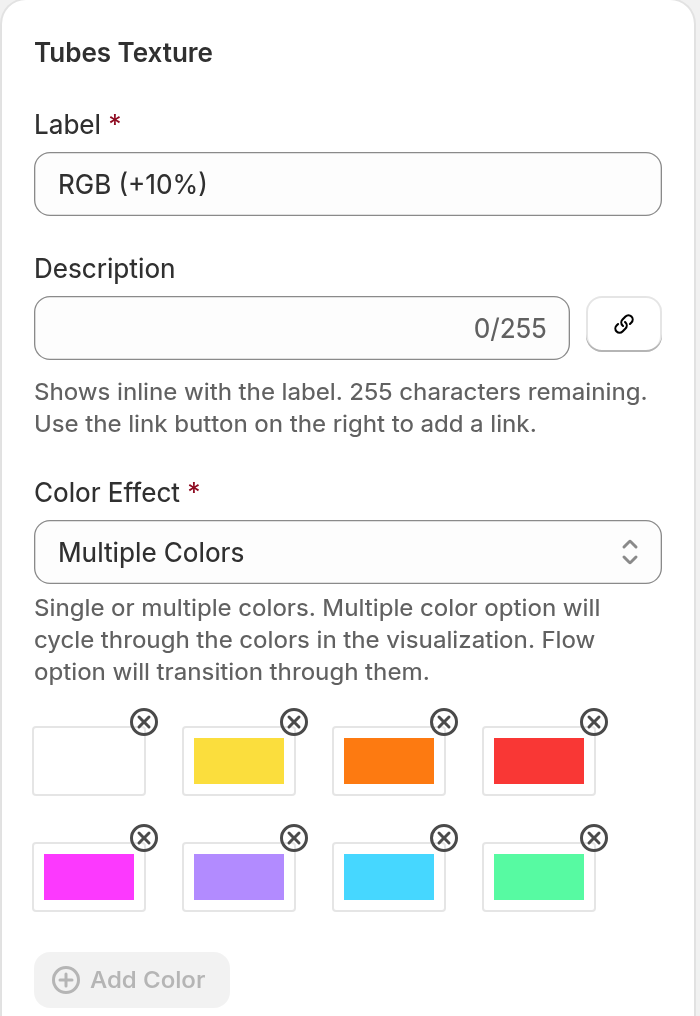
Enter a Label and a Description. Customers see both.
-
For Colour Effect, choose Multiple Colours. Click Add Colour for each colour. You can add up to 8 colours. To delete a colour, click the “X” circle near it.
For neon tubes, the Colour Effect list also has a Flow option. Flow changes between the colours in sequence. For more information, read Flow RGB colour option.
-
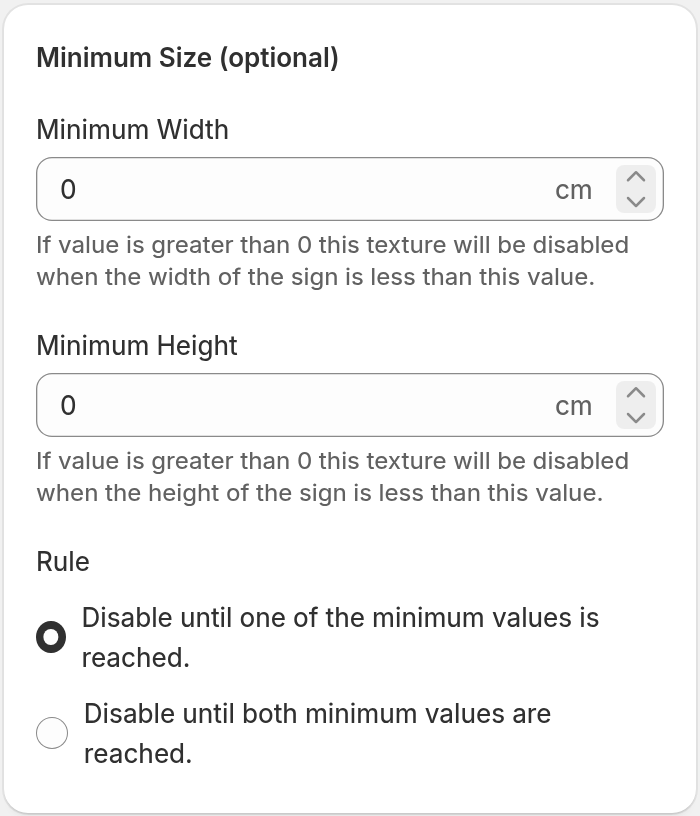
Use Minimum Size to set the smallest sign that can use the colour option. Enter a Minimum Width and a Minimum Height. A value of 0 counts as reached. Under Rule, choose one option:
-
Disable until one of the minimum values is reached. This is the default. The colour option is disabled only when the sign is smaller than both values. If one value is 0, the colour option is never disabled.
-
Disable until both minimum values are reached. The colour option is disabled when the sign is smaller than either value that is more than 0.
-
-
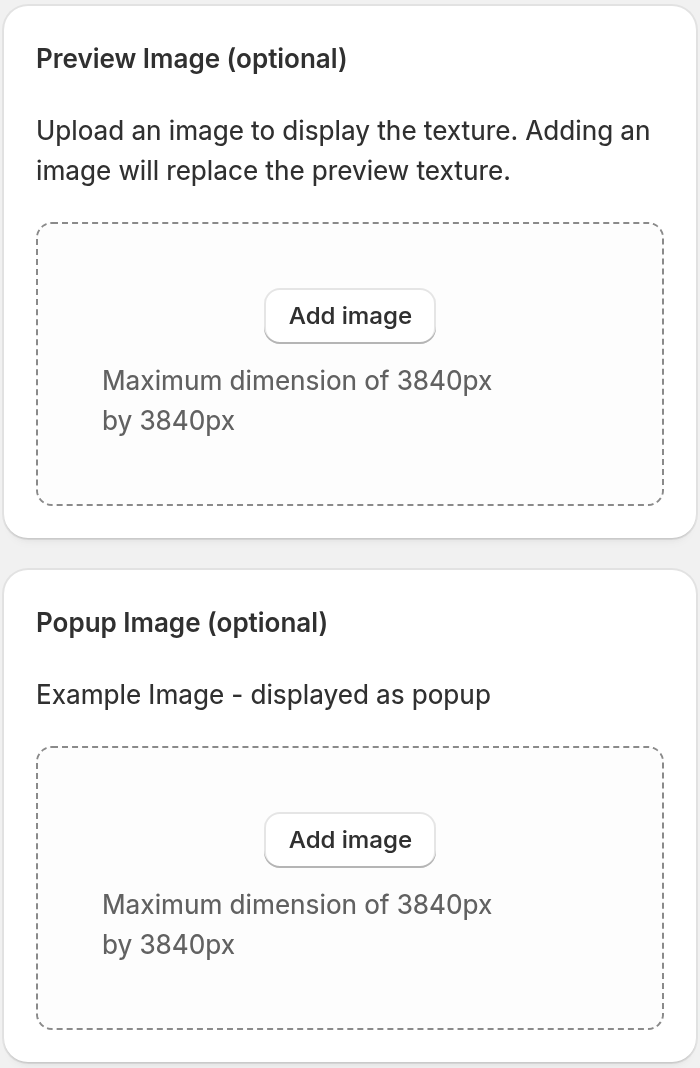
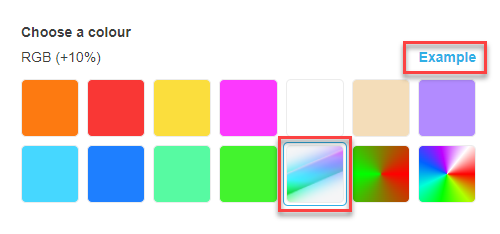
Add images with Preview Image and Popup Image. The preview image replaces the colour swatch. The popup image opens when customers click Example next to the colour name. This link shows only when the colour has a popup image. The popup image also shows when customers hover over the colour. To use this, turn on Display example images when hovering selections. This setting is in General Settings, under Desktop Style Options.
-
Use Pricing to choose how the colour option changes the price:
-
None: The sign price does not change.
-
Base Price: A fixed amount is added to the sign price.
-
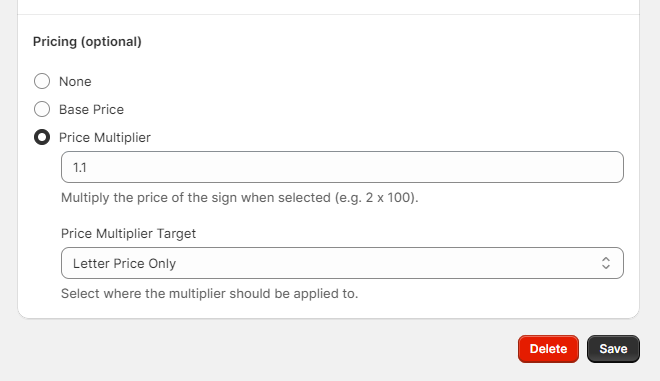
Price Multiplier: The price is multiplied by the number you enter. Price Multiplier Target sets which part of the price is multiplied.
If you choose Price Multiplier, use Price Multiplier Target to select the part of the price. Letter Price Only is the default. Final Price (includes additional costs from other options) also includes the cost of other options.
-
-
Click Save. Customers can now choose the RGB colour option.
Add an RGB colour option to a channel letter sign
The face colours of a channel letter do not show the Colour Effect list. They use the Visual Effect section.
-
Open the channel letter customiser. In the menu, open Sign Components. Click Letter Types. Then click the letter type.
-
For the face colour, click the Face / Front Lit row. For the halo colour, click the Back Lit row.
-
Click Add texture. Enter a Label and a Description.
-
For a face colour, click RGB Colour in the Visual Effect section. Then click Add Colour for each colour. You can add up to 8 colours.
-
For a halo colour, set Colour Effect to Multiple Colours. Then click Add Colour for each colour. The Flow option is not available for channel letters.
-
Set Minimum Size, Preview Image, Popup Image and Pricing as in steps 5 to 7 above. Then click Save.