

Translate the review screen
Translate the final design review, its actions, selected-option headings and supporting information.
Last updated:
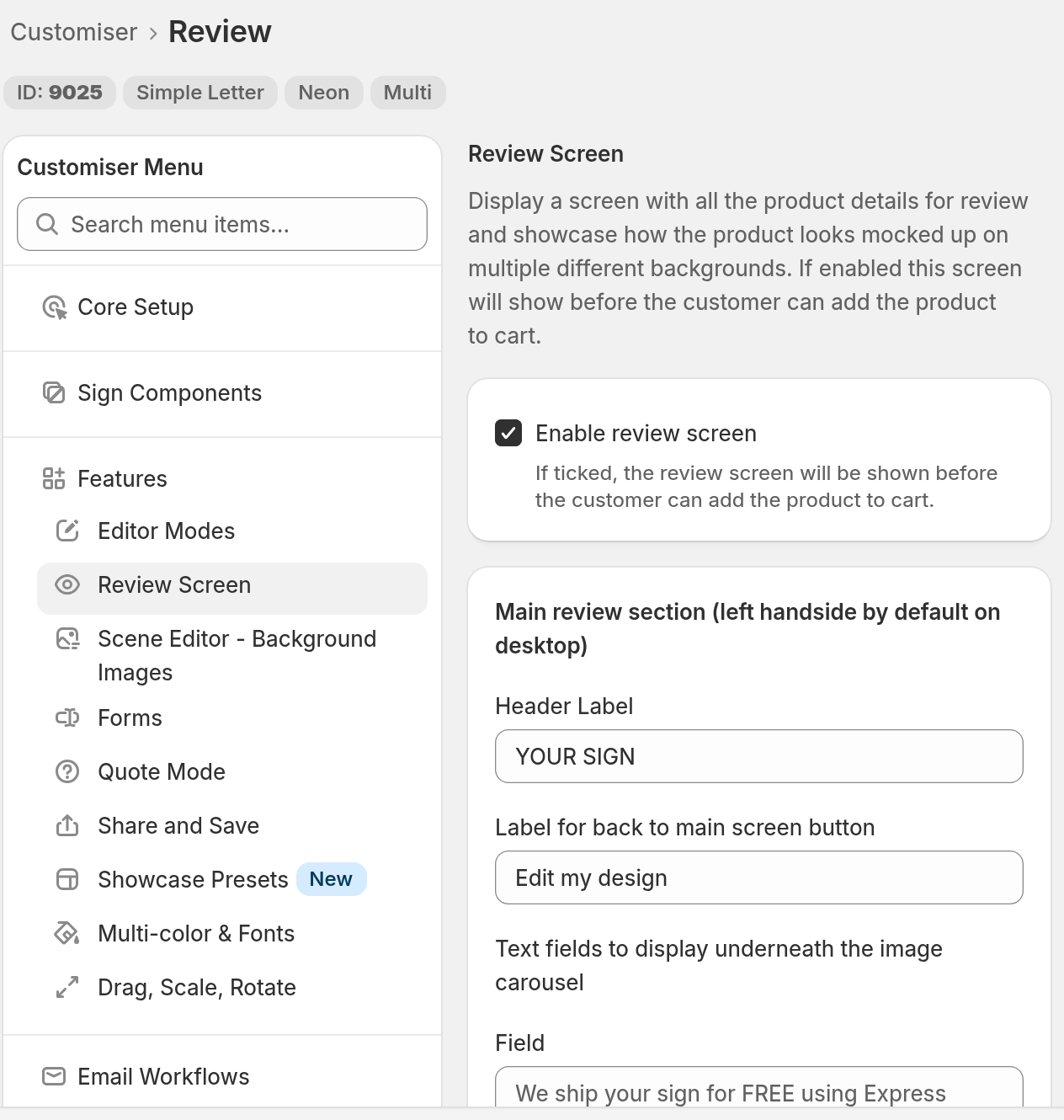
Enable and configure the source review screen under Features -> Review Screen. Translate its shopper-visible labels under Settings -> Languages.
-
Open Customisers -> [customiser] -> Features -> Review Screen.
-
Select the Enable review screen checkbox.
-
Write the source wording in these sections: Main review section, Chosen options section, Additional Items included, Qualities, Additional Information and Contact Section.
-
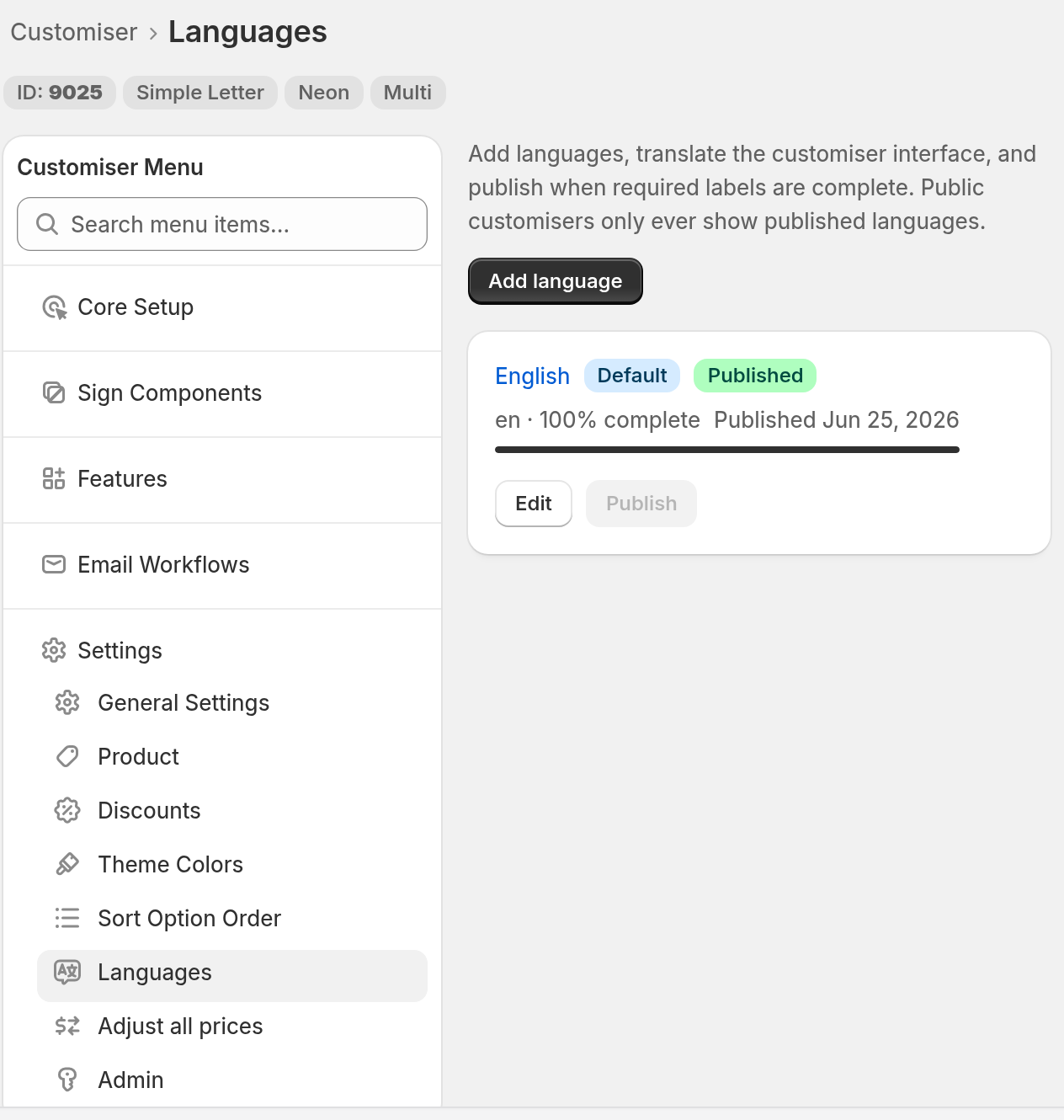
Go to Settings -> Languages. Select Edit on the target language.
-
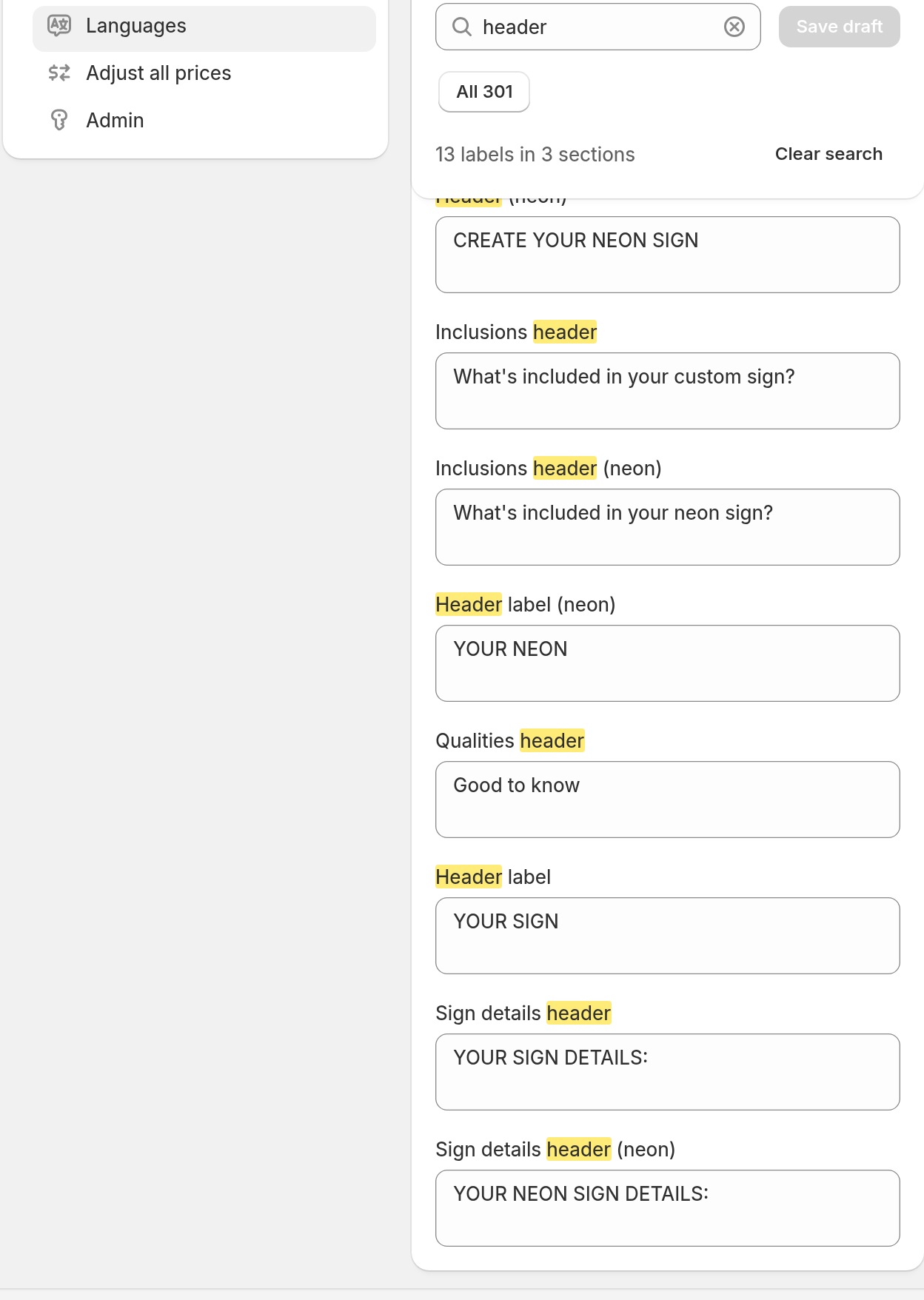
Translate the review fields that this article lists. Select Save draft. Select Preview to check the full review step.
-
Select Publish when the wording and the option summary are correct.
Start from an AI draft
You can use AI to fill the fields first. Use one of these options:
-
Turn on Generate a first draft with AI when you add the language.
-
Select Translate with AI in the language editor.
-
Select Translate with AI in the three-dot menu (⋯) on the language row.
These options show only when AI translation is available. AI writes a draft only. Check every review field before you publish.
Review-screen wording
In the language editor, the review fields are in General labels:
-
Header label
-
Label for back to main screen button
-
Sign details header. In the source settings, this field is Header in the Chosen options section.
-
Highlight 1, Highlight 2 and Highlight 3. These rows are the text under the image carousel on desktop screens (1025 px wide and wider). Narrower screens do not show them. A highlight shows under the carousel when its text in the shopper’s language is at least two characters long. A language with no usable translation shows the source text.
-
Inclusions header and Inclusions
-
Additional information 1 — header and Additional information 1 — description. Each entry has its own numbered pair of rows.
-
Contact header and Contact description
-
Qualities header, Quality 1 — header and Quality 1 — description. Each quality has its own numbered pair of rows.
The Finish button and Add to cart button fields are in Checkout & cart. The headings for chosen options, such as Text, Font and Size, are in other sections. Examples are Text editor and Option section labels. Use the search box, which shows Search labels and text when it is empty, to find a field.
On a Neon sign, a blank plain source field makes the shopper see the (neon) wording. The editor lists these fields as Header label (neon), Sign details header (neon), Inclusions header (neon) and Inclusions (neon). Translate the (neon) field in that case.
The names of the selected colours, fonts, sizes and other options come from their own translated display values. See Translate option names, colours, fonts and sizes.
Preview the target language before you publish. Option names and section titles also go into the product description. Review-screen headings, highlights, inclusions, contact details and qualities show only on the review screen. For the cart and order output, see Translate cart and order details.
For the draft, preview and publish steps, and for the full AI workflow, follow Add, translate, preview and publish a language.