

Decimal Format for Measurements
Choose With Decimal or No Decimal for Decimal Format of Measurements in General Settings.
Last updated:
Use this setting to choose how your customiser shows measurements. You can show decimal places or whole numbers.
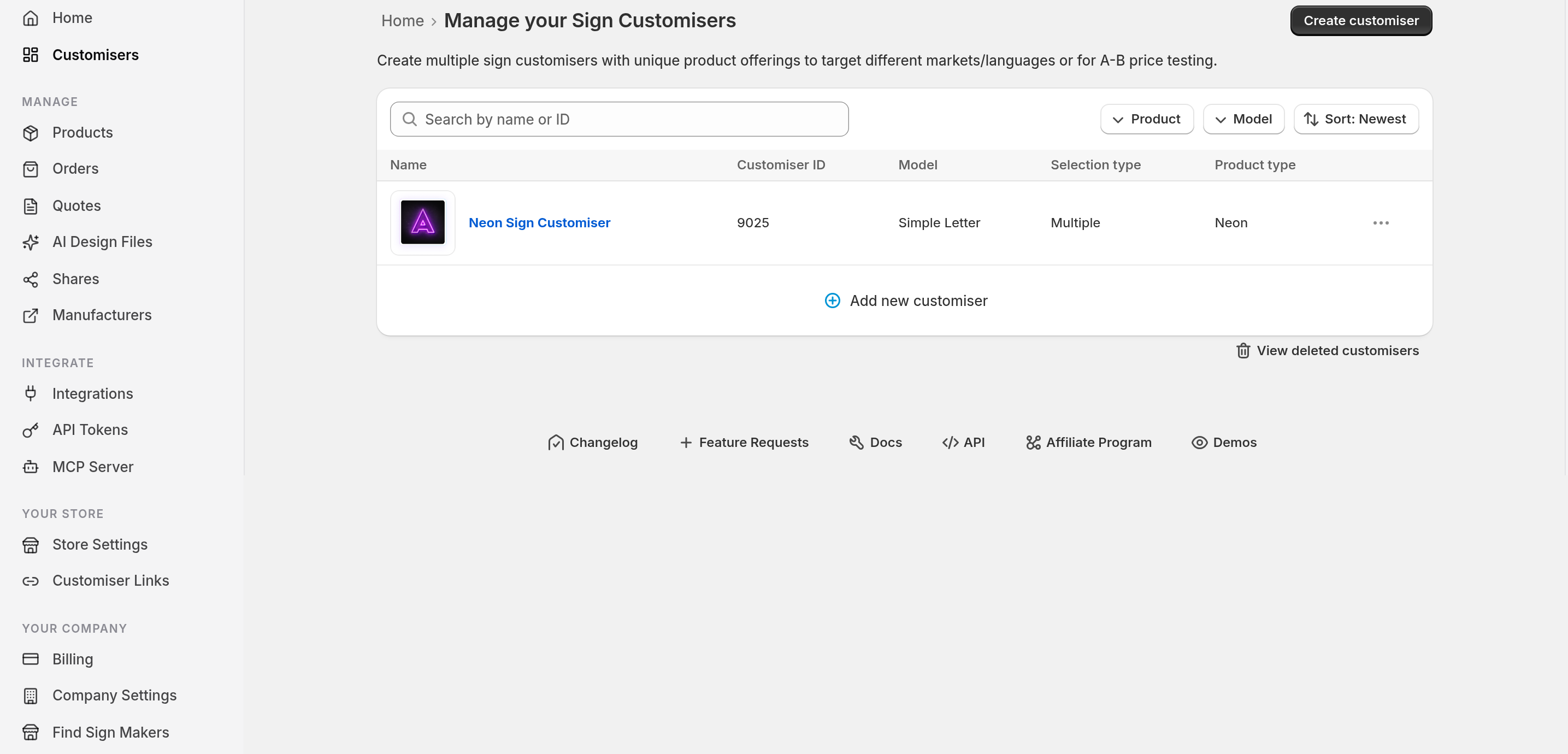
1. In the left menu, click Customisers. Click the name of the customiser that you want to change.
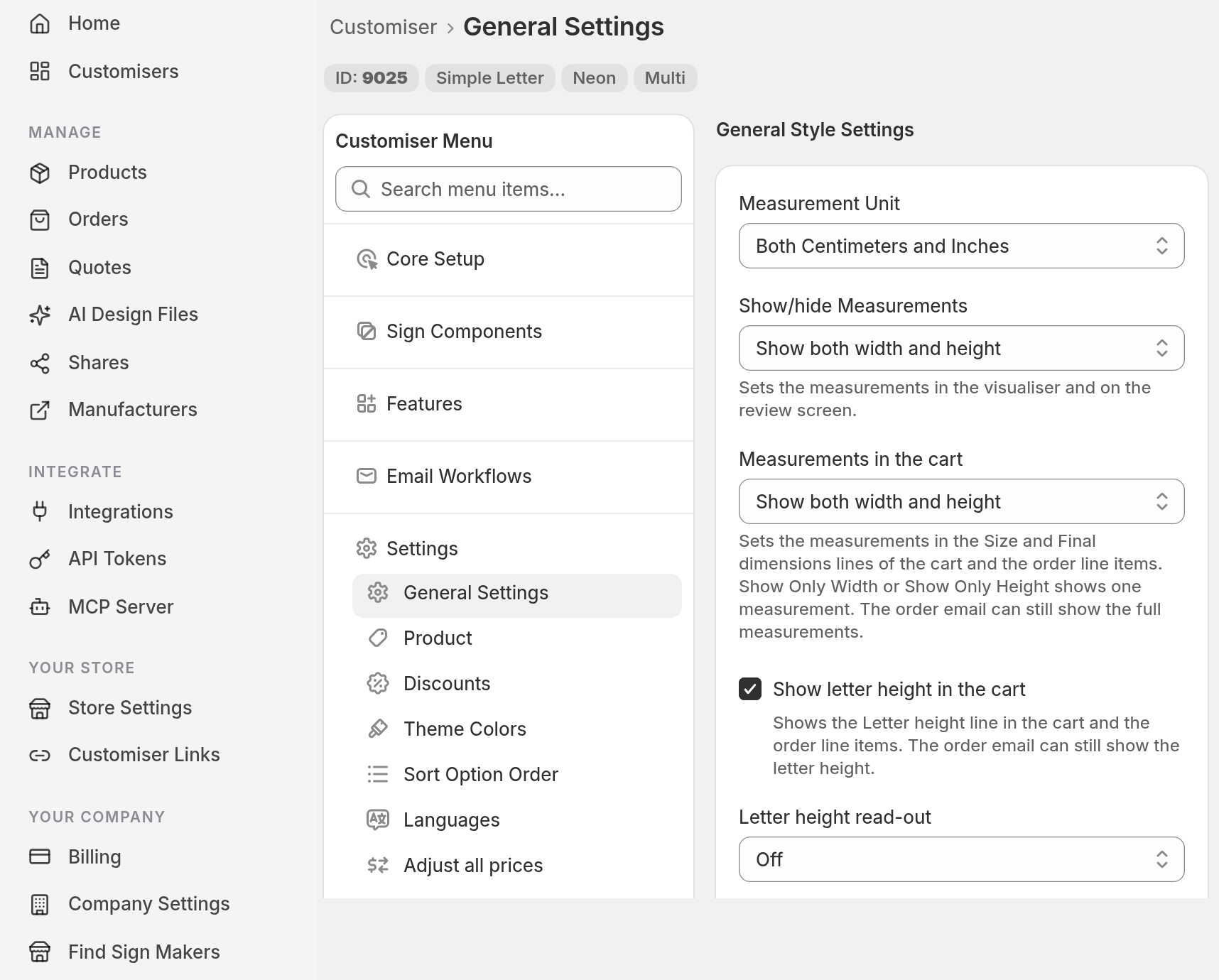
2. In the menu on the left, open Settings if its list is closed. Click General Settings. If you cannot see the menu, click Menu.
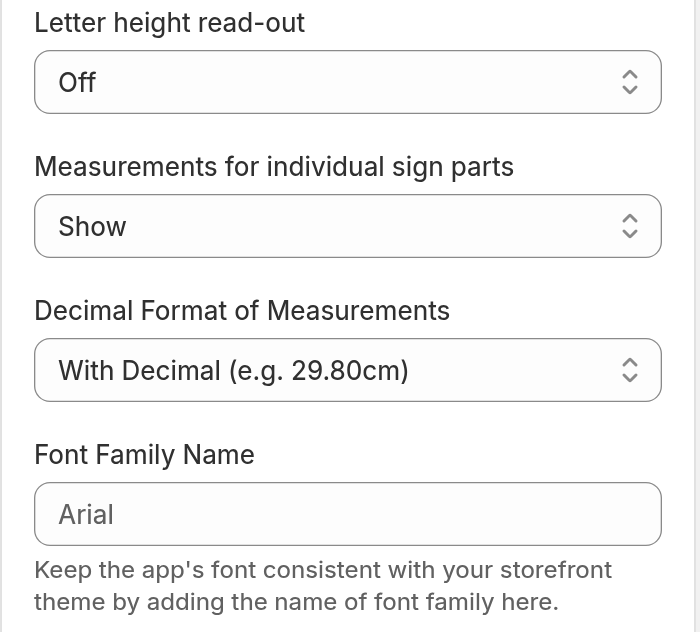
3. Scroll to Decimal Format of Measurements in General Style Settings. Open the list. Choose With Decimal (e.g. 29.80cm) or No Decimal (e.g. 30cm).
4. Click Save at the end of the page.
What each choice does
With Decimal is the default. Measurements show decimal places, for example 25.4cm and 10.00in. A whole centimetre value, for example 30cm, shows no decimal places.
No Decimal rounds the measurements that your customers see to whole numbers, for example 30cm. The Real size view also uses this setting.
Some fonts have a decimal minimum height. If you choose No Decimal and a font has this height, the font page shows a Decimal values detected warning. To fix it, read Font min heights and rounding measurements. That article applies to Advanced Model customisers only. The admin calls this model Advanced Letter.
To change the unit, read Centimetres/Inches measurement display.