

Jackets and tubes for neon signs
Give your customers the ability to select how the jackets/tubes are presented for your neon signs.
Last updated:
Use jacket options to control how the tubes of a neon sign look. A jacket option makes the tube white or coloured when the customer turns the sign light off. This article shows how to add jacket options and what each setting does.
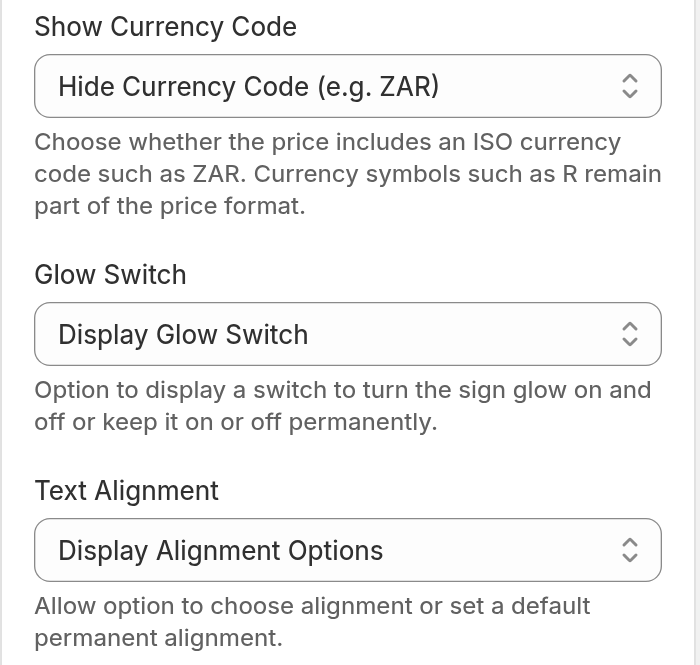
Before you start: set Glow Switch to Display Glow Switch
Customers can turn the sign light on and off only when Glow Switch is set to Display Glow Switch. With any other value, there is no light button.
-
With Glow Only, the sign light stays on. The customer cannot see the jacket effect.
-
With No Glow, the sign light stays off. The customer always sees the jacket effect.
To set Glow Switch:
-
Open the Merchant admin. For a Universal account, go to web.signcustomiser.com. For a Shopify Store, go to Apps in your Shopify admin and open Sign Customiser.
-
Click Customisers.
-
Click the customiser that you want to change.
-
In the menu on the left, go to Settings → General Settings. If you do not see the menu, click Menu.
-
Under General Style Settings, set Glow Switch to Display Glow Switch.
-
Click Save.
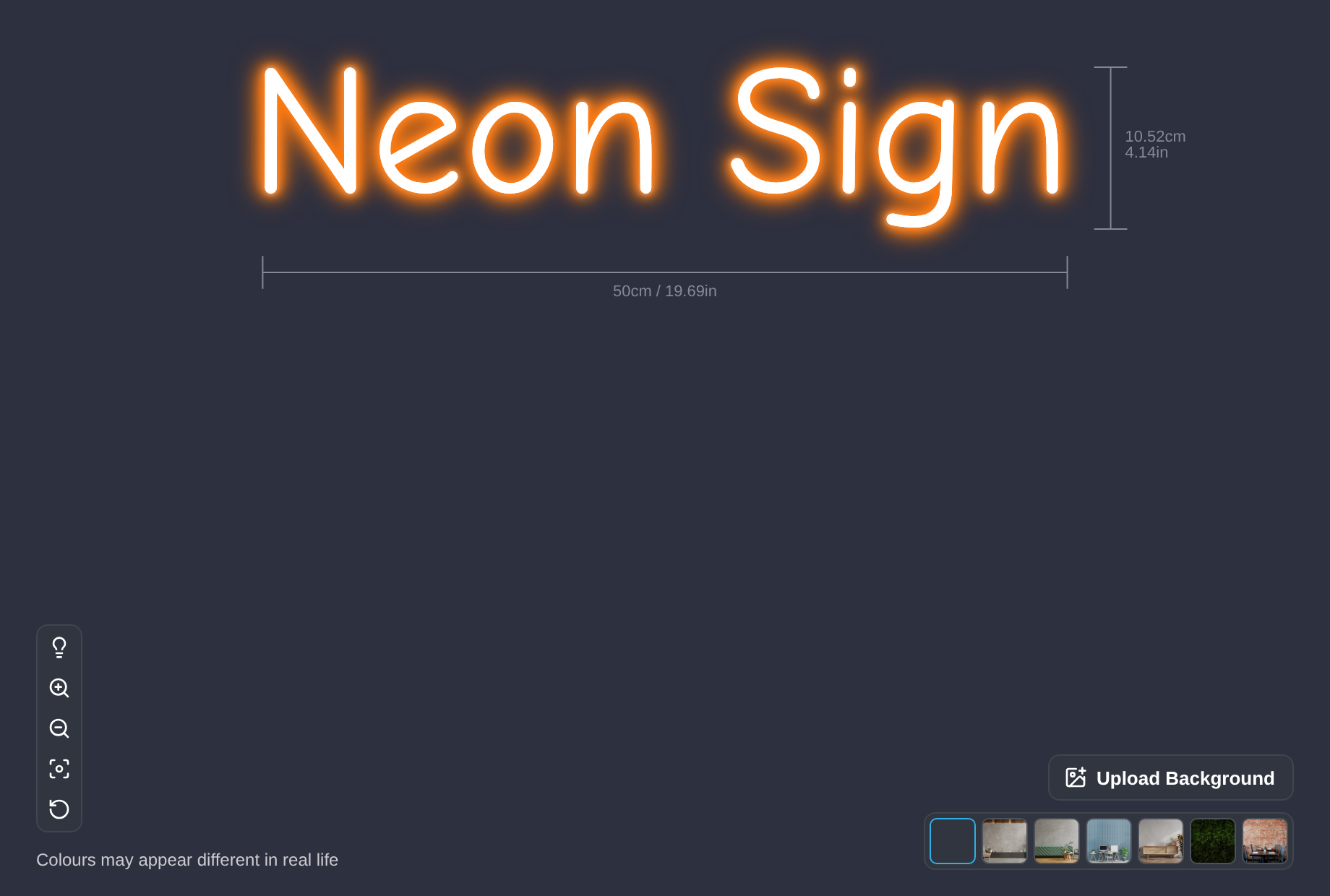
With Display Glow Switch, the customer sees a light bulb button in the visualiser. The button turns the sign light on and off.
Add a jacket option
-
Open the Merchant admin. For a Universal account, go to web.signcustomiser.com. For a Shopify Store, go to Apps in your Shopify admin and open Sign Customiser.
-
Click Customisers.
-
Click the customiser that you want to change.
-
In the menu on the left, go to Sign Components → Jackets. If you do not see the menu, click Menu.
-
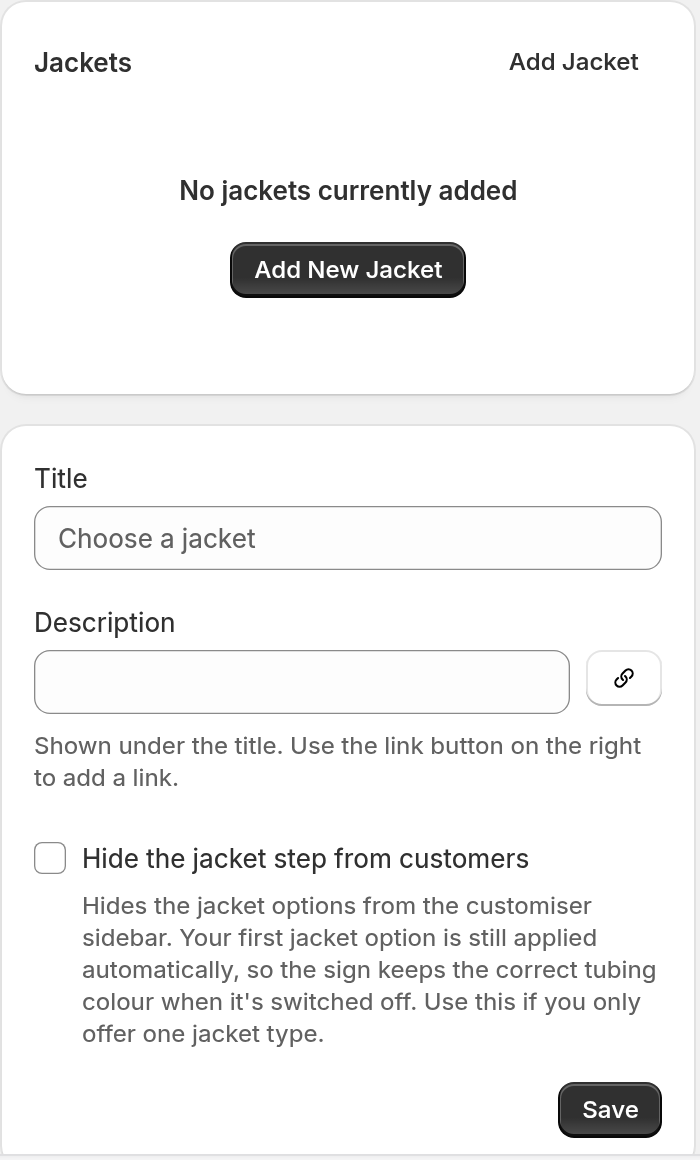
Optional: Enter a Title and a Description. The customer sees them above the jacket options. They apply to the complete step, not to one jacket option.
-
Click Save.
-
Click Add Jacket. If the list is empty, you can also click Add New Jacket.
-
Enter a Label, for example “White Jacket”.
-
Optional: Enter a Description.
-
Under Type of jacket, select a type:
-
White: The jacket or tube is white when the sign light is off.
-
Coloured: The jacket or tube keeps the selected colour when the sign light is off. This applies to single-colour tubes only. Multiple-colour and flow tubes stay white.
You can use each type for one jacket option only. If you cannot select a type, a jacket option already uses it.

-
-
Optional: Under Colour Exclusions, select the colours that this jacket option is not available for.
-
The customer cannot select the option for these colours.
-
The coloured jacket effect does not apply for these colours.
-
If the customer already selected the option, the sign changes to the first jacket option that is available.
-
You cannot exclude the same colour from two jacket options.

-
-
Optional: Under Additional Pricing (optional), select one of these:
-
None: There is no extra cost.
-
Base Price: The customer pays a fixed amount when they select this jacket.
-
Price Multiplier: The price of the neon sign is multiplied. Select Letter Price Only or Final Price (includes additional costs from other options).
-
-
Click Save at the bottom of the form.
Show or hide the jacket step
New neon customisers hide the jacket step from customers by default. The first jacket option is still applied automatically. This keeps the tube colour correct.
To show the step, go to Sign Components → Jackets. Clear Hide the jacket step from customers. Then click Save.
If you offer only one jacket type, keep the box ticked.