

Enable Shopify markets on your store
Last updated:
Shopify Markets lets you sell to several countries from one store. You can set the language, products, prices and taxes for each market. You can also set shipping for each market, if your store offers it. Customers then choose their market. This guide shows how to add a market to your store. It also shows how customers can choose their market.
Adding Markets
To add a market to your store, go to Markets in your Shopify admin and select Create market.
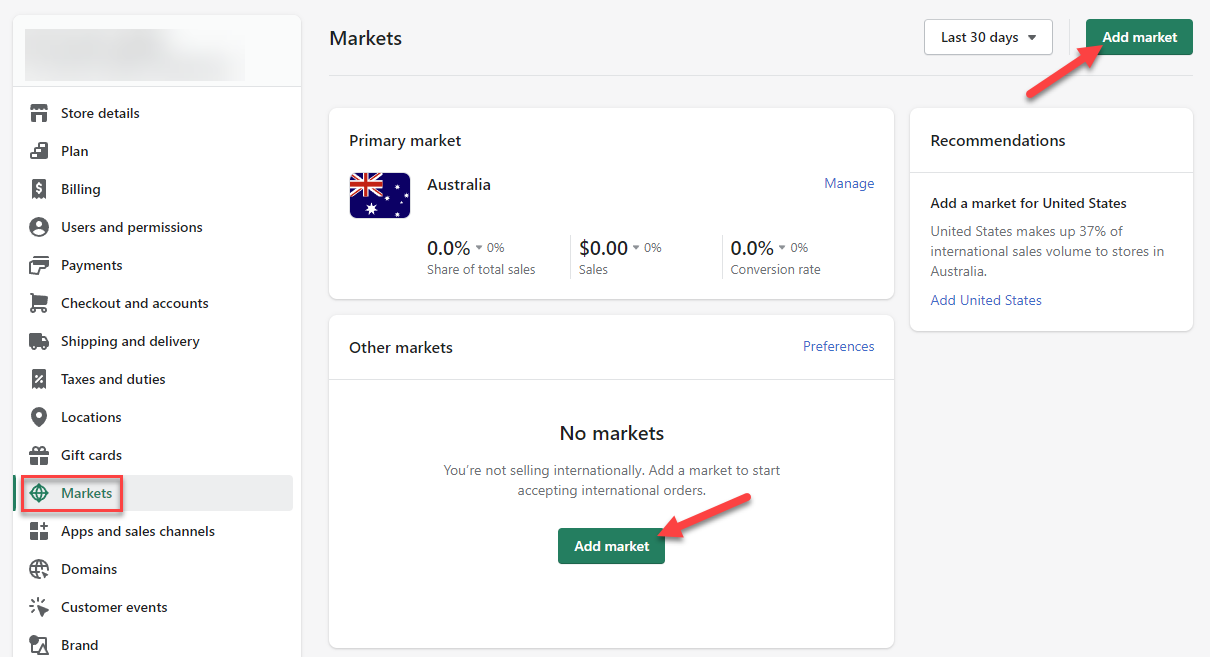
The pictures in this guide were taken earlier. Labels in your Shopify admin can be different.
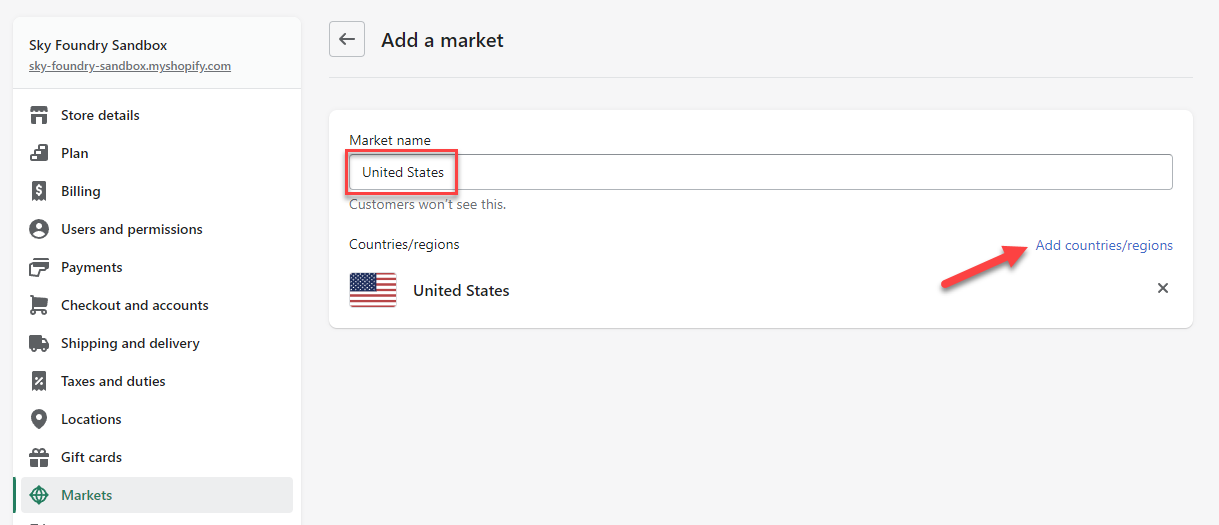
On the next page, enter a name for the market. In the Includes section, select Add condition. Select Regions, and then choose the countries or regions for the market. For example, you can create a market named “United States”.
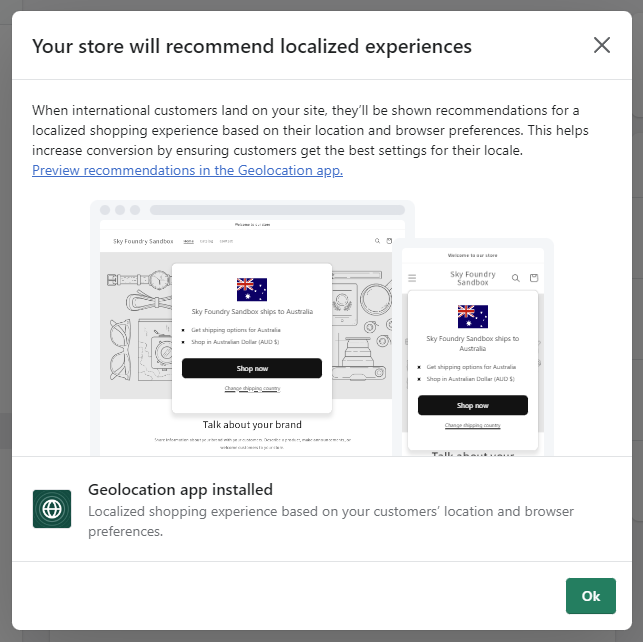
The picture below shows an earlier Shopify message about the Geolocation app. Shopify delayed the removal of this app until 24 March 2025.
Setting up Markets currency
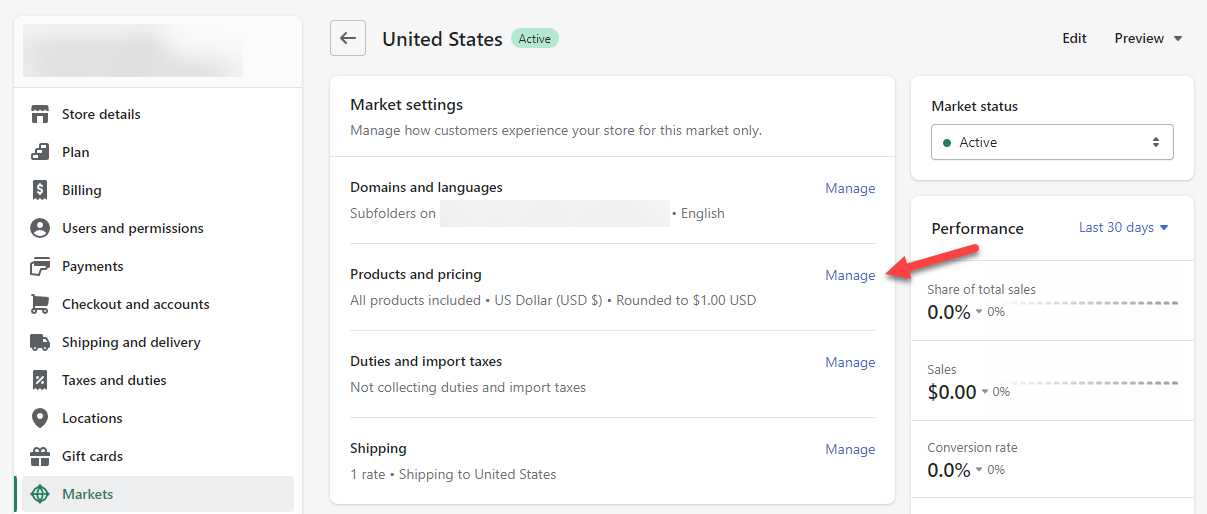
To set the currency for a market, open the market from the Markets page in your Shopify admin. Select the plus-circle icon next to Currency. Then select the currency you want to use for this market. In the older Shopify admin shown in the pictures, select Manage next to Products and pricing. Then choose the currency in Currency.
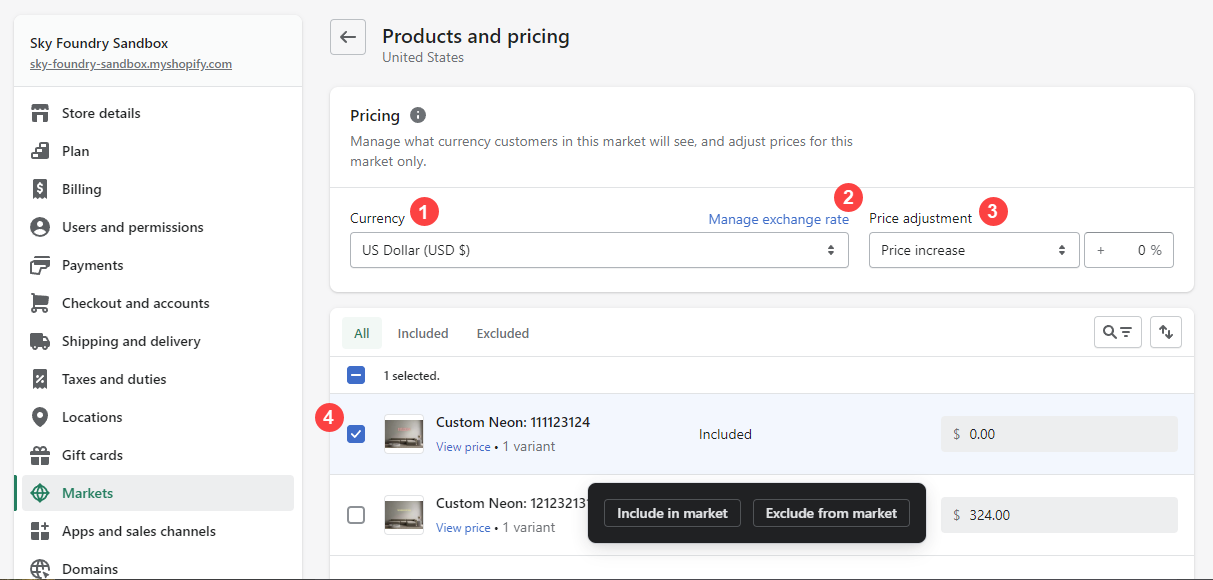
The first picture below shows the settings page of a market. The second picture shows the Products and pricing page of the market.
-
Currency: Set the currency for the market.
-
Exchange rate: Choose how Shopify updates the exchange rate. Shopify can use automatic exchange rates. To set your own rate, click next to Currency. Select Manual, and then enter the exchange rate that you want to use. Then select Done, and then select Save.
-
Price adjustment: Increase or decrease the product prices of a catalogue by a percentage. To create a catalogue, go to Markets > Catalogs in your Shopify admin and select Create catalog. When you create the catalogue, enter the percentage in the Price adjustment field.
-
Excluded products: By default, a catalogue includes all products. To exclude a product, select its checkbox in the catalogue. Then select Exclude from catalog.
Let customers choose their market
Customers use country and language selectors to choose their market. Most Shopify themes include these selectors, typically in the header or footer. To turn them on:
-
In your Shopify admin, go to Online Store. On your published theme, select Edit theme.
-
Go to the header or footer section.
-
Turn on Country/region selector and Language selector.
-
Select Save.
Some themes, such as Dawn, include country and language selectors.
The Geolocation app
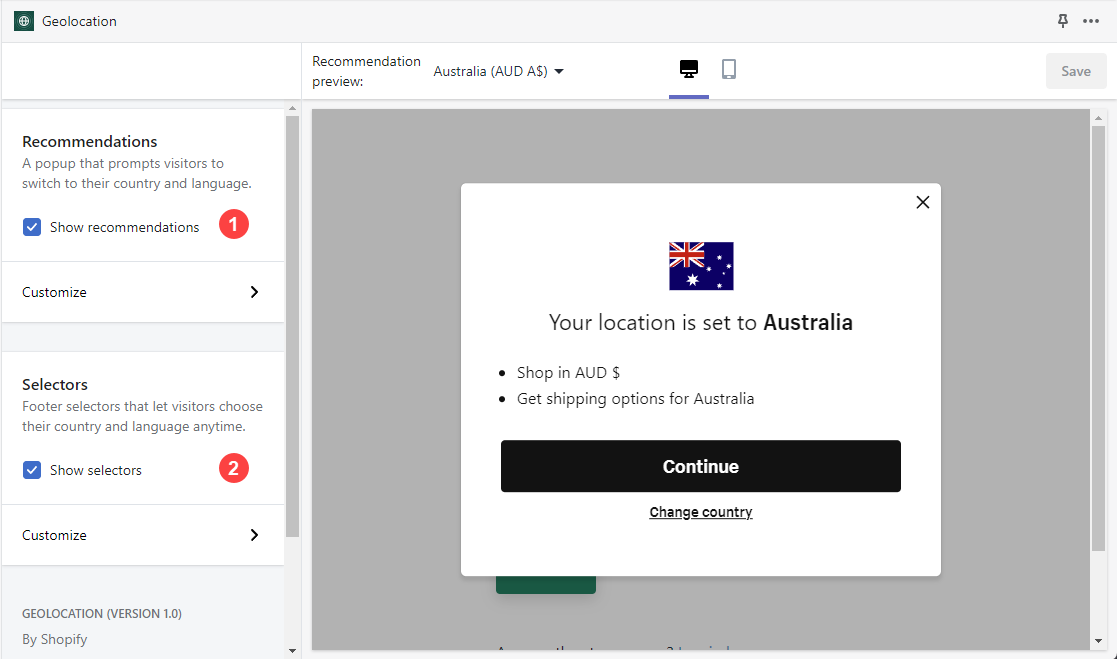
Earlier, Shopify offered a Geolocation app. The app made language and country recommendations to your customers, based on their location. The app also had selectors that you could turn on.
The picture below shows the settings of the Geolocation app. The settings were Show recommendations and Show selectors.
The next picture shows a country selector in the footer of a storefront.

If you need a geolocation app, you can install a third-party app from the Shopify App Store.
Using Markets with Sign Customiser
When Markets is set up, Sign Customiser can publish each generated sign to the active market of the shopper. The shopper can then buy the custom product in that market. Two conditions must be true:
-
Market context reaches the customiser.
-
Standard Shopify themes pass the active market automatically. This includes the Sign Customiser app block, the Sign Customiser Modal app block and the Sign Customiser - Embed app embed block.
-
A headless storefront must pass the market itself. Add the query parameters
shopify_market_idandshopify_market_handleto the iframe URL. Send both. -
For the headless steps, see Install Sign Customiser on a headless Shopify storefront.
-
The
sign-customiser-embedelement takes the attributesshopify-market-idandshopify-market-handle. See Install Sign Customiser in a Shopify theme without app blocks.
-
-
Markets access is approved.
-
In your Shopify admin, open this app. Then open Home.
-
Home shows the warnings below only if the Store has at least one customiser. A Store with no customiser sees a welcome page on Home instead.
-
If the Store has at least one customiser and an active Market catalogue uses a percentage price adjustment and you have not approved Shopify Markets access, Home shows a warning with the title Approve Shopify Markets access.
-
Select Approve Shopify Markets access. Then accept the Shopify permission request.
-
This warning does not show in the Universal admin at web.signcustomiser.com.
-
Approval is optional. Product creation works without it. Without approval, Sign Customiser skips market publishing, because it needs the read_markets permission to find the market. Sign Customiser also cannot show percentage-adjusted prices in the preview.
If the Store has at least one customiser, no active Market catalogue uses a percentage price adjustment, and at least one active Market catalogue uses fixed prices, Home shows a different warning: Fixed Shopify Markets prices do not appear in previews. This warning has no approve button. Select Open Shopify Markets settings to open the Markets settings in your Shopify admin.
Prices in the preview
The customer customiser preview follows the percentage price adjustment of a market. Sign Customiser creates the generated product at the base price. Shopify applies the market price in the cart and at checkout. For a market with fixed prices, the preview shows the base price with currency conversion only.
A market can have two or more active catalogues with different percentage adjustments. Sign Customiser then cannot find the adjustment that Shopify applies. If the Store has at least one customiser, Home shows the warning Fix your Shopify Markets price adjustments after you approve Shopify Markets access. To correct this, see Fix conflicting Shopify Markets price adjustments.
You can learn more about Shopify Markets in the Shopify Help Center.