

Adding CSS to Shopify themes - Alternative (but Not Recommended) Method
Last updated:
You can add CSS when you edit your Shopify theme. This is no longer the recommended method. Shopify copies changes from the theme editor to an updated theme. Before you update your theme, save a copy of your CSS. After the update, check that the CSS is still there.
For the recommended method, read the Custom CSS guide.
Before you start
This method works only when the customiser is drawn directly on your page. Theme CSS cannot reach a customiser that is in an iframe.
Use this method in one of these cases:
-
The Sign Customiser app block is on your template. In the block settings, under Advanced settings, Use iframe (experimental) is not ticked.
-
You have an older direct embed that uses
<div id="neon-customiser-app">.
Do not use this method with the iframe install in Install Sign Customiser in a Shopify theme without app blocks. The CSS from the Custom CSS guide also works with the iframe option.
To check the iframe setting, read Use the iframe option in the Shopify app block. To add the app block, read Install Sign Customiser in a Shopify theme with an app block.
Adding Custom Code Using Custom Liquid Section
-
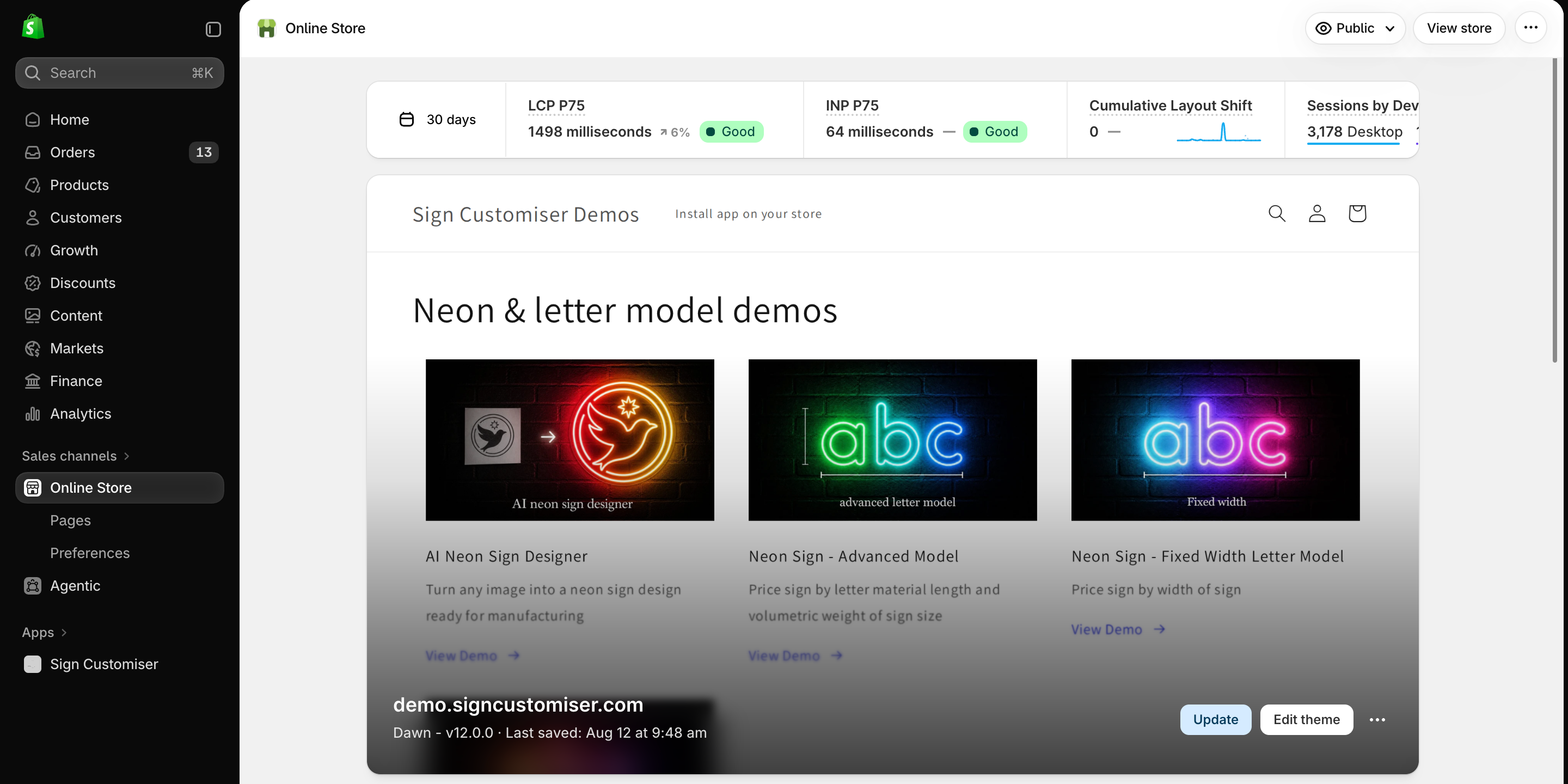
In your Shopify admin, go to Online Store > Themes. Find your current theme and select Edit theme.
-
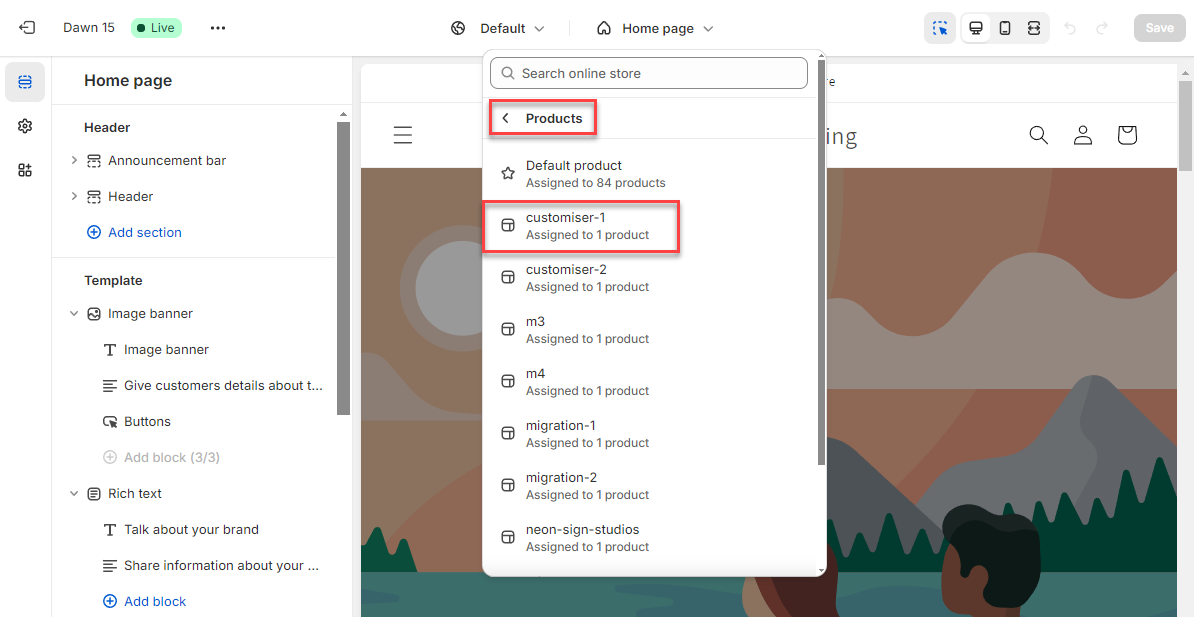
Select the product or page template that has your Sign Customiser app block.
-
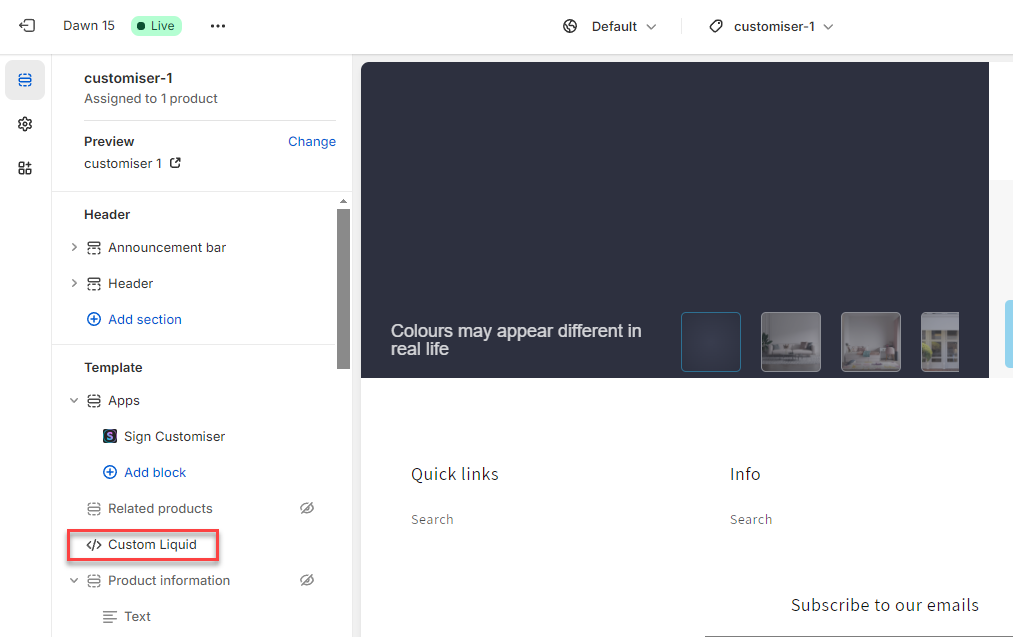
In the sidebar, select Add section. Then select Custom Liquid from the list.
-
Paste your CSS into the Liquid section. Put the CSS in a
<style></style>tag.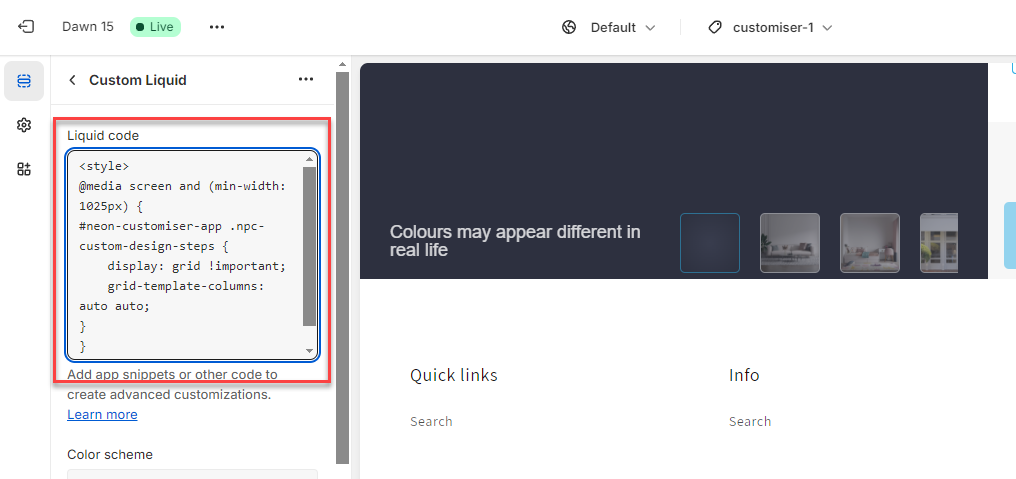
To find the class names for your CSS, read the section “How to find element class names for your CSS code” in the Custom CSS guide.
If your theme does not have a Custom Liquid section, add the code directly to your theme. A theme update can remove code edits that conflict with the new theme version. Save a copy of your code before you update your theme.