

Custom Design Tab
Choose when the Custom tab shows on your customiser, and add a link to an external page for custom designs.
Last updated:
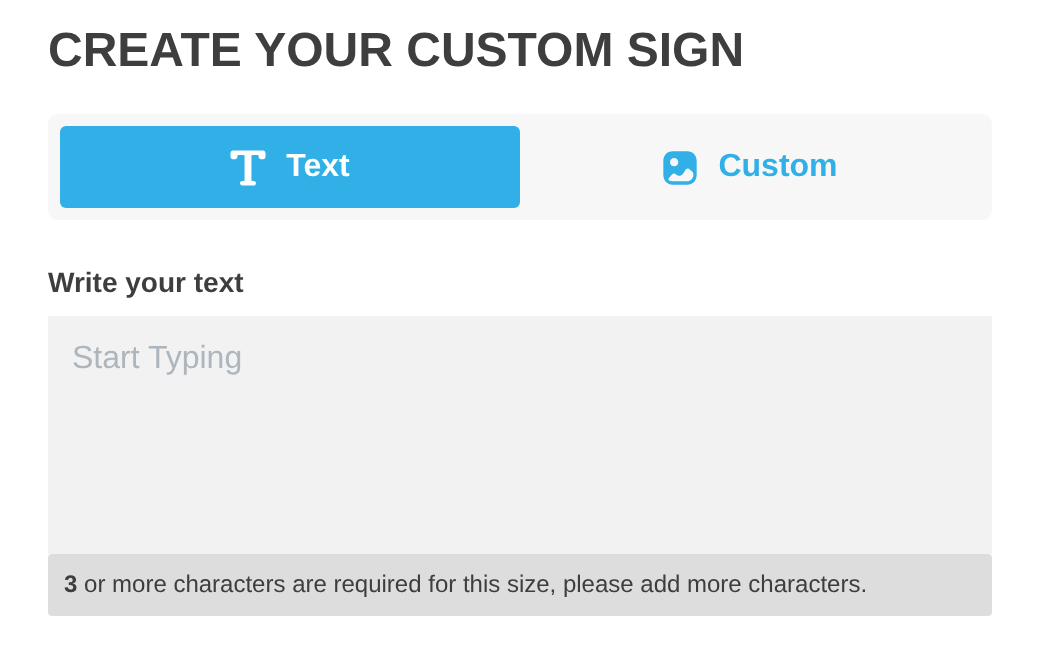
The Custom tab is next to the Text tab at the top of the options column on your customiser. Settings on the Custom Designs page control if customers see the tab.
The default label of the tab is Custom. To change the label, edit the Custom Design Tab field in Settings → Languages, click Save draft, then click Publish.
When the Custom tab shows
The tab shows in these cases:
-
AI Sign Designer (recommended) is selected under Custom designs. Customers upload artwork and the AI sign designer changes it into a sign.
-
Link to another page is selected under Custom designs, and Display is set to Custom Design Screen with Additional Instructions.
-
Embed a form is selected under Custom designs. Your plan must include custom design forms. You must also have at least one custom design form.
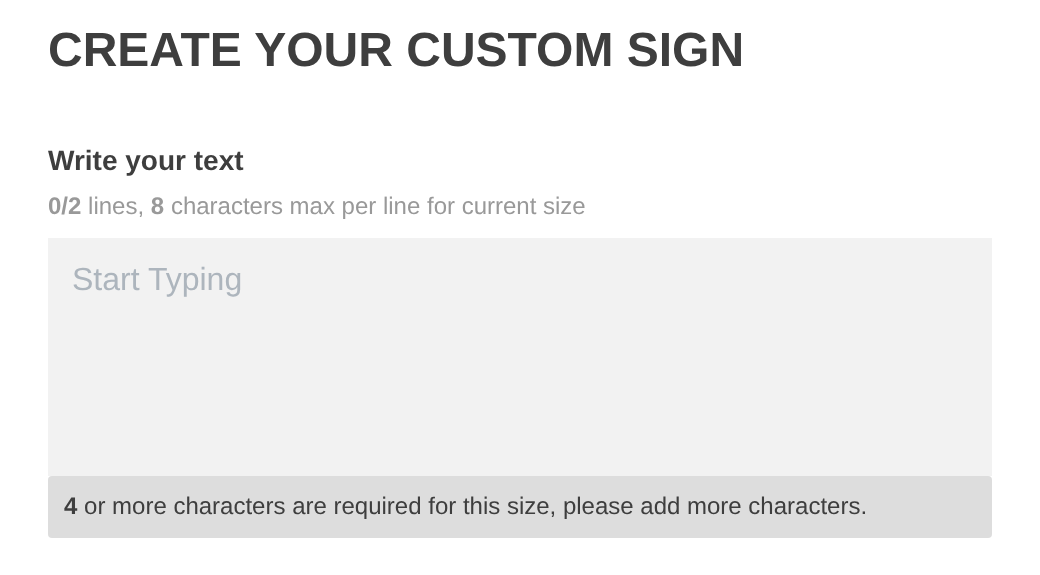
In all other cases, the tab does not show. To remove the tab, select Off under Custom designs. The Text | Custom switch also does not show when you turn off Enable Text Editor in Features → Editor Modes.
AI Sign Designer (recommended) is available only for Neon, Channel Letter, Metal Channel Letter and Metal Cut-Out customisers. These customisers must use Frame Fit or Material Length pricing. Your plan must include AI Sign Designer. When the option is not available, it is grey and its help text gives the reason.
This image shows the customiser with the tab. The Text | Custom switch is at the top of the options column.
This image shows the customiser with no Text | Custom switch.
Show the Custom tab with a link to an external page
Use these steps to send customers to a page on your own site for custom designs.
-
Open the Sign Customiser admin.
-
Universal: Go to Home.
-
Shopify: In your Shopify admin, go to Settings → Apps, then open Sign Customiser.
-
-
Click Customisers.
-
Click the customiser you want to edit.
-
In the left-hand menu, go to Core Setup → Custom Designs.
-
Under Custom designs, select Link to another page. A Link to external page section shows below the list.
-
In URL of external page, enter the full address of the page (starting with https://).
-
Click Test URL to make sure that the page opens.
-
Under Display, select Custom Design Screen with Additional Instructions. The Custom tab opens an extra screen before the external page.
-
In Phrase for url to external screen (mobile only), enter the text for the button that customers click on mobile.
-
Click Save at the bottom of the page. Customers now see the Custom tab.
Important
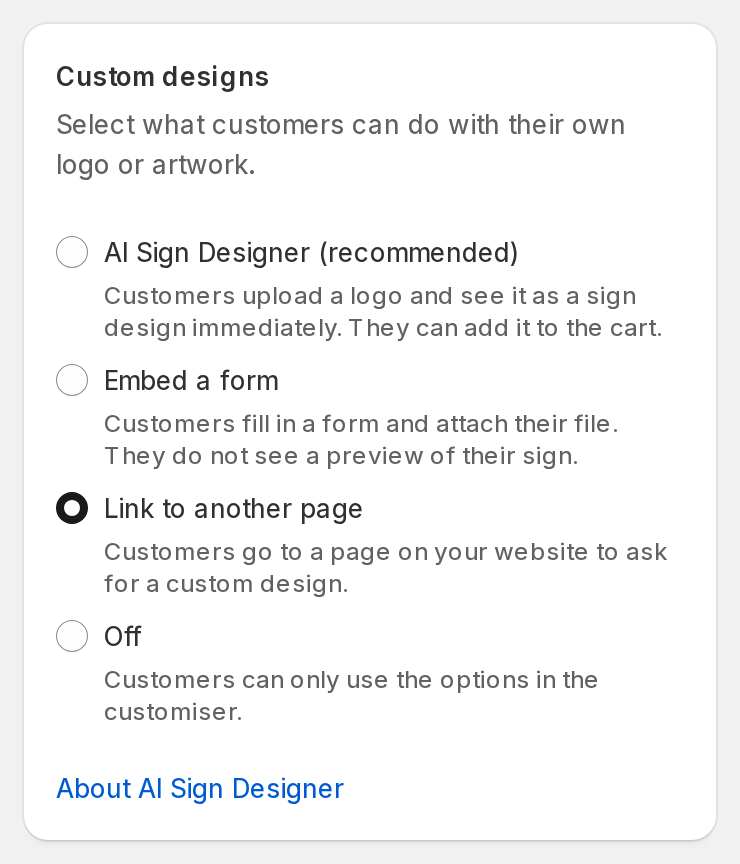
Only one option can be selected under Custom designs. To use AI Sign Designer again, select AI Sign Designer (recommended), then complete the steps in the Set up AI Sign Designer card. The card shows which steps are not ready yet. When the card shows “3 of 3 ready”, click Save. The conditions for the option are in “When the Custom tab shows”.
Show only a link, without the tab
-
Go to Core Setup → Custom Designs.
-
Under Custom designs, select Link to another page.
-
In URL of external page, enter the full address of the page (starting with https://).
-
Under Display, select Link Only (Placed at top of options side bar).
-
In Phrase for url to external page, enter the link text.
-
Click Save.
After you save, customers see a simple link at the top of the options column. On mobile, the link is after the selections. The Custom tab does not show. The link shows only when you fill in the URL and the phrase.
Hide the Custom tab
-
Go to Core Setup → Custom Designs.
-
Under Custom designs, select Off.
-
Click Save.