
Additional Information to Your Forms - Custom Design Screen
Last updated:
The Custom Design Screen allows you to provide extra details about your custom signs, such as the design process or specific instructions.
This screen is available when you embed a form or add a link to an external page. If you haven’t set up a form yet, follow our Custom Design Forms guide. If you would like to add a link to an external page, follow our Linking to an External Page for Custom Designs guide.
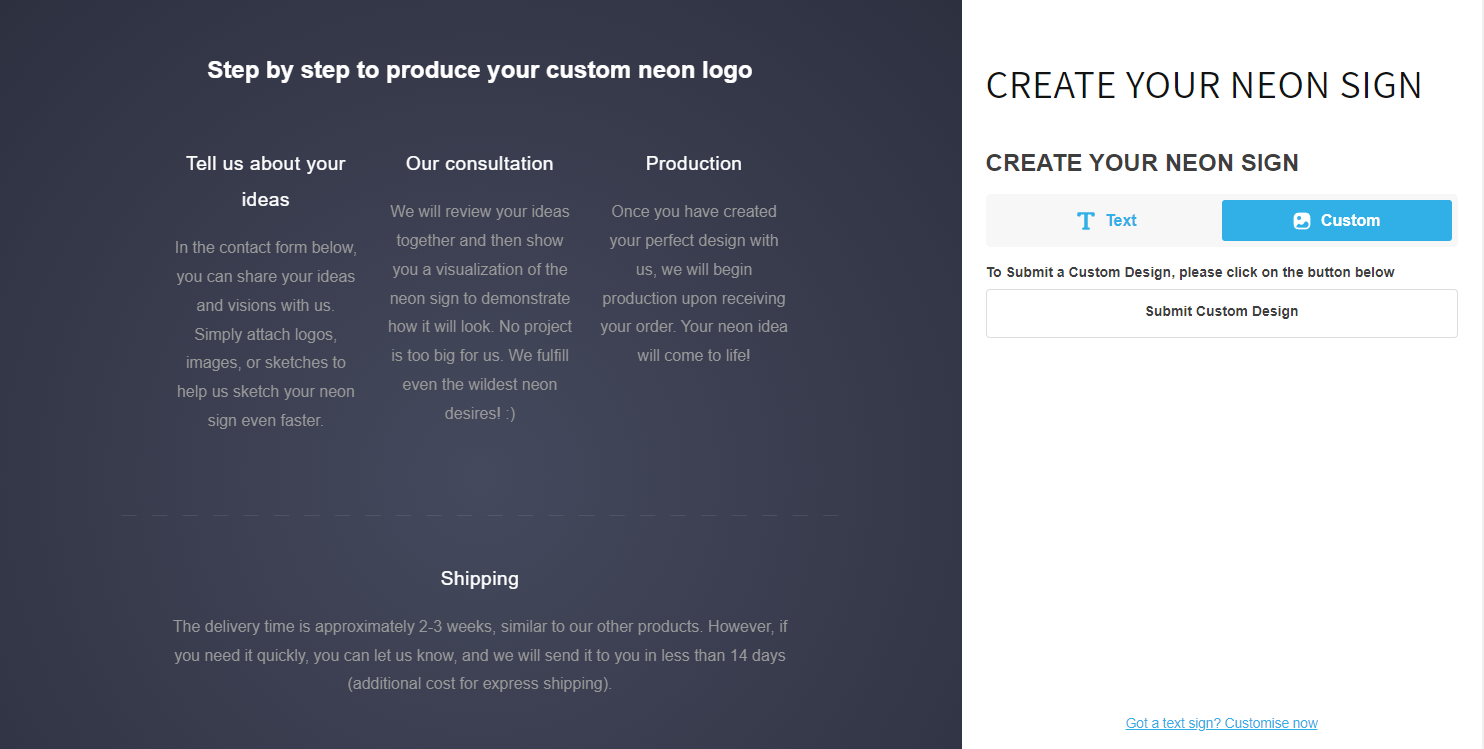
How to Add Additional Information to Your Forms
-
Go to the Sign Customiser Admin:
-
Universal subscribers: Go to Home in your account.
-
Shopify users: Navigate to Shopify admin → Apps → Sign Customiser.
-
-
Click on Customisers in the menu.
-
Select the customiser you want to edit.
-
In the left-hand menu, go to Custom Designs.
-
Select either:
-
Add a link to an external page (Follow this guide for more information: Linking to an External Page for Custom Designs).
-
Embed Custom Design Form (If you haven’t set up a form, follow this guide: Custom Design Forms).
-
-
(Optional) In Labels for Links, you can customise the default text for your links. Follow this guide for further details: Changing the Language in Your Custom Forms.
-
A new section called Steps will appear. Click on the Provide Steps button.
-
Enter a title in the Custom Design Header field.
-
In the Steps section, add your first step:
-
Header: Enter a title for this step.
-
Description: Provide details about this step.
-
-
To add more steps, click on the plus icon and repeat step 9.
-
Save your changes.