
Custom Design Forms
Last updated:
A Custom Design Form is a built-in contact form within the Sign Customiser app, allowing merchants to collect custom design requests that the app cannot automatically generate.
This form appears on the Custom Design screen:
-
On desktop, it is accessed through the default labelled “Custom” tab.
-
On mobile, it appears as a link below the selections.
Note: Custom Design Forms is only available for Growth Plans.
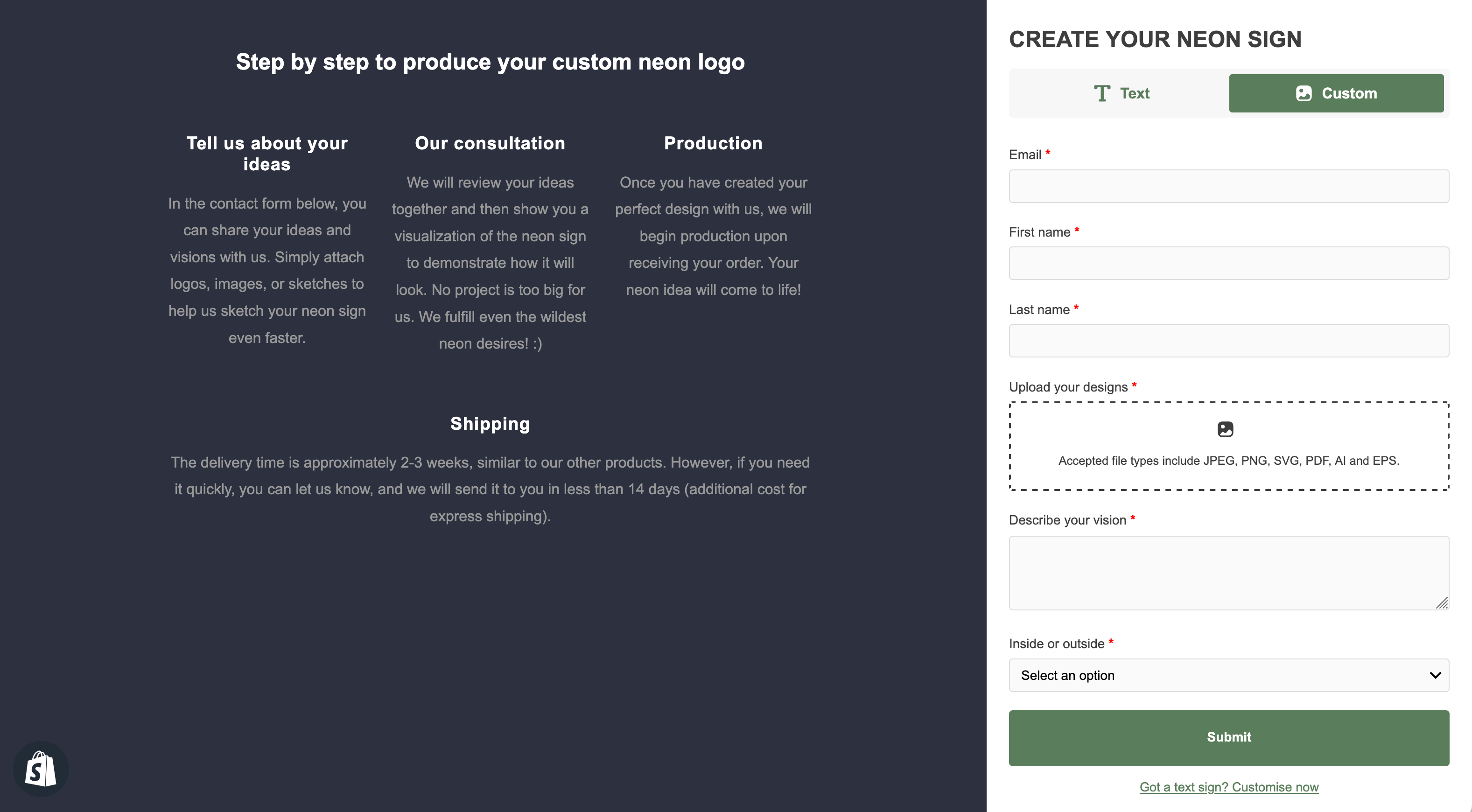
Custom Design Forms allow users to upload files, submit messages, and use form elements like dropdowns, checkboxes, and radio buttons – all without leaving the page.
Merchants using this feature receive up to 47% more submissions compared to those using external forms.
For a more streamlined quoting process, merchants can enable Quote Mode instead. Click here to learn more about Quote Mode.
Create and edit a form
This guide explains how to create and display a form within the customiser.
Step 1: Adding a New Form
-
Go to the Sign Customiser Admin:
-
Universal subscribers: Go to Home in your account.
-
Shopify users: Navigate to Shopify admin → Apps → Sign Customiser.
-
-
Click on Customisers in the menu.
-
Select the customiser you want to edit.
-
In the left-hand menu, go to Forms.
-
Click on the Add New Form button.
-
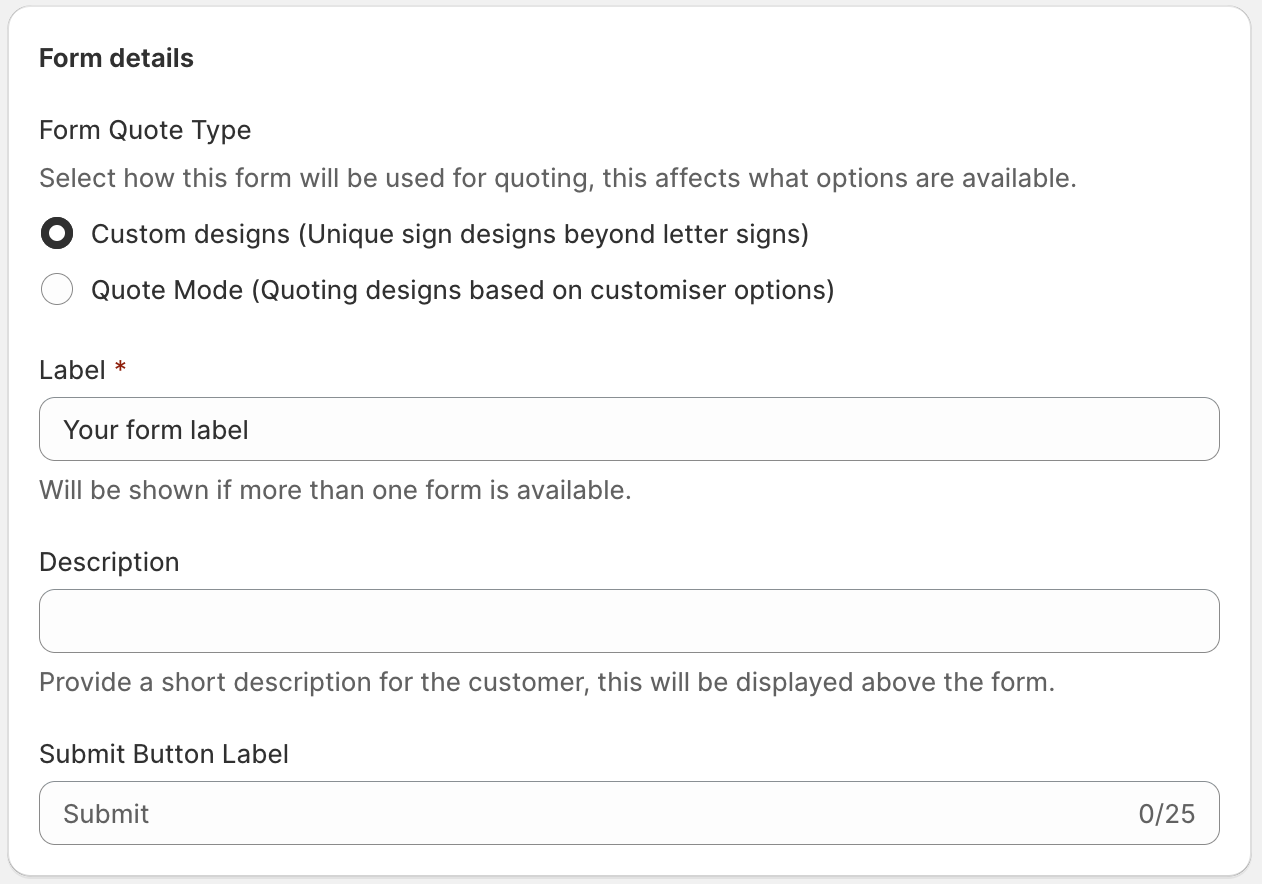
Select a Form Quote Type:
-
Custom Designs – For additional design inquiries alongside your customiser.
-
Quote Mode – To use the form for quoting customiser-generated designs.
-
-
Label your form (only visible if multiple forms exist).
-
(Optional) Add a form description and rename the submit button.
Step 2: Add Fields to Your Form
-
In the Fields section, click “Add new field” and select the field type you need. Follow our Add and Edit Custom Form Field Options for a detailed walk-through.
-
(Optional) For Shopify users only: Enable Shopify Sync to automatically sync customer emails and names with Shopify.
Step 3: Set a Receiver Email to Your Form (Optional)
By default, form submissions are sent to your store’s email.
-
To override this, enter a new Receiver Email in the settings.
-
Customise the Email Subject if needed.
Step 4: Define the Action After Form Submission
Once the form is submitted, you can choose between two available actions:
-
Display a confirmation message – A small “Thank you for submitting” message appears.
-
Redirect to an external page – Users are taken to a specified URL.
Click Save to apply your changes.
Step 5: Embed Your Form in the Customiser
To display the form on your storefront:
-
In the left-hand menu, go to Custom Designs.
-
Under Choose how you would like to handle custom designs, select Embed Custom Design Form.
-
Click Save.
The form is now active on your storefront.
Step 6 (Optional): Hook into form submissions events using javascript.
External JavaScript code can listen for the following event that has fired after a form submission has been sent.
// Listen for form submissions<br>document.addEventListener('signCustomiserFormSubmitted', function(event) {<br>console.log('Form submitted:', event.detail);<br>// Access form data: event.detail.data<br>// Access customiser ID: event.detail.customiserId<br>// Access domain: event.detail.domain<br>});<br>FAQ
How do I receive form submissions?
When a user submits a form on the Custom Design screen, you’ll receive an email containing all selected options.
By default, this is sent to your store’s email.
If you entered a custom Receiver Email, submissions will be sent there instead.

Where can I see the form entries?
Navigate to the apps admin home page and click on “Design Files and Form Submissions” located in the “Main Navigation” card.