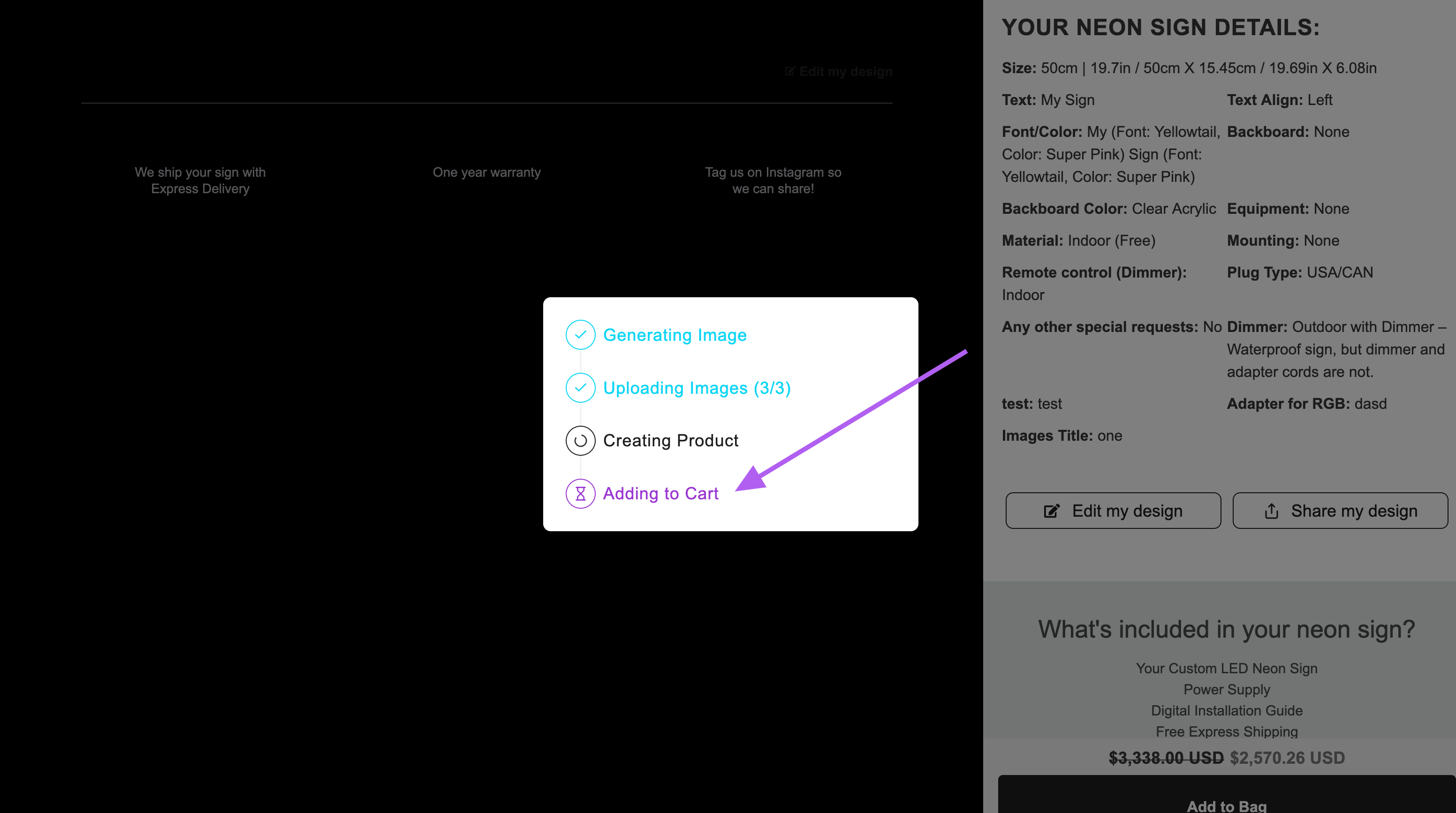
Theme Colour Reference Guide
Last updated:
This guide will show you how to adjust the colours of your Sign Customiser. You can change the colour of most elements, including buttons, labels, and backgrounds, directly from the admin, without writing any CSS code.
To update the colours for a specific component:
-
Go to the Sign Customiser Admin:
-
Universal subscribers: Go to Home in your account.
-
Shopify users: Navigate to Shopify admin → Apps and select Sign Customiser.
-
-
Click on Customisers in the menu.
-
Select the customiser you want to edit.
-
From the left-hand menu, go to Theme Colours.
-
Select a colour and use the RGB picker to set your desired colour.
-
Save your changes.
Some advanced elements may not appear in the Theme Colours section. To override these, you will need to do this via CSS. Follow this guide on how to add CSS code the right way: Custom CSS.
General
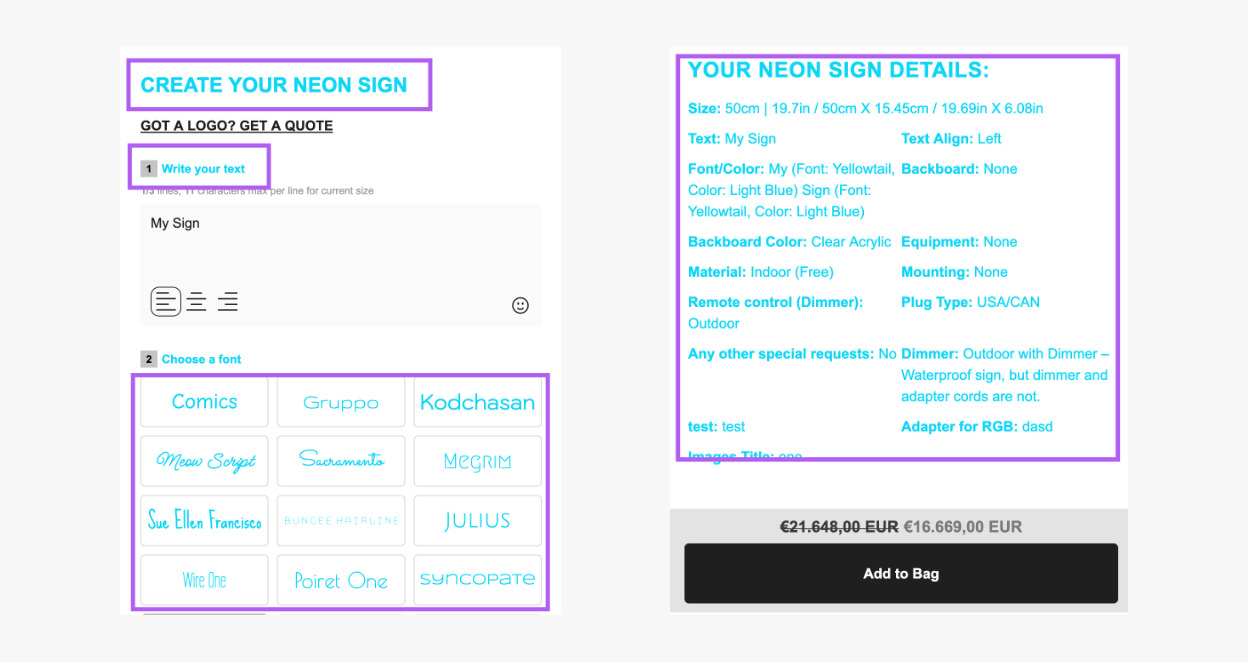
Primary Text
The Primary Text setting controls the colour of the following:
-
Main headings
-
Labels
-
Sign details (review screen)
-
Additional Information (review screen)
Secondary Text
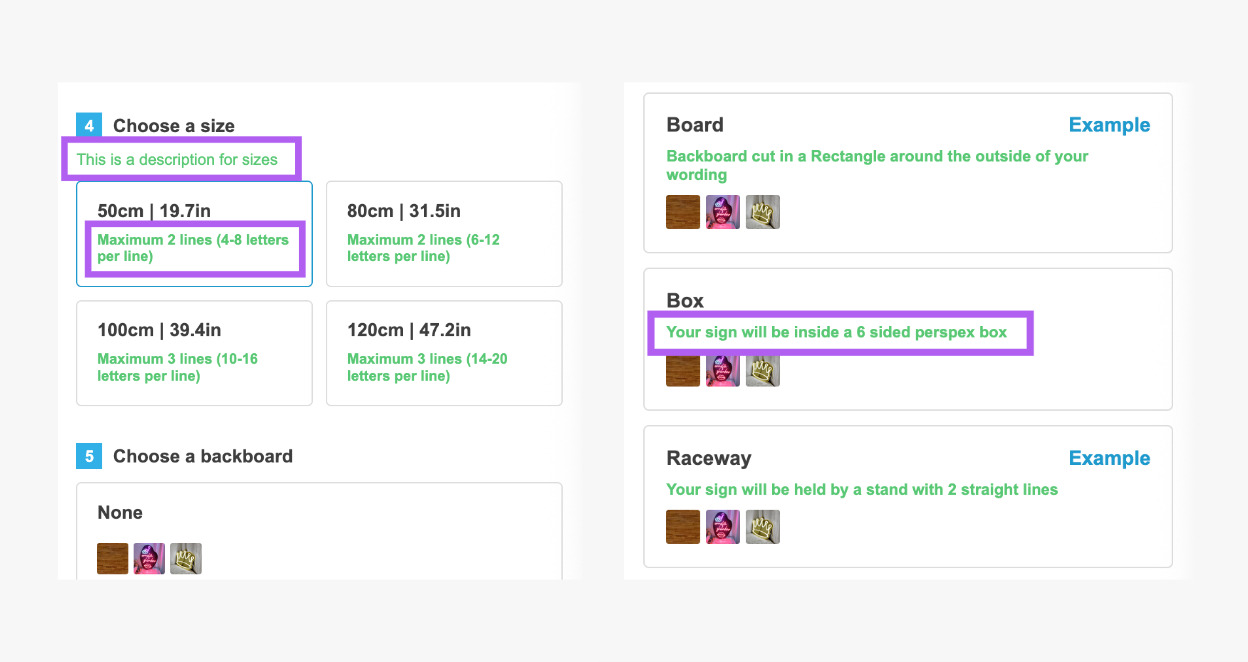
The Secondary Text setting controls the colour of option descriptions.
Accent
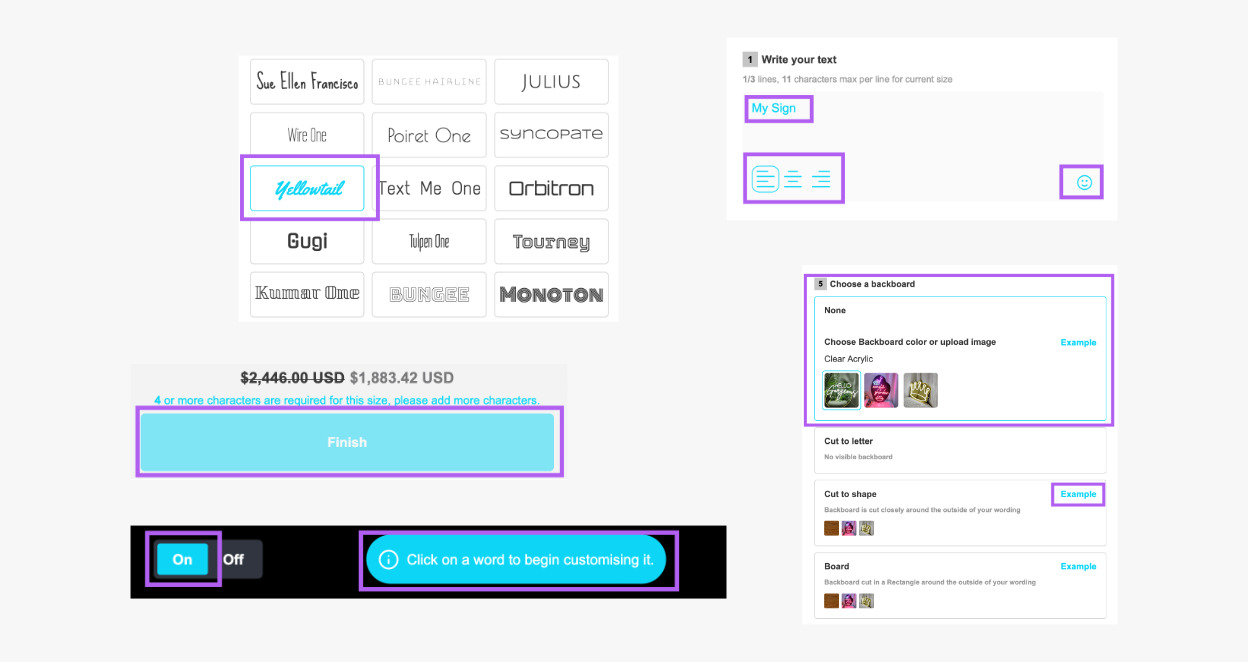
The Accent controls the colour of the following:
-
Buttons
-
Selected options
-
Links
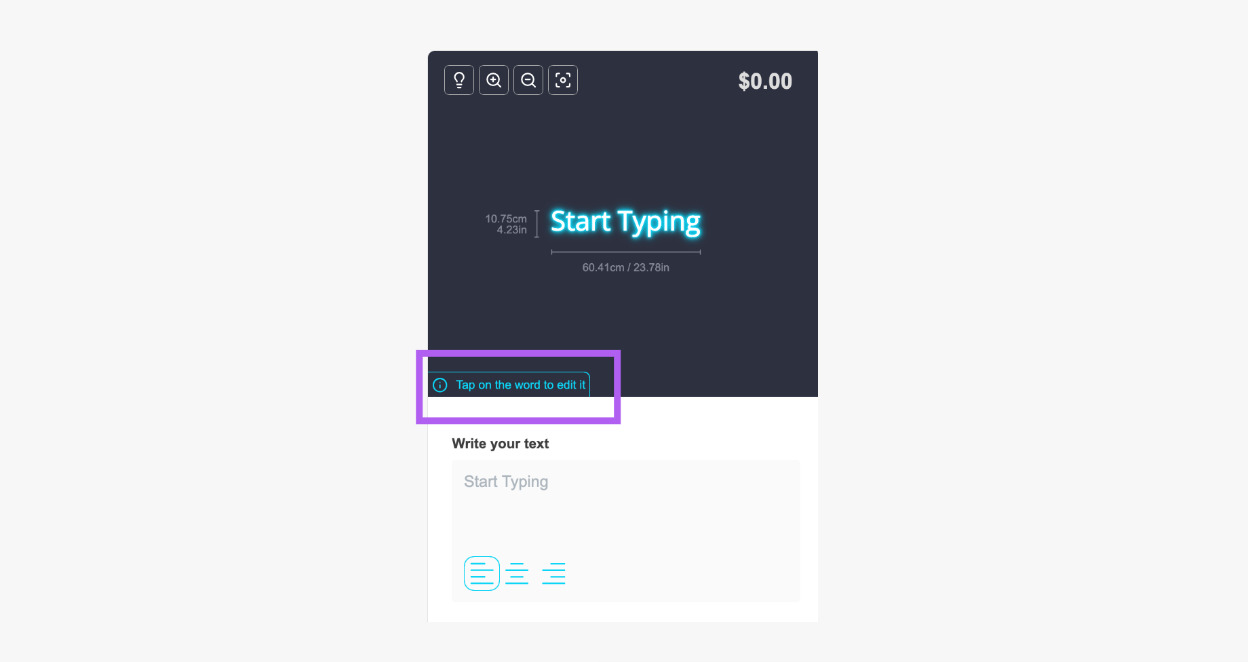
Visualisation
Background
The Background setting controls the background colour of the visualiser and the review screen.
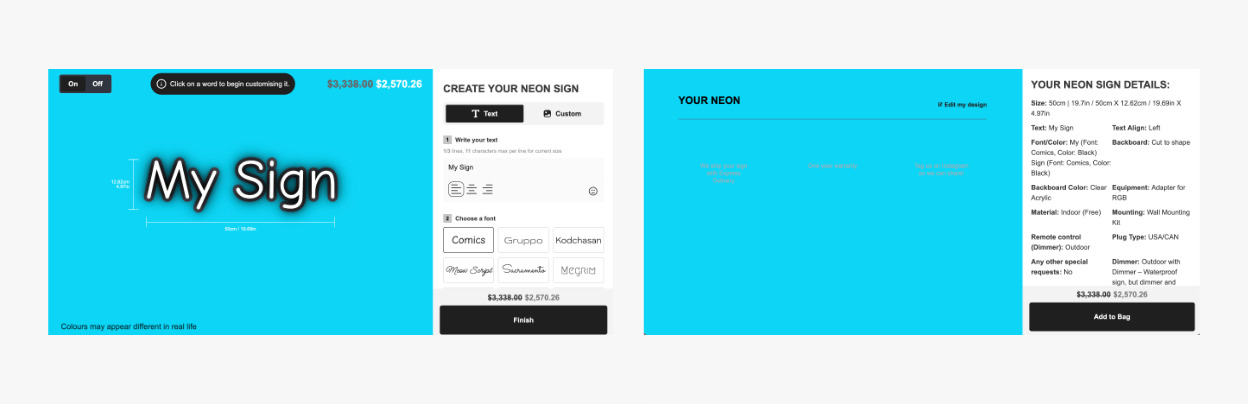
Main Price
The Main Price setting controls the colour of the total price on the visualiser.
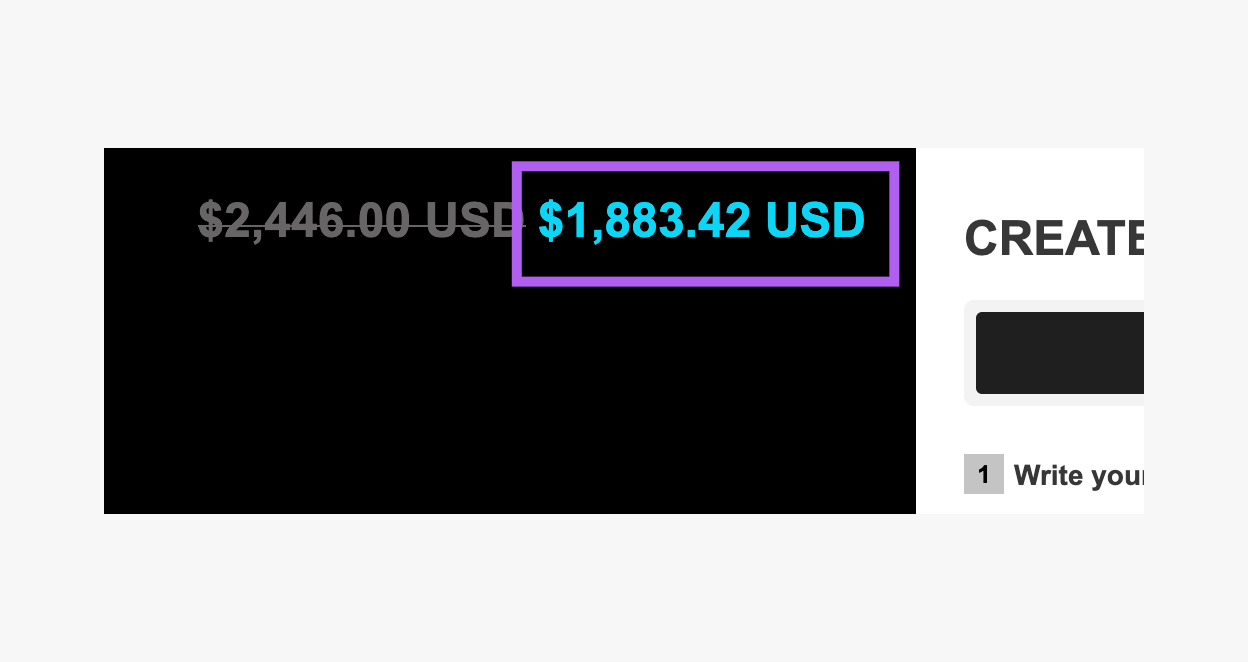
Measurement
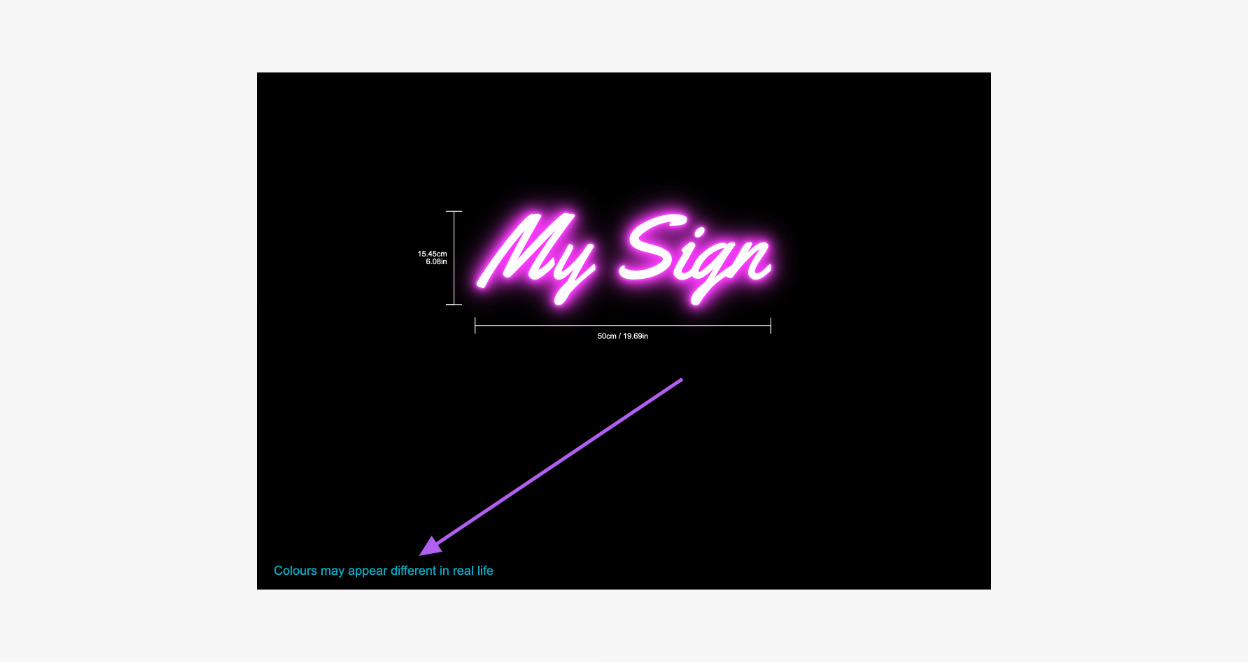
The Measurement setting controls the colour of the measurement text that appears on the visualiser.
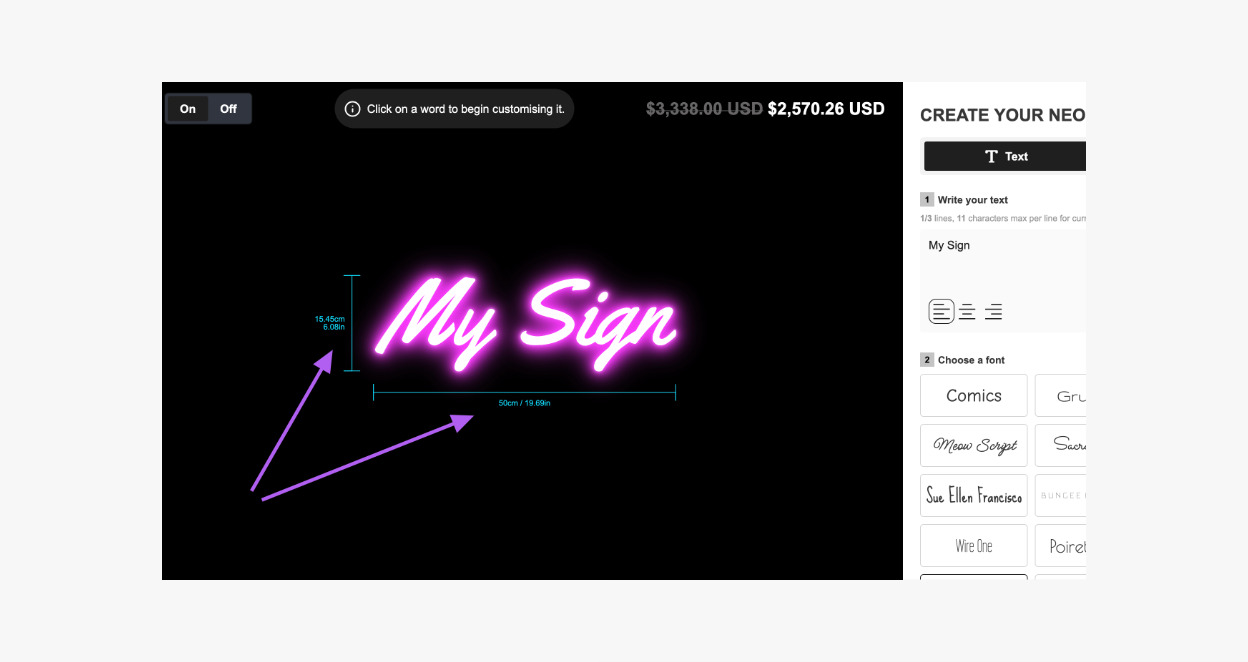
Text
The Text setting controls the text that appears on the visualiser.
Discount Main Price
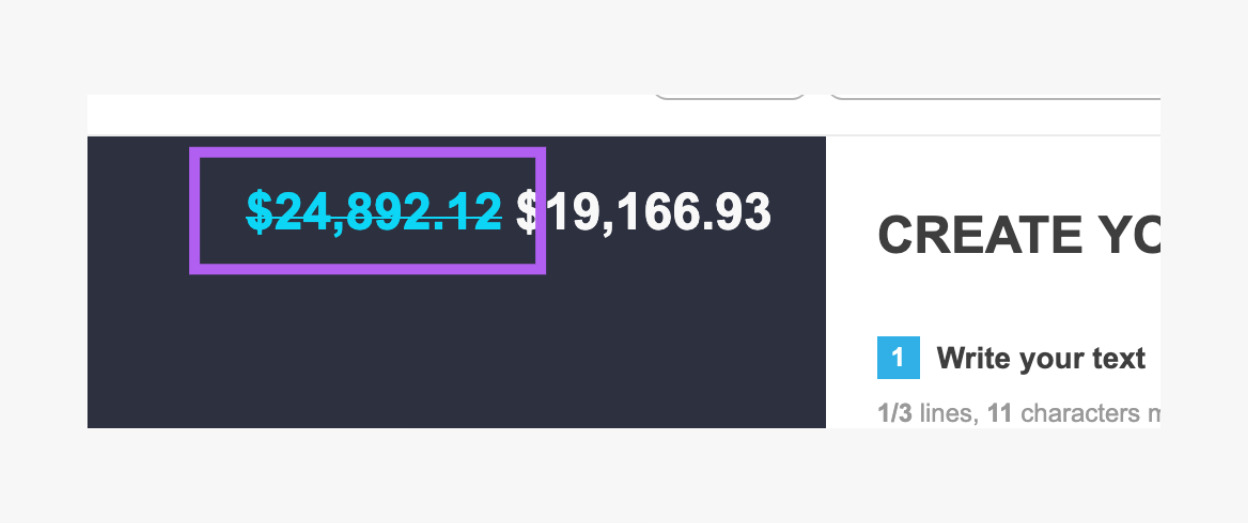
The Discount Main Price setting controls the discounted price that appears on the visualiser.
Sidebar
Background
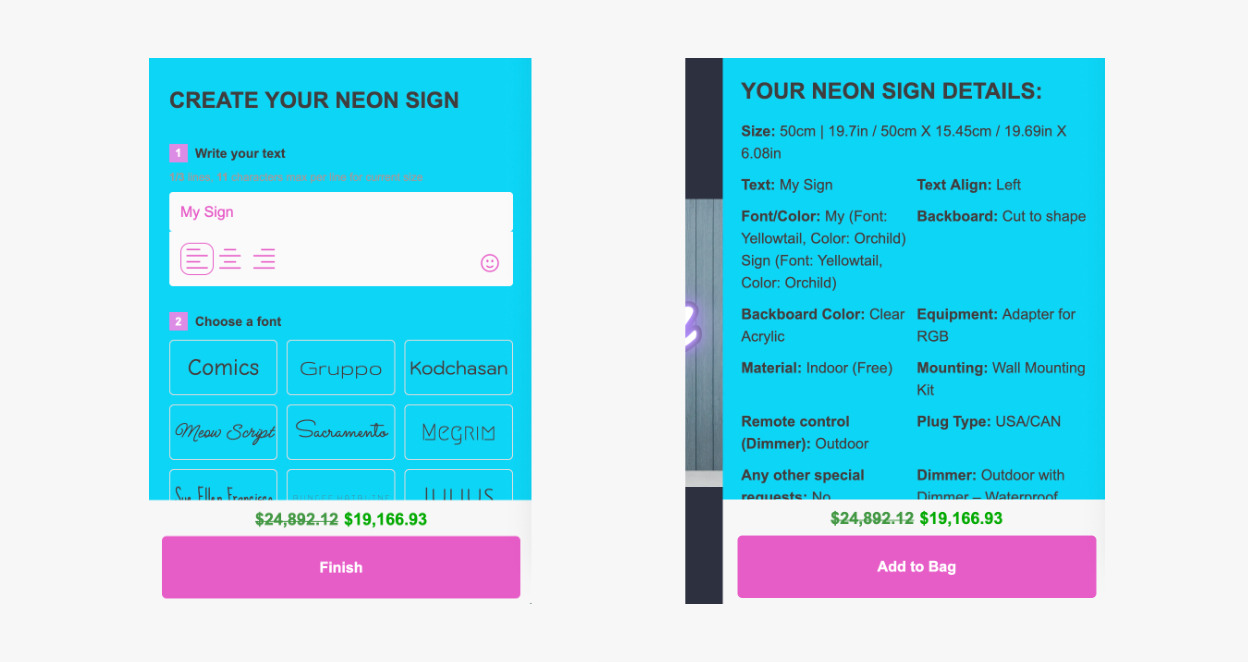
The Background setting controls the background colour of the sidebar on both the main screen and the review screen.
Outline Colour
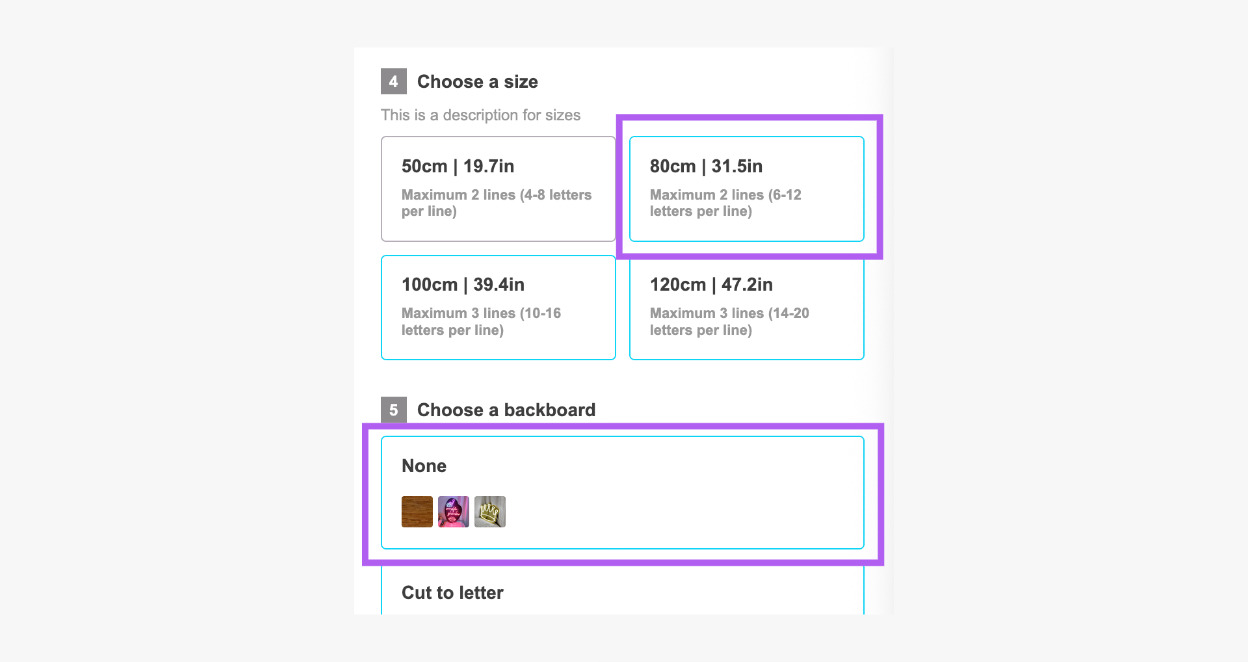
The Outline Colour setting controls the borders of unselected options in the sidebar.
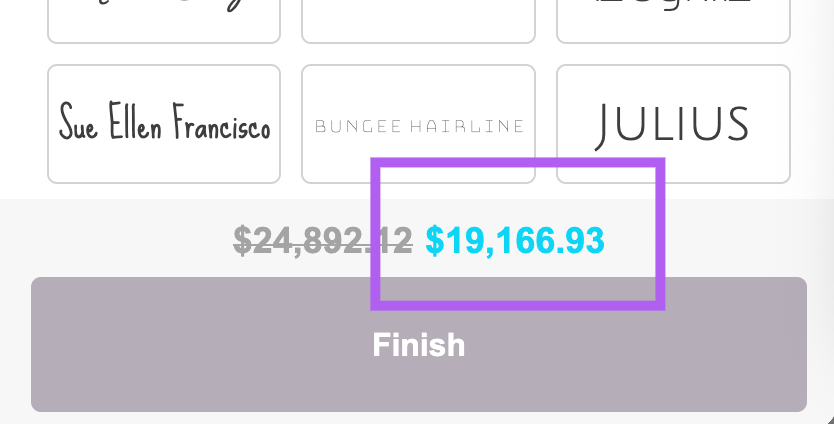
Sidebar Price
The Sidebar Price setting controls the total price that appears in the sidebar.
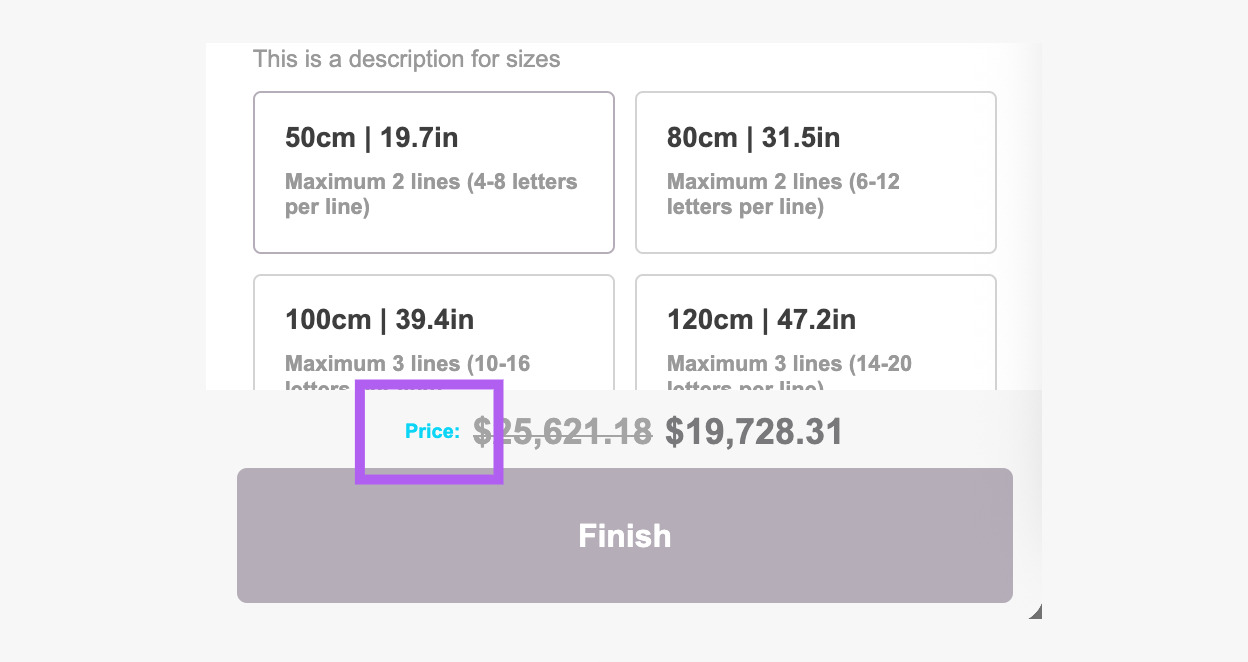
Sidebar Price Label
The Sidebar Price Label setting controls the colour of the price label at the bottom of the sidebar (only if text is present under Language > Main tab > Price and button section > Text before price value).
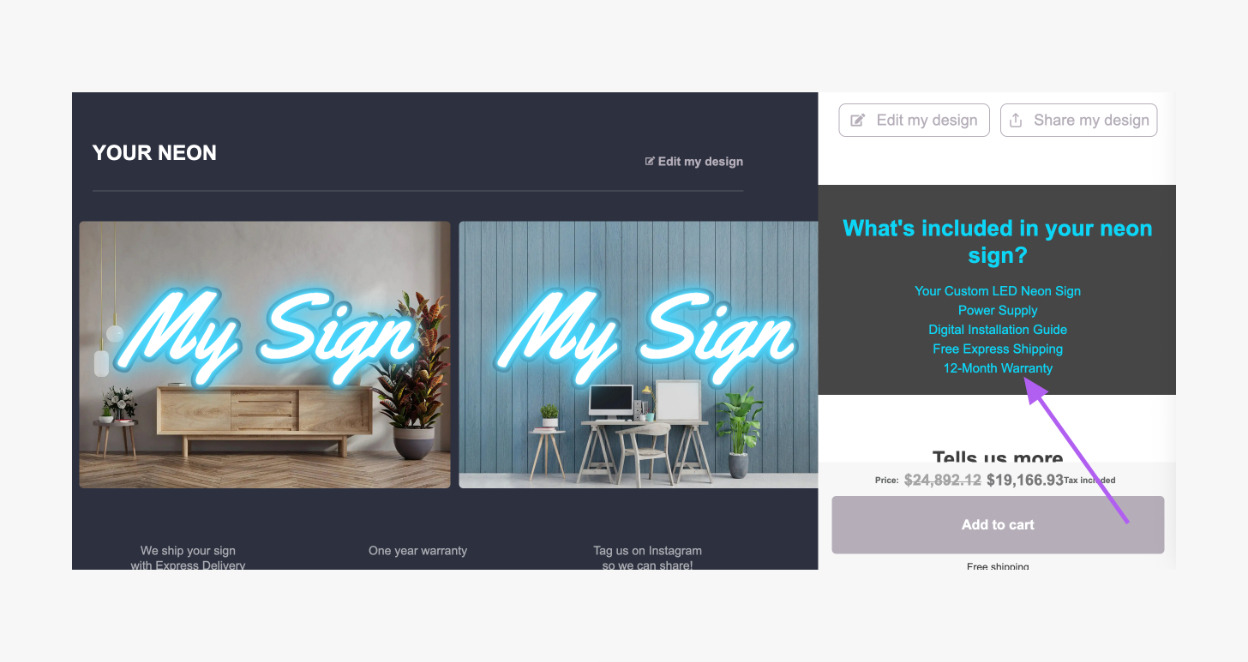
Inclusions Text
The Inclusion Text setting controls the colour of text in the “Additional Items Included” section on the review screen (text settings found under Review Screen > Additional Items Included).
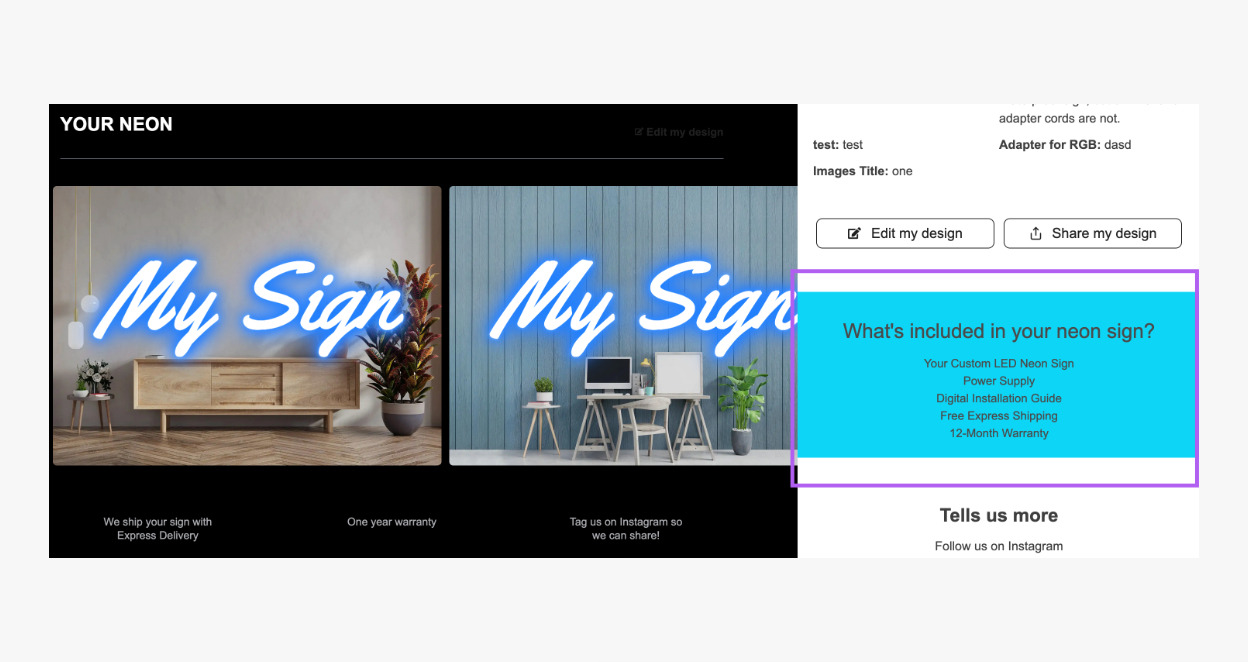
Inclusions Background
The Inclusion Background setting controls the background colour of the “Additional Items Included” section on the review screen (settings found under Review Screen > Additional Items Included).
Selection Number Text
The Selection Number Text setting controls the colour of the number in the numbered list.
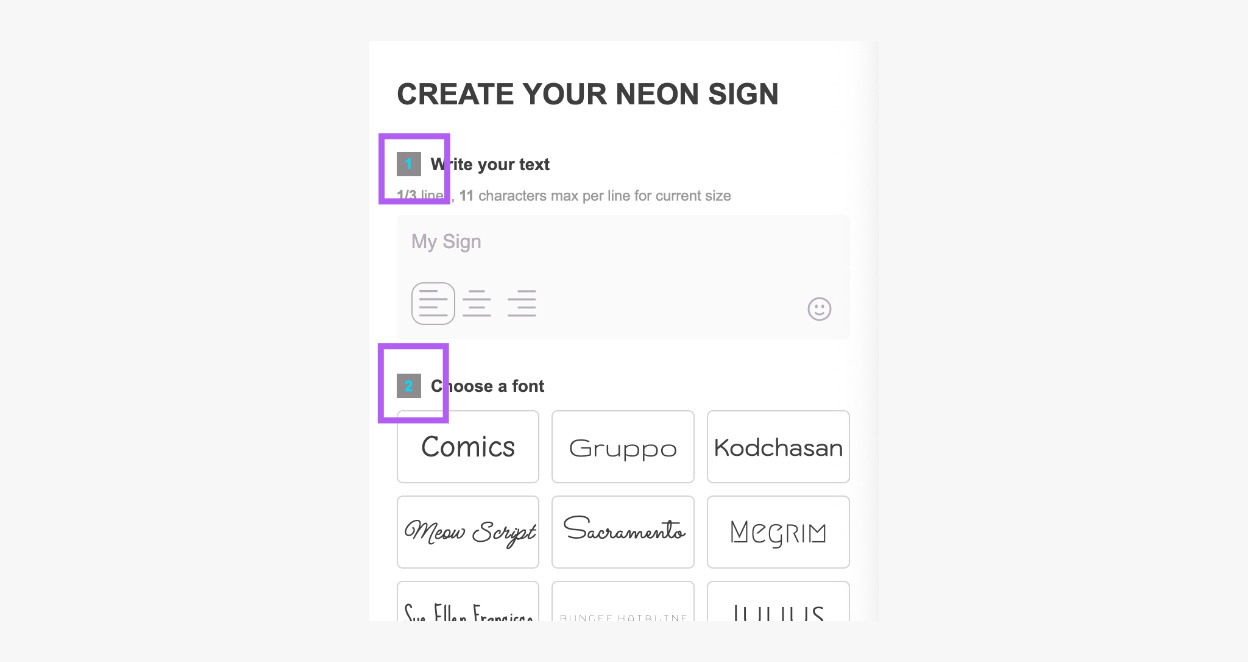
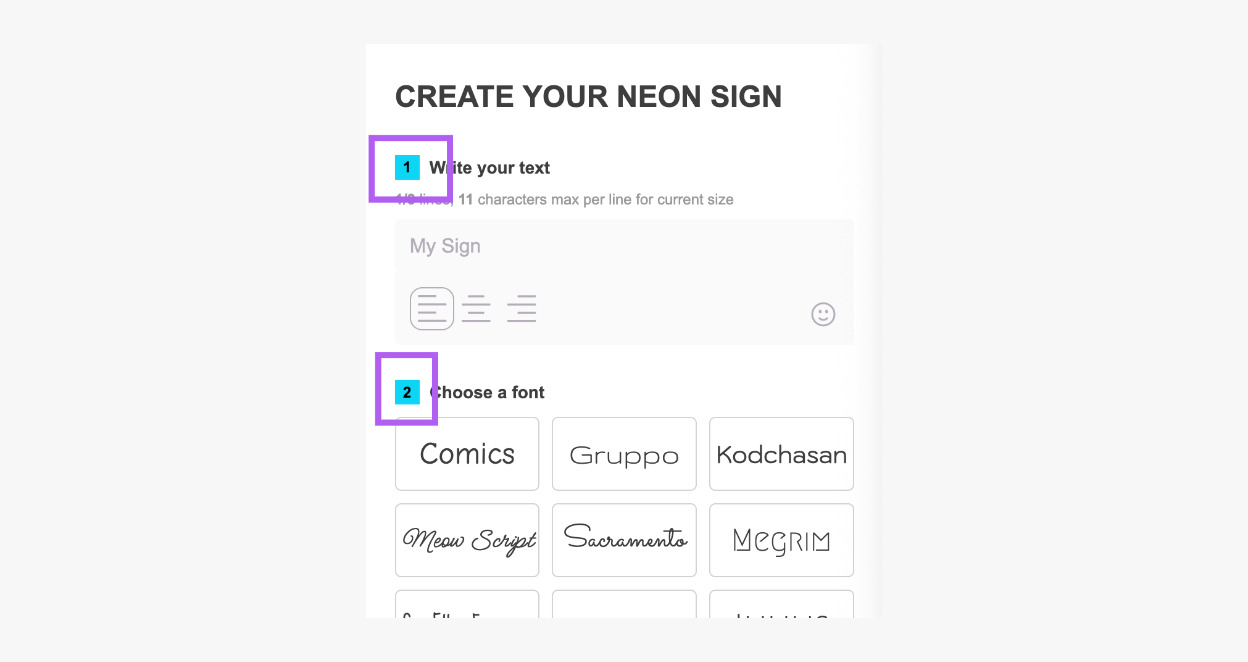
Selection Number Background
The Selection Number Background setting controls the background colour of the number in the numbered list.
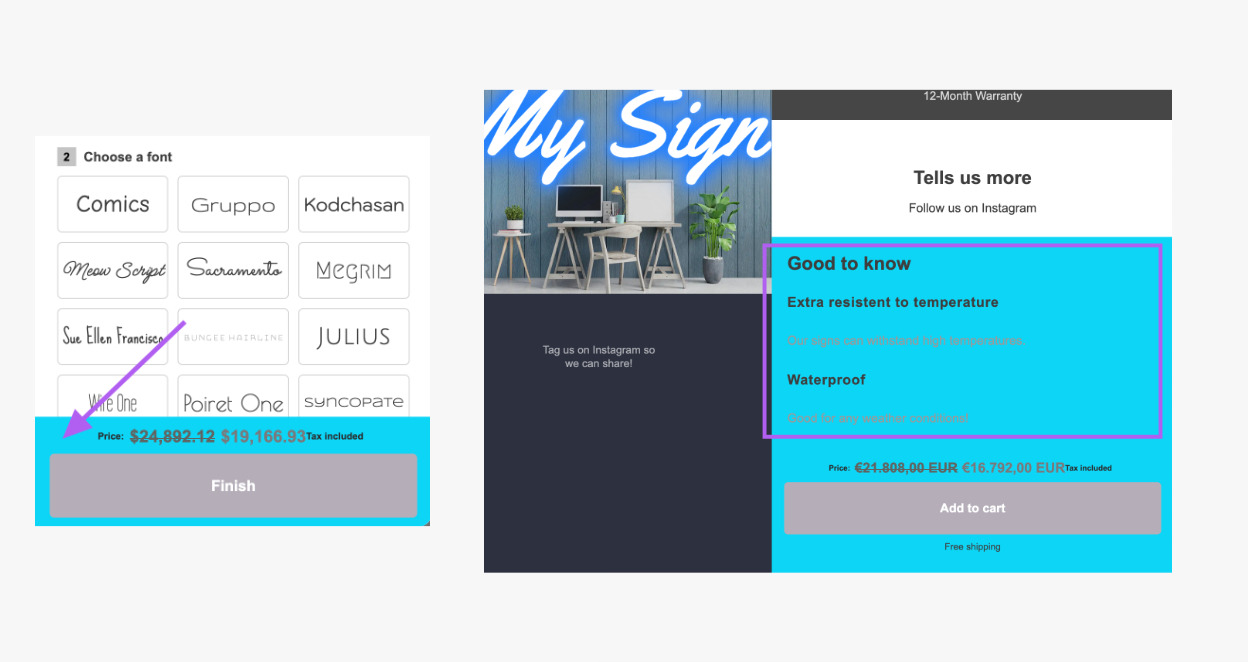
Background Accent
The Background Accent setting controls the colour of the following:
-
The total price and “Add to Cart” section
-
Background of the “Qualities” section in the review screen (text settings found under Review Screen > Qualities)
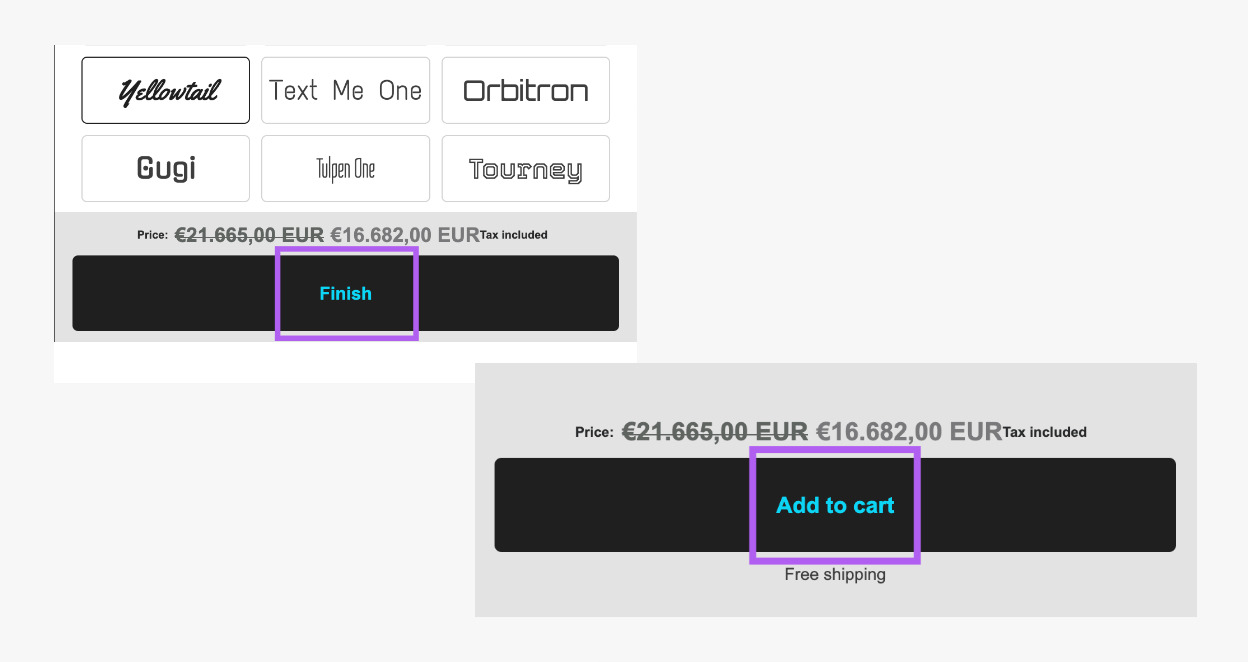
Button Text
The Button Text setting controls the colour of the text in “Finish” and “Add to cart” buttons (if Review Screen is enabled).
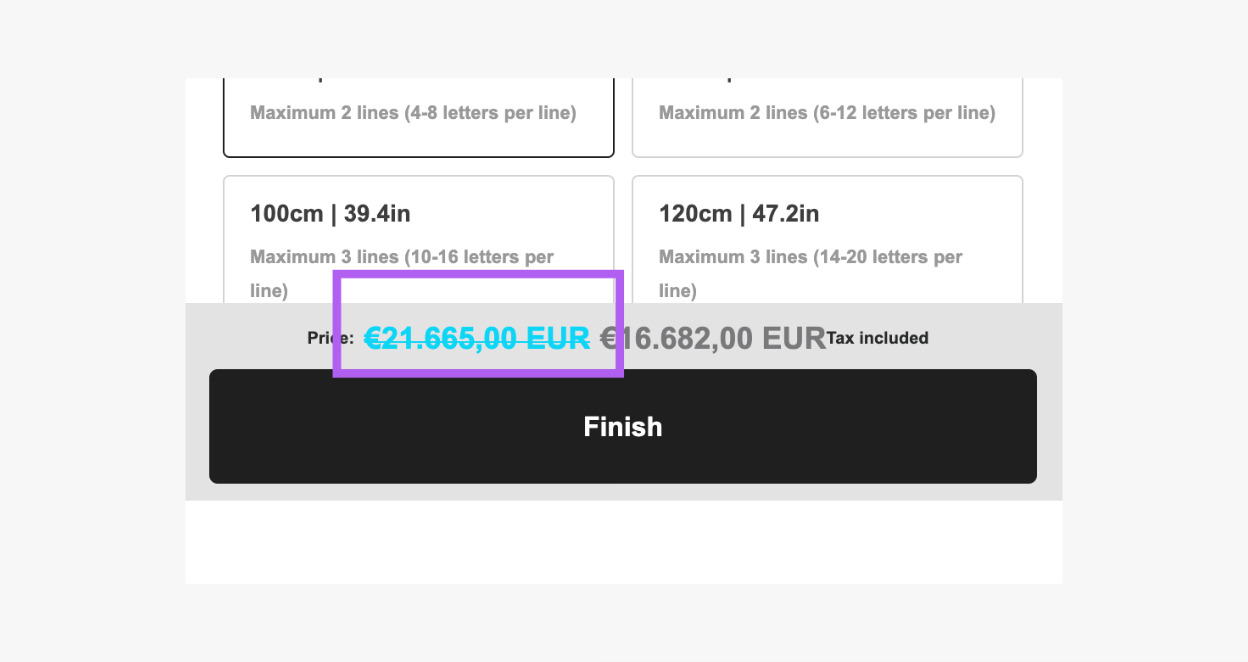
Discount Sidebar Price
The Discount Sidebar Price setting controls the colour of the discounted price that appears at the bottom of the sidebar.
Form Error
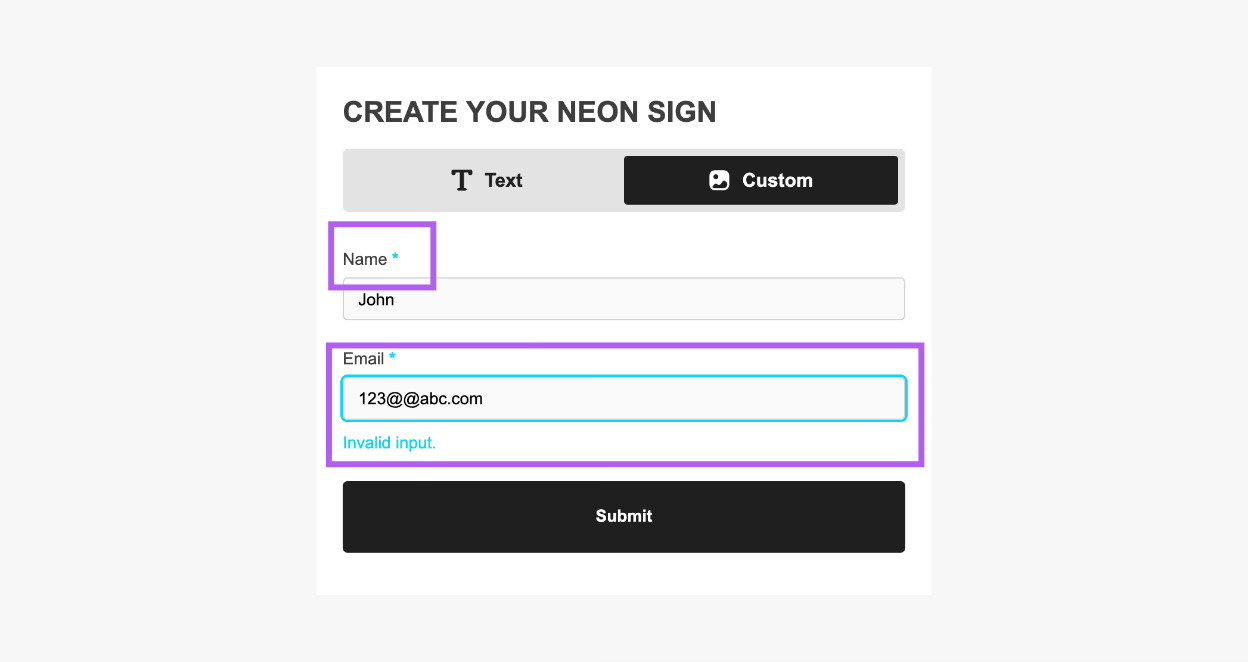
The Form Error setting controls the colour of the following:
-
The asterisk (*) symbol on required fields
-
Error messages
-
The input field outline when the field is in an error state
Other
Message Modal Text and Close Button
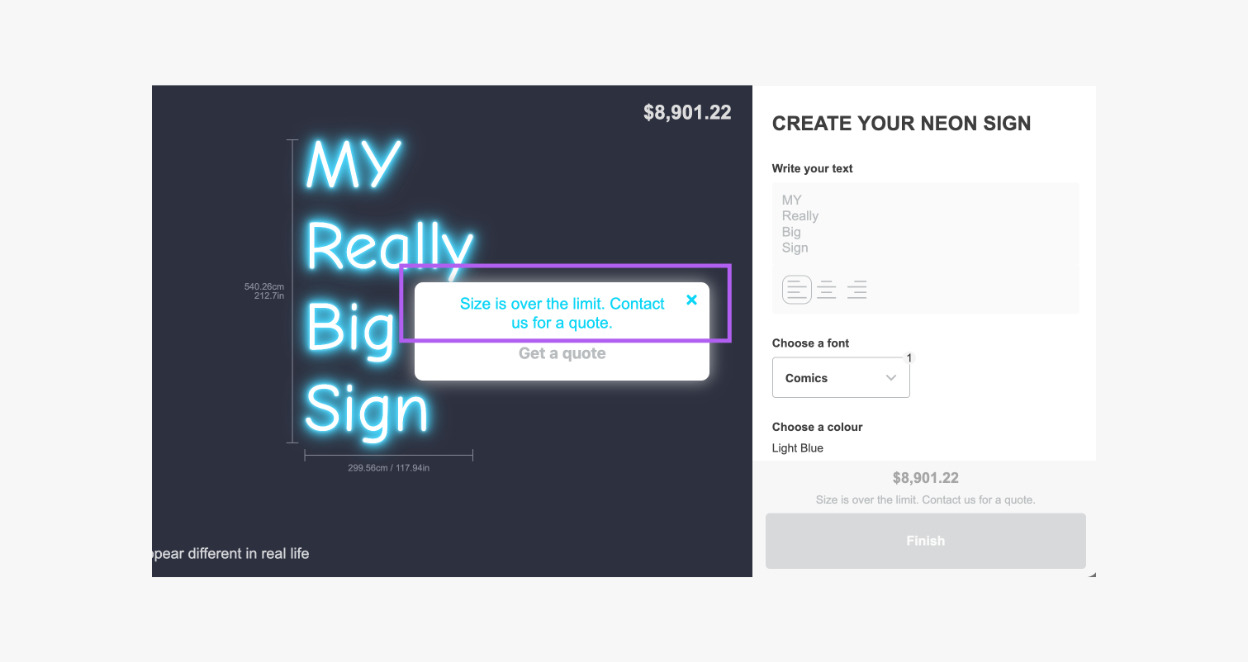
The Message Modal Text and Close Button setting controls the colour of text and the close button in the modal that appears when a sign exceeds the limit set in your customiser.
Message Modal Background
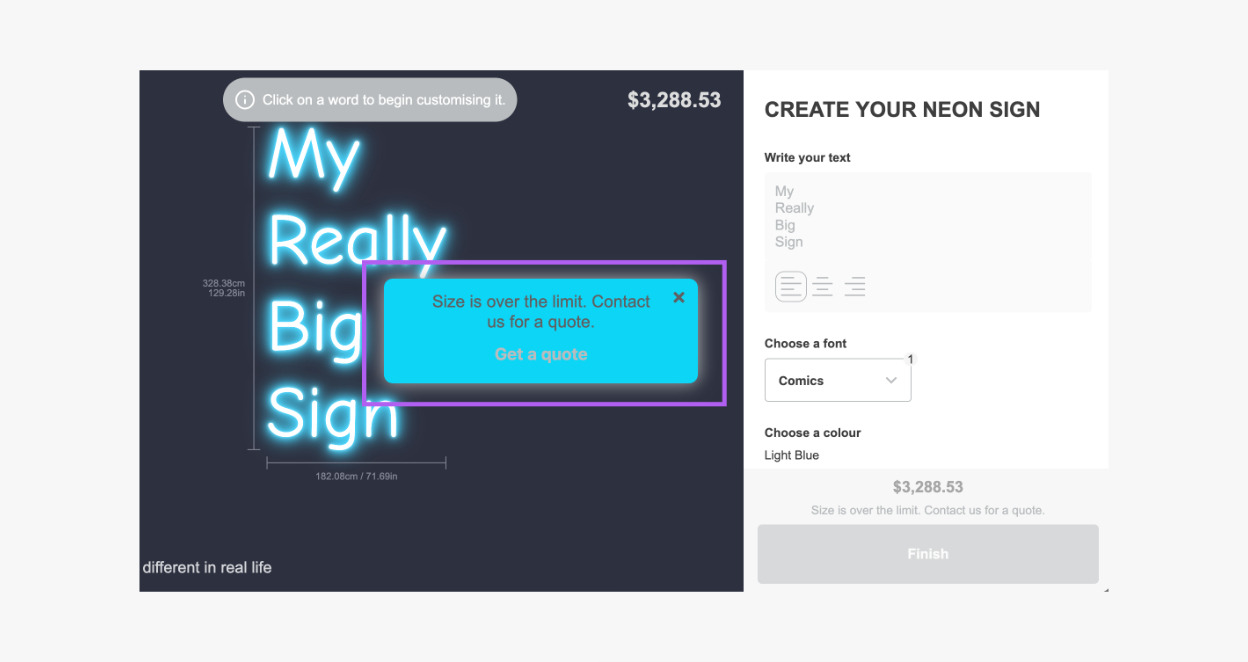
The Message Modal Background setting controls the background colour of the modal that appears when a sign exceeds the limit set in your customiser.
Modal Overlay
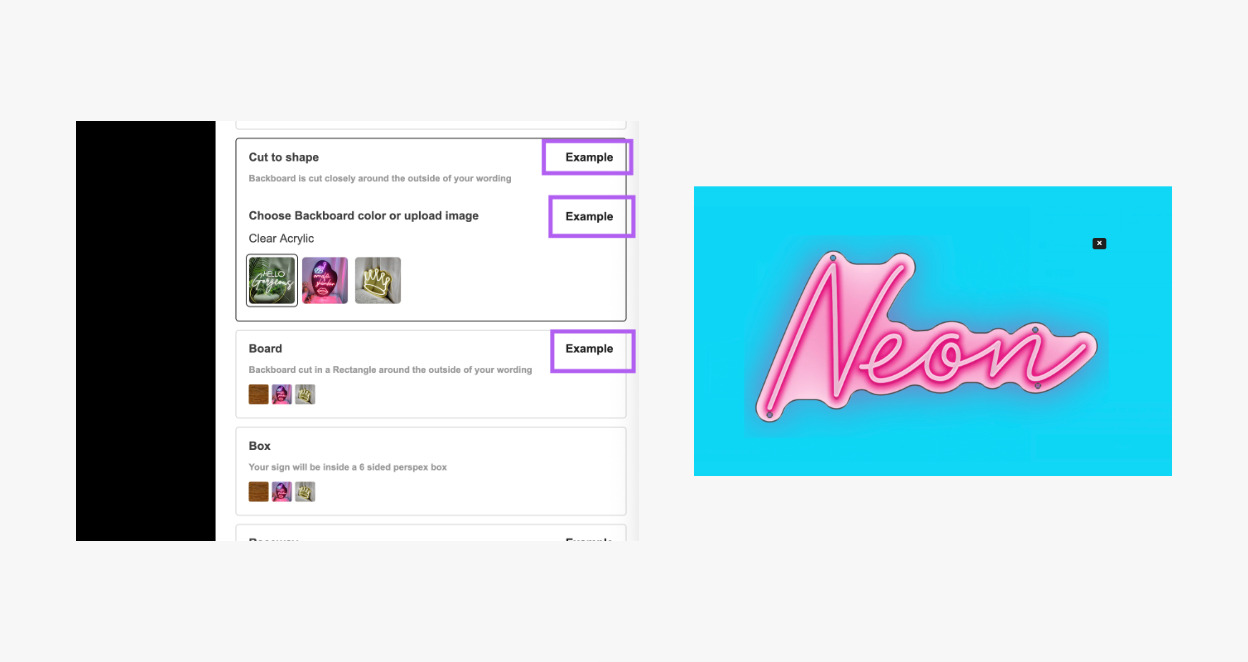
The Modal Overlay setting controls the colour of the overlay for “Example” pop-up images.
Status Colours
Success
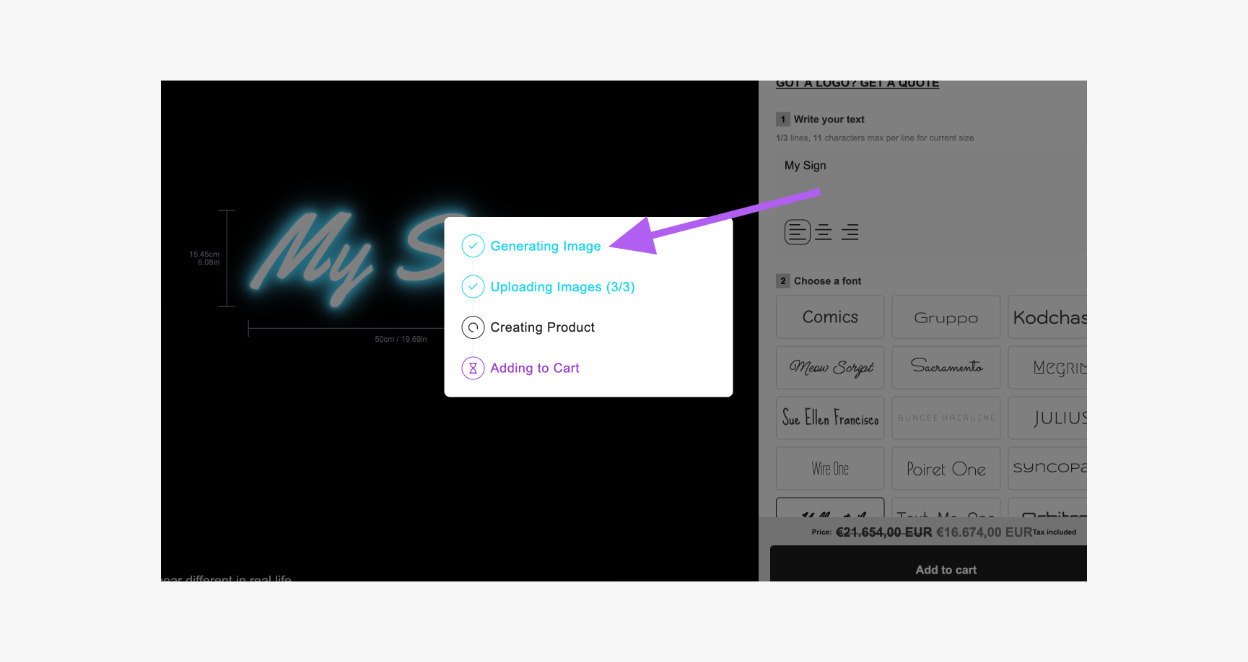
The Success setting controls the colour of success text when a product is added to the cart.
Pending
The Pending setting controls the colour of pending text while the product is still being added to the cart.