
Mountings
Display mounting options for the backboards
Last updated:
The mounting feature allows you to add various mounting options for your backboards.
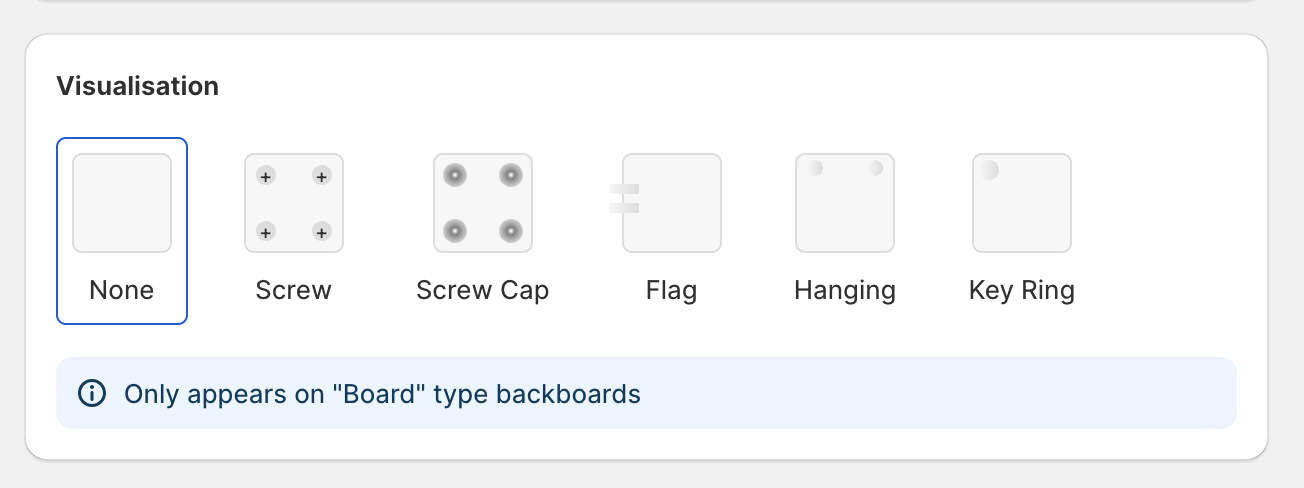
Note: only the “Board” backboard type visually displays mountings in the visualiser.
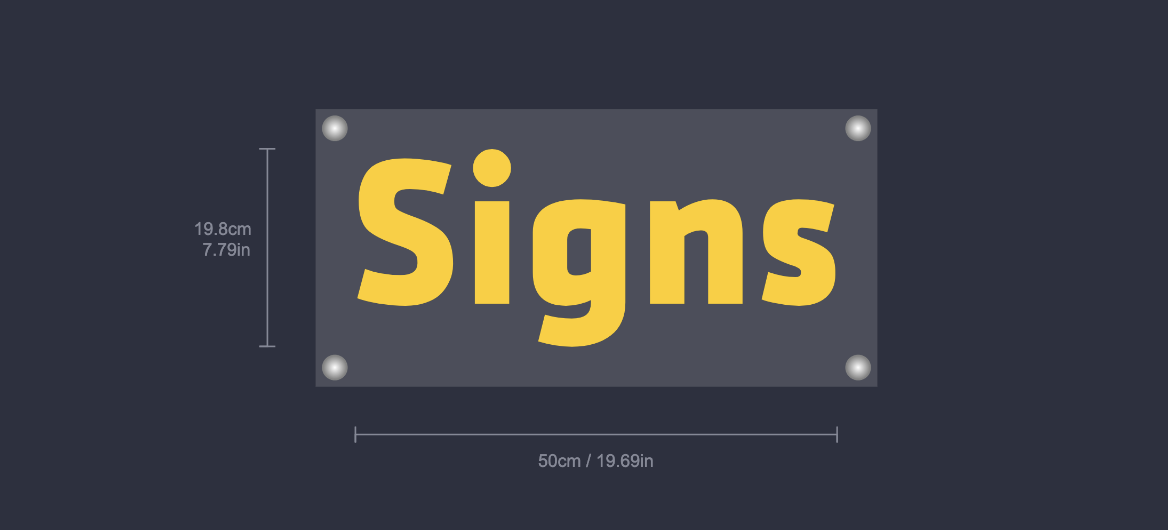
Follow this guide to configure mountings for your customiser.
Configuring Your Mountings
-
Go to the Sign Customiser app settings and select the customiser you want to edit.
-
From the left-side menu, click on Mountings.
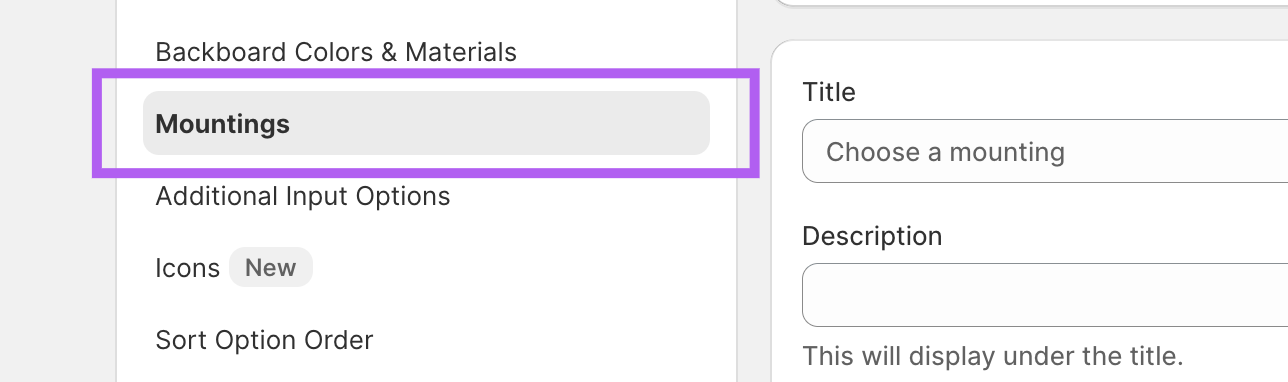
-
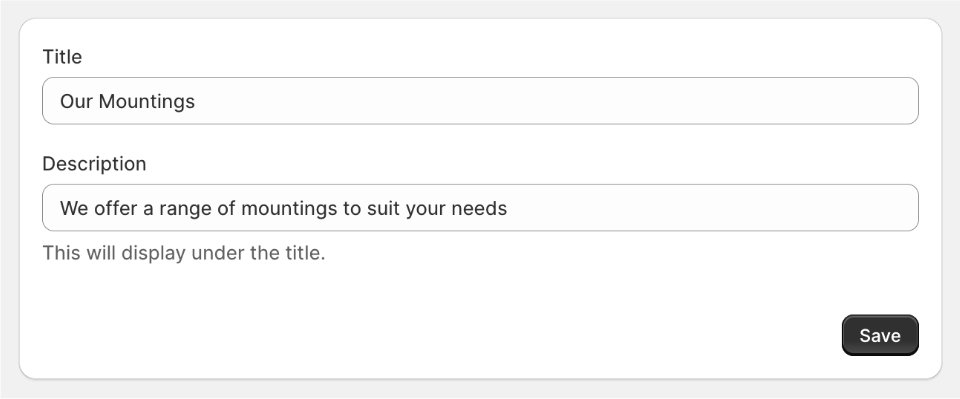
Optional: Change the Title and Description for the mounting section.
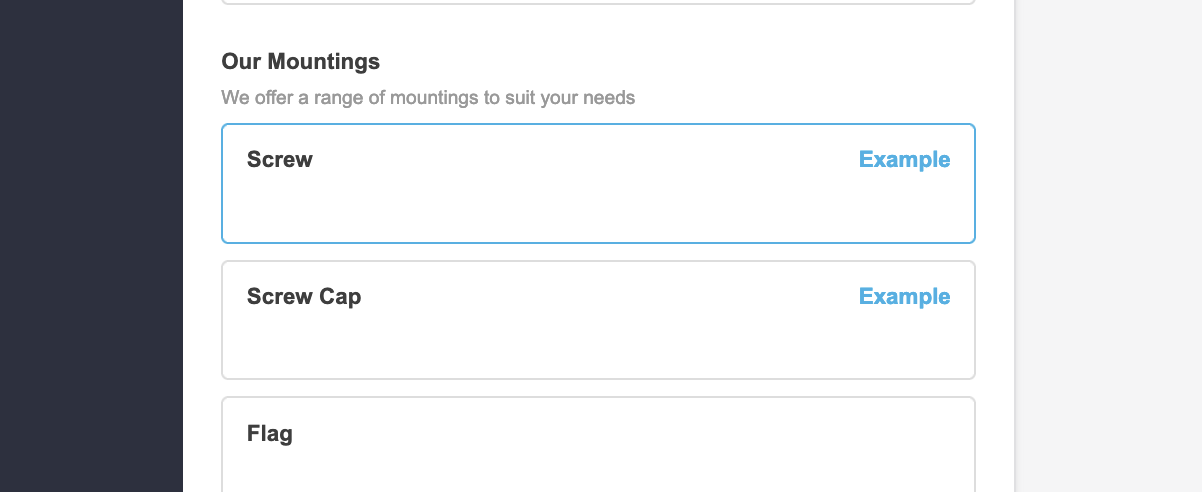
How the change looks in the customiser.
-
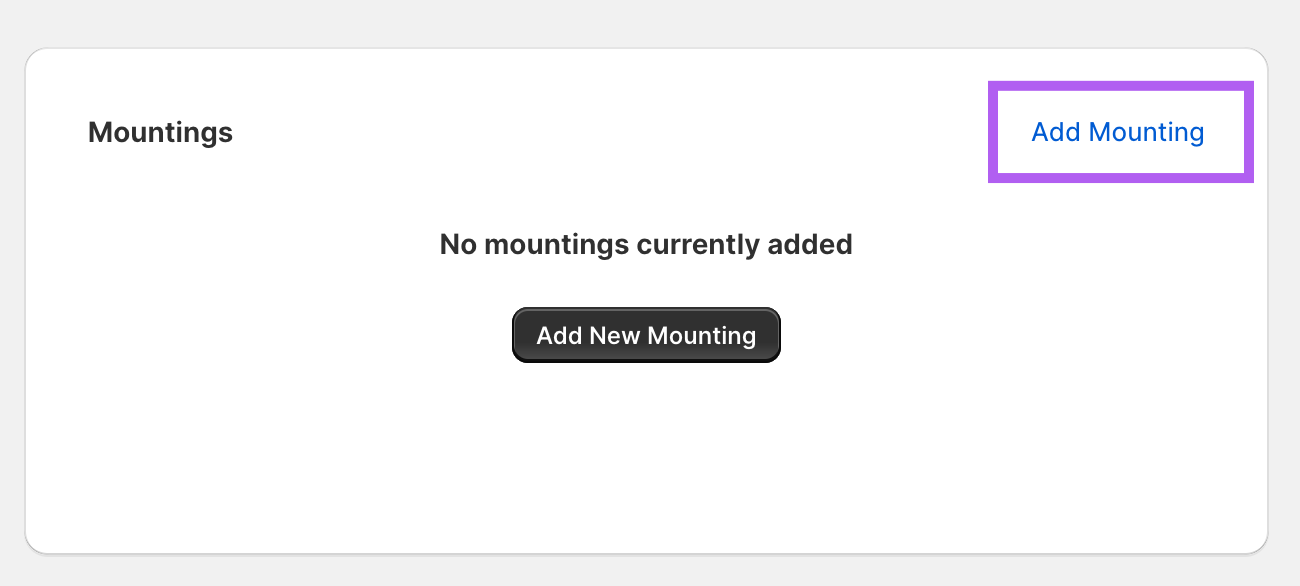
To add a new mounting click on Add Mounting.
-
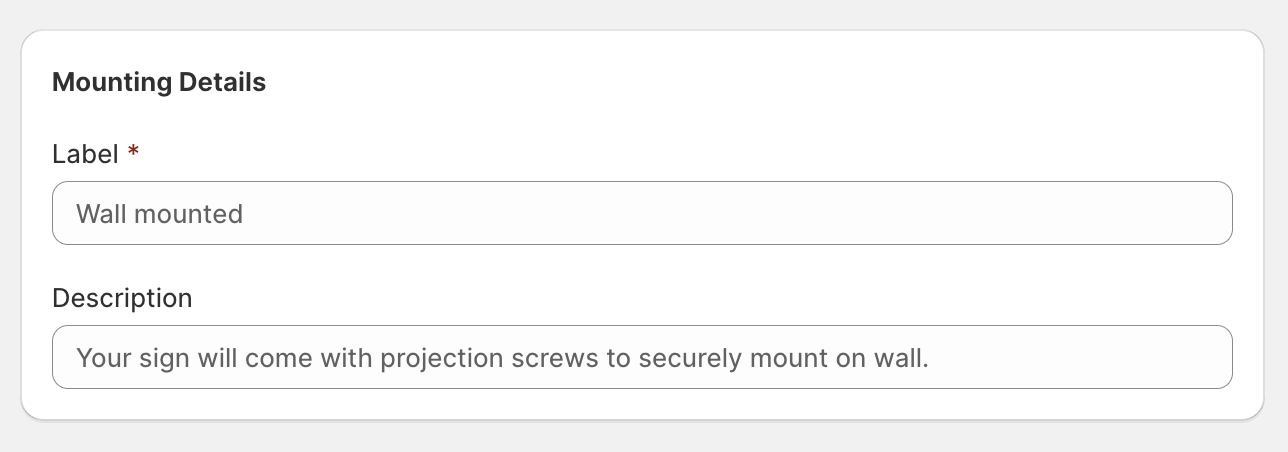
Enter a label and description (optional) for the mounting type.
-
Choose one of the six visual options: none, screw, screw cap, flag, hanging, or key ring.
-
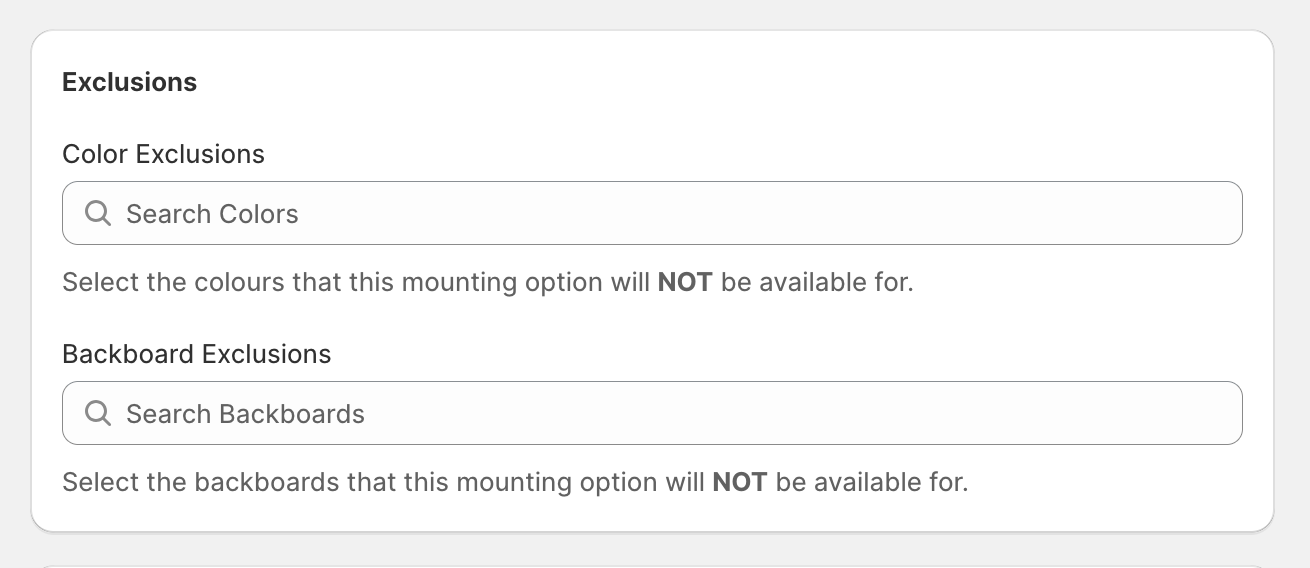
Use the Colour and Backboard search fields to exclude this mounting from appearing in those options.
-
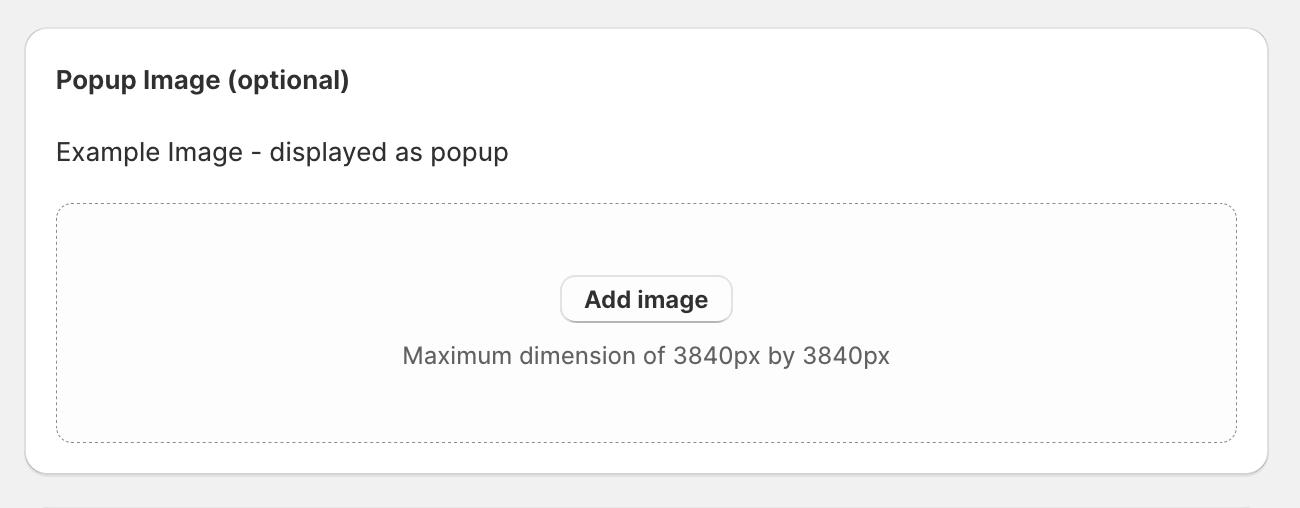
Optional: add a real-life example of the mounting for additional clarity.
-
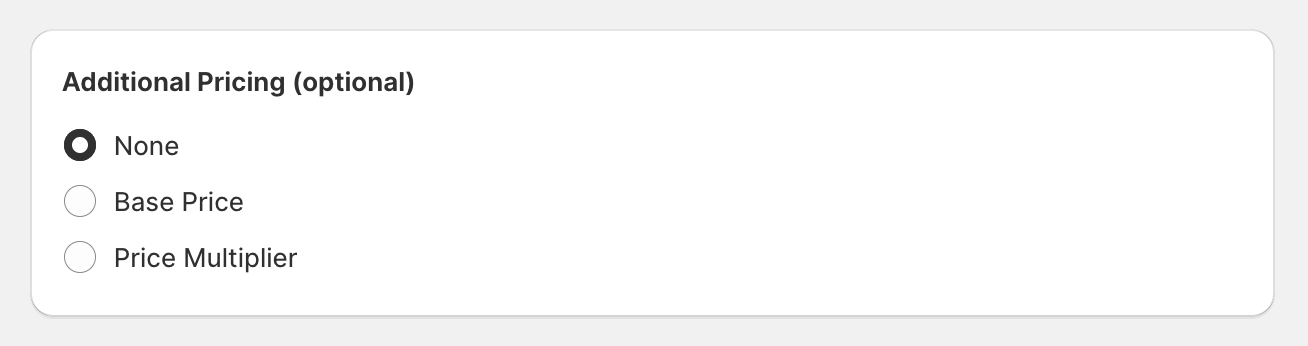
Optional: add a one-time fee or a percentage-based markup for the mounting.
-
Save your new mounting.
-
Click the Preview button (top right) to view your new mounting in the visualiser.