
Autogenerate SKU for sign products in Shopify?
Last updated:
Our app generates a new product in Shopify for every custom sign added to the cart by a customer. While the app does not assign SKUs automatically, you can implement an automatic SKU generation system using a third-party app. Below is a step-by-step guide to help you set this up.
Understanding the Product Details of Custom Signs
When our app creates a new product in Shopify, here’s what you need to know:
-
Product Creation: A unique product is generated each time a custom sign is added to the cart. This is part of how our app works.
-
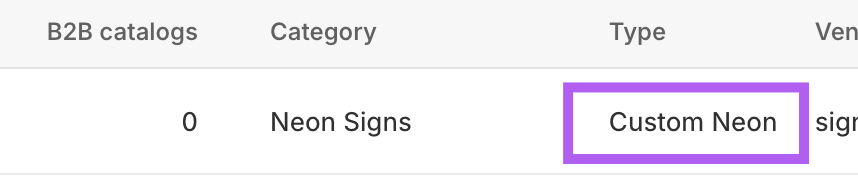
Product Type: All newly created products have the Product Type field set to Custom Neon.
-
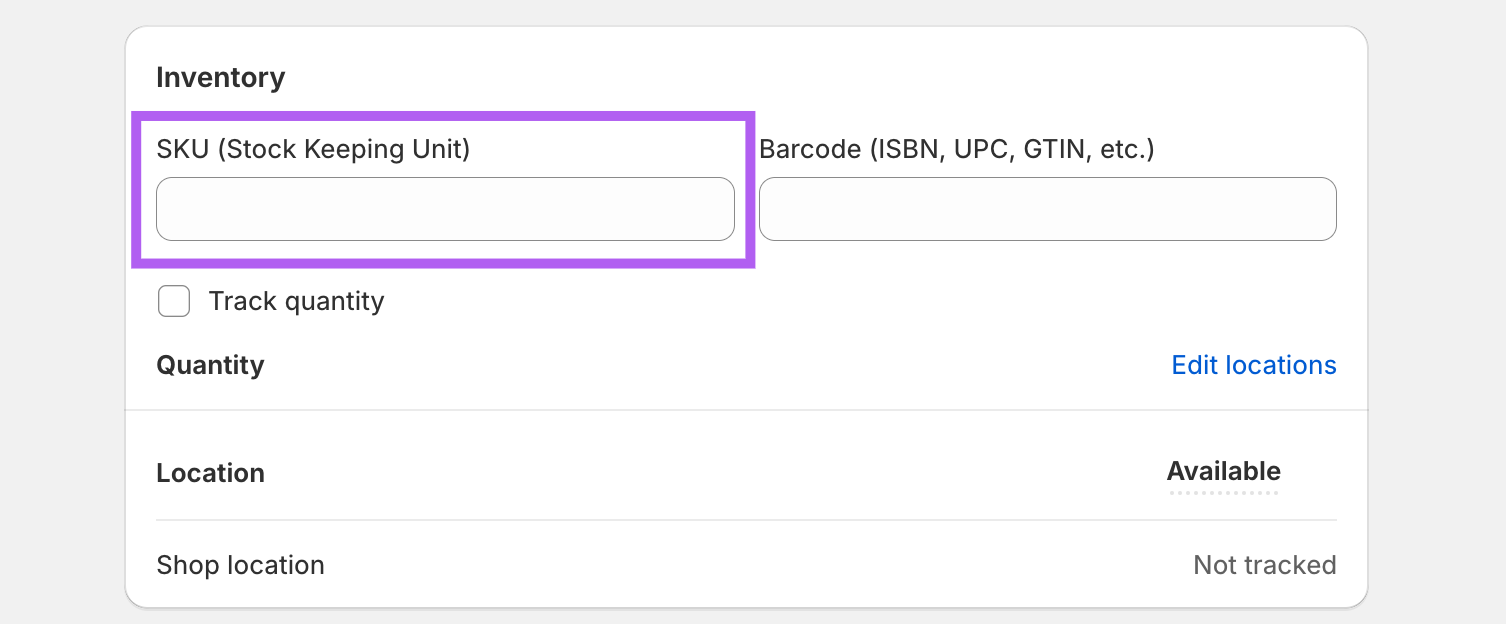
SKU field: These products do not have variations but include a field for adding SKU manually.
Adding SKUs Manually
If you prefer to manually add SKU to a product, follow these steps:
-
Log in to your Shopify admin.
-
Navigate to the Products section.
-
Select the product created by our app (marked as Custom Neon as Type).
-
In the SKU field, enter your SKU for that product, and save your changes.
Automating SKU Assignment
To streamline the process, we recommend using a third-party app to automate SKU generation. Here is how:
-
Visit the Shopify App Store and search for automatic SKU generator apps.
-
Choose and install an app that allows you to set rules or conditions to ensure SKUs are assigned only to these specific product types.
-
Configure the app to generate SKUs for products with the Product Type set to Custom Neon.