
Connecting WooCommerce with Sign Customiser
Integrate your Woocommerce store with Sign Customiser
Last updated:
This guide walks you through integrating your WooCommerce store on WordPress with Sign Customiser, allowing your customers to customise products directly on your website.
Prerequisites
Before you begin, ensure you have:
-
Administrative access to your WooCommerce store.
-
A Universal subscription on Sign Customiser (create an account here).
Step 1: Generate WooCommerce API Credentials
You will need to create API credentials in your WooCommerce store to allow Sign Customiser to communicate with your webshop.
-
Log in to your WordPress dashboard.
-
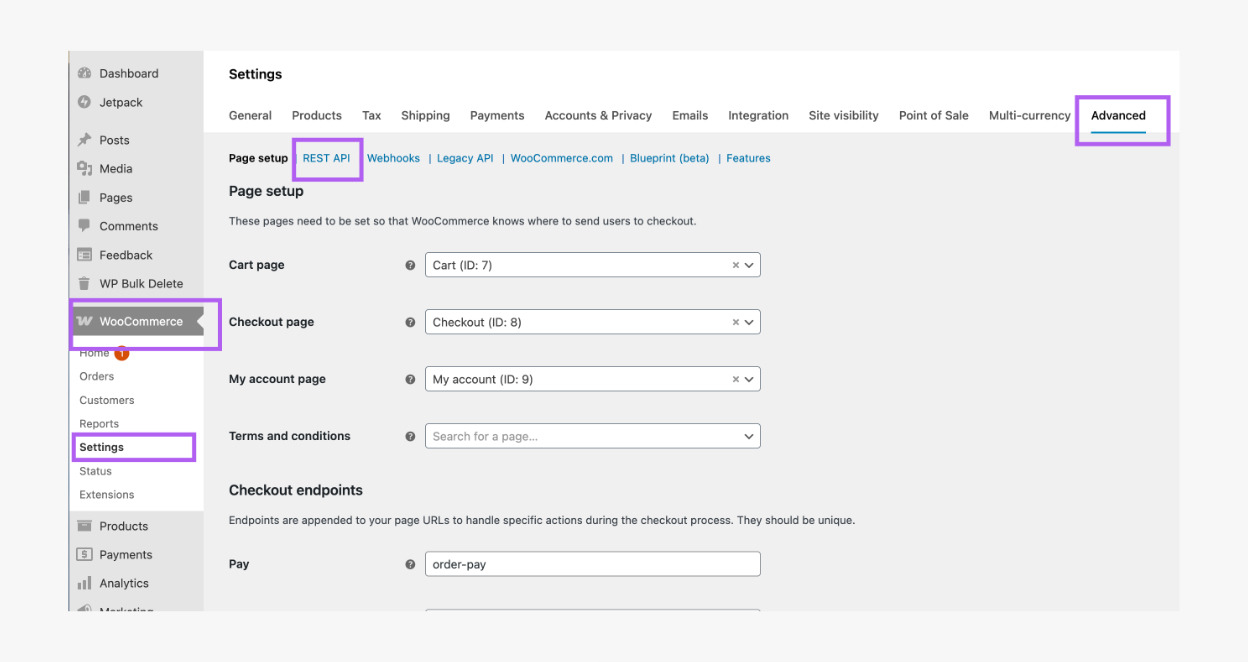
Go to WooCommerce → Settings → Advanced → REST API.
-
Click API Key.
-
Enter the following details:
-
Description: Sign Customiser.
-
User: Select the appropriate admin user.
-
Permissions: Read/Write.
-
-
Click Generate API Key.
-
Copy both the Consumer Key and Consumer Secret immediately.
You will not be able to view the Consumer Key and Consumer Secret again. Store both credentials securely, as you will need them in the next step.
Step 2: Connect Sign Customiser to WooCommerce
You will need to connect your WooCommerce store to your Sign Customiser account.
-
Log in to your Sign Customiser account.
-
On the Home page, go to Tools & Settings → Integrations.
-
Click on Connect WooCommerce.
-
Fill in the following details:
-
Name: e.g WordPress Integration.
-
API URL: Your store’s API endpoint (Your store’s WordPress REST API endpoint. This is your store URL followed by
/wp-json/, for examplehttps://yourstore.com/wp-json/. To verify this is correct, try visiting the URL in your browser — you should see a JSON response, not a 404 error page.). -
Consumer Key: Paste the consumer key from step 1.
-
Consumer Secret: Paste the consumer secret from step 1.
-
-
Click Create to complete the connection.
Step 3: Get the Embed Code for Your Customiser
After connecting WooCommerce, you will need to get the embed code for your customiser.
-
Log in to your Sign Customiser account.
-
Go to Tools & Settings → Integrations.
-
Click View Details in your WordPress integration card.
-
Under the Embed Instructions, select the customiser you want to use from the Select Customiser dropdown. Note: the ID of the chosen customiser will be automatically added to the embedded code.
-
Copy the code snippet shown. It will look similar to this:
HTML <script src="https://integrations.signcustomiser.com/sign-customiser-embed.js"></script><sign-customiser-embedcustomiser-id="YOUR_CUSTOMISER_ID"integration-id="YOUR_INTEGRATION_ID"driver="woocommerce"></sign-customiser-embed>
Step 4: Add the Customiser to Your Website
You can embed your customiser on any page using the Gutenberg editor or a page builder like Elementor or WPBakery.
Before starting, make sure:
-
You have connected your WooCommerce to your Sign Customiser account (Steps 1 & 2).
-
You have your embed code ready (Step 3):
Option A: Add the Customiser Using the Gutenberg Editor
-
In your WordPress admin, go to Pages and click on Add Page.
-
Click the + Add Block button and choose Custom HTML block.
-
Paste the full embed code into the box.
-
Click on Save or Publish.
Option B: Add the Customiser Using Elementor
-
Go to Pages in your WordPress admin
-
Click on Add Page.
-
Click on Edit with Elementor.
-
Drag the HTML widget onto the page where you want the customiser to appear.
-
Paste the full embed code in the HTML Code textbox.
-
Click Publish to save the changes.
Option C: Add the Customiser Using WPBakery
-
Go to Pages in your WordPress admin
-
Click on Add Page.
-
Click on Backend Editor.
-
Click + Add Element and search for the Raw HTML element.
-
Add the Raw HTML block to the desired section of your layout.
-
Paste the full embed code inside the Raw HTML textbox.
-
Click Publish to save the changes.
Note
If your customiser is not displaying in full width or height within its container, you may need to wrap the embed code with the following:
<div style="width: 100%; height: 100vh;"></div>The final result should look like this:
<div style="width: 100%; height: 100vh;"><script src="https://integrations.signcustomiser.com/sign-customiser-embed.js"></script><sign-customiser-embed customiser-id="YOUR_CUSTOMISER_ID" integration-id="YOUR_INTEGRATION_ID" driver="woocommerce"></sign-customiser-embed></div>If you need help with this, contact Sign Customiser Support.
Step 5: Configuring WooCommerce for Custom Sign Products
To ensure custom sign products are properly added to the cart in WooCommerce, you need to adjust specific settings and optimise the user experience.
Enable AJAX Add to Cart
To allow custom sign products to be added to the cart smoothly, follow these steps:
-
In your WordPress dashboard, go to WooCommerce > Settings > Products.
-
Scroll down to the Add to cart behaviour section.
-
Enable the “Enable AJAX add to cart buttons on archives” option.
-
Click Save changes.
Redirect Users to the Cart Page
Since it can take up to approximately 7 seconds for the custom sign product to be generated and appear in the cart, users may mistakenly try to add the product multiple times. To avoid this:
-
Go to WooCommerce > Settings > Products.
-
Scroll down to the Add to cart behaviour section.
-
Enable “Redirect to the cart page after successful addition”.
-
Click Save changes.
This ensures that users are redirected to the cart immediately after adding a custom sign product, preventing duplicate clicks.
Troubleshooting
If you encounter an error when creating or updating your WooCommerce integration, check the following based on the error message shown.
WooCommerce REST API not found
This means Sign Customiser could not find the WooCommerce API at the URL you provided.
-
Check your API URL is correct. It should be your store’s URL followed by
/wp-json/, for examplehttps://yourstore.com/wp-json/. If your WordPress is installed in a subdirectory, include that in the URL, for examplehttps://yoursite.com/shop/wp-json/. -
Check your permalink settings. The WooCommerce REST API requires WordPress permalinks to be set to anything other than “Plain”. In your WordPress dashboard, go to Settings → Permalinks and select any option other than “Plain” (e.g. “Post name”). Click Save Changes.
-
Check WooCommerce is installed and activated. Go to Plugins in your WordPress dashboard and confirm that WooCommerce is listed and active.
Authentication failed
This means Sign Customiser was able to reach your store, but the API credentials were rejected.
-
Check your Consumer Key and Consumer Secret are correct. These are easy to mix up when copying. If in doubt, generate a new API key in WooCommerce (Step 1) and enter the new credentials.
-
Check the API key has Read/Write permissions. Go to WooCommerce → Settings → Advanced → REST API and verify the key you created has “Read/Write” permissions, not “Read” only.
Could not connect
This means Sign Customiser could not reach your store’s server at all.
-
Check the URL is correct and accessible. Try visiting your API URL in a browser to confirm it loads.
-
Check for security plugins blocking API access. Security plugins such as Wordfence, Sucuri, or iThemes Security can block REST API requests. Check your plugin settings to ensure the WooCommerce REST API is not restricted.
-
Check your hosting firewall settings. Some hosting providers block external API requests by default. Contact your host if you suspect this is the case.
SSL certificate error
This means there is a problem with your site’s SSL certificate.
-
Check your SSL certificate is valid. Visit your store URL in a browser and look for the padlock icon. If you see a security warning, your certificate may have expired or be misconfigured.
-
Contact your hosting provider. They can help resolve SSL certificate issues.