
Setup customiser on Shopify App embed theme - best for page builders /old themes/Headless storefronts.
Best for installing sign customiser on page builders apps like gem pages/Headless themes or old themes.
Last updated:
This method of installing the customiser on a Shopify theme is only recommended for the following use cases
- Old themes that do not support App blocks
- Your theme is using a page builder
- Headless Shopify themes.
For all other use cases follow the instructions here on how to setup a customiser on your shopify theme.
By following these instructions, you can install the app on your Shopify legacy theme that doesn’t have app blocks enabled.
Install Sign Customiser using app embed follow these instructions:
1. Go to your Shopify admin, Click on Sales Channels and select Online Store
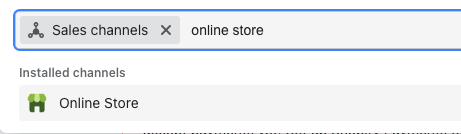
2. On the list of links for Online Store, you will find a navigation link called Themes
On the theme, you wish to edit click on the three dots … to expand the list and then click on Edit Code
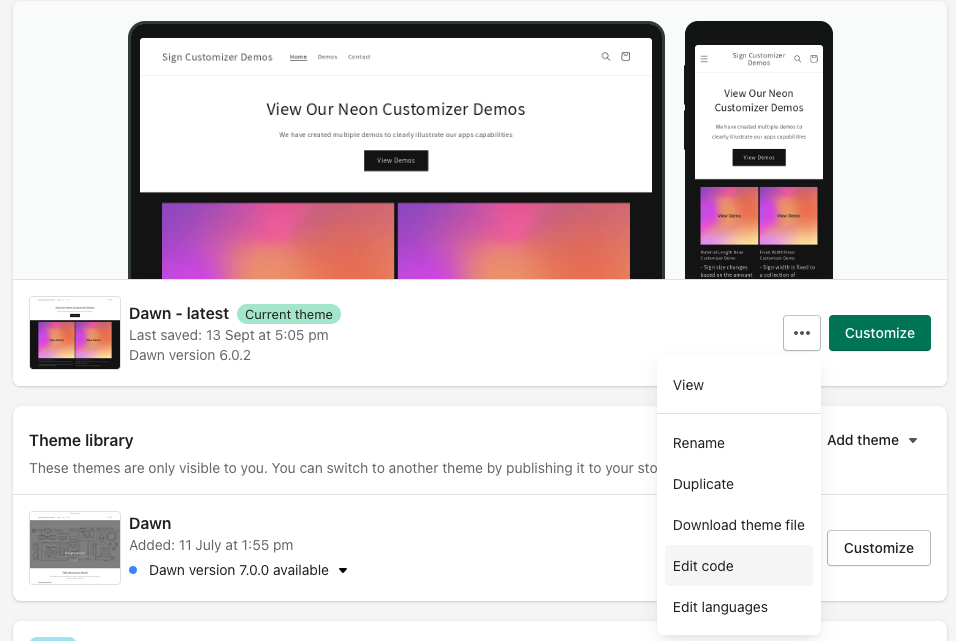
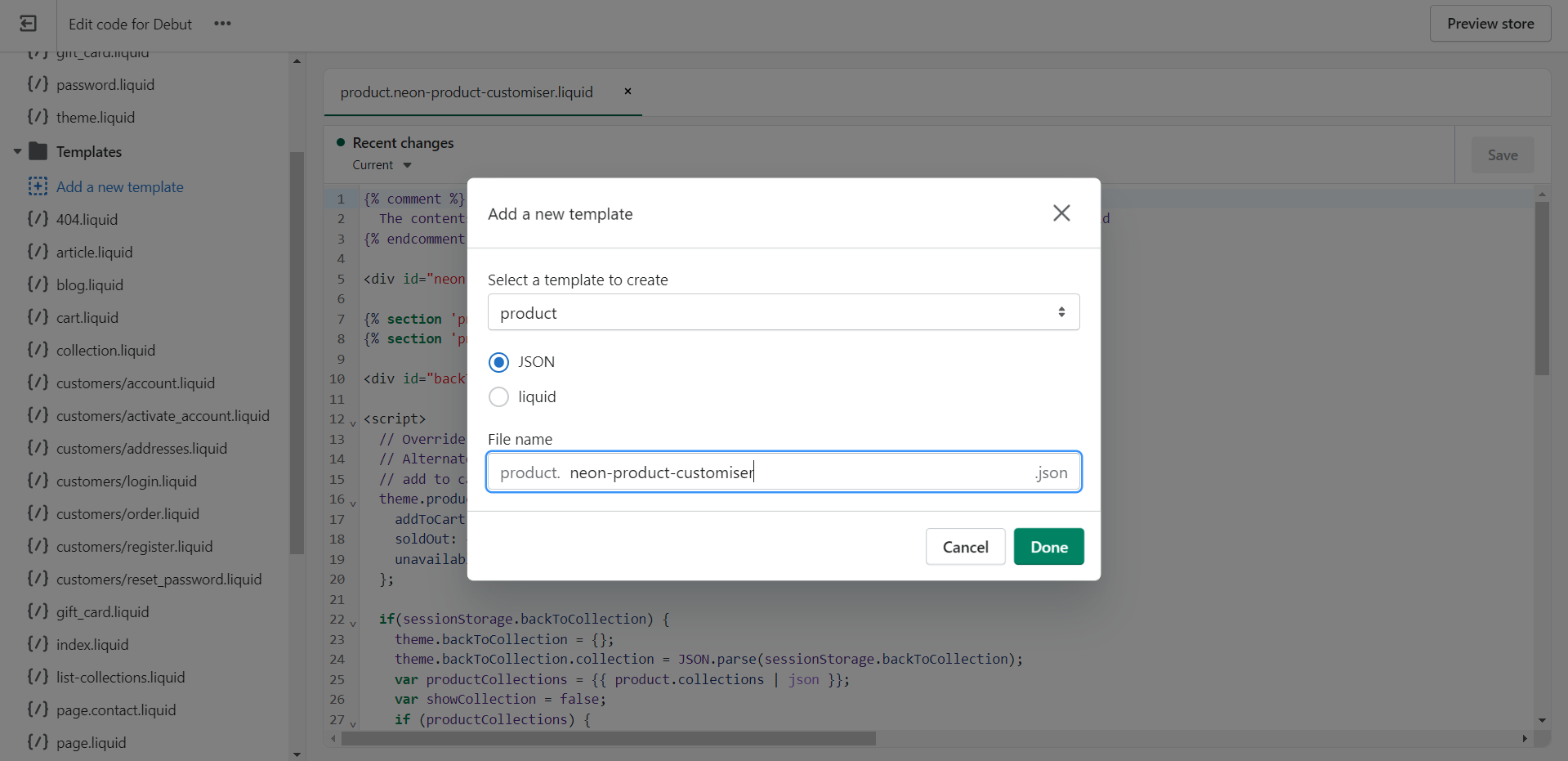
3. You can create a page template or a product template and use it to assign to a product or page. In this demonstration, I am using a product. In the Templates section, ‘Add a new template’.
-
Select Product in the dropdown menu of Select a template to create.
-
In Template type, select Liquid.
-
Add Neon Product Customiser in File Name.
-
Click Done/Create Template.
4. Using the code editor in the following.
-
Copy the code example below and paste it near the top of the page or where you would like for it to display.
-
Change the ENTER_YOUR_CUSTOMIZER_ID text to the ID of the customiser you wish to you. Please follow these instructions to get it
-
Hit Save
<div id="neon-customiser-app" data-customiserid="ENTER_YOUR_CUSTOMIZER_ID"></div>You should have something like this

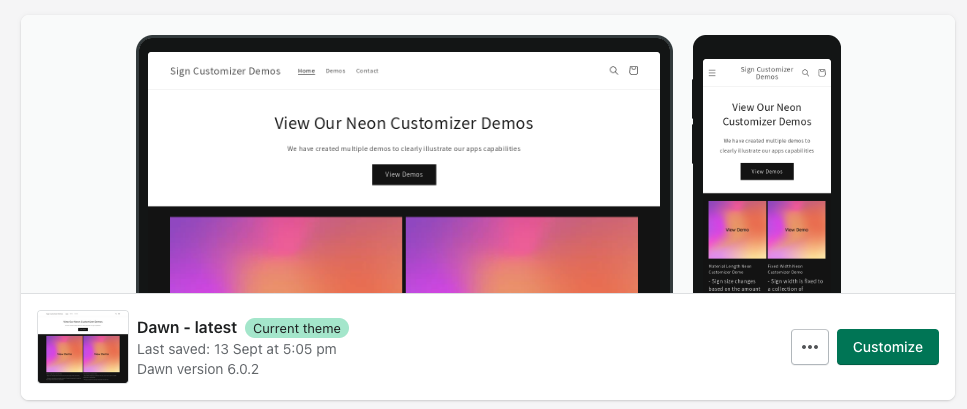
5. Refer back to the Theme in which we added the new template and click Customise:
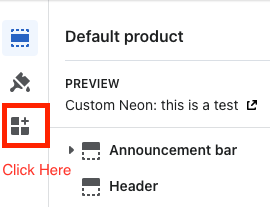
6. Once the Shopify theme editor is open on the left-hand side you will see sidebar with three icons, click on the one highlighted in this image
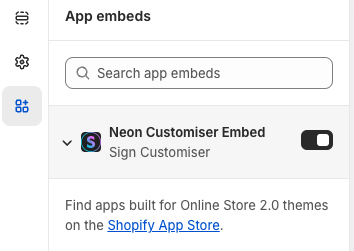
7. Click Theme Settings on the bottom left corner and enable the App embed and click Save to enable the app**:**
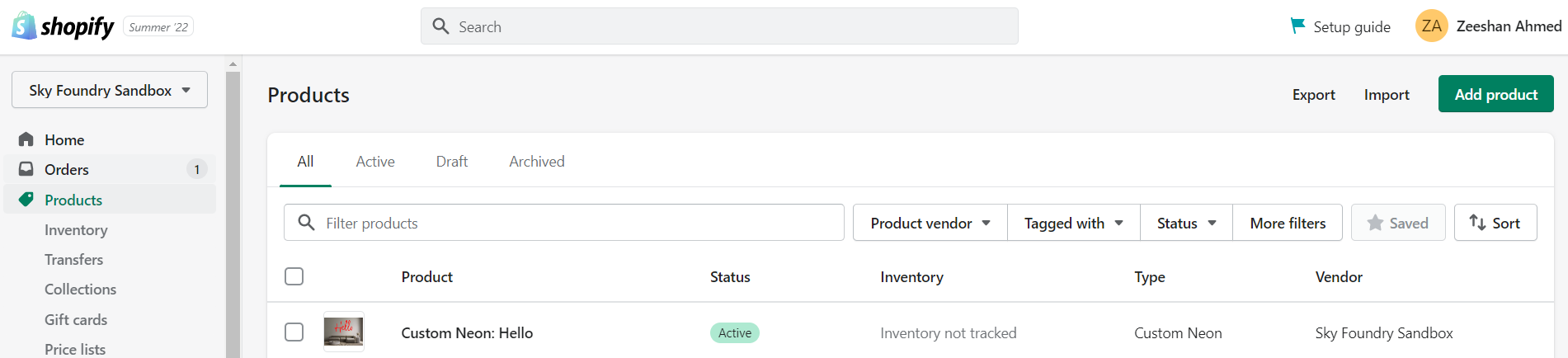
8. Go back into your Shopify admin, click on Products and click on the product you want to modify:
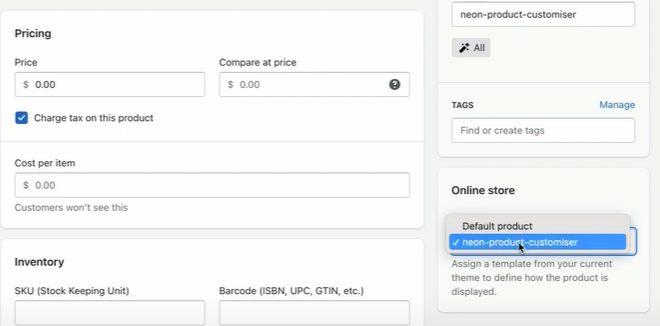
9. Scroll down to the Online Store on the right side and choose neon-product-customiser and click Save:
You are all done!
Note: If the above template was created as a page, you can follow the same instructions. Refer to the Pages section from your Shopify admin, create a new page, change the theme template under Online Store to the newly created template and click Save.
Install App Embed customiser using Iframe - alternative installation method
The iframe installation method uses the sign-customiser-embed.js script with a <sign-customiser-embed> tag to load the customiser inside an isolated iframe, instead of mounting it directly into the theme DOM.
Its main use case is reliability on customised or legacy themes, where direct embeds can break due to theme CSS/JS conflicts. Because the iframe is isolated, merchants get more predictable behaviour and styling consistency across storefront pages, while still being able to tune display settings like initial screen, frame height, and desktop/mobile height reductions.
Full code example
Copy and then modify HTML attributes to suit your store.
<script src="https://integrations.signcustomiser.com/sign-customiser-embed.js"></script>
<sign-customiser-embed  customiser-id="123"  shop="your-store.myshopify.com"  driver="shopify"  currency-format="${{amount}}"  currency-code="USD"  initial-screen="VISUALISER"  frame-height="100"  height-reduction="0"  height-reduction-mobile="0"  price-box-options="bottom"></sign-customiser-embed>
Settings breakdown (short)
-
initial-screen-
Options:
VISUALISER|CUSTOM_DESIGN -
Example:
initial-screen="CUSTOM_DESIGN"
-
-
frame-height-
Meaning: iframe height as
%of viewport -
Typical range:
50to100 -
Example:
frame-height="90"
-
-
height-reduction-
Meaning: desktop height reduction in pixels
-
Example:
height-reduction="80"(for fixed header)
-
-
height-reduction-mobile-
Meaning: mobile height reduction in pixels
-
Example:
height-reduction-mobile="64"
-
-
price-box-options-
Options:
bottom|top|hidden -
Example:
price-box-options="top"
-
Quick Example Preset
Copy one example below of the three shown here.
<!-- Full-screen default -->initial-screen="VISUALISER" frame-height="100" height-reduction="0" height-reduction-mobile="0" price-box-options="bottom"
<!-- Large sticky header -->initial-screen="VISUALISER" frame-height="100" height-reduction="96" height-reduction-mobile="72" price-box-options="top"
<!-- Open on custom design -->initial-screen="CUSTOM_DESIGN" frame-height="90" height-reduction="80" height-reduction-mobile="64" price-box-options="hidden"