

Track marketing campaigns with UTM parameters
Sign Customiser captures UTM parameters from your storefront URLs and saves them with each form submission. Read them from the quotes API, webhooks, emails and JavaScript events to attribute form submissions to the campaign that drove them.
Last updated:
A customer can arrive from a marketing campaign. The campaign can be Google Ads, Facebook, an email newsletter or a social post. The link can include UTM parameters, for example utm_source=google&utm_medium=cpc&utm_campaign=spring_sale.
Sign Customiser captures these parameters and keeps them for the session. It includes them when the customer submits a quote request or custom design form. You can then trace each form submission that arrived with UTM parameters to the campaign that brought the customer.
How it works
-
A customer clicks a link with UTM parameters and goes to your store.
-
When the customiser loads on the page that the link opens, Sign Customiser captures the UTM values from the URL.
-
The values stay in the browser session storage while the customer browses your site.
-
The customer submits a form. Sign Customiser saves the UTM data with the submission.
-
Your CRM, analytics tool or automation workflow reads the UTM data. It attributes the lead to the correct campaign.
You do not need to configure anything. If the URL has UTM parameters and the customiser loads on that page, Sign Customiser captures them.
Which parameters are captured
Sign Customiser recognises these UTM parameters:
-
utm_source: where the traffic came from, for example google, facebook or newsletter -
utm_medium: the marketing medium, for example cpc, email or social -
utm_campaign: the campaign name, for example spring_sale or black_friday -
utm_content: identifies an ad creative or a link position -
utm_term: the paid search keyword -
utm_keyword: a keyword value that Sign Customiser also keeps
Sign Customiser captures only the parameters that are in the URL. If a URL has only utm_source and utm_medium, only those two parameters appear in the data.
The best way to set this up
For a new integration, read your submissions from the quotes API. Each quote includes the UTM values it arrived with in the utm_params field. The API also returns your submission history, including submissions from before you set up the integration. It leaves out submissions whose form was hard-deleted before the platform began to record deletion snapshots.
-
In the Universal admin, go to Integrate > API Tokens. In the Shopify admin, go to Tools & Settings > API Tokens.
-
Click Create API key.
-
Select the Read quotes scope (
quotes:read). Click Create key. -
Send a
GET /api/v3/quotesrequest with the key. The quotes API reference shows the request. -
Read the
utm_paramsfield of each quote. -
Store the values with the contact, lead or opportunity in your CRM.
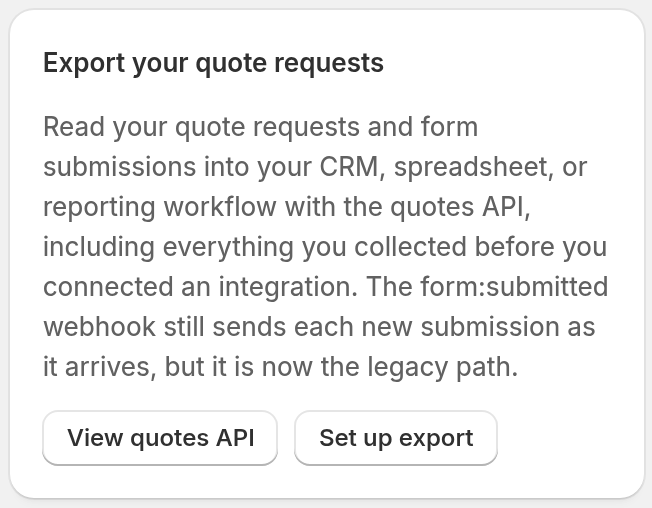
The Export your quote requests card on the Quotes page links to the same API reference. Its Set up export button opens the Integrations and Webhooks page.
Receive each submission as it happens
To get each submission when it arrives, use a webhook. Sign Customiser deprecated the form:submitted webhook on 24 August 2026. It still fires on every submission with the same payload. It has no cut-off date. Your existing webhooks continue to work.
-
Set up a webhook. Follow the Subscribe to webhooks guide.
-
Choose the Form Submitted (deprecated) topic.
-
Point the webhook at your server, CRM middleware or automation platform, for example Zapier.
-
Read the
form_submission.utm_paramsfield from the payload. -
Store the values with the contact, lead or opportunity in your CRM.
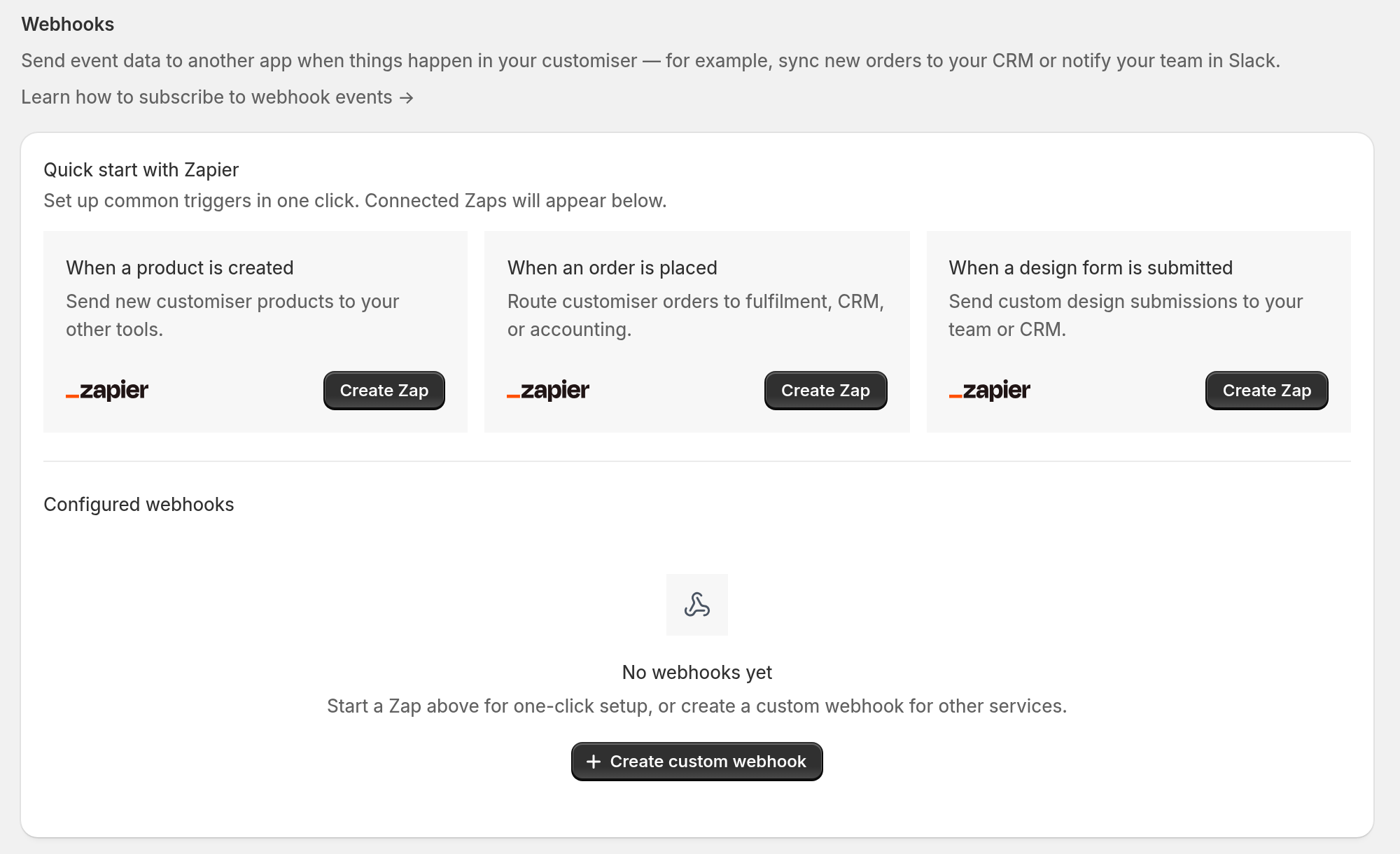
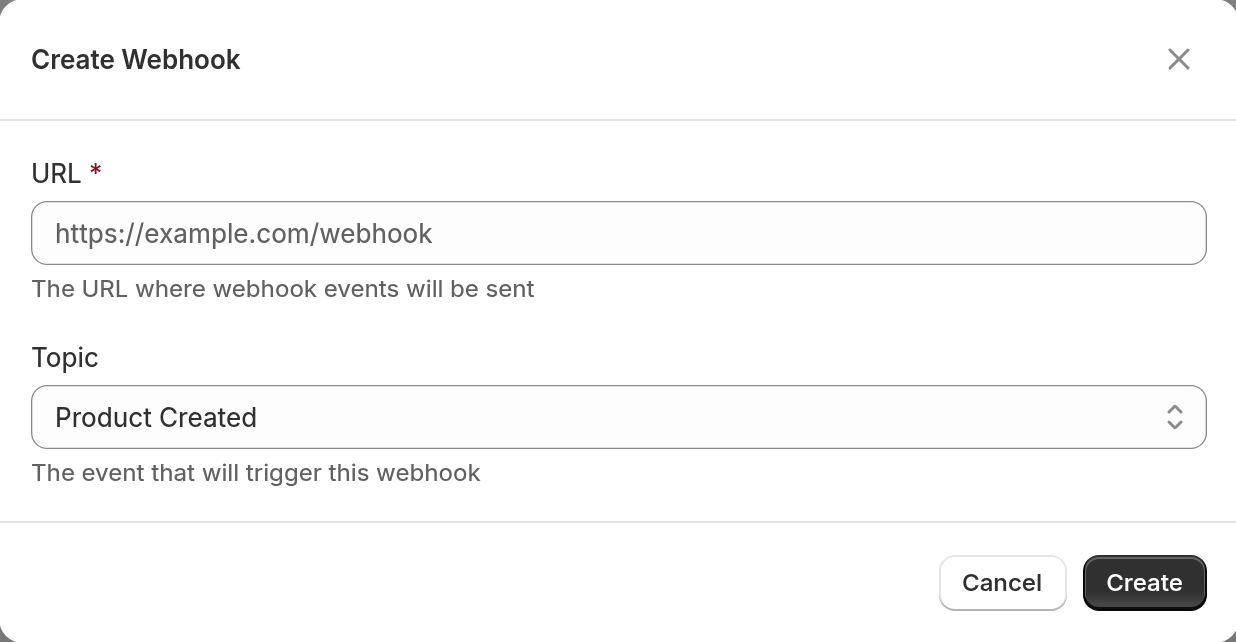
The screenshot shows the default topic. Change the Topic to Form Submitted (deprecated).
You can already process form submission webhooks for Google Ads click IDs. In this case, the UTM parameters arrive in the same payload. You do not need a second webhook.
Example webhook payload
When a form submission includes UTM data, the webhook payload looks like this:
{ "form_submission": { "submission_number": 42, "type": "custom_form_submission", "form": { ... }, "responses": [ ... ], "created_at": "2026-10-11T09:30:00+00:00", "ad_click_ids": { "gclid": "CjwKCAjw7p6aBhAoBhAAEiwA..." }, "utm_params": { "utm_source": "google", "utm_medium": "cpc", "utm_campaign": "spring_sale" } }}Your developer needs these fields for campaign attribution:
form_submission.utm_params.utm_sourceform_submission.utm_params.utm_mediumform_submission.utm_params.utm_campaignUTM data in notification emails
Some forms send notification emails. If the form uses the default email template and the submission has UTM parameters, the merchant notification email shows them in a UTM Tracking section. Each parameter appears with its key and value. This helps with manual attribution when you do not have a CRM integration.
If you use a custom email template, the email shows the UTM values only if your template includes them.
Frontend JavaScript events
These frontend JavaScript events of Sign Customiser also carry the UTM data:
-
signCustomiserProductAddedToCart -
signCustomiserFormSubmitted -
signCustomiserQuoteSubmitted
Sign Customiser does not send signCustomiserFormSubmitted or signCustomiserQuoteSubmitted for Starter, Standard or Pro plans. It does not send signCustomiserProductAddedToCart for these plans when the customiser is inline on the page and adds the product to the Shopify cart. The Shopify iframe embed sends signCustomiserProductAddedToCart for every plan. The WooCommerce and Wix embeds do not send this event.
Read the data at event.detail.utmParams:
document.addEventListener("signCustomiserFormSubmitted", function (e) { var utm = e.detail.utmParams; if (utm) { window.dataLayer = window.dataLayer || []; window.dataLayer.push({ event: "sign_form_submitted", utm_source: utm.utm_source, utm_medium: utm.utm_medium, utm_campaign: utm.utm_campaign }); }});This listener receives the form and quote events only when the customiser is inline on the storefront page. An iframe embed dispatches them inside the iframe.
For more information about frontend events, see the Tracking events for ad conversions guide.
Where the data is stored
The data goes through two stages:
-
While the customer browses: Sign Customiser keeps the UTM parameters in the browser session storage. They stay across page changes in the same browser tab. The storage key is
signCustomiser:utmParams. If the customer clicks a new UTM-tagged link that opens a page where the customiser loads, the stored values change to the new values. -
When the customer submits the form: Sign Customiser attaches the UTM data to the submission. It includes the data in the quotes API, your webhook payloads, merchant notification emails (for forms that send them) and JavaScript tracking events (for plans that receive them).
Each form or quote submission keeps the UTM values it arrived with. GET /api/v3/quotes returns them as utm_params. You can use this to read past submissions. To act on a submission when it arrives, use the webhook or the JavaScript events.
Using UTM parameters alongside Google Ads click IDs
Sign Customiser captures UTM parameters and Google Ads click IDs separately. One form submission can include both. Google Ads adds a gclid click ID to the URL when auto-tagging is on. UTM parameters are in the URL when you add them to the destination URL.
Use click IDs for Google Ads offline conversion tracking. Use UTM parameters for campaign attribution across all your marketing channels.
For Google Ads click ID setup, see the Send Google Ads click IDs to your CRM guide.
Common questions
Do I need to configure anything to capture UTM parameters?
No. When the customiser loads on a page whose URL has UTM parameters, Sign Customiser captures them. There is no setting to turn on.
What if the customer goes to another page before they submit a form?
If the customiser loaded on the page that the UTM link opened, the UTM values stay in session storage while the customer browses your site. If the same browser tab stays open, the submission includes the UTM data. Sign Customiser does not read a UTM link that opens a page without the customiser.
Does this work when the customiser is embedded in an iframe?
Yes. Sign Customiser passes the UTM parameters to the customiser across iframes. This applies on Shopify, WooCommerce and any other platform that uses our embed code.
Will I always get UTM parameters?
No. You get them only when the customer arrived through a URL that has them. A visit with no UTM parameters in the URL gives no UTM data, unless the same browser tab holds values from an earlier UTM-tagged link that loaded the customiser. In that case, Sign Customiser still uses those values.
When there is no UTM data, the webhook and the JavaScript events send null. The quotes API sends an empty object ({}).