

How to disable Cloudflare Proxy for Sign Customiser
Last updated:
Cloudflare security features can block the connection when you connect Sign Customiser to your website. These features protect your site from automated requests. Sign Customiser sends its requests to your site automatically from its servers, so Cloudflare can treat them as automated requests.
Make a rule that tells Cloudflare to let Sign Customiser through. The rule changes the checks only for requests that have SignCustomiser in the user agent. Any client can send this text, so the rule lowers protection for those requests.
Who needs this rule?
You need this rule when you connect your own website to Sign Customiser. That means a Connect WooCommerce connection or a Connect Custom API connection. For both, Sign Customiser sends requests to your domain. Cloudflare security features can block these requests.
You do not need this rule for Shopify or Wix. The Shopify and Wix connections go through their own services. They do not send requests to your own domain.
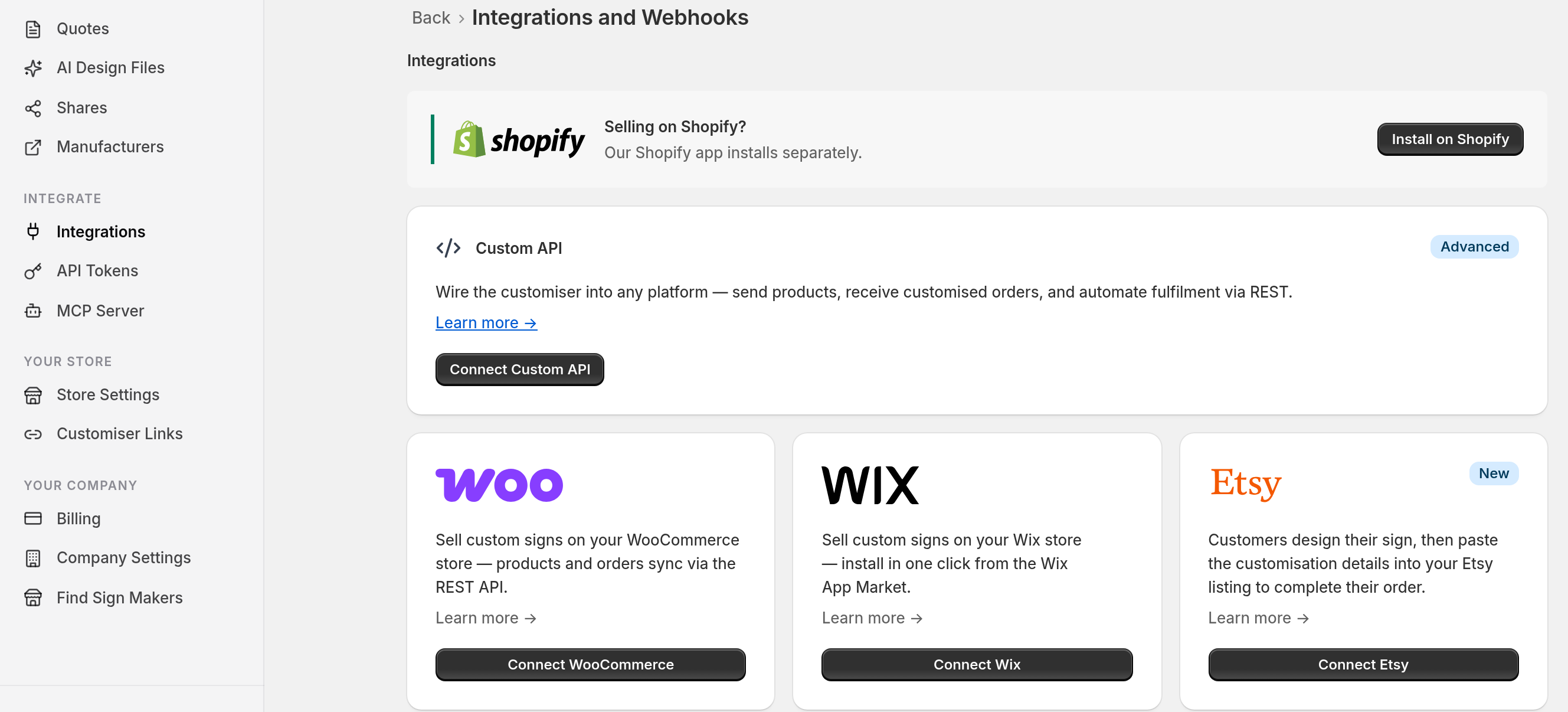
To find your connections, open Integrate > Integrations in Sign Customiser.
How do I know if my site is behind a Cloudflare proxy?
-
Log in to your Cloudflare account.
-
Find the “A” or “CNAME” DNS record that points to your website. The image below shows a record named “www”.
-
Look for an orange cloud on the record.
If the record has an orange cloud, your website is behind the Cloudflare proxy.

How to Fix This
You have two options.
-
To remove the Cloudflare protection, turn off the proxy. Click Edit on the record. Then change the proxy status from Proxied to DNS only. The orange cloud changes to a gray cloud.
-
To keep the Cloudflare protection, make a rule that lets Sign Customiser bypass Super Bot Fight Mode, User Agent Blocking and Browser Integrity Check. Do Steps 1 to 8.
Step 1: Log Into Cloudflare
Go to cloudflare.com. Log in to your Cloudflare account.
Step 2: Select Your Website
Select the website where you use Sign Customiser.
Step 3: Open the Security Rules Section
Open the Security rules page for your website.
Step 4: Create a New Rule
Click “Create rule”. Then click “Custom rules”.
Step 5: Name Your Rule
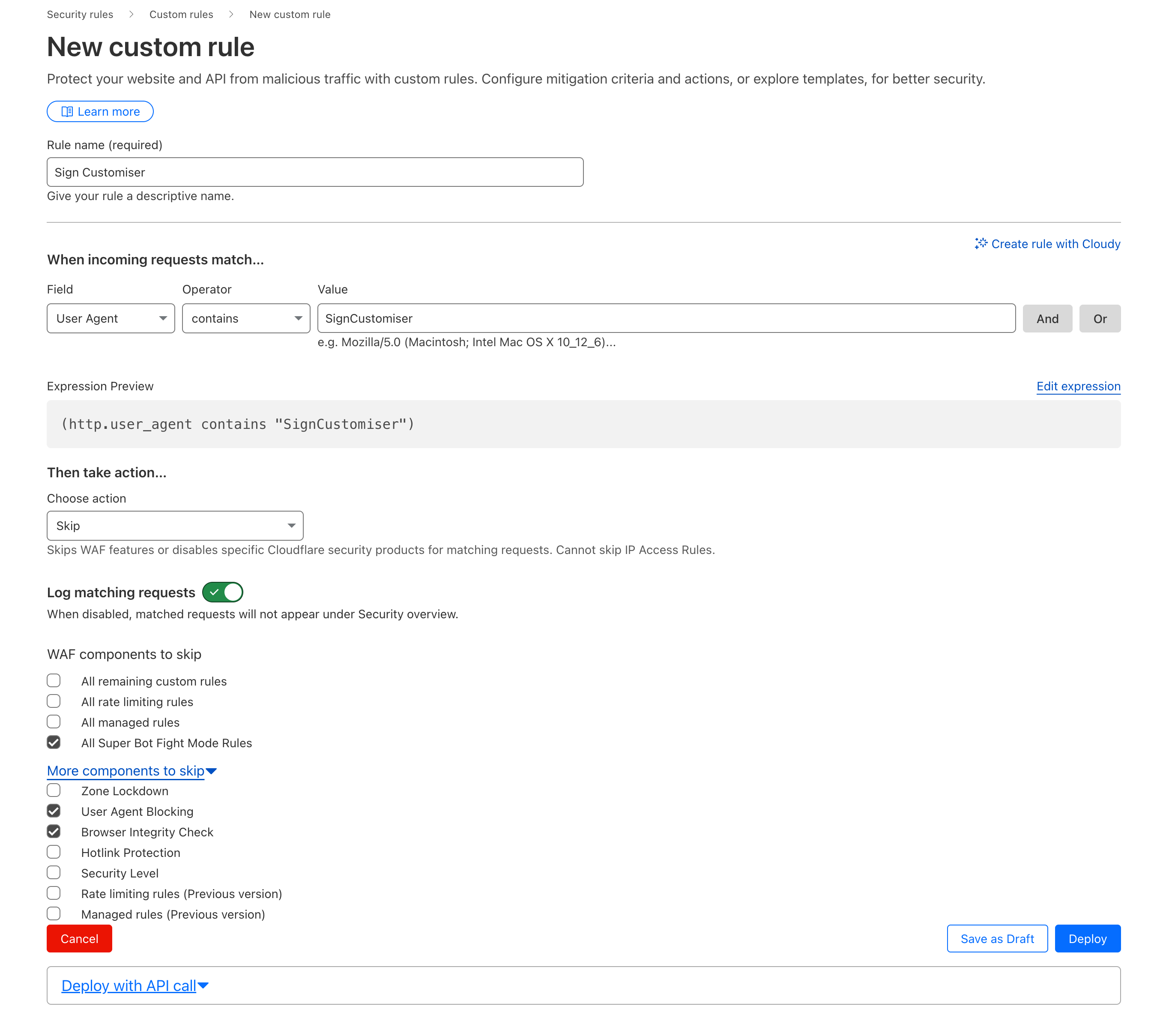
Type a name in the rule name box. For example:
Allow Sign CustomiserStep 6: Set Up the Condition
The condition tells Cloudflare which requests the rule applies to. In this rule, the condition finds Sign Customiser.
-
In the Field dropdown, select the user agent field (
http.user_agent). -
In the operator dropdown, select “contains”.
-
In the text box, type
SignCustomiser.
Step 7: Choose the Action
Below the condition, choose what Cloudflare does with the requests.
-
In the dropdown, select “Skip”.
-
Tick the option for all Super Bot Fight Mode rules.
-
Tick “User Agent Blocking”.
-
Tick “Browser Integrity Check”.
The image below shows these boxes ticked.
Bot Fight Mode is a different feature. It is on the Cloudflare Free plan. A custom rule cannot skip Bot Fight Mode.
If another custom rule on the website you selected in Step 2 still blocks Sign Customiser, also tick “All remaining custom rules”.
Step 8: Deploy Your Rule
Click “Deploy” at the bottom of the page to save and deploy the rule. “Save as Draft” is for a rule that is not ready to deploy, so do not use it here.
That’s It!
Your rule is now deployed. Now connect again.
-
For WooCommerce, click View Details on your integration. Then click Edit Integration, and click Update. Sign Customiser checks the connection when you save it. If a new WooCommerce connection failed when you created it, it does not appear in your list of integrations. In that case, connect it again.
-
For Custom API, Sign Customiser does not send a request to your site when you save the integration. It sends a request when it creates a product.
Still Having Issues?
If you still see errors, do these checks:
-
Check the activity log of your integration. In Sign Customiser, open Integrate > Integrations. Open your WooCommerce integration or Custom API integration. Click View Details on the latest error. If your site sent a response to a request in the log, the log shows its status code. A failed Update in Edit Integration is not saved in the log, so use the error message in Sign Customiser for that failure. For a WooCommerce connection, a 401 status can mean that your API key or secret is wrong. If your key and secret are correct and you use Cloudflare, check your rule in Steps 6 to 8. For other errors, read Understanding your integration Activity Log (errors explained).
-
Wait a short time after you deploy the rule.
-
Make sure that you typed
SignCustomiserexactly as shown. Use a capital S and a capital C. -
Make sure that you selected the correct website in Step 2.
-
Contact Sign Customiser support.
For the connection steps, read Connecting WooCommerce with Sign Customiser and Custom API Integration.
What Did This Do?
The rule tells Cloudflare to skip Super Bot Fight Mode, User Agent Blocking and Browser Integrity Check for connections that have SignCustomiser in the user agent. Sign Customiser requests then pass those three checks. Cloudflare continues to run its checks on all other requests.