
Vertical text orientation
Let customers stack each character on its own line, lock a customiser to one orientation, or set a default orientation for languages that read top to bottom.
Last updated:
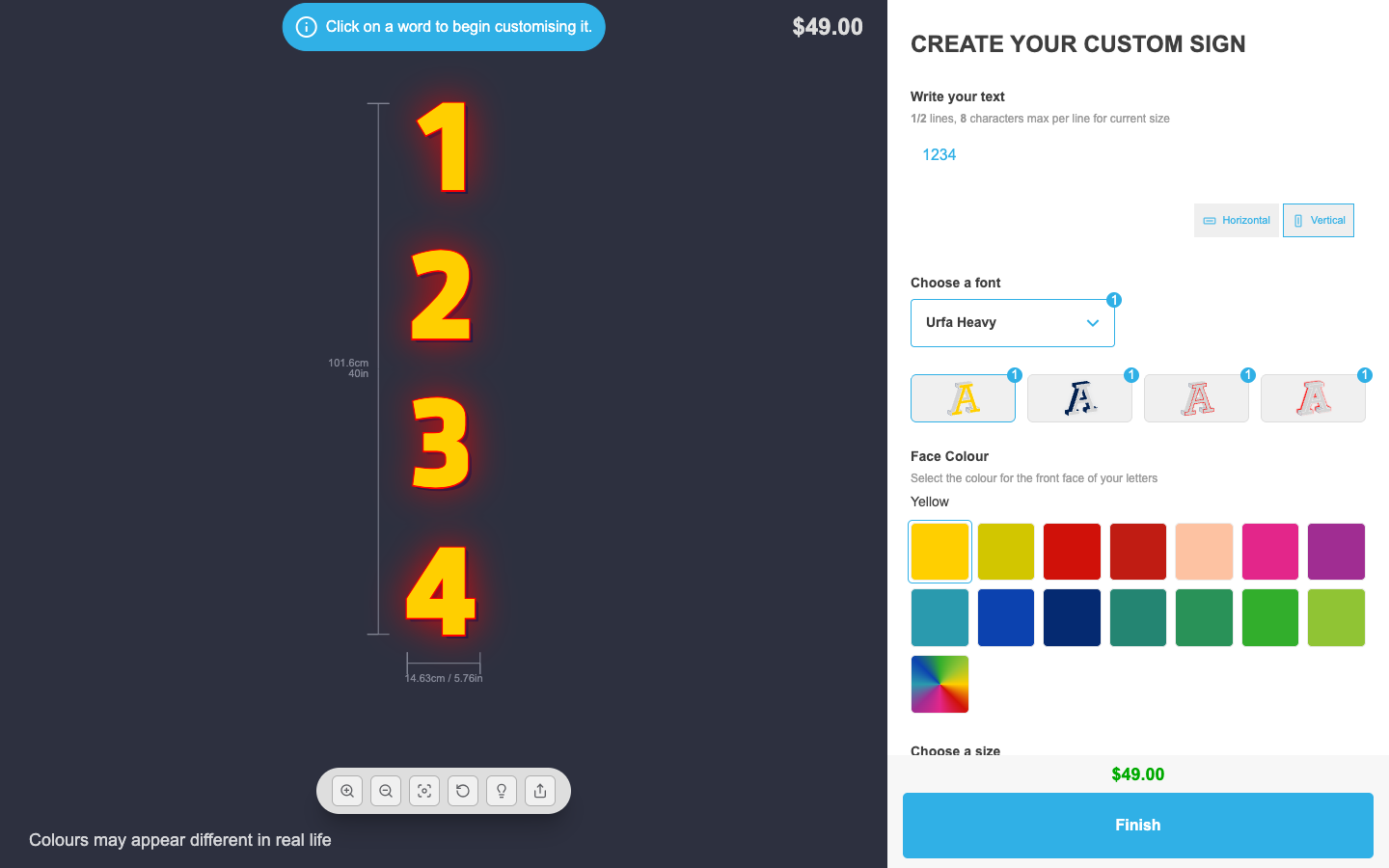
Sign Customiser supports vertical stacked text alongside the standard horizontal layout. You can lock a customiser to one orientation, let customers switch between the two from a toggle next to the text input, and choose how vertical columns flow for languages like Japanese, Traditional Chinese, Korean, and traditional Mongolian.
When vertical text is on, each typed line becomes its own top-down column. Cart, order, and export data keep the customer’s original typed text. Pricing follows the typed input lines while letter charges still apply to each visible character.
How to show both horizontal and vertical options
-
Navigate to the admin of Sign Customiser on your store.
-
Click on “Customisers” in the home page menu.
-
Click on the customiser you wish to edit.
-
From the left-hand menu, go to Settings → General Settings.
-
Scroll down until you see the option “Text Orientation”.
-
Choose “Show orientation options” and hit save at the bottom of the form.
Customers will see a Horizontal and Vertical toggle next to the text input. Switching to Vertical stacks each character on its own line in the visualiser.
How to lock the customiser to one orientation
-
Navigate to the admin of Sign Customiser on your store.
-
Click on “Customisers” in the home page menu.
-
Click on the customiser you wish to edit.
-
From the left-hand menu, go to Settings → General Settings.
-
Scroll down until you see the option “Text Orientation”.
-
Choose either “Horizontal only” or “Vertical only” and hit save at the bottom of the form.
The toggle is hidden from customers when one orientation is locked, and every sign created from that customiser uses the orientation you chose.
How to set the default orientation
When both orientations are available, you can choose which one a customiser opens with so the most common choice is preselected.
-
Navigate to the admin of Sign Customiser on your store.
-
Click on “Customisers” in the home page menu.
-
Click on the customiser you wish to edit.
-
From the left-hand menu, go to Settings → General Settings.
-
Scroll down until you see the option “Default Text Orientation”.
-
Choose “Horizontal” or “Vertical” and hit save at the bottom of the form.
How to choose the column direction for vertical text
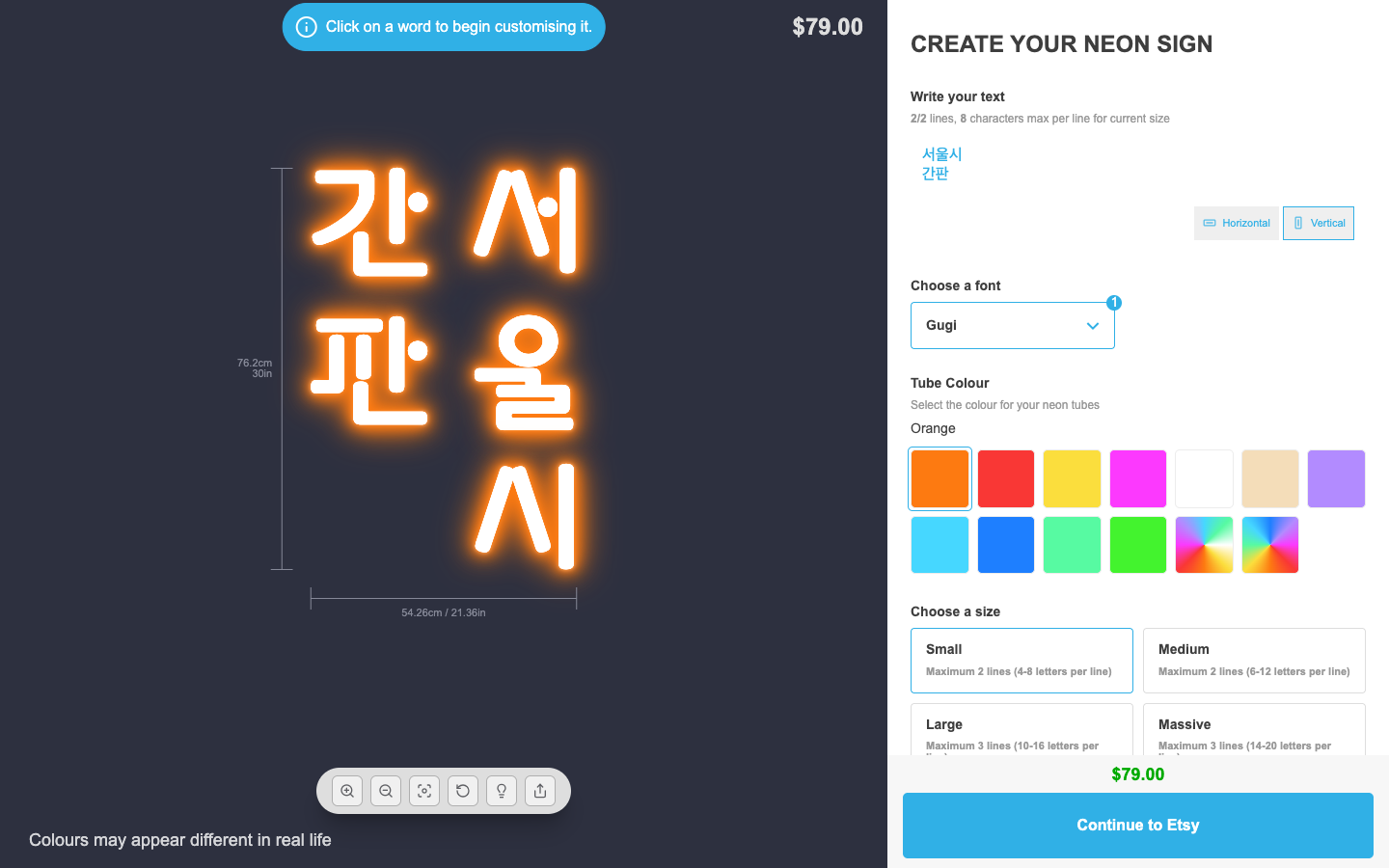
When vertical text is enabled and customers type more than one line, each line becomes its own top-down column. The Vertical Column Direction setting controls whether those columns flow right to left or left to right.
-
Navigate to the admin of Sign Customiser on your store.
-
Click on “Customisers” in the home page menu.
-
Click on the customiser you wish to edit.
-
From the left-hand menu, go to Settings → General Settings.
-
Scroll down until you see the option “Vertical Column Direction”. This setting only appears when Text Orientation is set to “Vertical only” or “Show orientation options”.
-
Choose one of the following:
-
Right to left columns for Japanese, Traditional Chinese, and Korean signs.
-
Left to right columns for traditional Mongolian signs.
-
-
Hit save at the bottom of the form.
Note: Upload a font that includes the glyphs your customers will type. Vertical column direction only changes the order of the columns, it does not add language support to fonts that lack those characters.
How to rename the orientation labels
The Horizontal and Vertical labels next to the toggle, and the section title shown above them, can be replaced with your own wording or a translation.
-
Navigate to the admin of Sign Customiser on your store.
-
Click on “Customisers” in the home page menu.
-
Click on the customiser you wish to edit.
-
From the left-hand menu, go to Settings → Language and open the Labels section.
-
Find the fields labelled “Text Orientation”, “Horizontal (Text Orientation)”, and “Vertical (Text Orientation)”.
-
Replace each with the wording or translation you want and hit save.