
Translate option names, colours, fonts and sizes
Edit source option wording on its own page, then translate the shopper-visible value without changing pricing or production data.
Last updated:
Change the source name on the option’s own page. Then translate the shopper-visible version under Settings -> Languages -> [target language].
-
Open Customisers -> [customiser].
-
Open the option’s page, choose the item, and edit its Label, Name, Title or Description.
-
Save the source wording.
-
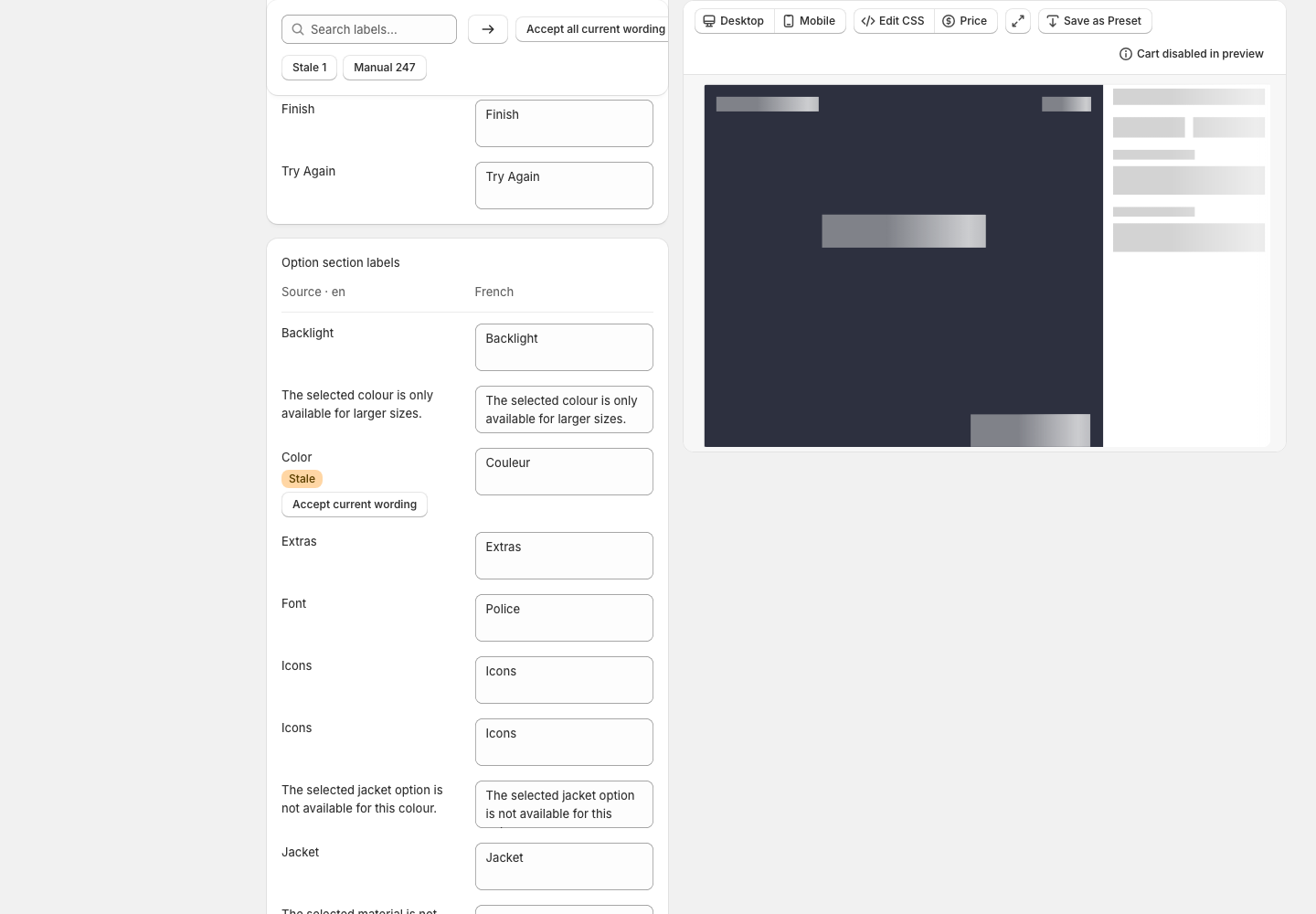
Go to Settings -> Languages -> [target language], find the matching field, and enter the translated display value.
-
Save, preview and publish the target language.
What the translated name changes
The translated display name changes what shoppers see. It does not change the colour value, font family, price, canonical option ID, SKU or fulfilment value used by the Store and production workflow.
”Colour” can mean three different settings.
The option Label is its shopper-visible name. The RGB or shade value controls how the colour looks. The interface colour settings control the customiser itself.
Open Settings -> Theme Colors to change interface colours such as buttons and backgrounds.
Where to edit source option wording
All paths start from Customisers -> [customiser]. The available pages depend on the sign category.
-
Neon colours: Sign Components ->
Tube Colors-> [colour] -> Label -
Letter face, side, trim and halo colours: Letter Types -> [type] -> colour selection -> [colour] -> Label
-
Fonts: Fonts -> [font] -> Label
-
Sizes: Sizes -> [size] -> Label
-
Backboards or panels: Backboards or Panels -> [backboard or panel] -> Label
-
Backboard or panel colours and materials: Backboards or Panels -> Backboard Colours & Materials or Panel Colours -> [item] -> Label
-
Sheets: Sheets -> [sheet] -> Label
-
Sheet materials: Sheets -> Sheet Materials -> [material] -> Label
-
Plates: Plates -> [plate] -> Label
-
Plate colours and materials: Plates -> Plate Colours & Materials -> [item] -> Label
-
Mountings: Mountings -> [mounting] -> Label
-
Mounting colours: Mounting Colours -> [colour] -> Label
-
Backlight colours: Backlights -> [colour] -> Label
-
Materials: Materials -> [material] -> Label
-
Jackets: Jackets -> [jacket] -> Label
-
Additional options: Additional Input Options or Extras -> [option] -> Label
-
Letter and lightbox types: Letter Types -> [type] -> Label
-
Icons: Icons -> [icon] -> Name
Pricing tier or pricing-entry labels may remain part of pricing configuration instead of the language catalogue. Check the pricing page when a label does not appear in Languages.
Review stale translations after a source edit
Changing source option wording can mark its translations Stale. Open the notice on the target language, review the affected field, then edit it, retranslate it, or accept the current wording if it is still correct.
See Add, translate, preview and publish a language for filters, preview and publishing.