

How do I set a password if I signed up with Google?
Last updated:
You can sign in to the Sign Customiser Universal admin at web.signcustomiser.com with Google, or with your email address and password.
If you created your account with Google, you can add a password to the same account. Google sign-in continues to work afterwards.
Sign in with Google
-
Open the Sign Customiser login page.
-
Select Sign in with Google.
-
Choose the Google account that is linked to your Sign Customiser account.
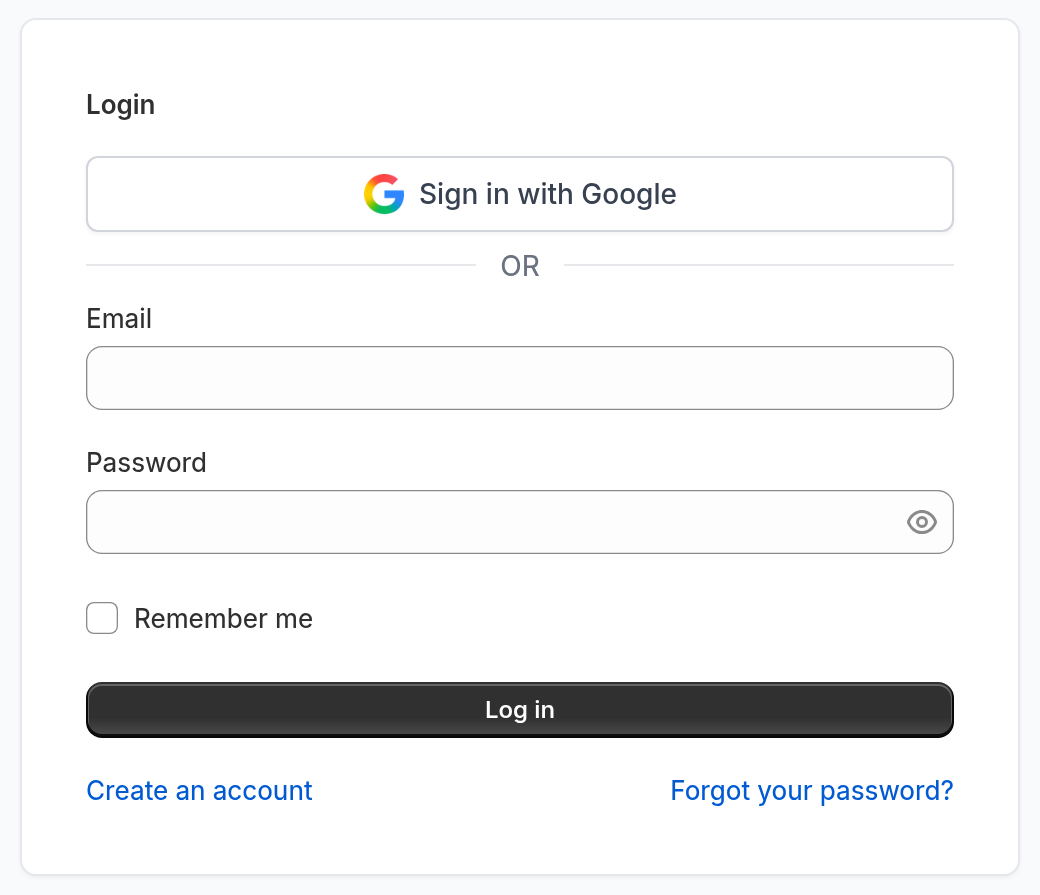
Google sign-in does not work for an account that you created with an email address and password. Sign in with your email address and password. If you do not remember the password, use the reset steps below.
Sign in with email and password
-
Open the Sign Customiser login page.
-
Enter your email address and password.
-
Select Log in.
Set a password if you signed up with Google
An account that you created with Google has no password. You can add a password in your profile settings while you are signed in.
-
Sign in with Google.
-
Select your name and email at the bottom of the sidebar. The My Account menu opens.
-
Select Profile Settings.
-
In the Set a password section, select Set password. The New Password and Confirm Password fields appear.
-
Enter your new password in both fields. The section does not ask for a current password, because your account has no password yet.
-
Select Set password at the bottom of the page.
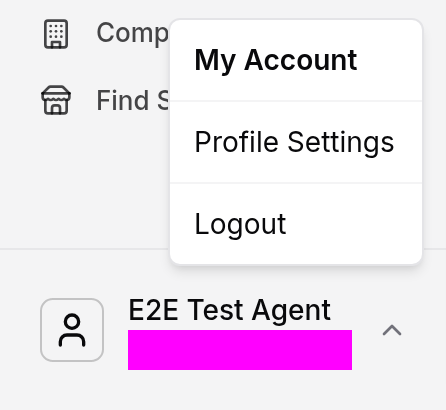
You can now sign in with your email address and password. Google sign-in also continues to work, so you can use either method.
If the page shows a Password section with a Change password button, your account already has a password. The form then also asks for your Current Password. If you do not remember it, use the reset steps below.
Reset a forgotten password
Important
Use the exact email address for the account that you want to change. If you have more than one Sign Customiser account, a reset sent to a different address does not change the password for the account that you need.
-
Open the Sign Customiser login page.
-
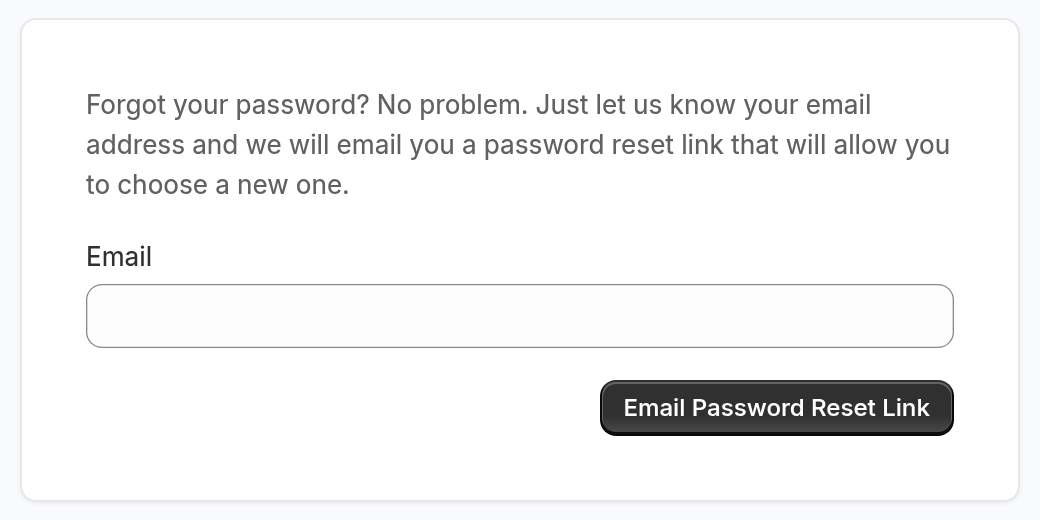
Select Forgot your password?
-
Enter the exact email address for the account that you want to change.
-
Select Email Password Reset Link.
-
Open the latest password reset email. Use its link within 60 minutes.
-
On the Reset Password page, type the same email address again. The link does not fill in the email field for you.
-
Enter and confirm your new password, then select Reset Password.
This is the Forgot Password page, where you enter your email address:
This is the Reset Password page, which opens from the link in the email:
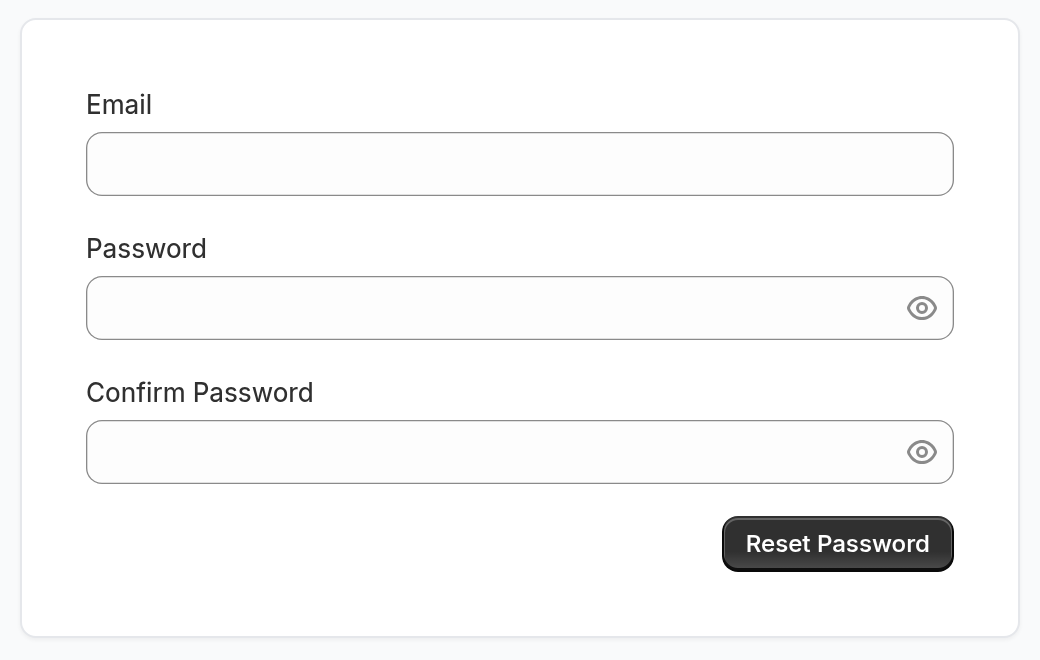
Reset links expire after 60 minutes. If a link has expired, return to the login page and request a new link. An expired link does not mean that password reset is broken.
This method also works if you signed up with Google and cannot sign in at all. It sets a password on your existing account and keeps your Google sign-in.