
Show a different background for each size
Link each preset size to its own scene background, so the customer customiser shows a different background when the customer changes the size.
Last updated:
You can link each preset size to its own scene background. When a customer chooses a size, the preview shows the background that you linked to that size. Use this feature when the scene must change with the size. For example, a neon sign with fixed artwork must look correct at Small, Medium and Large.
Before you start
Make sure that these conditions are true:
-
The customiser uses the Simple Letter, Advanced Letter or Frame Fit pricing model. The Fixed Height pricing model does not support size backgrounds.
-
The customiser has at least one preset size.
-
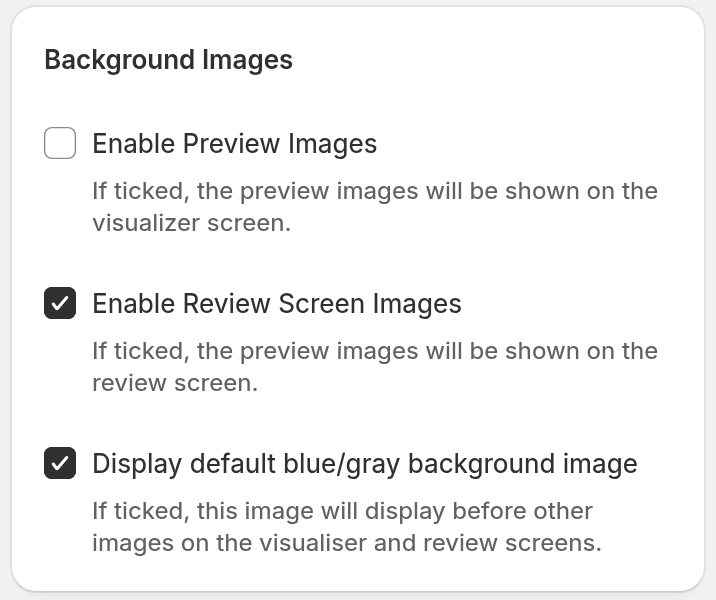
Enable Preview Images is on. Enable Review Screen Images alone is not enough.
-
You added at least one background image and saved the Images form. For the steps, see Scene Editor.
The picture shows the Background Images card on the Images page. In the picture, Enable Preview Images is not ticked. Tick it before you link backgrounds.
Link a background to each size
-
In the admin, click Customisers.
-
Click the customiser that you want to edit.
-
In the left-hand menu, click Features → Scene Editor - Background Images.
-
Save all changes on the Images form. The size backgrounds button is off while the form has unsaved changes.
-
Scroll down to the Size backgrounds card. It is below Visualiser Scaling. The card shows how many sizes have their own background.
-
Click Set size backgrounds. After you link a size, the button shows Edit size backgrounds.
-
Under Default background, choose Built-in backdrop or one of your images.
-
Under Background for each size, choose Default or one of your images for each size.
-
Click Save. The page shows “Successfully Updated!”.
To leave the page and keep the old links, click Cancel.
You can link one image to more than one size. Each size has only one image. An image can also be the default background.
Customers see the default background when they select a size with no link. They also see it when they select a custom size. This works only when at least one preset size has its own background. If no size has its own background, the default background has no effect.
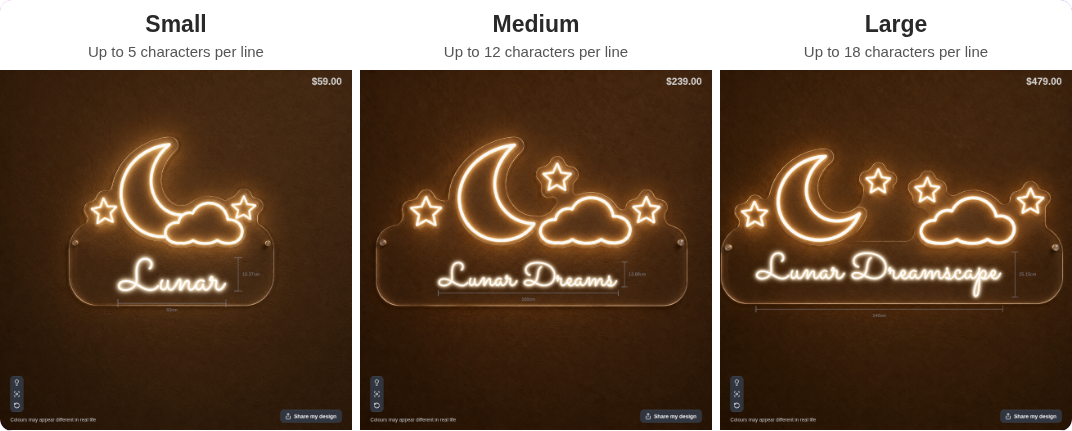
Example: neon artwork that changes with the size
In this example, you sell a semi-custom neon sign. You control the artwork. The customer types the text.
-
Make one background image for each size. In each image, draw the artwork at the scale that you want. For example, draw a moon, a cloud and stars.
-
Leave an empty area in each image for the customer’s text.
-
In Manage Images, add the images. Click Save.
-
Link each size to its image on the Size backgrounds page. For example, link Small, Medium and Large.
-
In Manage Images, click Set Sign area on each image. For the full steps, see Set the Sign area for each background image.
-
Move and resize the box so that it covers the empty area. In the Design view, with one of your backgrounds selected, the customer’s text shows in this Sign area.
The Sign area is not available for lightbox signs. It is also not available when Enable Dragging, Enable Scaling or Enable Rotation is on. To turn these off, open Features → Drag, Scale, Rotate.
What the customer sees
These rules apply when at least one preset size has its own background. If no size has its own background, the background does not follow the size.
-
The preview opens with the background of the size that is selected first.
-
When the customer changes the size, the preview shows the linked background. This replaces a background that the customer chose. It also replaces a photo that the customer uploaded.
-
A size with no link shows the default background. A custom size has no link of its own, so it also shows the default background when the customer selects it.
-
After a size change, the customer can choose a different background, unless every size has a link and custom sizes are off. The choice stays until the size changes again.
-
If every size has a link and custom sizes are off, the customer cannot choose one of your backgrounds. The background thumbnails do not show your images. The customer can still upload a photo when Allow customers to upload background images is on.
-
The Review screen shows only the selected background. After a size change, this is the background of the selected size, unless the customer then chooses another background. If the customer’s own photo is selected, the Review screen shows its usual slides. Enable Review Screen Images must be on.
-
By default, the product image for the cart and the order is your Main Product Image, or a built-in demonstration image when you have not added one. When Use the selected background in the product image is on and the conditions in the next bullet are met, the product image shows the sign against the background that the customer picks from your images. If the customer keeps the built-in backdrop, the image shows its flat colour. If the customer uses their own photo, the product image uses your Main Product Image instead, or the same demonstration image when you have not added one.
-
For the product image to use the selected background, turn on Use the selected background in the product image and Scale visualisation with size under Visualiser Scaling. Turn off Enable Dragging, Enable Scaling and Enable Rotation under Features → Drag, Scale, Rotate. Lightbox signs do not support this. These two settings need a plan that includes size scaling. On other plans, they are disabled and you cannot change them. For more detail, see Set a real size for the built-in background and use scenes in product images.
Limits
-
Only preset sizes have links. A custom size has no link of its own. When at least one preset size has its own background, it shows the default background when the customer selects it.
-
Each size has one background. The customiser has one default background.
-
The links do not change the size that the customer orders, the price or the design files (SVG, EPS, AI and DXF) for the manufacturer. When the product image uses the selected background, the image in the manufacturer order email shows that background.
-
Size backgrounds work only while Enable Preview Images is on.
-
You can add up to 6 background images. You can link only an image that has a file.