
Set a different price for each letter position
Set a different price for each letter position in Simple Letter and Advanced Letter customisers, with free early letters and a final price for longer text.
Last updated:
Use Price by position to set a different price for each letter position in a sign. Use it when the first letters cost less or more than the later letters. For example, set the first two letter prices to 0. Those letters then add no letter charge. This feature is for Simple Letter and Advanced Letter customisers.
If one price for all letters is enough, keep the default setting, Every letter costs the same.
Before you start
-
Look at the badges at the top of the customiser page. The pricing model must be Simple Letter or Advanced Letter.
-
Frame Fit and the deprecated Fixed Height model do not have this option.
-
In an Advanced Letter customiser, set Letter Pricing to Fixed Cost Per Letter. Letter Material Cost does not have this option.
-
In a Simple Letter customiser, first create your sizes in Core Setup → Sizes.
How position pricing works
The first letter of the text is position 1. The second letter is position 2. You set one price for each position.
-
You can set 1 to 100 positions.
-
You can set a position to 0. That letter is then free.
-
If the text has more letters than your list, each extra letter uses the last price in your list.
-
Spaces do not count as letters. An icon counts as one letter.
-
Uploaded SVG artwork does not use position prices.
-
Position prices change only the letter price. The base price is separate. It is Base Price in Simple Letter. It is Sign Start Price - (Optional) in Advanced Letter.
The two models count lines in different ways:
-
Simple Letter restarts at position 1 on each line. You set a schedule for each size and each line.
-
Advanced Letter counts one sequence across the whole sign. Line 2 continues from the end of line 1. You set a schedule for each size boundary.
Example
Your schedule is $0, $0, $5 and $3. The sign has AB on line 1 and CDE on line 2.
Simple Letter, with this schedule on both lines:
-
Line 1: A costs $0 and B costs $0. The line total is $0.
-
Line 2: the count restarts. C costs $0, D costs $0 and E costs $5. The line total is $5.
-
The letter total is $5.
Advanced Letter:
-
A costs $0 and B costs $0.
-
C costs $5 and D costs $3.
-
E is position 5. Your schedule has no price for position 5. E uses the last price, $3.
-
The letter total is $11.
Sign Customiser adds the base price separately. These letter totals do not include it.
Set up Price by position in a Simple Letter customiser
-
Open your customiser in the Sign Customiser admin.
-
Universal: Go to Customisers. Click the name of your customiser.
-
Shopify: Open the app in your Shopify admin. Go to Customisers. Click the name of your customiser.
-
-
In the customiser menu, go to Core Setup → Pricing. On a narrow screen, click Menu first.
-
Click Add Pricing, or edit an existing pricing.
-
Under Letter pricing mode, select Price by position.
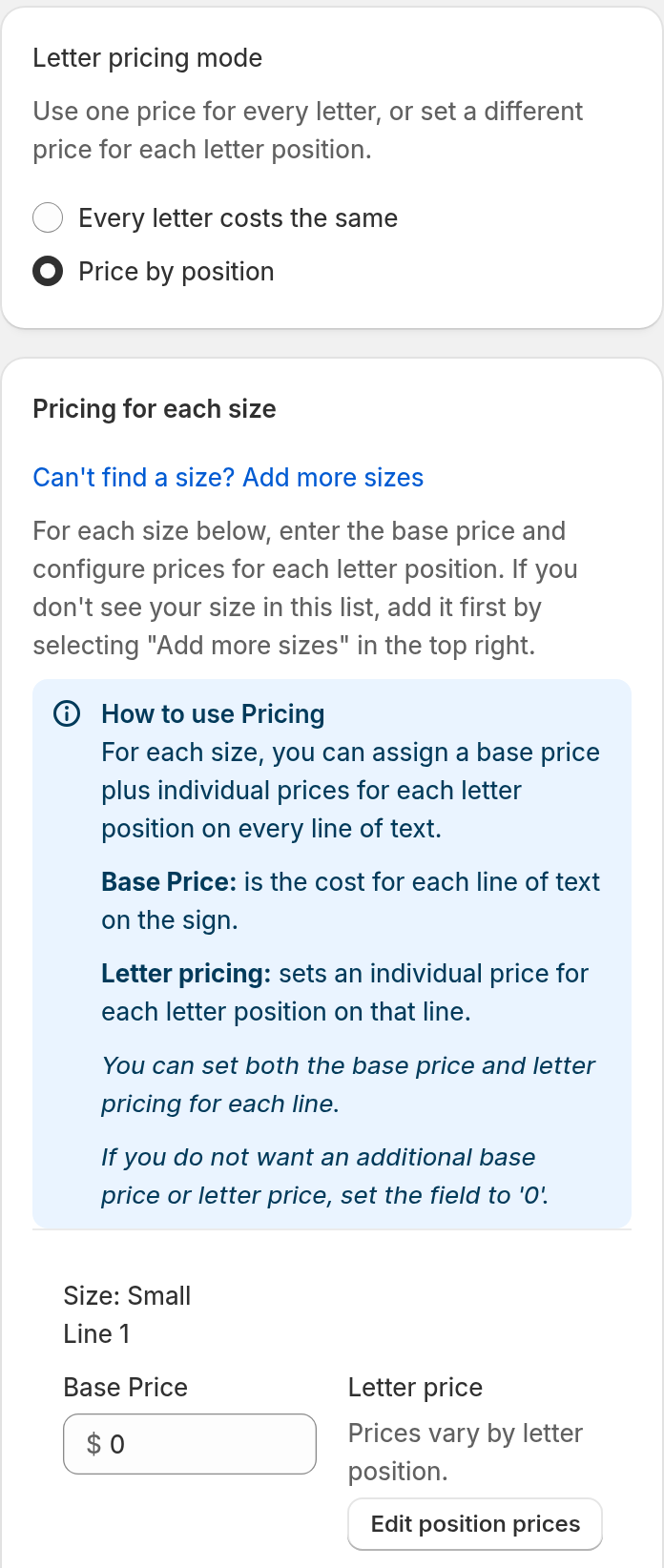
Each Letter Price field changes to a Letter price summary. It shows “Prices vary by letter position.” and an Edit position prices button.
-
Under Pricing for each size, find the size and the line that you want to set.
-
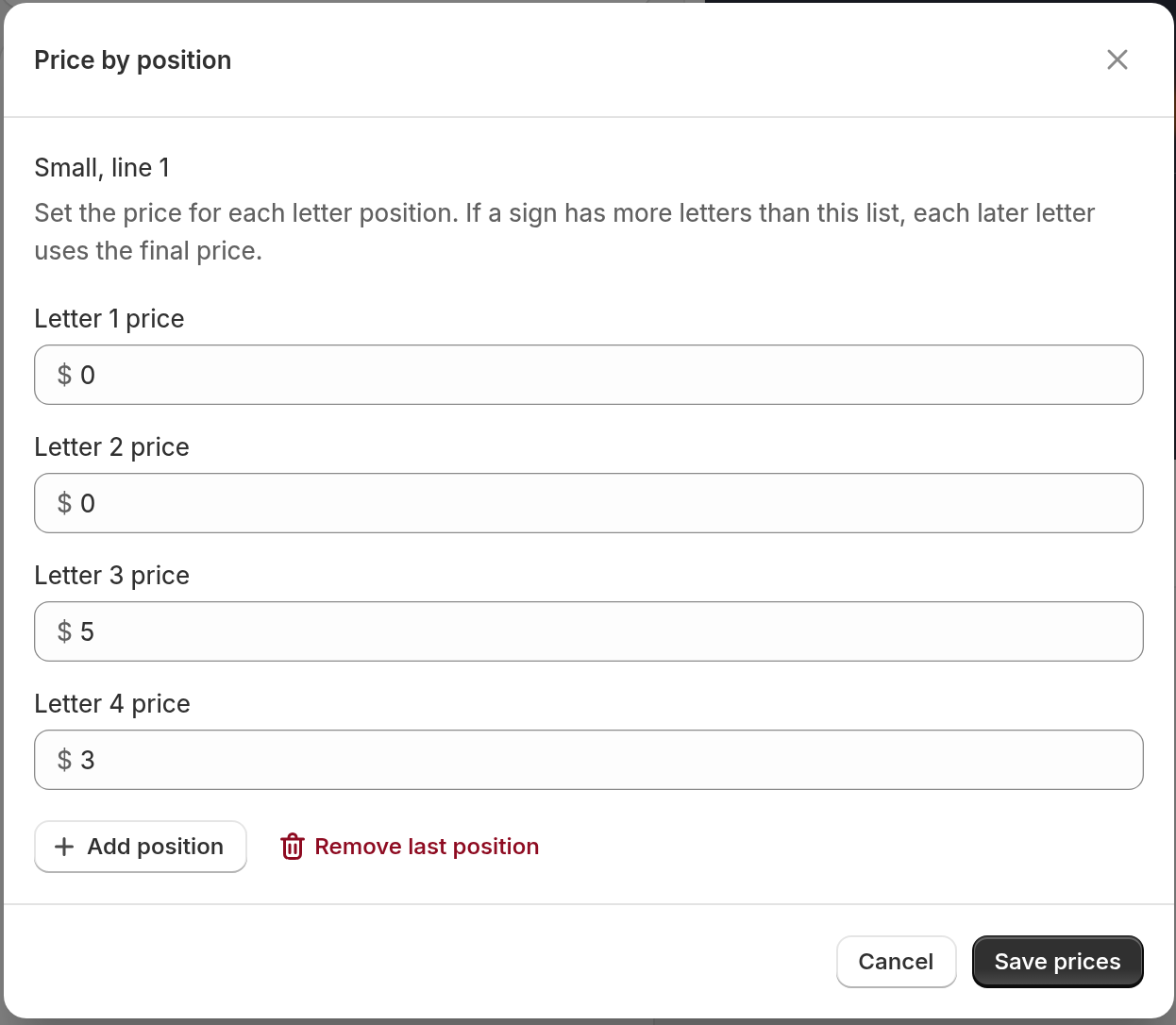
Click Edit position prices. The Price by position window opens. The size and line show at the top.
-
Enter a price in Letter 1 price. Then enter a price for each next position.
-
To add a position, click Add position. The new position copies the last price.
-
To remove the last position, click Remove last position. You must keep at least one position.
-
To make a letter free, enter 0. A field must not be empty or negative. Otherwise, the window shows “Enter a price of 0 or more.”
-
-
Click Save prices.
-
Do steps 6 to 8 again for each other size and line.
-
On the New Pricing page or the Edit Pricing page, click Save.
Note: Save prices updates only the form. Sign Customiser stores your prices when you click Save on the New Pricing page or the Edit Pricing page.
When you first select Price by position, each line has one position. Its price is the Letter Price that you had before. Add positions to make your schedule.
Position limit. A size can have a Maximum Text Characters per line value. The window then cannot have more positions than that value. At the limit, Add position is not available. If you later lower the character limit, positions above the limit show “This position is outside the size’s current character limit.” If the size has no character limit, the maximum is 100 positions.
Set up Price by position in an Advanced Letter customiser
-
Open your customiser. Go to Core Setup → Pricing, as in the Simple Letter steps.
-
Click Add Pricing, or edit an existing pricing.
-
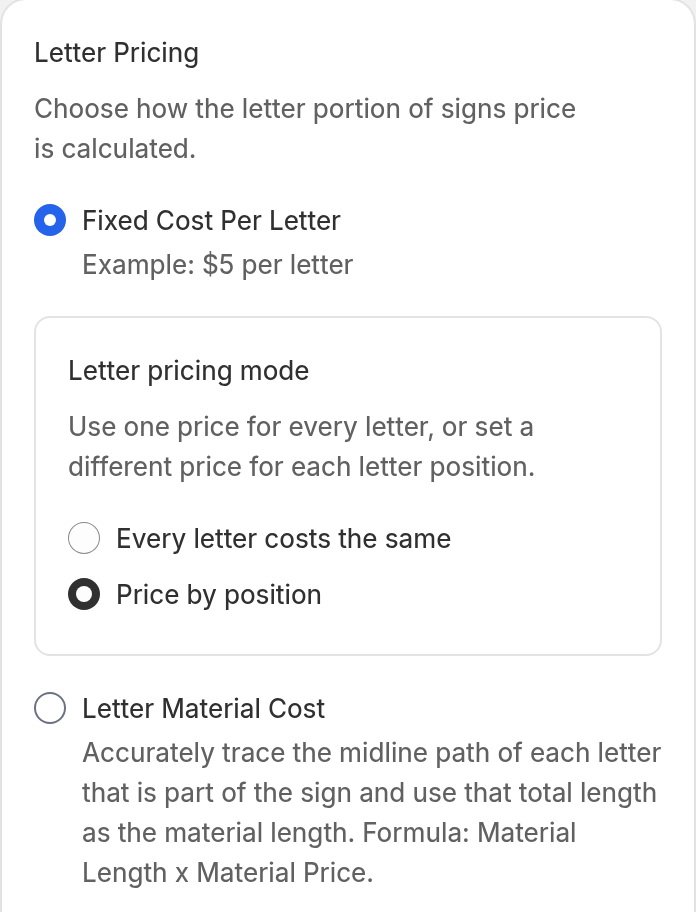
Scroll to Letter Pricing. Select Fixed Cost Per Letter.
-
Under Letter pricing mode, select Price by position.
-
Scroll to Size Boundaries. Click Add size boundary, or open an existing size boundary.
-
In the Size Boundary window, find Letter and Sign Pricings Inputs. Price Per Letter is now a Letter price summary with an Edit position prices button. Click the button.
You can also use the Edit position prices for Size Boundary 1 action in the size boundary list. The number matches the row.
-
Enter a price for each position, as in the Simple Letter steps. Click Save prices.
-
Do steps 5 to 7 again for each size boundary. Each size boundary has its own schedule.
-
Click Save.
The size boundary list shows “Letter prices vary by position.” for each size boundary that uses position pricing.
If you change Letter Pricing to Letter Material Cost, Letter pricing mode goes back to Every letter costs the same.
Switch back to Every letter costs the same
-
Under Letter pricing mode, select Every letter costs the same.
-
Click Save.
Only the mode changes. Sign Customiser keeps your position prices and your single letter price. If you select Price by position again, your position prices are still there.
What shoppers see
Shoppers see no new control. The price changes as they type. The product price and the cart use the final price.
To see how a price is calculated, open your customiser in the admin. Click Price in the preview toolbar. Then type some text. The price breakdown shows “Letters priced by position” and the number of letters.
Limits
-
Each schedule has 1 to 100 positions.
-
Each price must be 0 or more.
-
In Simple Letter, a size with a character limit also limits the number of positions.
-
Position pricing is not available for Frame Fit, Fixed Height, Letter Material Cost or uploaded SVG artwork.