
Show or hide the jacket step for neon customisers
Hide the jacket step in a neon customiser when you offer one jacket, and keep the sign tubing colour correct.
Last updated:
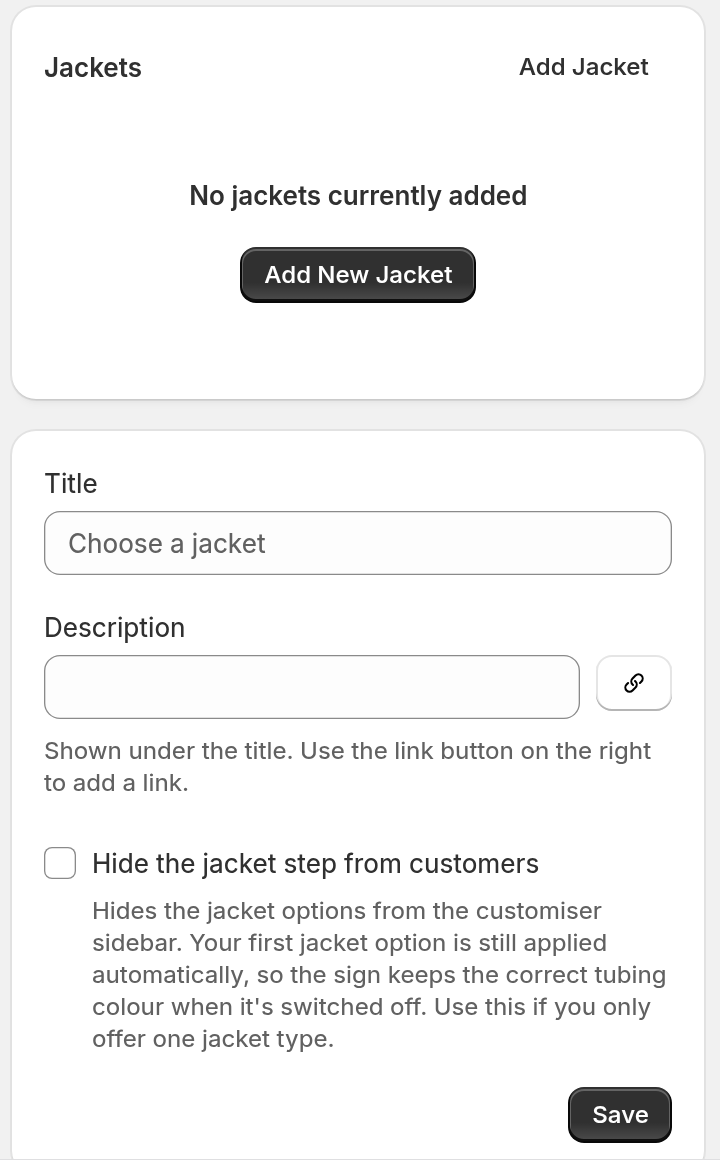
The jacket step lets customers choose a jacket for the neon tubing, for example white or coloured. If you offer only one jacket, the step asks for a choice that does not matter. Use Hide the jacket step from customers to remove the step. The sign stays correct.
This article is for merchants who have a neon customiser.
What happens when you hide the step
-
Customers do not see the jacket options in the customiser sidebar.
-
The review summary does not show a jacket line.
-
The customiser still applies your first jacket option. The sign keeps the correct tubing colour when it is switched off.
-
The order still records the jacket.
A customer can choose a colour that your first jacket excludes. The customiser then switches to the first jacket that works with that colour. The switch shows no message. The preview glow can change when the new jacket is coloured.
New and existing customisers
-
New neon customisers hide the jacket step by default. A neon customiser that you duplicate also hides the step.
-
Existing customisers keep their current setting. A visible jacket step stays visible until you change it.
Before you start
-
Add at least one jacket. The hidden step applies your first jacket. See Jackets and tubes for neon signs.
-
Keep the step visible if you offer more than one jacket and you want customers to choose.
Show or hide the jacket step
-
In the admin, click Customisers.
-
Click the neon customiser that you want to edit.
-
In the menu, open Sign Components, then click Jackets.
-
Find the form below the list of jackets.
-
To hide the step, select Hide the jacket step from customers. To show the step, clear the checkbox.
-
Click Save.
When to hide the step
Hide the step if you offer one jacket type or if you want a shorter path to checkout. Show the step if you offer more than one jacket and you want customers to choose one.
Limits
-
The setting is only for neon customisers.
-
The setting applies your first jacket. If you have no jackets, the setting has nothing to apply.
-
Sometimes no jacket works with the colour that a customer chooses. The customiser then shows your Jacket Colour Exclusion Message above the button, even when the step is hidden. You can edit this message on the Languages page: click Edit for a language, then find Jacket Colour Exclusion Message. Set your colour exclusions so that at least one jacket works with each colour.