
Choose how multi-line sign height is measured
Choose whether a Fixed Height size measures each line or the letters, and see how the space between lines changes the total height of a multi-line sign.
Last updated:
Use this setting to choose what the height value means for a sign with more than one line. You can measure each line, or you can measure the letters. Use it when you or your manufacturer give the sign size as a letter height.
Before you start
-
Make sure that your customiser uses the Simple Letter model. Advanced Letter and Frame Fit customisers do not have this setting.
-
Make sure that the size uses the Fixed Height size strategy. For more about sizes, read Sizes – Simple Letter Model.
The two options
Option | What the height value means | Total height of the sign |
Line height (default) | The full height of each line | Number of lines × height per line |
Letter height | The height of the letters | More than number of lines × letter height when the font line spacing is normal or wide. The space between lines is added. With tight line spacing, such as 0.5, the total can be less. |
Example: a sign has three lines. The height value is 7 inches.
-
With Line height, the sign is 21 inches high (3 × 7).
-
With Letter height, the sign is more than 21 inches high when the font line spacing is normal or wide. The space between the lines adds to the height. The font line spacing sets this space.
-
With tight font line spacing, such as 0.5, the sign can be less than 21 inches high.
A sign with one line has the same size with both options. It has no space between lines.
Choose the measurement for a size
-
In the Sign Customiser admin, click Customisers.
-
Select your customiser.
-
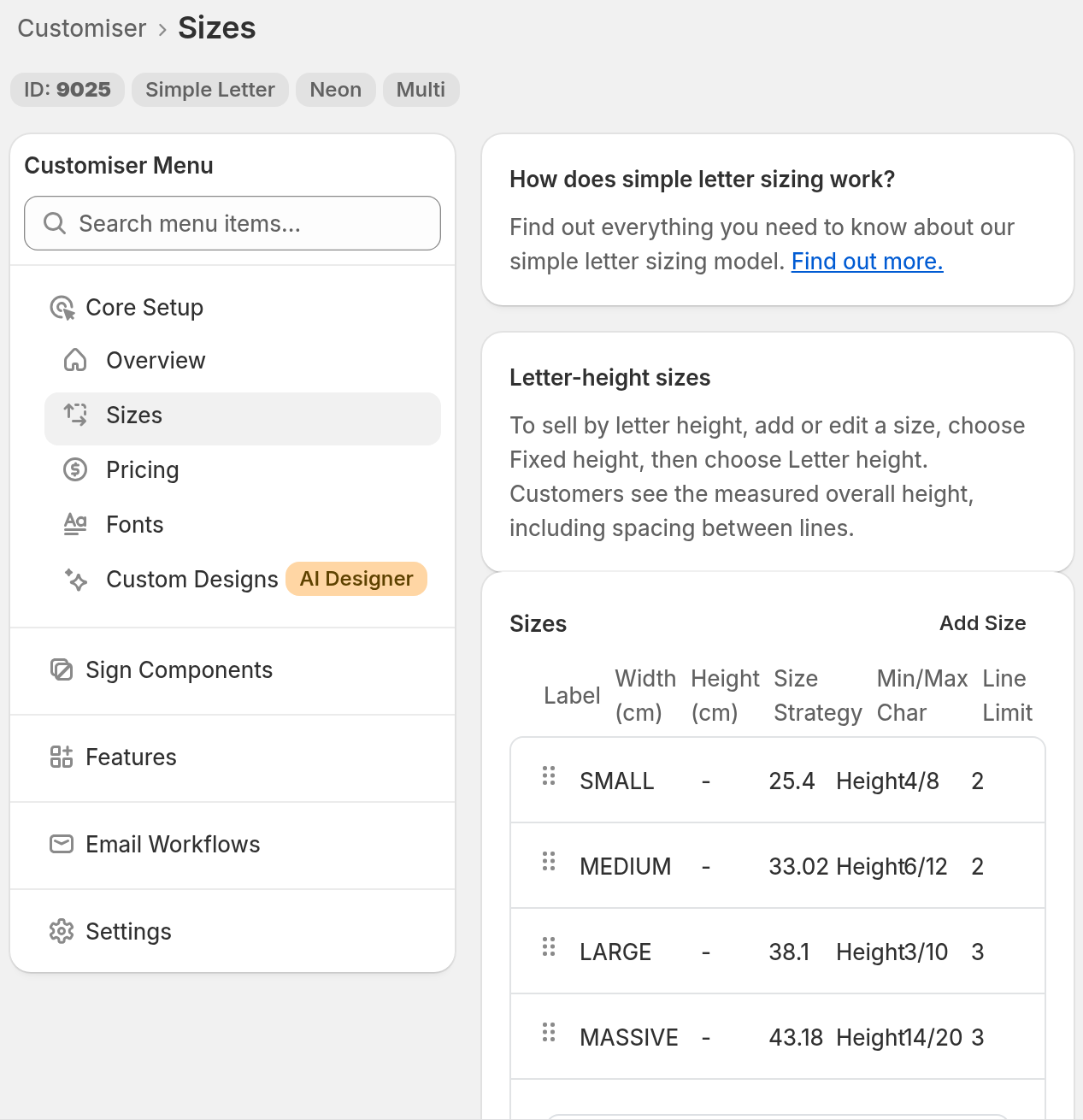
In the left-hand menu, go to Core Setup → Sizes.
-
Click Add Size. To change a size, click that size.
-
Enter a Label, for example “7 inch letters”.
-
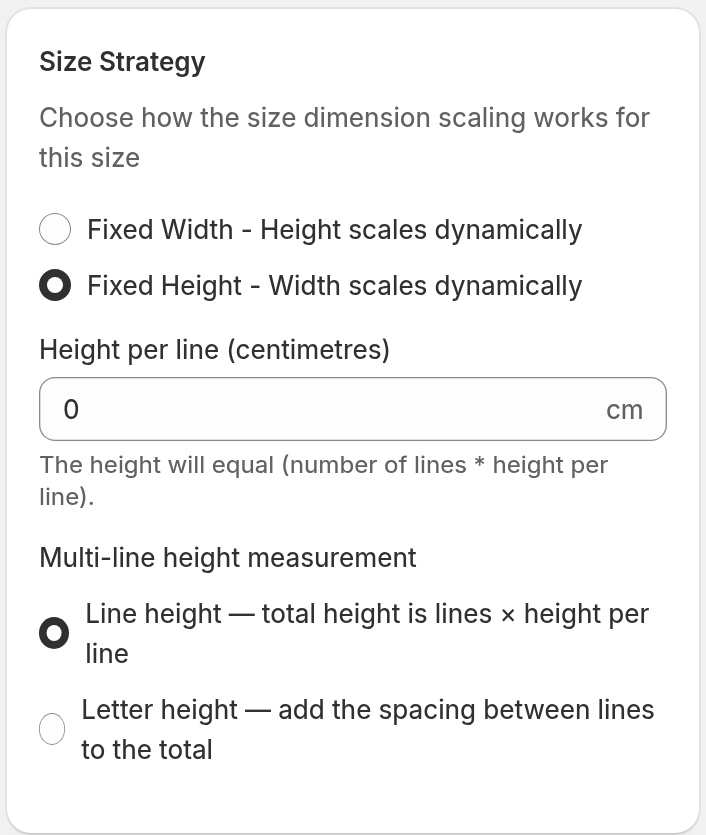
In Size Strategy, select Fixed Height - Width scales dynamically.
-
Under Multi-line height measurement, select one option:
-
Line height — total height is lines × height per line
-
Letter height — add the spacing between lines to the total
-
-
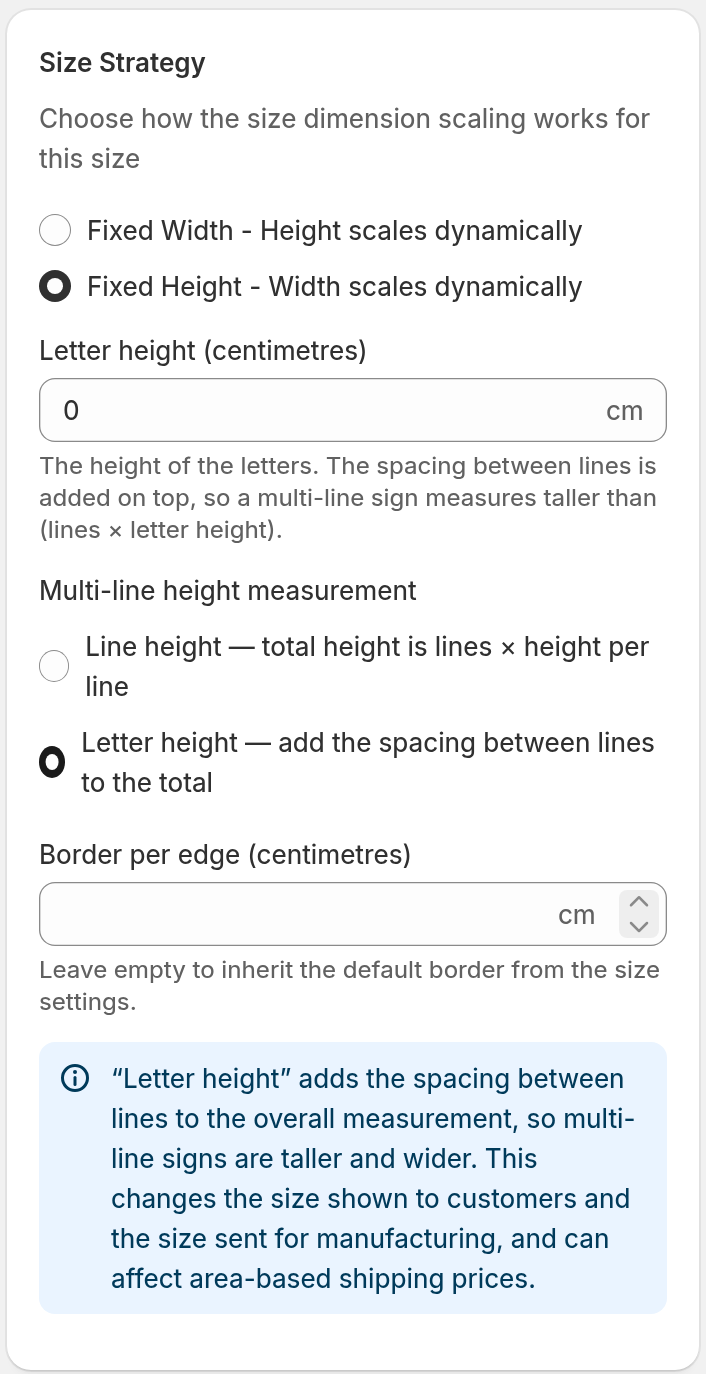
Enter the height. The field name shows the unit of your Store, for example Height per line (centimetres). With Letter height, the field is Letter height (centimetres). On an inch Store, the unit is inches. The value must be more than 0.
-
Optional: with Letter height, enter a value in Border per edge (centimetres). To use the default border from the Sizes page, leave the field empty. The border is part of the size.
-
Set the other fields, such as Lines of text and the character limits.
-
Click Save.
Existing sizes stay on Line height until you change them.
Generate a label
With Letter height selected, click Generate label to fill the Label from the height. For 7 inches, the label is “7 inch letters”. The button works only when Letter height is selected, the Label is empty and the height is more than 0.
What your customers and your manufacturer see
Your choice sets the size that customers see in the customiser. It also sets the size that goes to manufacturing. With Letter height and normal or wide font line spacing, a sign with more than one line is taller and wider than with Line height at the same value. With tight line spacing, the sign can be smaller. The letters keep their proportions.
With Letter height, you can let customers type an exact letter height. First save a size with Letter height. The Sizes page then shows an Exact letter height section. In that section, select Allow customers to enter an exact letter height. Then click Save on the Sizes page. The price then uses the next configured letter-height tier at or above the typed value.
Limits
-
You can choose this setting only for a size in the Simple Letter model with the Fixed Height size strategy.
-
With normal or wide font line spacing, Letter height makes multi-line signs larger than Line height at the same value. With tight line spacing, the signs can be smaller. If your customiser uses Sheet pricing, the area-based sheet price changes with the final size of the sign. Sheet pricing applies only to letter-height sizes.
-
The font sets the space between lines. To change it, read Change A Font’s Line Height / Line Spacing.