
Apply a Light or Tokyo Night theme preset
Set the colours on the Colour Scheme page in one step with the Light or Tokyo Night preset, then change single colours.
Last updated:
A theme preset sets all the colours on the Colour Scheme page in one step. You open this page from Theme Colours in the Customiser Menu. You can choose Light or Tokyo Night. After that, you can change single colours. Use a preset when you want a matched set of colours for a new customiser.
Before you start
A preset replaces every colour on the Colour Scheme page. When you save, you lose the colours that you set before.
Apply a preset
-
Open the Sign Customiser admin.
-
Universal accounts: Go to Customisers.
-
Shopify users: In the Shopify admin, open the app. In the app navigation, select Customisers.
-
-
Select the customiser that you want to change.
-
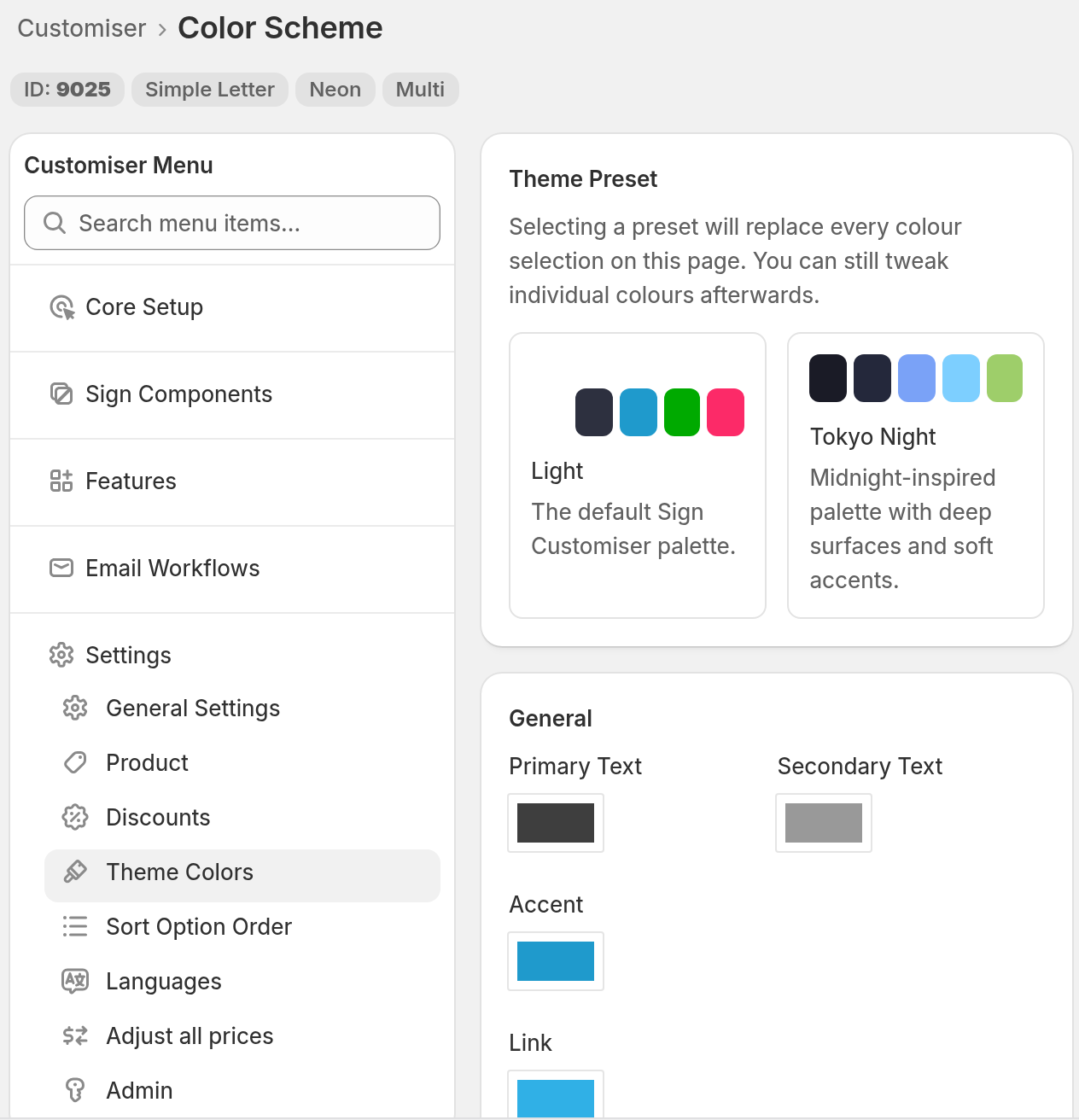
In the Customiser Menu, open Settings. Select Theme Colours.
If the admin content area is less than 1200 px wide, Theme Colours is the last item under Features.
-
In the Theme Preset section, select the Light card or the Tokyo Night card. Each card shows five colour swatches.
-
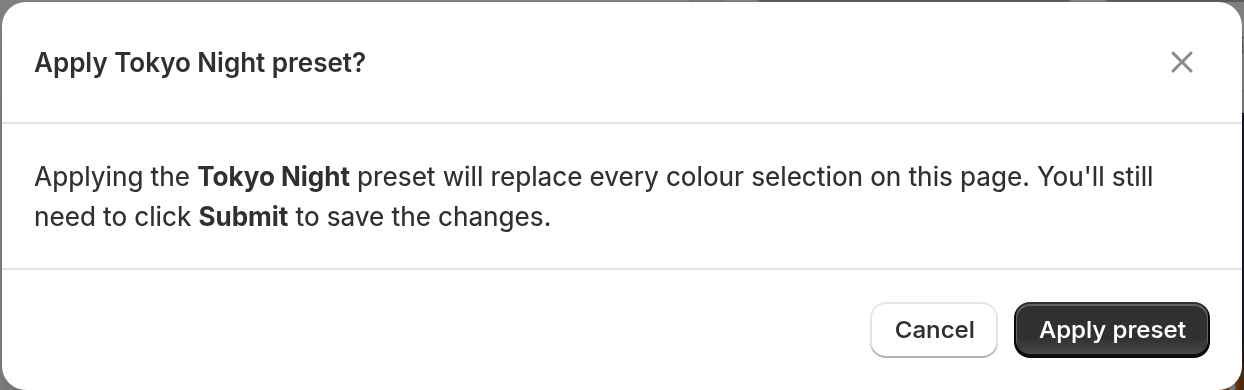
A dialog asks Apply Light preset? or Apply Tokyo Night preset? Select Apply preset. To stop, select Cancel.
-
Look at the colour fields. They show the colours of the preset.
-
Select Submit. The page shows Successfully Updated!
The page does not save the preset until you select Submit. If you leave the page before that, the page asks you to discard your changes. The customiser keeps its old colours.
The two presets
-
Light is the default Sign Customiser palette. It has a white sidebar.
-
Tokyo Night has dark surfaces and soft accents. It has a dark sidebar.
Change single colours after a preset
After you apply a preset, you can still change every colour field. Use the preset as a start. Then change the accent, the prices or the buttons to match your brand. To see what each field controls, read the Theme Colour Reference Guide.
To go back to the default colours, select Reset to Defaults. The page shows the Light colours. This action does not ask you to confirm. Select Submit to save the colours.
What the shopper sees
After you save, the customiser uses the new colours when a shopper opens it. The preview in the admin also refreshes.
Limits
-
A preset changes only the colours on the Colour Scheme page. Fonts, sizes and layout do not change.
-
To change a style that the page does not have, use Custom CSS.
-
The customiser saves the colours. It does not save the preset name.