
Snap words and icons to a grid and set the grid step
Turn on Snap to Grid for your customiser and set the Grid step, from 5 to 200, so words and icons move in fixed steps.
Last updated:
Snap to Grid makes the words and icons in a sign design move in fixed steps. The Grid step setting sets the size of each step. A smaller step gives finer control. A larger step gives bigger jumps.
Snap to Grid is part of the Drag, Scale, Rotate feature. This article is for merchants who use that feature.
Before you start
-
Turn on at least one of these settings: Enable Dragging, Enable Scaling or Enable Rotation. Snap to Grid has no effect when all three settings are off. For more information, see Drag, Scale, Rotate Words and Icons.
-
Turn on Enable Dragging if you want elements to snap while customers drag them.
-
Check your plan. Some legacy plans do not include Drag, Scale, Rotate. On those plans, the page shows “This feature is not available for your plan.” and an Upgrade your plan button.
-
Lightbox customisers do not have a Drag, Scale, Rotate menu item.
Turn on Snap to Grid and set the grid step
-
Open the Sign Customiser admin for your Store.
-
Click Customisers. Click the name of the customiser.
-
In the menu, find the Features section. Click Drag, Scale, Rotate. On a narrow screen, click Menu first.
-
Tick Enable Dragging. Tick Enable Scaling and Enable Rotation if you want them.
-
Tick Snap to Grid. The Grid step field shows.
-
In Grid step, enter a whole number from 5 to 200.
-
Click Save. The message “Successfully Updated!” shows.
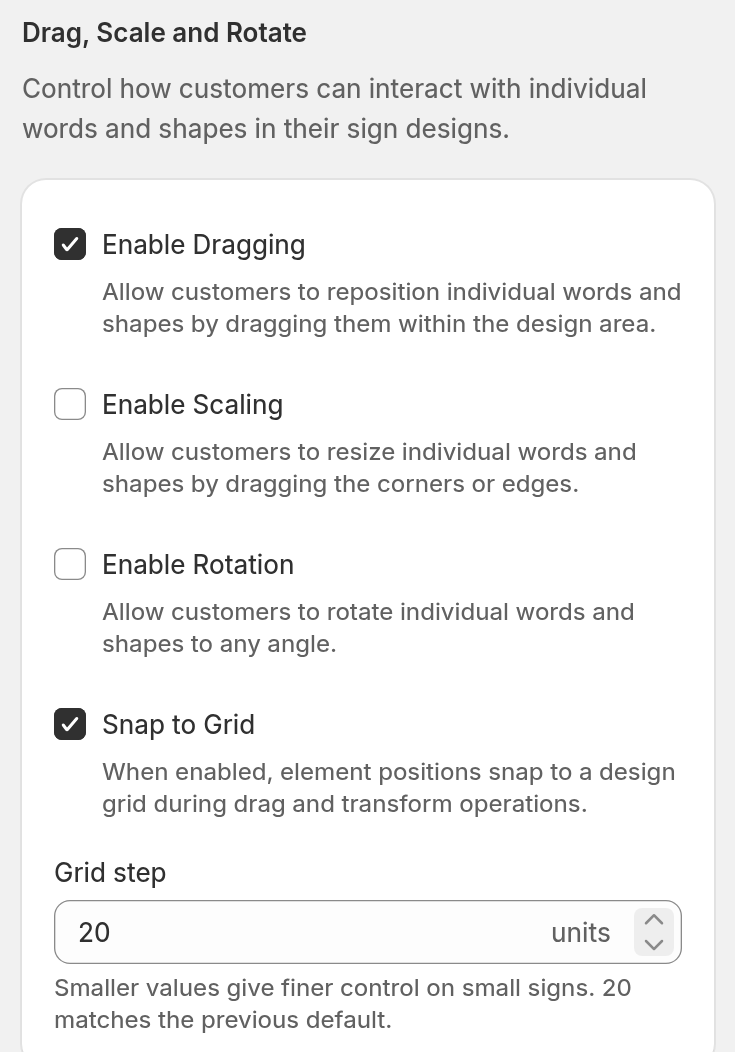
Snap to Grid is off by default. The Grid step field shows only when Snap to Grid is ticked.
Choose a grid step
The default step is 20. If no step is saved, the grid uses 20. A customiser that had Snap to Grid on before the Grid step setting existed also uses 20.
-
Use a small step, such as 5 or 10, for small signs and fine positioning.
-
Use a large step for bigger jumps and a tidier layout.
-
Test the step in your customiser preview. Change the step if the movement is too jumpy or too coarse.
The field accepts whole numbers only. The field shows an error for a value below 5, a value above 200 or a number with decimals. Enter a value from 5 to 200. Then click Save again.
What the customer sees
-
While a customer drags an element, light grey grid lines show behind the words. The spacing of the lines matches your Grid step. A solid or textured backing can hide the lines.
-
When a customer drags an element, the element moves in fixed steps set by the Grid step. It does not move freely. In some views, the steps do not line up with the grid lines.
-
When the customer releases the element, the grid lines go away.
-
After a customer scales or rotates an element, the position of the element snaps to the grid. The size and the angle do not snap.
-
Snap to Grid applies to the words, icons and shapes that the customer can move.
Limits
-
The Grid step must be a whole number from 5 to 200.
-
The setting belongs to one customiser. Set it on each customiser where you want it.
-
Snap to Grid does nothing when Enable Dragging, Enable Scaling and Enable Rotation are all off.
-
Grid lines show only while the customer drags or transforms an element.