

Disabling additional options
For the Yes / No input type, certain colours can disable the Yes button or the No button in the customiser.
Last updated:
You can stop customers from choosing the Yes answer or the No answer of an additional option. The customiser blocks the answer when the customer chooses an incompatible colour.
This feature is only available for the Yes / No input type.
Do these steps:
-
Open the Sign Customiser admin for your Store.
-
Click Customisers in the home menu.
-
Click the customiser that you want to edit.
-
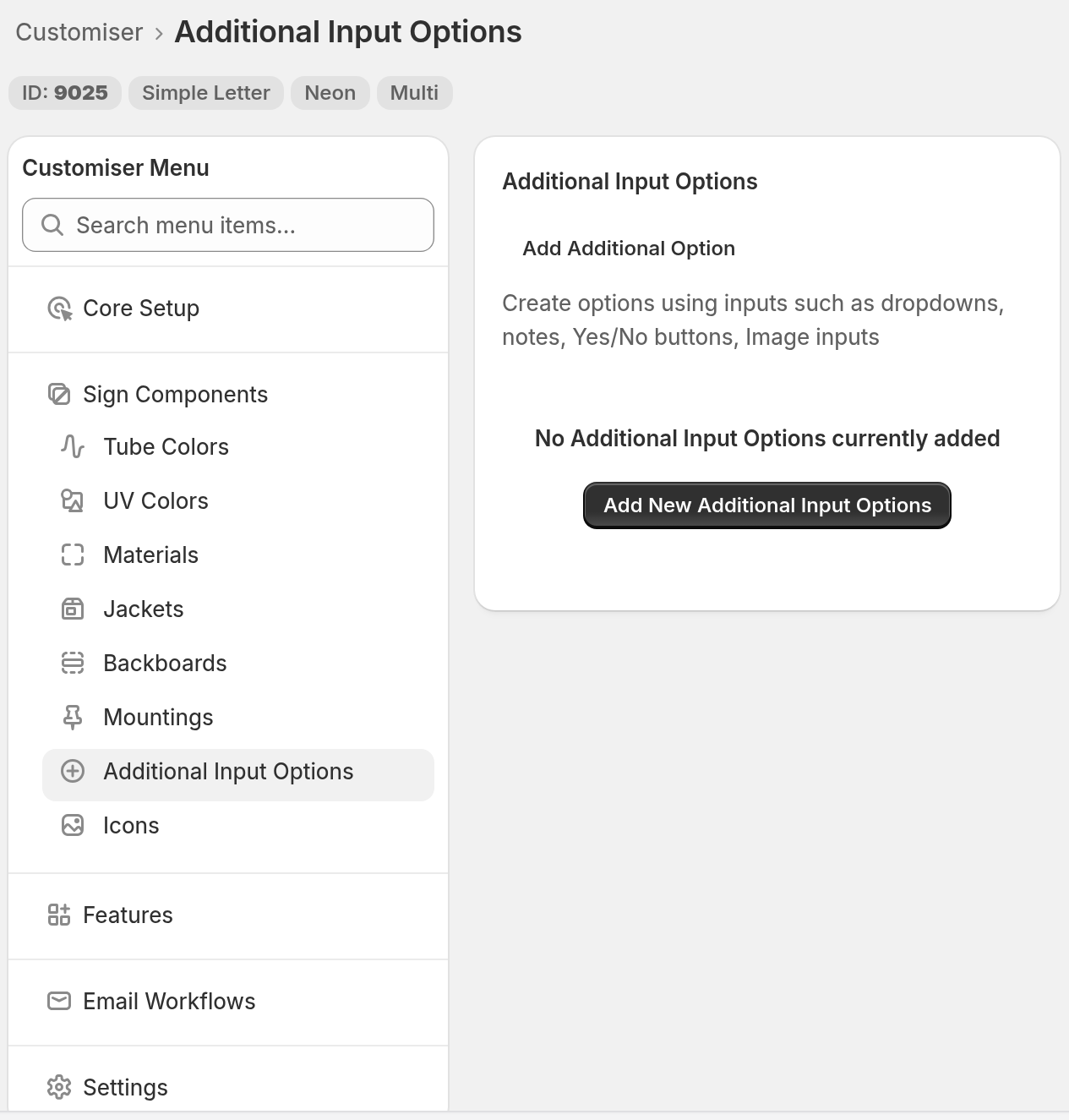
In the left-hand menu, go to Sign Components → Additional Input Options.
-
Click Add Additional Option to make a new option. To change an existing option, click that option.
-
For a new option, choose the Yes / No input type.
-
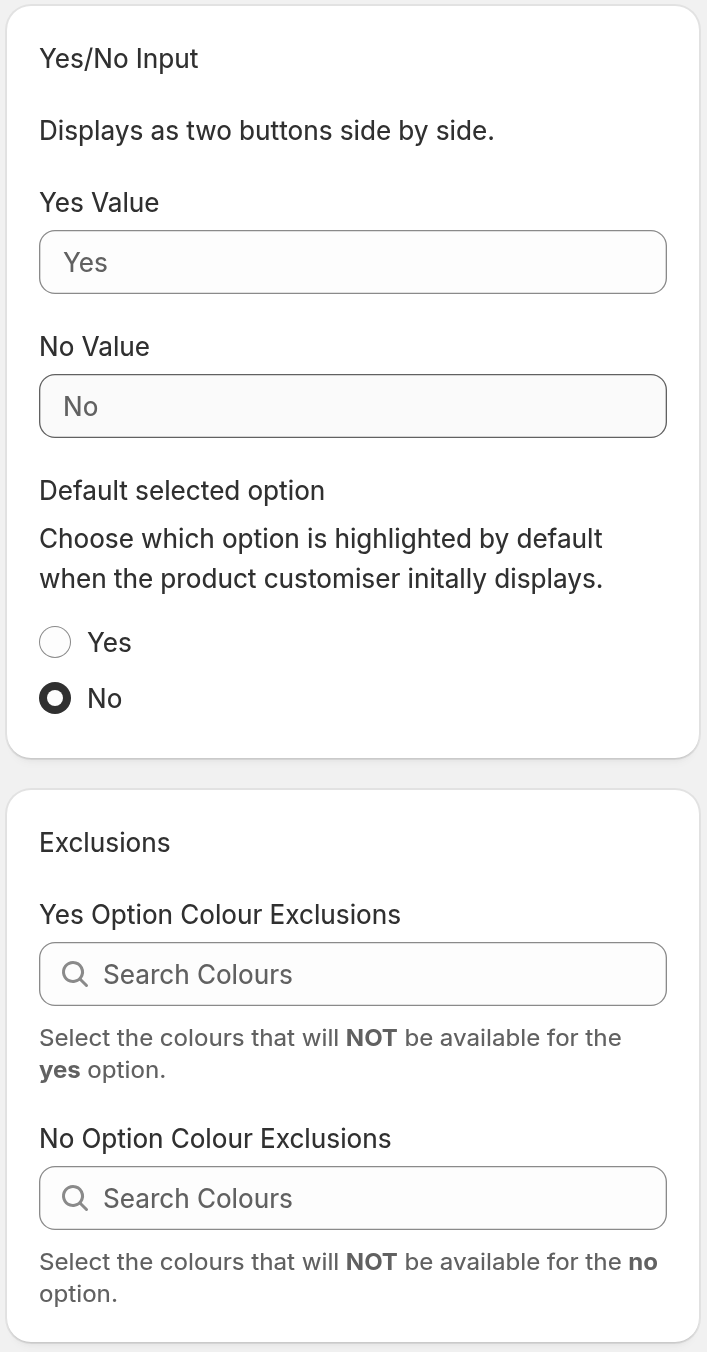
Go to the Exclusions section. Select the colours that customers cannot use with each answer:
-
Yes Option Colour Exclusions: the colours that disable the Yes button.
-
No Option Colour Exclusions: the colours that disable the No button.
-
-
Click Save.
This input type does not exclude backboards. It excludes colours only.
How the two lists work
The Yes answer and the No answer each have their own list. A colour in the Yes list blocks only the Yes answer. A colour in the No list blocks only the No answer.
Each entry in a list gives a colour and the part of the sign where the entry applies:
-
Any letter part - [colour] blocks the answer when the customer uses that colour on any part of the sign.
-
An entry for one part blocks the answer only when the customer uses that colour on that part. Examples are Face / Front Lit - [colour], Side - [colour], Trim - [colour] and Back Lit - [colour].
The part names depend on the sign type. Neon signs use UV and Tubes. Lightbox signs use parts such as Face, Back and Border.
What customers see
When a customer chooses a colour that you excluded, the Yes button or the No button is disabled. The customer may already have chosen that answer. Then a notice shows below the buttons and near the add-to-cart button. The customer cannot continue until they change the colour or the answer.
The default notice is “The selected option is not available with this colour.”
Change the notice
-
In the left-hand menu, go to Settings → Languages.
-
Click Edit for the language that you want to change.
-
Find the Extra colour exclusion message field. Enter your text.
-
Click Save draft.
-
Go back to the language list. Click Publish.