

Change the colour heading and colour cards
Change the colour heading and the card names and descriptions that shoppers see when a sign has two or more colour parts.
Last updated:
A sign can have two or more colour parts, for example the face and the side. The customiser then shows one card for each visible colour part, except that a lightbox Face and Border with the same colour options share one card. The customiser also shows a heading above the cards. You can change the heading text. You can also change the name and the description on each card. This article is for merchants who sell neon, channel letter or lightbox signs.
What shoppers see
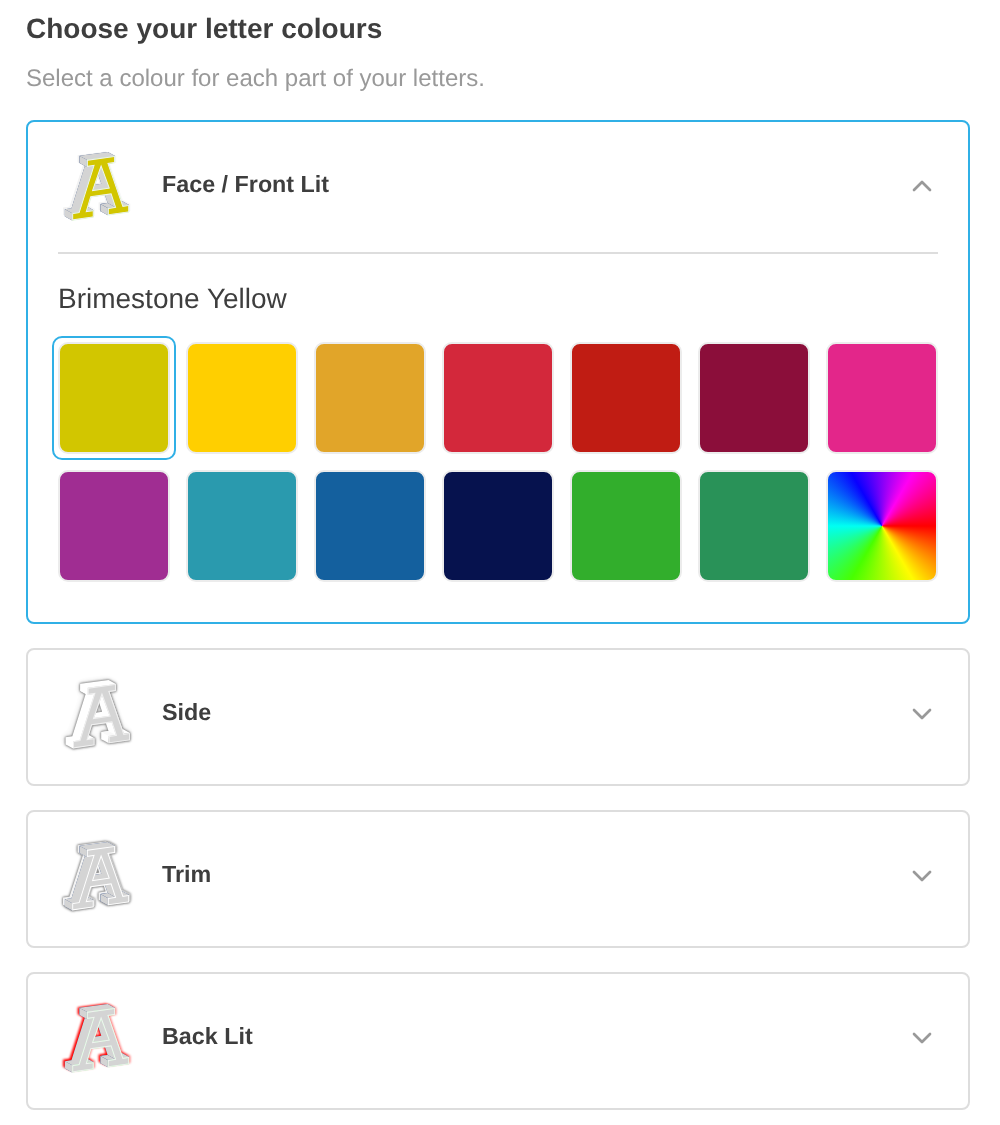
The colour section has a heading and a set of cards.
-
The heading. A title and a description show above the cards. A neon customiser shows “Choose your colours” by default. When the customiser shows step numbers, the heading has one number for all the cards.
-
The cards. Each visible colour part has a card, except that a lightbox Face and Border with the same colour options share one card (see Which parts have a card). The card shows an icon, the part name, an optional description and an arrow. On neon and letter signs, the icon shows the colour that the shopper chooses.
One card is open at a time. The open card shows the name of the current colour and the colour swatches. The first card is open when the shopper starts. When the shopper opens a different card, the card that was open closes. A card shows a badge with the number of colours that the design uses on that part when the part uses two or more colours. On a customiser with multi-colour styling on, the badge also shows when the part uses one colour.
The heading and the cards show only when the shopper sees two or more cards. If there is only one card, the shopper sees a single colour section with no heading. For example, a lightbox whose Face and Border share one card, with no other part visible, shows a single colour section with no heading and no card. Cut-out metal and stencil customisers have no colour parts. They show no cards and no heading.
Which parts have a card
-
Neon: Tubes and UV.
-
Channel letters: Face / Front Lit, Side, Trim and Back Lit.
-
Lightbox (rectangle or square): Face, Back, Left, Right, Top, Bottom, Border and Internal Light.
-
Lightbox (circle): Face, Back, Side, Border and Internal Light.
A part has a card only when it has at least one colour or an image upload. The required parts are Tubes on neon, Face on channel letters, and Face and Border on a lightbox. A required part has a card when it has a colour or an image upload. Other parts have a card when you turn them on and they have a colour or an image upload. On a lightbox, a part with one colour and no image upload has no card, even if the part is required. To show a card for a lightbox part, give the part two or more colours or an image upload.
On a lightbox, Face and Border share one card when they have the same colour options. The card name is “Front + borders”. If the Face or Border title includes “Front + borders”, the card uses that title. The card shows the Face description. A colour that the shopper chooses applies to both parts.
Designs from the AI sign designer
A colour part in an AI sign designer design can have a Restore original colours swatch. The swatch uses the colours from the original design. When the shopper chooses the swatch, the colour name is “Original Colours”.
Default heading text
Sign type | Title | Description |
Neon | Choose your colours | Select a colour for each part of your sign. |
Channel letters | Choose your letter colours | Select a colour for each part of your letters. |
Lightbox | Choose your lightbox colours | Select a colour for each part of your lightbox. |
On 29 September 2026, we added this text to each customiser, except cut-out metal and stencil customisers, that had two empty heading fields. We did not change a title or a description that you had set. A customiser with no saved labels also shows the default text.
Change the colour heading
All colour parts in a customiser use one heading. You can change it on the page of any colour part.
-
Open Customisers. Select your customiser.
-
In the customiser menu, find the Sign Components section.
-
Open the page of a colour part:
-
Neon: Select Tube Colours or UV Colours.
-
Channel letters: Select Letter Types. Open a letter type. Then open a part, for example Face.
-
Lightbox: Select Lightbox Types. Open a lightbox type. Then open a part, for example Face.
-
-
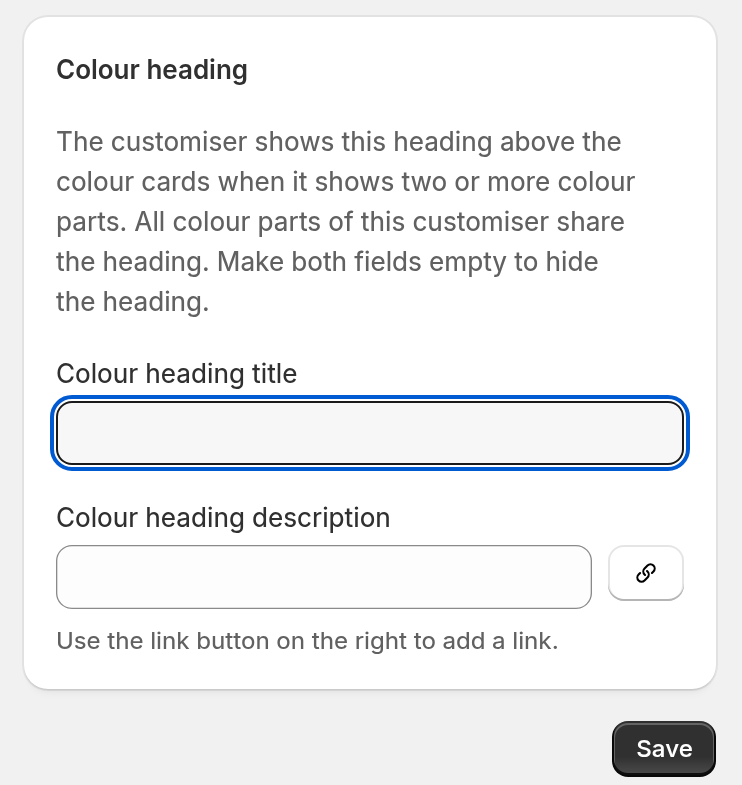
Scroll down to the Colour heading section.
-
Enter a title in Colour heading title.
-
Enter a description in Colour heading description. You can add Markdown links.
-
Select Save.
The Letter Types and Lightbox Types pages have the Letter Parts Title and Letter Parts Description fields. These fields change the same heading.
To hide the heading, make both fields empty. Then select Save.
A Braille sign has one colour part. Its colour page has no Colour heading section. The Tactile text styles page has the Tactile text title and Tactile text description fields.
Change the name and description of a card
A card uses the title and the description of its colour part. A shared lightbox Face and Border card is named by the rule in “Which parts have a card” and shows the Face description.
-
Open the page of the colour part, as in the steps above.
-
In the settings card, enter a Title. The card name is the part name followed by “Settings”, for example Face / Front Lit Settings on a channel letter sign or Face Settings on a lightbox.
-
Enter a Description. It shows under the card name.
-
Select Save.
If Title is empty, the card uses the default part name, for example “Face / Front Lit” or “Tubes”. If Description is empty, the card shows no description. A shared lightbox Face and Border card follows the rule in “Which parts have a card”.
Limits
-
One heading applies to all colour parts in a customiser. You cannot set a heading for one part.
-
The heading and the cards do not show when the shopper sees only one card. A lightbox whose Face and Border share one card, with no other part visible, is one example.
-
The shopper cannot close the open card. The shopper must open a different card.
-
Cut-out metal and stencil customisers have no colour heading.