

Why is my pricing very different from my competitor's sign customiser
Last updated:
Prices and sizes on a neon letter sign can differ between your customiser and a competitor’s customiser. Many merchants do not understand why. Three points can explain the difference.
-
You use a different font file. The shapes look similar, so you think the font is the same. To check, follow these instructions.
-
Your pricing model or sizing strategy is different. Sign Customiser has three current pricing models.
-
Simple Letter: you choose preset sizes, and you set the prices on the Pricing page. Each size has a fixed height (Fixed height per size) or a fixed width (Fixed width per size). See Getting Started with the Simple Letter Model.
-
Advanced Letter: the price can depend on the material length of the letters (Price by material length). See Getting Started with the Advanced Model.
-
Frame Fit: the price depends on the frame size of the sign (Price per square meter/foot). See Frame Fit Model.
Sign Customiser does not let you create a new customiser with the older Fixed Height model. A copy of an existing Fixed Height customiser keeps that model. You can set a Simple Letter size to a fixed-height sizing strategy. This replaces the older Fixed Height model. On each size, set Size Strategy to Fixed Height - Width scales dynamically. You can also set Multi-line height measurement to Letter height — add the spacing between lines to the total.
-
-
Your font is in a different pricing tier. In a Simple Letter customiser, the Pricing item in the Customiser Menu sets a price for each group of fonts. Two fonts with similar shapes can have different prices.
How to check your own pricing model and sizing strategy
-
Open your customiser in the merchant admin.
-
Look at the labels under the page title. One label shows the pricing model, for example Simple Letter.
-
In the Customiser Menu, click Sizes.
-
On a Simple Letter customiser, click a size to open it. The Size Strategy setting shows Fixed Width - Height scales dynamically or Fixed Height - Width scales dynamically.
How to ensure that I am using the same font file as my competitor
The best way to get the same font file is to download the file that your competitor uses. This can be difficult.
Compare the fonts as follows.
-
Open your competitor’s customiser in one browser tab.
-
Open your customiser in another browser tab.
-
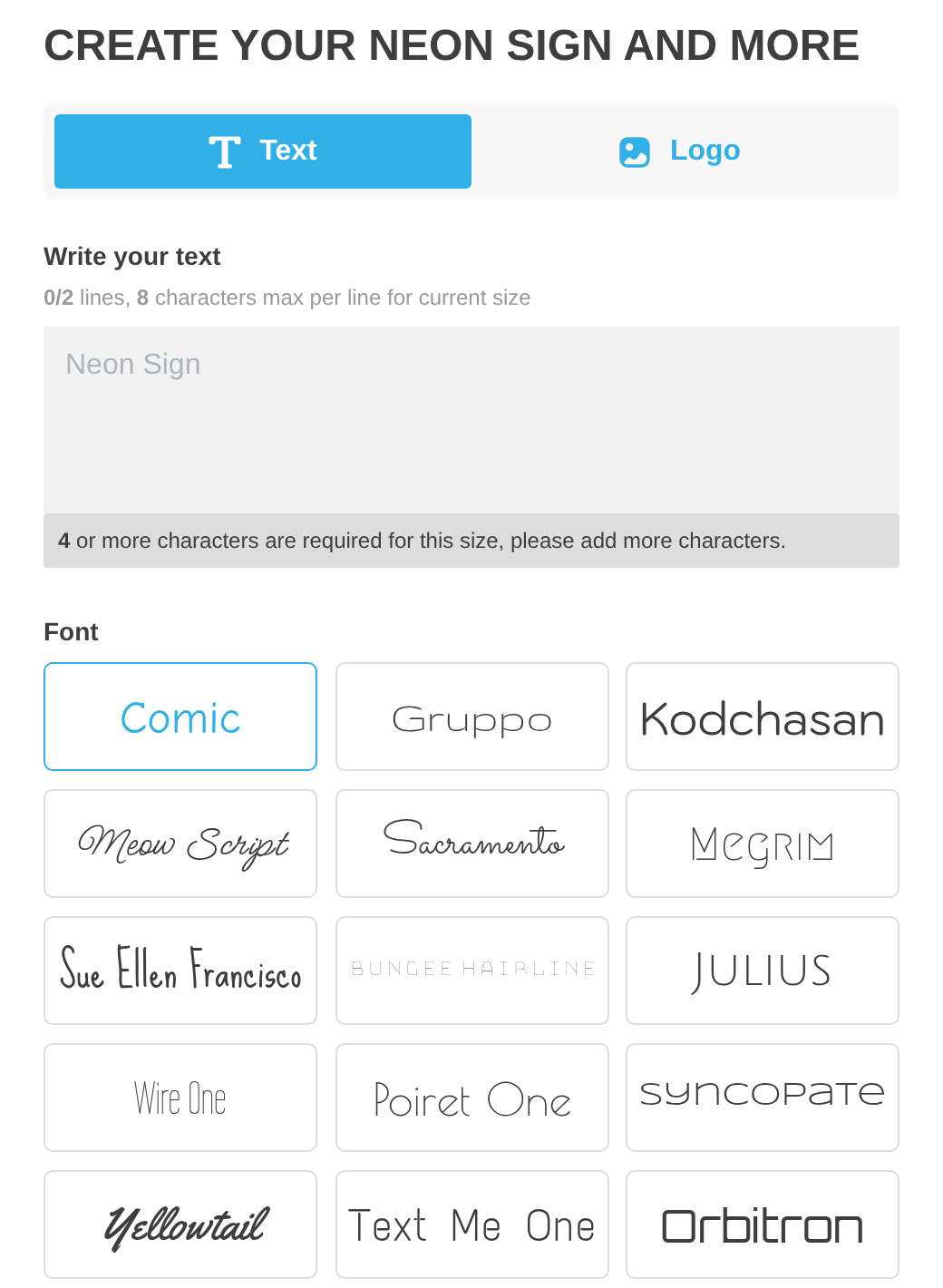
In both tabs, enter the same characters, for example “abcdefghijklmnopqrstuvwxyz”. If a customiser limits the characters on a line, enter the letters in groups. Then repeat with capitals and digits, if the sign allows them.
-
Compare each letter. All bends and shapes must be exactly the same. If you see a small difference, the fonts are not the same.
You can also download the font files that your own customiser uses. In the Customiser Menu, open Fonts. Click Download All Fonts below the font list. For more information, see How to download fonts from a customiser.