

Changing Currencies in Shopify App
Last updated:
Our app uses the primary currency of your Shopify store as its base currency. In the Shopify app, you cannot select a different currency. If you set a different currency for the Store in the Universal admin, the Shopify currency replaces it the next time you open the Shopify app.
If you use the Universal app, read Change the primary currency for the store in the universal app.
Change the currency
-
Change the currency in Shopify. Use the Shopify guide: Changing your store currency.
-
Open the Sign Customiser app in your Shopify admin.
The app copies the new currency from Shopify when you open it. Until then, your Store keeps the old currency.
Check your prices
A currency change changes the currency code. It does not convert your prices. A price of 50 stays 50 in the new currency.
-
Open each customiser.
-
Check the prices in the preview.
-
Change each price that is not correct.
To change all prices in a customiser by one percentage, click Adjust all prices in the Settings section of the customiser menu.
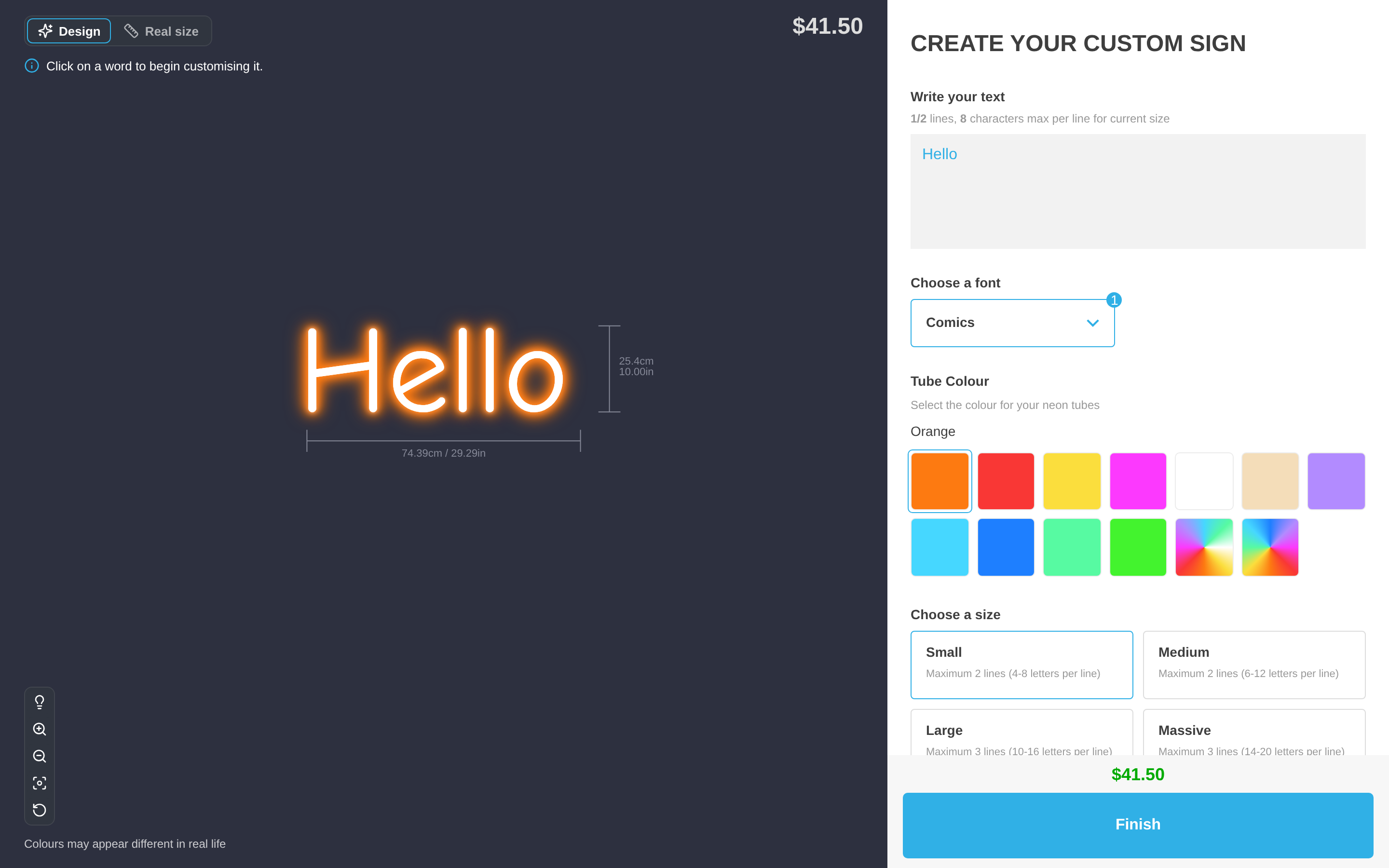
What shoppers see
If you sell with Shopify Markets, shoppers see prices in the currency of their market. The Store currency does not change. For setup steps, read Enable Shopify markets on your store and Multi-Currency.