

Customiser Overview page
The Overview page shows the setup progress, results and problems of one customiser. It links to the pages where you make changes.
Last updated:
The Overview page is the first page of each customiser in the admin. It shows the setup steps, the results of the customiser and the problems to fix. It also shows the customiser as customers see it. It has shortcuts to frequent tasks.
Open the Overview page
-
Open the Sign Customiser admin.
-
Select Customisers.
-
Select your customiser. The Overview page opens.
From a different customiser page, select Overview under Core Setup in the Customiser Menu.
The page header shows the customiser name and its ID, for example ID: 9025. You use this ID in embed code. The Overview page does not show the live preview next to the menu. To see the customiser, select Preview in the page header. On this page, the Preview button shows at all window widths.
Set up your customiser
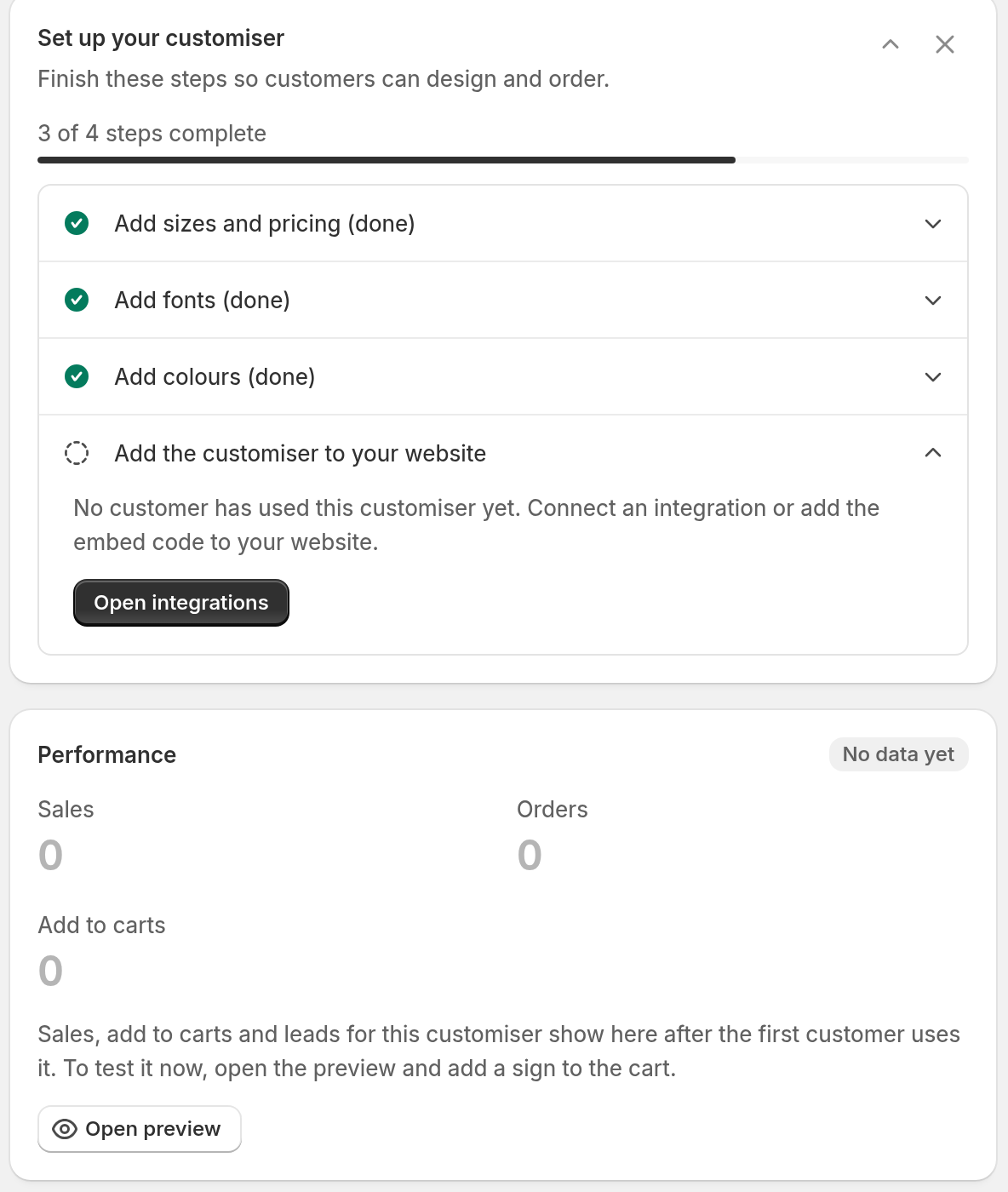
The Set up your customiser card shows the steps to do before customers can design and order. It shows the number of complete steps, for example 2 of 5 steps complete.
You do not mark a step as complete. Most steps become complete when you add the data that they need. The first step that is not complete is open. To see the button of a different step, select that step. The button opens the correct page or guide. The card can show these steps:
-
Add sizes and pricing.
-
Add fonts. Lightbox customisers do not have this step.
-
Add colours. Channel letter customisers show Add letter types, lightbox customisers show Add lightbox types, and braille customisers show Add tactile text styles. Metal cut-out and stencil customisers do not have this step.
-
Choose who gets order emails. This step shows only when no email address is available for orders.
-
Add the customiser to your theme (Shopify) or Add the customiser to your website (Universal).
The last step becomes complete when the first customer activity occurs on this customiser. Customer activity is an add to cart, an order, a quote request, a custom design request, an AI design or a shared design. This rule is the same on Shopify and on Universal. An integration that is on does not complete the step. When the step is complete, its title shows (done). When you select the step, it shows Customers have used this customiser.
-
On Shopify, View installation guide opens the guide for app blocks. For an older theme, select View the legacy guide after Using an older theme?.
-
On Universal, Open integrations opens the Integrations and Webhooks page.
To complete the step yourself, add a sign to the cart on your store. The preview does not add signs to the cart.
To hide the card, select the close icon (Dismiss setup guide). To show the card again, select Show setup guide. When all steps are complete, the card does not show, or it shows only Your customiser is set up.
Performance
The Performance card shows the results of this customiser. Select Last 7 days, Last 30 days or Last 90 days. The card compares the period with the period before it. In the chart, the previous period is a dashed line.
-
When quote mode is off, the card shows Sales, Orders, Add to carts and Cart to order. The chart shows sales for each day.
-
When quote mode is on, the card shows Quote requests first. It shows Sales and Orders only when the customiser has orders. The chart shows quote requests for each day.
A second row shows leads and designs. It shows a tile only when the customiser is set up for it, or has data for it in the current or previous period. The tiles are:
-
Quote requests. When quote mode is on, this tile is in the first row instead.
-
Custom design requests.
-
AI designs.
-
Shared designs.
When the second row has quote requests and custom design requests, it shows them in one Form submissions tile.
View quotes opens the Quotes page with the submissions of this customiser only. The link shows when the customiser has quote or form submissions.
Until the customiser has its first add to cart, form submission, AI design or shared design, the card shows No data yet and no second row. To test the card, add a sign to the cart on your store. The preview does not add signs to the cart. Sign Customiser does not count how many customers open the customiser.
Needs attention
The Needs attention card shows problems that can stop sales. Examples are prices at 0, products that Sign Customiser could not create on your store, and a missing form. Each problem has a badge: Urgent, Warning or Info. Most problems have a button that opens the page where you fix the problem. Some problems have View details, which shows each cause and the next step.
To see all checks and their results, select Show all checks. A result is Passed, Needs attention or Not checked.
When all checks pass, the card does not show.
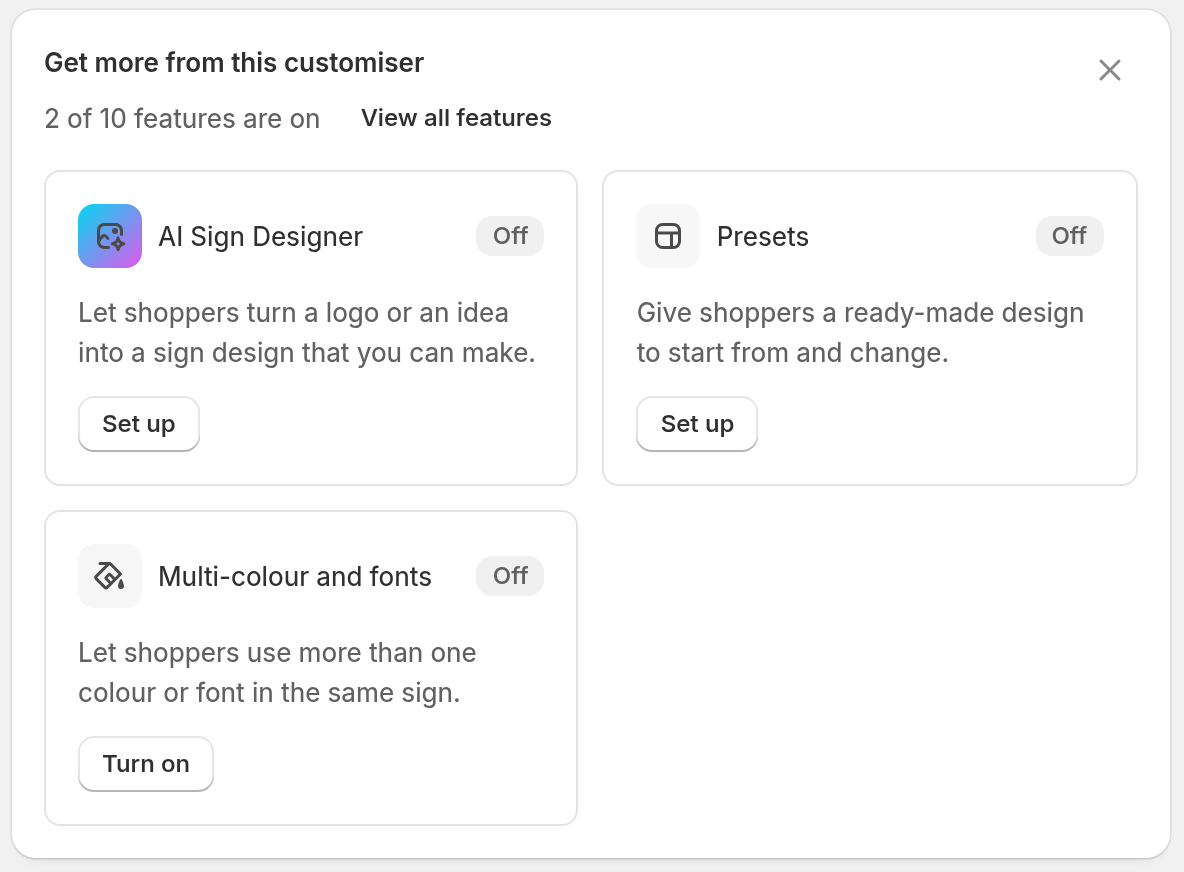
Get more from this customiser
This card suggests up to three features that are off and that apply to this sign type. An example is AI Sign Designer. Each suggestion has a button: Set up, Turn on, or See plans when your plan does not include the feature.
The card shows how many features are on, for example 5 of 11 features are on. To see the full list, select View all features. Each row opens the page where you set the feature. To see what a feature does and where you set it, point to the row or select the info button.
To hide the card, select the close icon (Hide this card).
Customer activity
The Customer activity card shows on the Overview page of each customiser. The card is the same on Shopify and on Universal.
The card has a status badge. The badge shows how recently customers used the customiser:
-
Live: the last customer activity was in the last 7 days.
-
Active this month: the last customer activity was more than 7 days ago and not more than 30 days ago.
-
Quiet: the last customer activity was more than 30 days ago.
-
No customers yet: no customer has used the customiser.
Below the badge, the card shows a small live preview of the customiser. To open the full preview, select the small preview or Open preview.
Below the preview, the card can show these rows. Each row shows only when its data is available.
-
Last activity: the type of the last customer activity and the time since it, for example Add to cart · 2 hours ago.
-
Seen on: up to 3 store pages where a customer started an add to cart in the last 7 days. The pages show as text, not as links.
-
Languages: the languages that customers can use. The row label includes the number of languages, for example Languages · 2. The badge of the default language includes Default.
-
Last change: the time since the customiser changed, for example 2 days ago.
Smart actions
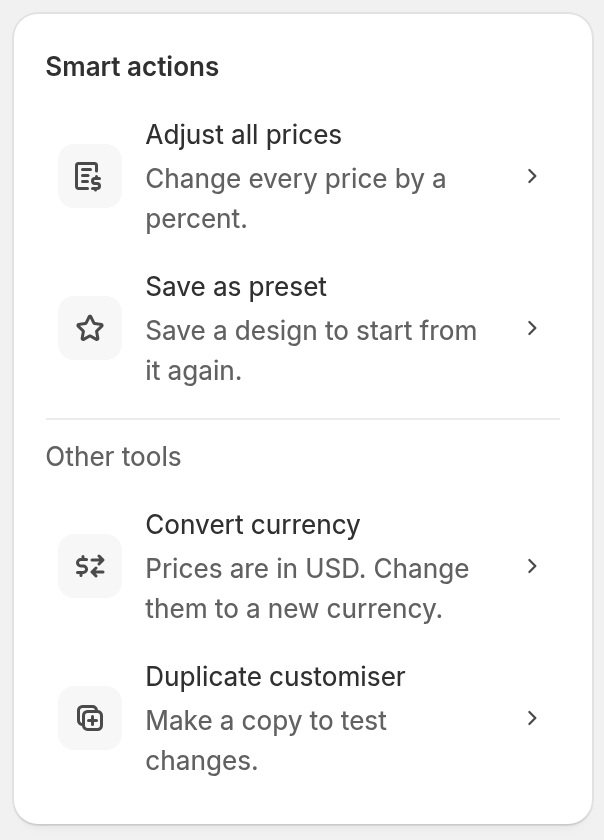
The Smart actions card has shortcuts to frequent tasks:
-
Adjust all prices: change every price by a percentage. See Quickly update all prices.
-
Save as preset: open the presets page.
-
Translate with AI: open the languages page. This row shows only when the customiser has a language other than the default language.
Under Other tools:
-
Convert currency: change every price to a new currency.
-
Duplicate customiser: make a copy of the customiser. Use the copy to test changes.
A customiser from a different Store
On Universal, a link can open a customiser that is in a different Store. Then the page shows You cannot open this customiser here. To switch to that Store and open the customiser, select Open in followed by the Store name.
Where to find the embed code
The Overview page does not show embed code. To get the embed code for WooCommerce or Custom API, go to Integrations. Select View Details on your integration. Then copy the code from Embed Instructions. See Embed the customiser on any website.