

Let customers curve each line of neon text
Turn on curved text so customers can bend each line of an LED neon sign up or down.
Last updated:
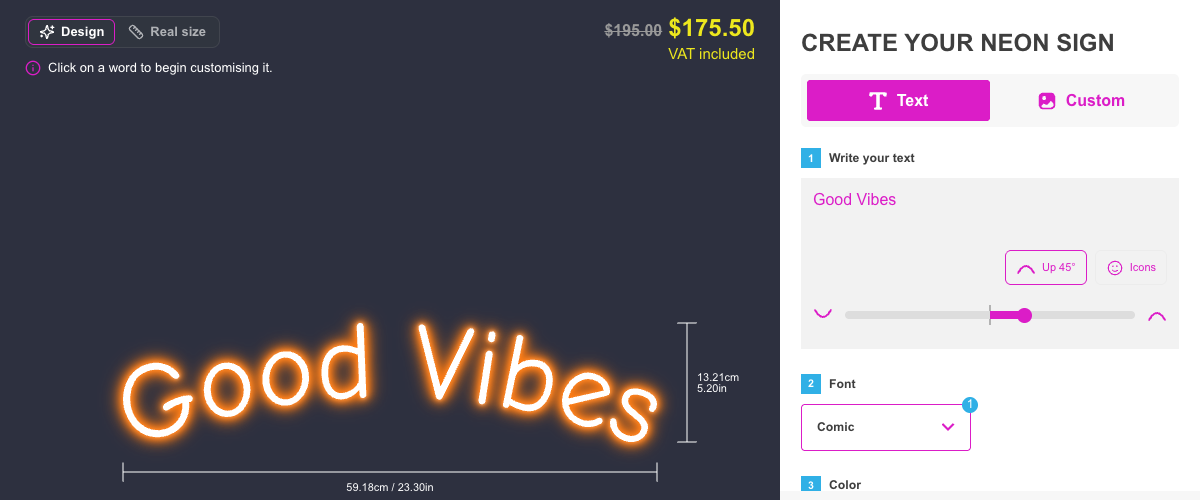
Curved text lets your customers bend each line of an LED neon sign. A line can arch up or dip down, and each line has its own curve. The preview shows the curved sign, and the sign size changes to fit the curved text.
Try it on the demo store: LED neon: curved text.
Before you start
-
Curved text works only on LED neon customisers.
-
Curved text is not available on all Stores yet. If your Store does not have it, the setting does not show.
-
The setting is off by default on all customisers. When you duplicate a customiser, the copy keeps the setting.
Turn on curved text
-
Open the Sign Customiser admin for your Store.
-
Click Customisers. Click the name of the LED neon customiser.
-
Click General Settings.
-
Tick Let customers curve each line of text. This setting is below Text Orientation.
-
Click Save.
You can also change this setting with API v3 or with the update_customiser tool of the MCP server.
What the customer sees
-
The toolbar of the text box has a Curve button. The customer clicks Curve to show the curve slider.
-
The slider bends the line that has the cursor. Move the slider to the right to make an arch. Move the slider to the left to make a dip.
-
The curve can be up to 180 degrees up or down. The centre mark of the slider is straight.
-
The Curve button shows the curve of the line, for example “Up 45°” or “Down 30°”.
-
When the sign has two or more lines, the slider name includes the line number, for example “Curve for line 2”. To curve a different line, the customer clicks in that line.
-
The preview shows the curved text. The height of the sign changes to fit the curve.
-
Each word on a curved line can have its own colour and font.
To make a line straight again, the customer moves the slider back to the centre mark. Near the centre, the slider snaps to straight. If the slider is not available, the customer clicks Make this line straight.
Messages under the slider
Some messages tell the customer why a line cannot curve now:
Message | What to do |
Remove the icon from this line to curve it. | Remove the icon from the line, or put the icon on a different line. A customer cannot add an icon to a curved line. |
Type text on this line to curve it. | Type text on the line first. |
You moved or turned some words. Reset the positions to curve this line. | Click Reset positions. The words on a curved line cannot move. |
Make all lines straight to use vertical text. | To use vertical text, click Make all lines straight. Curved text works only with horizontal text. |
Some problems stop the order. The customer cannot add the sign to the cart until they correct the curve. The price box shows a message, and a message also shows under the slider:
Under the slider | In the price box | What to do |
The curve is too tight for these letters. Make the curve smaller. | The curve is too tight for this text. Make the curve smaller. | Move the slider nearer to the centre. |
The curve is too tight for this text. Make the curve smaller. | The curve is too tight for this text. Make the curve smaller. | Move the slider nearer to the centre. Short text cannot take a large curve. |
This font cannot make curved text. Select a different font, or make the line straight. | We cannot show the curved text. Make the line straight, or select a different font. | Select a different font, or make the line straight. |
Remove the icon from this line to curve it. | Remove the icon from the curved line, or make the line straight. | Remove the icon, or make the line straight. |
Curved text does not work on a customiser that is set to right-to-left. It also does not work with a design from the AI sign designer.
Change the curve messages
The curve labels and messages are customer language labels. To change them, open the Languages page of the customiser. The labels are in the Text editor section.