

Limit colours by sign size
Set a minimum sign width and height for a colour, so customers can choose it only on larger signs.
Last updated:
You can make a colour available only on larger signs. Each colour has a Minimum Size section. When the sign in the customer customiser is smaller than the minimum size, the customer cannot choose that colour.
All sign colours have this setting. RGB colours are one example.
Find the setting
-
In the merchant admin, click Customisers. Then click the name of the customiser.
-
In the menu, open Sign Components.
-
Open the colour list:
-
For a neon sign, click Tube Colours.
-
For a channel letter sign, click Letter Types. For a lightbox sign, click Lightbox Types. Click the type. Then click the sign part, for example Face / Front Lit or Back Lit.
-
-
Click a colour. To add a new colour, click Add colour or Add texture.
-
Scroll to Minimum Size (optional).
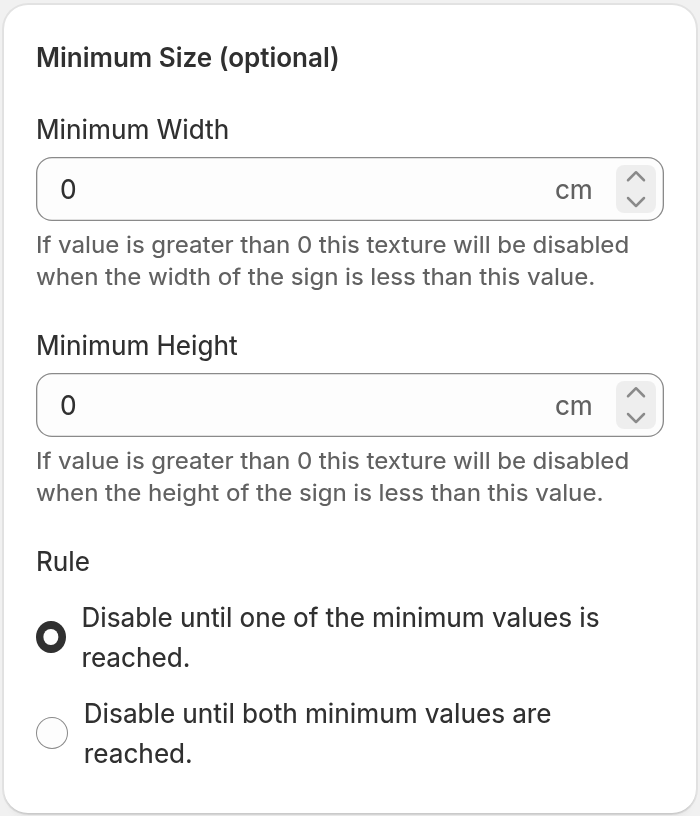
Set a minimum size
-
In Minimum Width, enter the smallest sign width for this colour.
-
In Minimum Height, enter the smallest sign height for this colour.
-
Under Rule, choose an option. The next section shows how each option works.
-
Click Save.
Enter the values in the measurement unit of your Store. The field shows the unit (cm or in). A value of 0 sets no minimum for that dimension. A sign that is equal to the minimum value is large enough.
How the Rule works
-
Disable until one of the minimum values is reached. This is the default. The colour is available when the sign reaches the minimum width or the minimum height. The colour is disabled only when the sign is smaller than the two values. If one value is 0, this rule never disables the colour.
-
Disable until both minimum values are reached. The colour is available only when the sign reaches each minimum value that is more than 0. The colour is disabled when the sign is smaller than one of these values.
To limit a colour by width only, enter a Minimum Width. Keep Minimum Height at 0. Then choose Disable until both minimum values are reached. To limit a colour by height only, do the same steps with Minimum Height.
Example: the Minimum Width is 50 cm and the Minimum Height is 20 cm.
-
For a sign of 60 cm × 15 cm, the first rule makes the colour available. The second rule disables the colour.
-
For a sign of 40 cm × 15 cm, the two rules disable the colour.
What the customer sees
-
In the colour list, a colour that needs a larger sign is disabled. It is pale, and the customer cannot click it. The colour list that opens when the customer clicks a word on the sign works in the same way.
-
The customer can choose the colour first and then make the sign smaller. The colour selection does not change. The customer customiser shows a message. The default message is “The selected colour is only available for larger sizes.”
-
While the message shows, the customer cannot add the sign to the cart or go to the next step. The customer must make the sign larger or choose a different colour.
Other options with a minimum size
Backboard colours, mounting colours and backlights have the same Minimum Size section and the same Rule options. When the selected option needs a larger sign, the customer customiser shows a message. The customer cannot continue. For more information, read these articles:
Related articles
-
Fonts - Simple Letter Model. Its Font Size Availability step sets a minimum sign size for a font.