

Show the Custom Tab First
Show the Custom tab before the Text tab on your customiser.
Last updated:
On desktop, and on mobile in the Stacked all at once view, the Text | Custom switch is at the top of the options column while customers design their sign. By default, the Text tab is first. You can show the Custom tab first. Then the customiser also opens on the Custom tab, with the conditions in this article. Use this setting if most of your customers send their own artwork.
Before you start
The setting changes the switch and the opening tab only when customers can see the Custom tab. On mobile, the setting always changes the order of the buttons on the Initial Selection Screen. These conditions must be true:
-
Enable Text Editor is on, in Core Setup → How customers design → Text editor. When the text editor is off, customers see only the custom design screen and no switch.
-
One custom design way is on:
-
AI Sign Designer.
-
Upload form. Your plan must not be a Starter or Launch plan. The customiser must have at least one Custom designs form with a required Email field.
-
Link to a page, with What customers see set to A custom design screen.
-
For the plan and other conditions, read Custom Design Tab.
Show the Custom tab first
-
Open the Sign Customiser admin.
-
Universal: Sign in at web.signcustomiser.com.
-
Shopify: Open the app from your Shopify admin.
-
-
Click Customisers and select your customiser.
-
Under Settings, click General Settings.
-
In the Shopper Defaults card, select Show the custom design tab first.
-
Click Save.
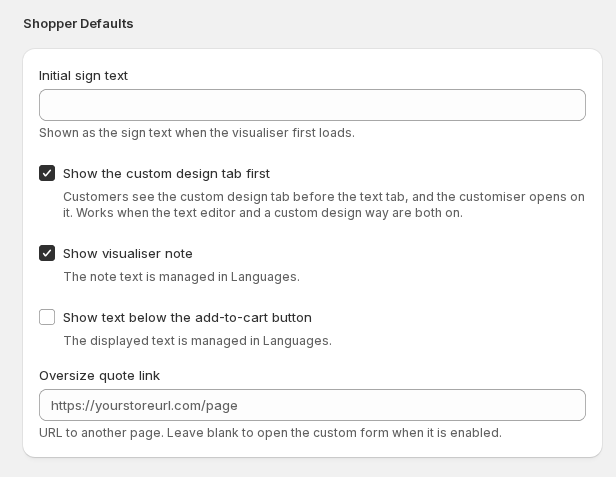
To show the Text tab first again, clear the checkbox and click Save.
What customers see
-
The Custom tab is first in the switch. The Text tab is second.
-
The customiser opens on the Custom tab (for AI Sign Designer, see the note below). Customers see the AI Sign Designer upload view, your upload form, or your custom design screen. This depends on the custom design way that is on.
-
Customers can click Text to type their text.
-
On mobile, the Mobile View setting One Selection at a Time shows no switch.
-
On mobile, when the Initial Selection Screen shows, customers see that screen first. The Custom button is above the Text button. This order follows the setting.
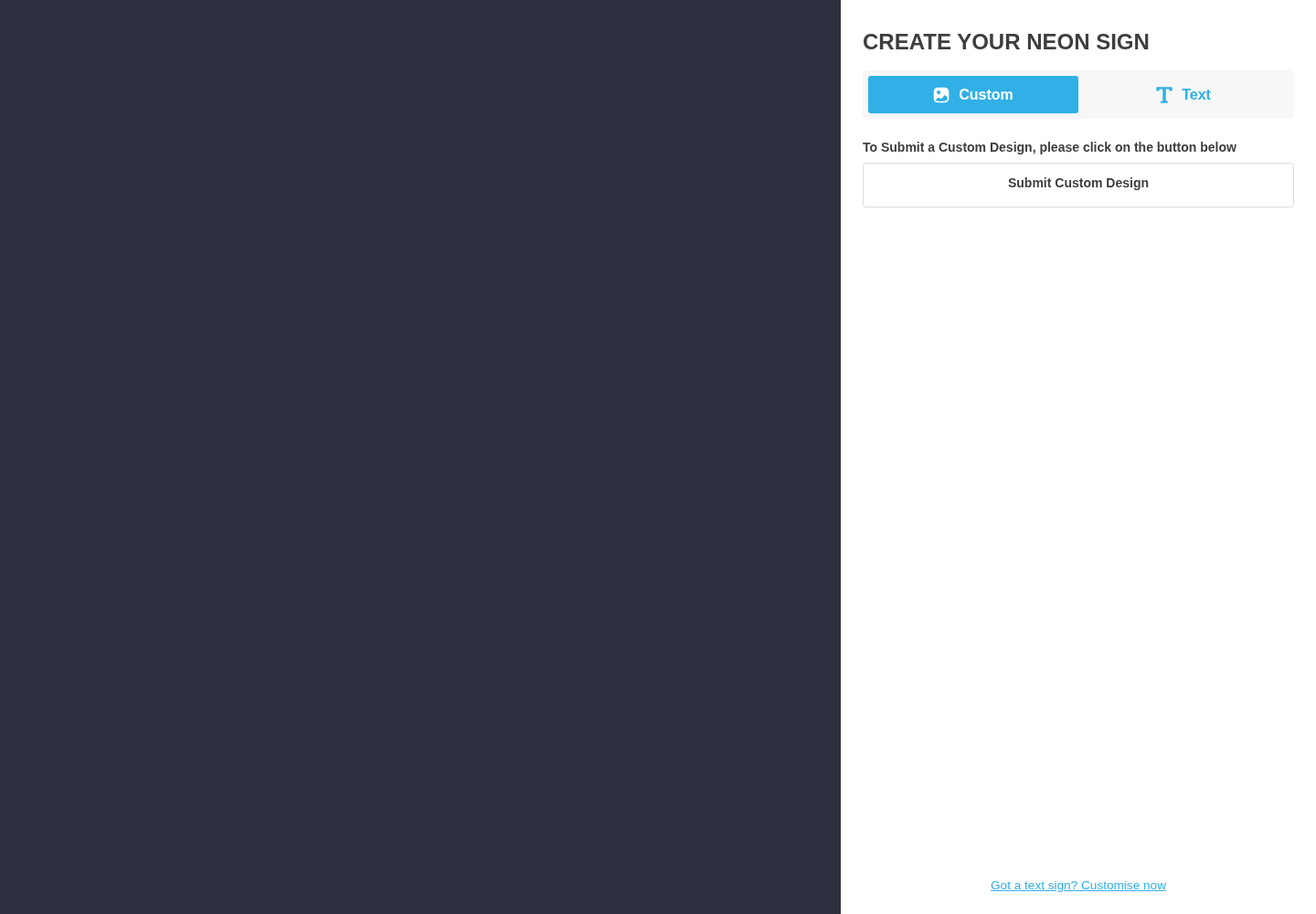
Note: If AI Sign Designer is on, your store must have AI credits for the customiser to open on the Custom tab. With no AI credits, the Custom tab is still first, but this setting does not open the customiser on the Custom tab.
To change the names of the tabs, edit the Text Tab and Custom Design Tab fields in Settings → Languages. Click Save draft, then click Publish. For example, change Custom to Upload Design.